Manager
Understand the importance of upgrade-relevant features available in SAP Solution Manager. Learn the details of the mandatory features for an upgrade to use the compare and adjust functionality of SAP Solution Manager. Take away guidelines for upgrade project phases leveraging SAP Solution Manager as the key enabler.
Key Concept
The deciding factors of an SAP upgrade are business and IT priorities and allotted IT budgets. Once the decision to upgrade is approved, the next steps involve planning and execution. The intent is a smooth transition to the next SAP release so that business continuity is not affected. SAP Solution Manager plays an important role before, during, and after the upgrade of SAP releases. It has a distinct set of features for different upgrade phases, which involves an upgrade roadmap, an upgrade blueprint, upgrade realization, test management, and training management.
In the today’s economy, shrunken IT budgets are slowly opening up, but the reduction in IT operating cost is still the top priority for CIOs. Due to this, the business case for an upgrade is generally compromised by doing lots of custom development in the existing SAP landscape. Hence, either the end of extended maintenance support or the introduction of new leadership is often the point where a technical upgrade is considered. This situation varies from company to company based on revenues, profits, business priorities, and IT budgets.
The decision to upgrade to the latest SAP release is generally due to one or a combination of the following business and IT situations:
- Accelerated growth involving rapid changes and transformation
- Market competition
- Legal or statutory requirements
- End of extended support of the existing SAP version
- New leadership in IT department
An SAP upgrade project doesn’t start directly with the implementation phase. Rather, it starts at the discovery and evaluation phases. During these phases, business and IT requirements are finalized, along with the upgrade business case and strategy. The business case for an upgrade should consider the budget not only for a technical upgrade but also for a functional upgrade. In the case of a technical upgrade, the SAP version is upgraded to the latest release. Old custom developments and SAP modifications are moved to the new release, so the business uses the SAP system with the same features as before the technical upgrade. In the case of a functional upgrade, the upgraded SAP system is used for its newly released business features and functionalities. An upgrade project means nothing to business teams if new functionality is not implemented for them. A functional upgrade ensures that value from an upgraded technology investment is squeezed for unique business needs.
Any SAP upgrade has its own sets of challenges. These can have a direct impact on cost, revenue, customer delivery, and the smooth execution of business. They require a fine balance of people, processes, and technology to overcome them. Some of the key challenges are:
- Upgrading infrastructure
- Upgrading operating system or database
- Maintaining business continuity during post-upgrade without disruption
- Taking care of business changes during the upgrade
- Doing an impact analysis of a transition on the business
- Determining the program and project management aspects
- Determining the technical upgrade-relevant changes in the SAP system
- Minimizing the downtime of production
- Undertaking Unicode changes
- Completing bug-free testing
- Effectively training end users
SAP Solution Manager effectively helps address planning, program and project management, testing, and training challenges. SAP Solution Manager has distinct features that are integrated in upgrade implementation phases. I’ll discuss these features in detail in this article, taking you through these four phases:
- Project preparation
- Upgrade blueprint
- Upgrade realization
- Final preparation and cutover
This article is intended for the entire upgrade team. For prerequisites, you have to have SAP Solution Manager installed and running as well as the latest content add-on. This latest content provides a reference for target system business scenarios and processes. The example in this article is for an SAP ERP Central Component (SAP ECC) 6.0 upgrade, but you can apply the same principles to other systems.
Phase 1 — Project Preparation
In the project preparation phase of an upgrade, key activities include planning activities and assigning team members’ responsibilities. These high-level activities include the description of technical infrastructure and business processes, pre-upgrade analysis of the target infrastructure and downtime, general project management, and project team training.
You create the project in SAP Solution Manager in this phase. Use transaction SOLAR_PROJECT_ADMIN to create an upgrade project (Figure 1). There are two ways of creating this project: either from a copy of an existing implementation project or as a new upgrade project. In this example, I’ve created an upgrade project without any reference to an earlier project by selecting Upgrade Project from the Typ drop-down list. This is based on the assumption that SAP Solution Manager was not used during the earlier implementation project; if it was used you would select the copy option from the Project menu.
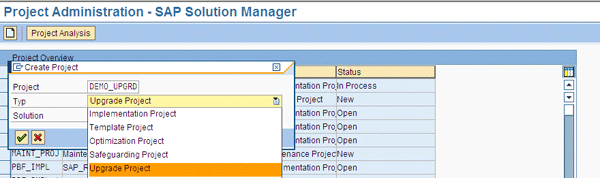
Figure 1
Create an upgrade project
Click the green checkmark icon and the screen in Figure 2 appears. Click the Scope tab and then the Roadmap Select tab. Here you can assign the upgrade roadmap by checking the appropriate check box. The upgrade roadmap is a phase-based SAP methodology that provides step-by-step guidelines on every aspect of the upgrade. It has accelerators, templates, and guideline documents linked in it. I’ll talk about the upgrade roadmap later in the article.
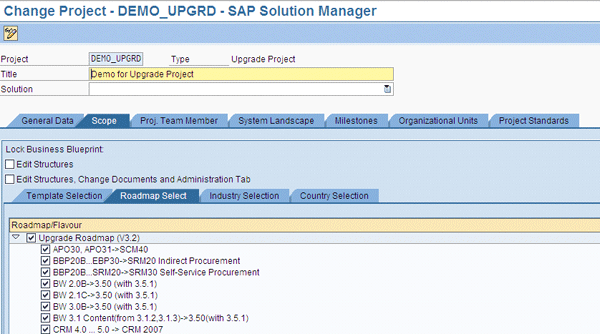
Figure 2
Upgrade roadmap assignment to upgrade project in the Scope tab
Note
Project management using SAP Solution Manager does not eliminate the use of tools such as Microsoft Project. Rather, it enables a business process-centric link of different project phases and automated content to complete the SAP landscape. The upgrade roadmap integrates with Microsoft Project and can be downloaded in Microsoft Office format to avoid duplicated work.
The landscape is assigned in the System Landscape tab (Figure 3). The prerequisite is to have the logical component of the system that is planned to be upgraded.
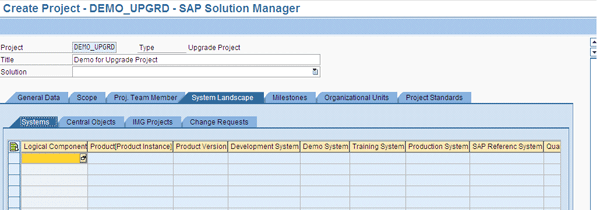
Figure 3
Select the logical component for the upgrade project
Once the logical component is created in transaction SMSY, go to transaction SOLAR_PROJECT_ADMIN, click the System Landscape tab and then the Systems tab, and select the logical component by pressing F4. Save this logical component after selecting it (Figure 4).
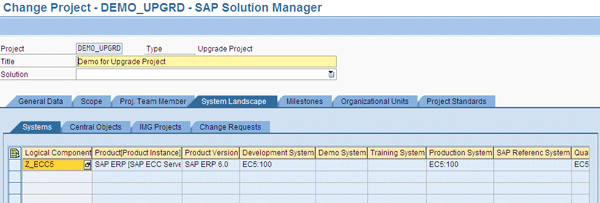
Figure 4
Logical component selected
Now create an IMG project and an IMG view for this logical component. The IMG project simplifies the complexity of the configuration of the processes in the SAP IMG structure of transaction SPRO. It reduces complexity by separating the processes’ configuration in the whole IMG structure. Only configuration in the project scope is saved under it. The IMG view is created for a particular IMG project. It is specific to certain criteria based on project requirements. Some of the criteria include manual selection in the project IMG, activity necessity (e.g., mandatory or non-mandatory), and release customizing.
Under the IMG Projects tab, select the default-created IMG project and view and click the Create IMG Project icon (Figure 5).

Figure 5
Create the IMG project and view
In the subsequent screen, provide the name for the upgrade view and click the Continue button (Figure 6).
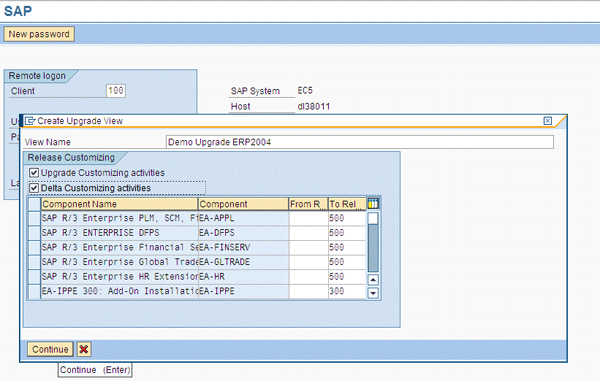
Figure 6
IMG view creation pop-up screen
Once the view is created, return to the transaction SOLAR_PROJECT_ADMIN screen by clicking the back icon in the toolbar. The status of the IMG project and view turns green, which means they have been successfully created in the remote satellite system of the logical component (Figure 7). Click the save icon to save the project.
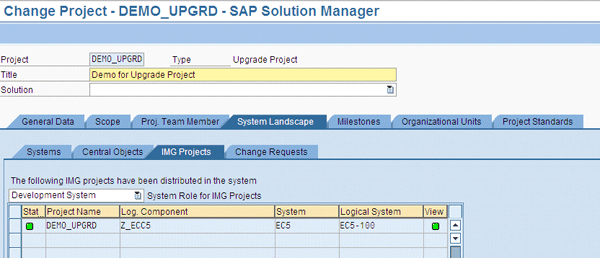
Figure 7
IMG project and view created — status green
In this project, you can assign the rest of the project management-related settings, such as the assignment of the project team, the upload of customized documentation templates, and keyword creations. These activities in transaction SOLAR_PROJECT_ADMIN are the same as in the project preparation phase of the implementation project type. The only difference is that the landscape report is drawn for project documentation on the existing landscape of the SAP components before the upgrade.
Why is the upgrade roadmap so critical? A few top concerns of an upgrade project are to be on track in terms of project management, key activity execution, and maintaining timeline and budget. Therefore, it is essential to have a proven framework in place that can act as a central reference throughout the project. The upgrade roadmap is this framework; it contains all the necessary elements, including phase-wise step-by-step guidelines, activities, accelerators, templates, and references of SAP services. It is updated by SAP regularly and is in line with the latest SAP-released components.
When using SAP Solution Manager for project management, the upgrade roadmap is directly linked to the upgrade project and allows direct navigation to project phases. Even when SAP Solution Manager is not used at all in upgrade activities, you can still use the upgrade roadmap for its list of step-by-step activities. Its HTML version, accessible at https://www.service.sap.com/upgraderoadmap, is a desktop-based utility and is a great checklist of project activities (Figure 8).
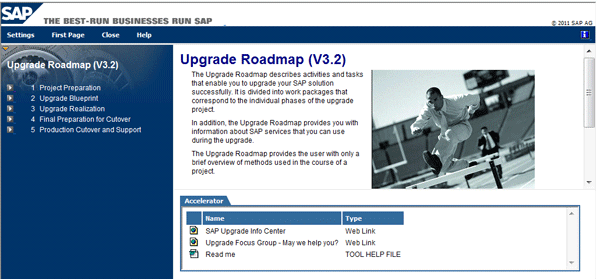
Figure 8
HTML-based SAP Upgrade Roadmap Version 3.2
In SAP Solution Manager, you can use the roadmap either within a project (Figure 9) or independent of the project. Project-independent use is via transaction RMMAIN.

Figure 9
Transaction RMMAIN showing the upgrade roadmap for the project
Clicking any activity in Figure 9 opens the detailed activity view of the upgrade roadmap. You can download the upgrade roadmap activities by following menu path Roadmap > Download > MS Project Version (Figure 10). You can use this Microsoft Project for the rest of the project management-related activities. It can be linked in project documentation back in the roadmap under the Proj. Docum… tab.
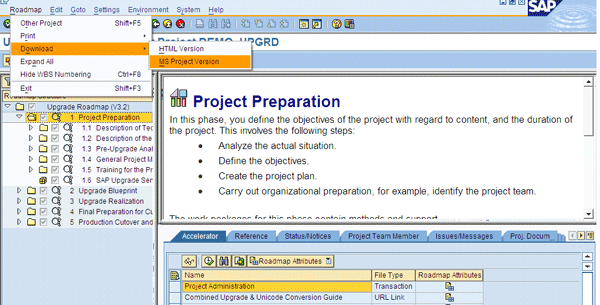
Figure 10
Upgrade roadmap showing the Download option
If the upgrade roadmap is used independently either using transaction RMMAIN or in HTML format, it only provides methodology along with accelerators and does not make a connection to different phases of the upgrade in project management for automated content.
As part of project preparation activities, draw a report on the existing landscape status with components and versions. This report acts as a reference for the target landscape. You can draw the report by using transaction SMSY and following Utilities > Analyses for existing systems (Figure 11). In this selection screen of the report, you can select the options suitable for you based on your requirements.
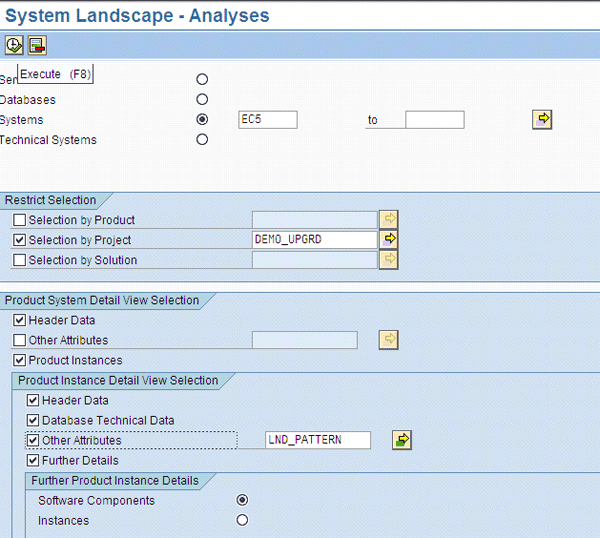
Figure 11
Report for analysis of existing system landscape
You can later download this report output in spreadsheet form by clicking the export icon and selecting Spreadsheet from the context menu (Figure 12). You can then store it as project documentation for the existing landscape by uploading this document in the Proj. Documentation tab of transaction SOLAR01.

Figure 12
Report for analysis of existing system landscape
Phase 2 — Upgrade Blueprint
In the case of a technical upgrade, the blueprint phase needs to ensure up-to-date documentation of existing business scenarios and processes. This documentation acts as a base for preparing test cases and training material. Based on the technical changes in the new version, modifications to custom development, interfaces, scope planning for testing, and training happen in this phase.
For a functional upgrade, you need to plan a new scope of scenarios in this phase. This plan considers whether you need to remove custom development that can be replaced by newer functionality, migrate it from the legacy system to the SAP system, use entirely new features, or a combination of these options. Thus, it is a critical activity and can lead to a clean and simplified IT portfolio. It offers the opportunity to once again look at the business scenario implementation in SAP systems from an improvement and optimization point of view.
In the case of SAP Solution Manager, in this phase you can create a business scenario structure either via the Business Process Repository (BPR) or by referring to another SAP Solution Manager project or custom entries. Use transaction SOLAR01, click the Business Scenarios folder on the left, and select the Source dropdown option of BPR on the right side of the screen (Figure 13). For simplicity, only BPR is used in this article.
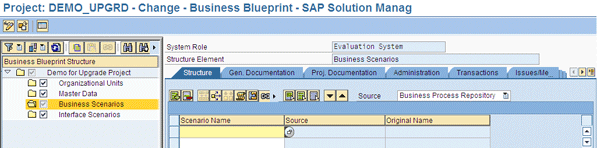
Figure 13
Add the business scenario from the BPR source
Select the required business scenario by pressing F4 and choosing the option based on your project requirements and current landscape (Figure 14).
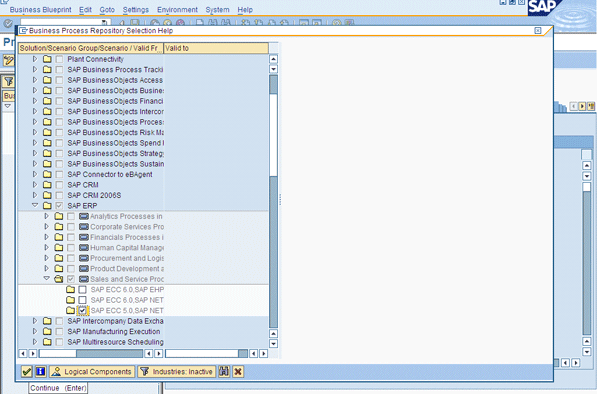
Figure 14
BPR F4 help showing scenario selection
Once the scenario is selected from the standard BPR list, SAP Solution Manager may prompt you with additional logical component requirements to execute the selected scenario end to end (Figure 15). Select only those that you have in the landscape. In the current example, deselect all options and click the green checkmark icon to continue.
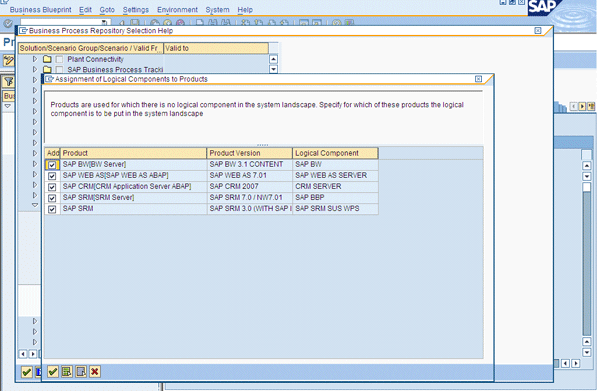
Figure 15
System prompt for additional logical components
BPR automatically populates data in different tabs such as Proj. Documentation and Transactions. Save the business blueprint of the upgrade project (Figure 16).
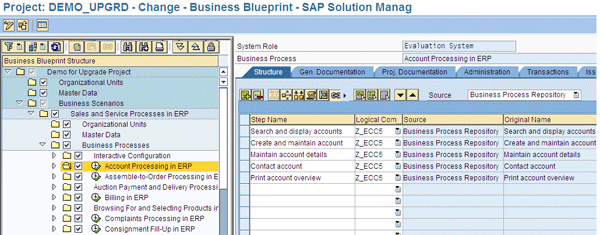
Figure 16
Transaction SOLAR01 showing the upgrade blueprint with scenario structure
After this, the non-production system undergoes a technical upgrade. Create and connect this upgraded system logical component back in the SAP Solution Manager project. Use transaction SOLAR_PROJECT_ADMIN and connect the logical component in the System Landscape tab with the steps mentioned in phase 1 in this article (Figures 3 and 4). To do this, go to the Systems subtab and add the Logical Component of the newly upgraded system from the F4 help (Figure 17). Note that the older system’s logical components already exist in the project.
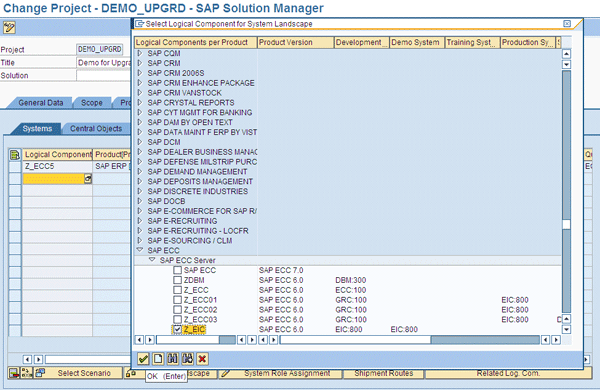
Figure 17
Select the newly upgraded system’s logical component
Once the logical component is saved in the project (Figure 18), create its IMG view under the IMG Projects tab as mentioned in phase 1 of this article.
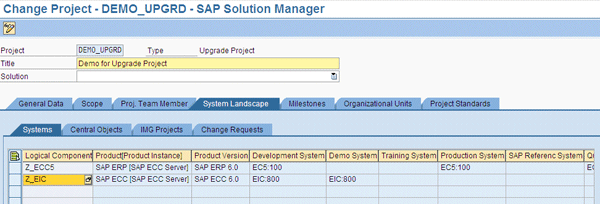
Figure 18
Upgraded system logical components in the project
Note that here the older version of the IMG view exists and by default the system creates the IMG project for newly added logical components as well (Figure 19).
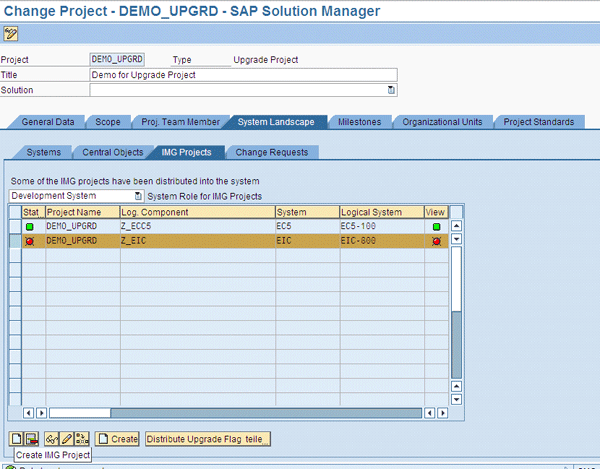
Figure 19
Transaction SOLAR_PROJECT_ADMIN showing IMG creation for the new logical component
Create the IMG project and IMG view in the satellite system by clicking the Create IMG project icon (Figure 19) and return to SAP Solution Manager where the status for the IMG project and view change from red to green (Figure 20).
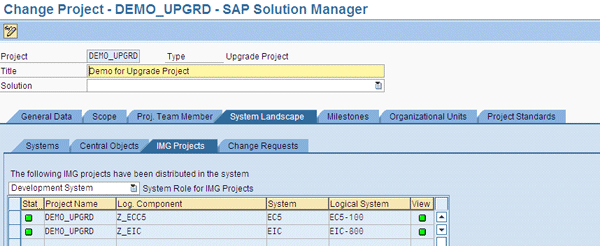
Figure 20
New IMG project and view created with the status turned green
Now it’s time to run a comparison in SAP Solution Manager to provide all the differences between the older and newer versions. In this case, it would be the difference between SAP ECC 5.0 and SAP ECC 6.0. Use transaction SA_PROJECT_UPGRADE for the comparison of this project (Figure 21).
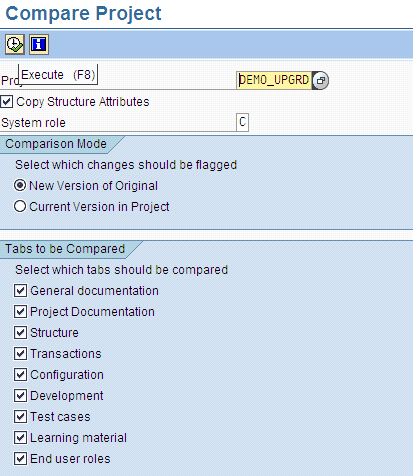
Figure 21
Transaction SA_PROJECT_UPGRADE comparison report on the upgrade project
This report runs in the background and a transaction SM37 entry is created for its execution. Once the job is completed, which you can verify directly in transaction SM37, SAP Solution Manager distributes an upgrade flag in the form of a yellow box with an exclamation point in all affected areas in transactions SOLAR01 (Figure 22) and SOLAR02.
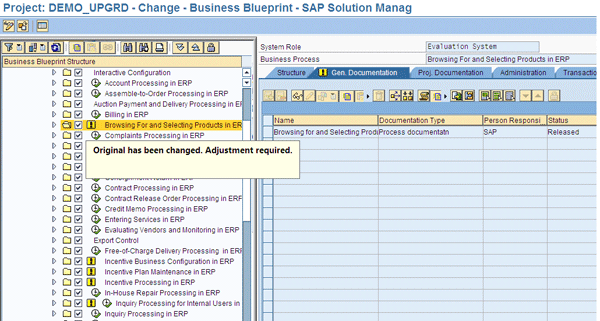
Figure 22
Transaction SOLAR01 showing affected scenarios with upgrade flag after SA_PROJECT_UPGRADE report run
As an example, use one of these flagged entries for details on the adjustment feature. Select the process from the tree on the left, which has the upgrade flag, and click the compare and adjust icon on the right side of the screen (Figure 23).
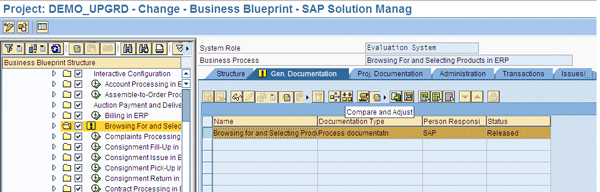
Figure 23
Transaction SOLAR01 showing the compare and adjust feature
The system prompts you with a pop-up screen where it shows both the new and old versions of the entry (Figure 24). Based on the project scope and plan, select either to copy a new version or leave the old entry as it is in this pop-up screen.
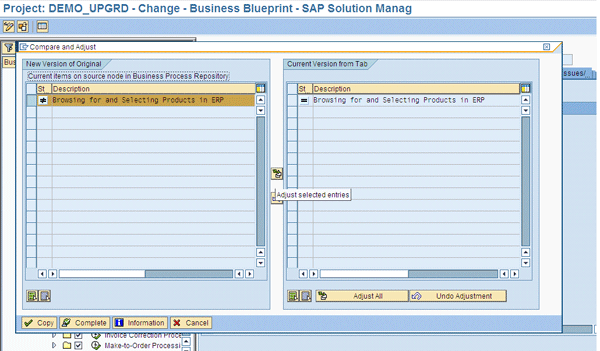
Figure 24
Compare and adjust pop-up screen
Click the Complete button to complete the comparison (Figure 25). Once this is selected, the system confirms again.
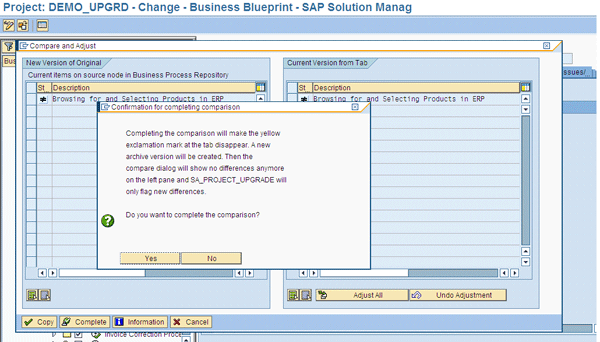
Figure 25
Comparison completion confirmation pop-up
If completion is confirmed, the upgrade flag is removed in transaction SOLAR01 (Figure 26). This means that the system won’t flag this particular process the next time SA_PROJECT_REPORT is run. The system assumes that the necessary action has taken place when this flag is removed. This way, you can carry out adjustments for all affected entries.
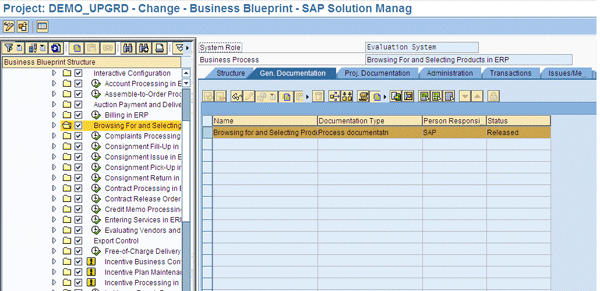
Figure 26
Removal of upgrade flag upon selection of comparison completion option
Phase 3 — Upgrade Realization
In the upgrade realization phase, the adjustments to custom developments, configuration, and testing are the key activities. The upgrade roadmap helps you track the activities that will be carried out in the realization phase.
You can adjust standard configuration objects using the compare and adjust feature as mentioned in the upgrade blueprint phase, via transaction SOLAR02 (Figure 27). SAP Solution Manager automatically selects the Upgrade Flag check box in the configuration transaction for the relevant upgrade item.
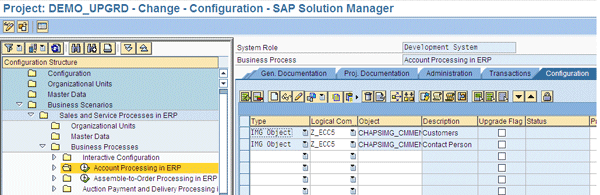
Figure 27
Transaction SOLAR02 showing the scenario and Upgrade Flag option on the right side
Custom development changes need to be carried out and may involve considerable effort if it is a large custom development. Another important activity in this phase is testing.
Note
Testing is one of the most costly phases of technical upgrade projects. It involves nearly 30 percent of the allotted upgrade budget. Therefore, it is essential to determine the right testing strategy in terms of scope, timeline, and responsibility allocation. SAP Solution Manager has strong test management features that help test business scenarios in terms of a test plan and test packages, and allows the assignment of a tester. Transaction STWB_2 of test plan management enables the smooth execution of these activities with results analysis. This is independent of project management functionality of SAP Solution Manager.
In the current example, link test cases in the Test Cases tab of transaction SOLAR02 and use transaction STWB_2 for the creation of the test plan and test packages for execution. Use transaction SOLAR_EVAL for detailed analysis and reporting.
Phase 4 — Final Preparation and Cutover
In a technical upgrade, end-user training plays an important role when there are substantial changes in the front-end screens of SAP transactions. In a functional upgrade, new SAP functionality is implemented based on unique business requirements. In such a case training is a critical success factor to ensure effective understanding, learning, and use of the SAP system.
Note
Training can be used independent of full-fledged project management functionalities of SAP Solution Manager, though it needs some minimum SAP Solution Manager project management settings for its use. It requires business scenarios and processes that are maintained in the Structures tab of transaction SOLAR01 and a link of training material and end-user roles in transaction SOLAR02.
Learning maps are created by the project manager based on business processes and user roles for training purposes. In SAP Solution Manager, you can use transaction SOLAR_LEARNING_MAP for eLearning purposes.
In the current example, link training materials and related project roles specific to business processes in transaction SOLAR02. Use this information in transaction SOLAR_LEARNING_MAP for the creation of eLearning links. You can share these links with end users before classroom training so that remote training can be conducted by a trainer. Also, it acts as a self-learning reference for end users even after training.
Note
Along with support of different features of SAP Solution Manager, SAP Service Marketplace offers information on
upgrades. It includes an upgrade newsletter, tools, services, and FAQs. This information, used in conjunction with SAP Solution Manager features, helps ensure a smooth transition to the next SAP release. This helps you stay on track for project management maintaining all risks, challenges, and cost drivers.

Sapna N. Modi
Sapna N. Modi has 13+ years of experience in the software industry including SAP software in the areas of solution architecture, consulting, presales, and project management. Sapna has multiple SAP and non-SAP certifications. She is an integral part of the team in setting up the SAP Solution Manager practice at L&T Infotech (www.lntinfotech.com) and has participated in consulting and advisory roles for multiple projects. She has global exposure with experience in the US, Canada, Denmark, Sweden, Germany, the Netherlands, and Kuwait. She is instrumental in and is dedicated to an extreme automation initiative of SAP projects across verticals at L&T Infotech (LTI). Her goal is to accomplish automation-driven efficient operations and to formulate an automation platform for optimized TCO for customers as well as for her organization. Her focus is on innovation to leverage SAP products and non-SAP products involving Robotic Process Automation (RPA), Artificial Intelligence (AI), and Machine Learning (ML) to help customers standardize their portfolio so that it is simplified, automation ready, and able to easily migrate to the SAP S/4HANA platform.
You may contact the author at sapna.modi@lntinfotech.com.
If you have comments about this article or publication, or would like to submit an article idea, please contact the editor.



 Premium