With just plain system configuration and no extensive programming, learn how to copy a standard Business Server Page (BSP) and make adjustments to it in the same manner that you make changes to the standard screen in SAP Learning Solution. See how you can make custom configurations to best serve your business requirements.
Key Concept
A customer table is a table that allows customers to overwrite standard entries provided by SAP. The naming convention provided by SAP usually begins with C. In my specific scenario, the standard table LSPAGE_ALIAS - Definition of PageAliases of SAP Learning Solution can be overwritten by customer table LSPAGE_ALIAS_C - Customizing Table for Definition of Business Server Pages (BSP). Using a customer table ensures that the standard SAP objects and customizing entries remain untouched.
While I once was working on a review project for a client, I overheard a customer ask if it was possible to make adjustments to the standard Learning Solution (LSO) screen. To his chagrin, the integrator said it was not possible at all. Although the customer wanted to use SAP out of the box, he expected a little flexibility in order to meet his business requirements.
In this case, I directed the customer to a standard workaround: the customer table for LSO, which provides the option to adapt SAP tables. Using the customer table provides two major benefits. First, it provides an opportunity to hide unnecessary links in the main LSO page. Second, it adds customer links to other applications such as employee self-services.
In this article, I’ll show how to hide a link with this relatively unknown functionality using SAP ERP 6.0 and LSO 6.0. Before you begin, be sure that you have done the following:
- Installed Learning Solution on SAP R/3, SAP ERP 6.0, or SAP ECC 6.0
- Activated Business Server Page (BSP) hcm_learning and ensure that it is in use
- Generated Technical BSP (read SAP Note 517484 - Inactive services in the Internet Communication Framework)
- Gained access clearance to transactions SM31, SICF, and SE80
Tip!
Not only does SAP provide the possibility of removing unwanted links in the standard LSO main screen, but you can also add customer links – for example, a link to another service or another BSP.
Background Information
I’ll quickly explain which technology is in use. SAP provides mainly three types of technologies for online services: BSP, services through the Internet Transaction Server (ITS), and Web Dynpro, which is the latest technology. BSPs are mainly used in the following areas:
- LSO (for example, BSP hcm_learning)
- Performance Appraisal (for example, BSP hap_document)
- Job Pricing in Compensation Management (for example, BSP hrecm_jpr_cbij)
- Employee Interaction Center (EIC) (for example, BSP hreic)
- E-Recruitment (for example, BSP hrrcf_appl)
Although BSPs provide a Web-based screen, they are directly accessed, managed, and configured in SAP ERP 6.0 (formerly know as ECC 6.0 and mySAP ERP 2005). The availability and use of BSPs is subject to the SAP release. For example, SAP translates all BSPs for Performance Management into Web Dynpro in the latest Enhancement Package 4, which was released May 2009.
In the SAP NetWeaver Portal, you normally use the objects pages and worksets to deal with the functionalities provided to the end user. With BSPs, you cannot use such technology. BSPs are not part of the portal delivery Business Packages delivered by SAP for SAP applications for employee self-services or SAP functionality for manager self-services. You must add them manually in the portal content directory (PCD). This article will demo the workaround based on customer table LSPAGE_ALIAS_C. I will also deal with BSP hcm_learning and its respective pages (Figure 1).
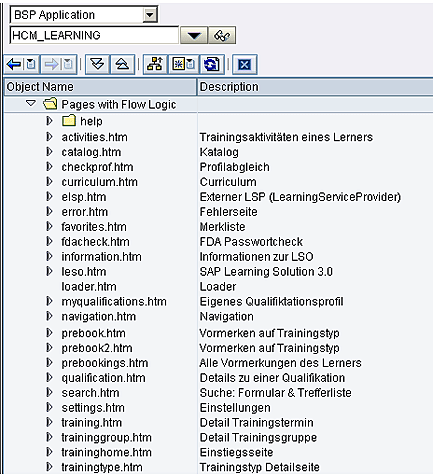
Figure 1
The standard pages for the BSP hcm_learning
You can access the Business Server Page hcm_learning through two transactions:
- Transaction SICF – HTTP Service Hierarchy Maintenance
- Transaction SE80 – Object Navigator
Tip!
Although Learning Solution is generally referred to as LSO, some users call it LMS, which stands for Learning Management System.
You can find more information about BSP and LSO in the online documentation at https://help.sap.com/saphelp_erp2005/helpdata/en/29/92fd3f0521c842e10000000a1550b0/frameset.htm as well as in the SAP Notes provided in SAP Notes sidebar at the end of this article.
The Business Scenario
Imagine that your company wants you to remove the Profile Matchup link because it does not require it to be on the main screen (Figure 2).
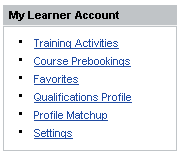
Figure 2
The standard functionalities provided through links in the Learner Account
Basically, you have two options for removing the unwanted link. The first option is to remove the unwanted link from the standard BSP, which most analysts would not recommend as it is very unwise to touch the standard. The second option is to copy the standard BSP service and to append it where necessary as this copied BSP is all yours to play with. It is not possible to use content administration to hide the link without altering the underlying BSP.
In this article, I will take you through the second option. I prefer this method because it plays it a little safer by avoiding any overlapping or overwriting with the standard BSP hcm_learning when applying an enhancement or Support Package. Nevertheless, should you want to use the first option, you only need to modify the second option. Just reuse the steps from the second option, but do everything in the standard BSP.
Step 1. Test BSP hcm_learning. Start by using transaction SICF to bring up the Maintain Service Page. Next, select and right-click the Business Server pages. Choose hcm_learning. When the drop-down appears, select Test Service (Figure 3).
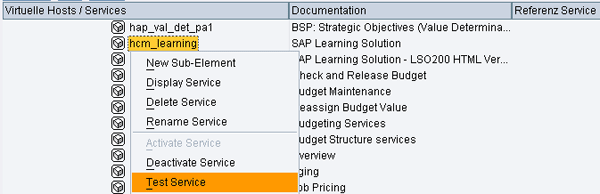
Figure 3
The launching of test mode of BSP hcm_learning
The outcome is the display of the current navigation screen (Figure 4), which contains multiple links pointing to different functionalities. Alternately, you can also use transaction code SE80 for the same results.
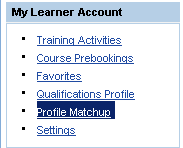
Figure 4
The standard main navigation page for LSO
Step 2. Hide the direct link Profile Matchup. Now that you’ve ensured that the system contains the standard hcm_learning BSP and that it is activated as well as tested, you can hide the link Profile Matchup in the home navigation page of LSO.
Begin by creating a copy based on the standard BSP hcm_learning. Call up the standard hcm_learning BSP and copy it into a zhcm_learning BSP. This ensures that you do not take any chances that the system overwrites the repair you have made to the source code. This is your own custom BSP. Right-click HCM_LEARNING to access a drop-down menu. Select Copy (Figure 5).
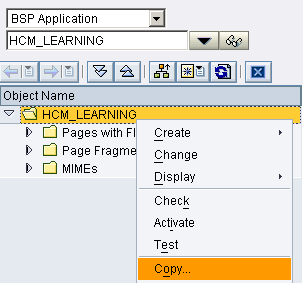
Figure 5
The copy action of BSP hcm_learning
Once you have clicked the copy function, a pop-up appears. Fill out the required information:
- Make the Source Name HCM_LEARNING
- Make the Target Application ZHCM_LEARNING
- Place a check in the Pages check box
- Place a check in the MIME Objects check box
Once done, validate the pop-up screen using the enter icon (the green check at the bottom) (Figure 6).
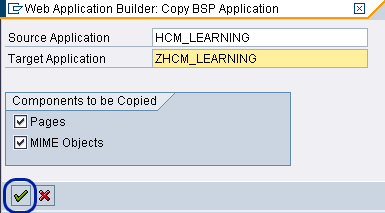
Figure 6
The copy screen filled with the required information
As these changes have to be transported throughout your system landscape up to the production system, you must save the changes under a transport order. Ask your development team to send you the SAP package for transport of configuration between the Development (DEV), the Test or Acceptance (QAS), and the Production (PRD) systems to be used and to create a transportable workbench request. Once you have received this information, assign these to the newly created BSP ZHCM_LEARNING and save your work (Figure 7). Your ZHCM_LEARNING BSP is now also visible through the transaction code SICF.
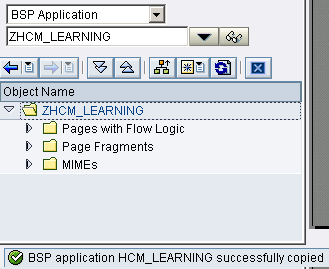
Figure 7
The successful copy of BSP ZHCM_LEARNING
Now that you have copied the standard BSP, you can edit the navigation page that contains the links in the main screen of LSO. As you will later edit the source code of the page, it is best to make a copy just to play it safe. Should a problem arise, you can then revert to your copy or the standard page.
Rename the page navigation.htm from the zhcm_learning BSP with the well-known z naming convention: znavigation.htm. This page is located under Pages with Flow Logic (Figure 8).
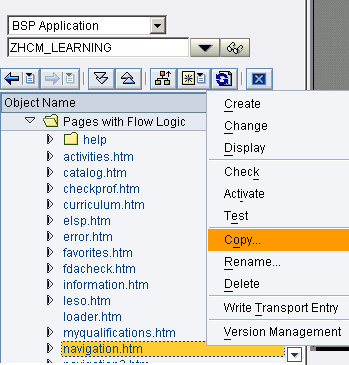
Figure 8
The location of the page navigation under the BSP zhcm_learning
When the Copy Page screen comes up, enter znavigation.htm in the Page field. This copies the standard navigation page (Figure 9). The copied page znavigation.htm is now visible.
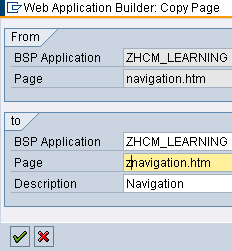
Figure 9
The copy of the standard page with the required information
Now that you have your own page znavigation, you can adjust the links provided in standard code by removing unnecessary source code. The objective is to remove the section where the link Profile Matchup is called from the page znavigation.htm.
Switch from display mode to edit mode by clicking the display/change icon  in the header. The BSP zhcm_learning is now available in edit mode. Right-click the Change function on the page znavigation.htm (Figure 10).
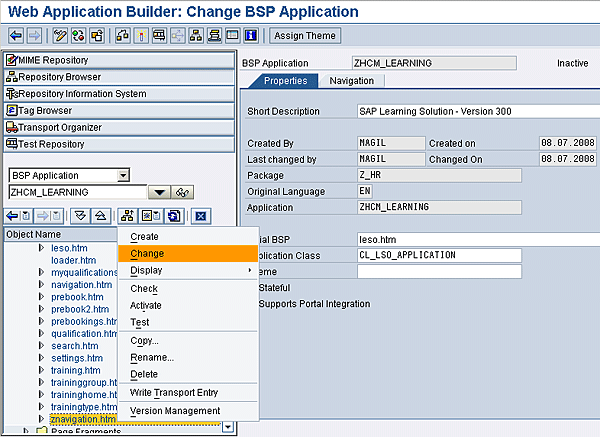
Figure 10
The BSP zhcm_learning in change mode with change enabled for the page znavigation.htm
The outcome is the display code of the layout for the page znavigation.htm. Scroll down until you reach code shown in Figure 11:
CALL METHOD
  application->create_url
  EXPORTING
  im_alias  = application->CO_ALIAS_PROFILE_MATCHUP
  IMPORTING
  ex_url    = lp_url
  ex_target = lp_target.
          %>
          <%
  if not lp_url is initial.
          %>
          <%
  lp_string = application->get_otr_text('LSO_FRONTEND/PROFILECHECK').
          %>


          <%
  endif.
          %>
          <%-- settings --%>
          <%
|
| Figure 11 |
Excerpt of source code pointing to the Profile Matchup functionality |
Then select the source code you want to cut off so that the link will not be displayed. Begin at CALL METHOD and end at endif.
%>
<%-- settings --%>
<%
After you have finished this, proceed to the source code removal by clicking the cut icon. After you save your changes, the system displays the message, “znavigation.htm saved.” Alternately, and perhaps a little bit cleaner of an approach, instead of deleting the line, you can add an asterisk in front of the section to be commented and therefore inactive in the program. Since you have copied the standard page, it is better to delete them to have a clean page.
To enable end users to use this BSP, activate the BSP zhcm_learning by clicking the match icon or by pressing the keyboard shortcut CTRL+F3. Once you have reached the pop-up screen shown in Figure 12, select all objects by clicking the activate icon. Then validate the selection of objects to be activated by using the enter icon.
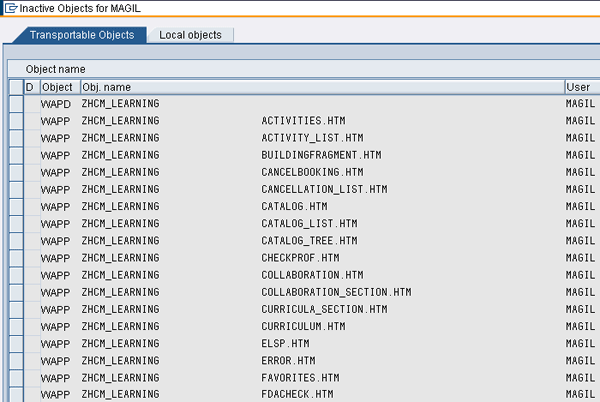
Figure 12
Pop-up screen that leads to activation of BSP
It might take a little while to get all objects compiled and generated as you activate the whole BSP. Patience is the key word. Once you are done, your system displays the successful activation completion message, “Object(s) activated.” As a result, the BSP switches from Inactive to Active (Figure 13).

Figure 13
The BSP in Active mode
You can now safely exit transaction code SE80 and BSP zhcm_learning to move to the next and last step of table configuration.
Step 3. Configure table LSPAGE_ALIAS_C. Now that you have your own BSP and your own navigation page, you need to reflect your changes on your screen. Therefore, you must set up table LSPAGE_ALIAS_C (the _C stands for Customer configurable table) in order to overwrite standard table LSPAGE_ALIAS once the table opens. Be very careful when you do this since your entries are visible and anything you do could affect all your clients. As this is a standard table, it is not to be configured in any way.
The first thing to do is view standard table LSPAGE_ALIAS via transaction code SM31. The LSPAGE_ALIAS table contains the entries seen in Figure 14.
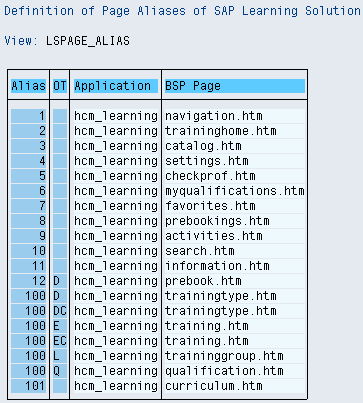
Figure 14
he standard table LSPAGE_ALIAS
As no customizing activity is maintained in the system to reach this customer table, you have to use transaction code SM31. From there, call table LSPAGE_ALIAS_C by entering the table names in transaction code SM31. This table is by default empty as it is meant to contain customer-specific requirements. Add the entry from Figure 15 that points to your own BSP zhcm_learning. The link to the Qualification profile matchup inside the BSP page znavigation.htm has been removed from the zhcm_learning BSP. Simply copy and paste the values in the table, similar to the ones in Figure 15. Save your entries.
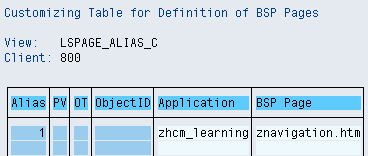
Figure 15
The configured customer table LSPAGE_ALIAS_C
The system reads this entry instead of the standard entry for the navigation page znavigation.htm. You also remain on the safe side as the standard BSP hcm_learning remains untouched.
Testing the Adjusted BSP zhcm_learning
Now you’re ready to test what you’ve achieved. Call either transaction SICF or SE80 and the BSP zhcm_learning in test mode. Notice that the Profile Matchup link has been removed (Figure 16).
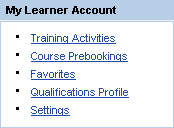
Figure 16
The configured LSO menu
That’s it. Now you’re all set to go.
Sidebar: SAP Notes
Before going into a customer table, carefully review the SAP Notes in Table 1 to understand this functionality and obtain help with troubleshooting:
|
1096188
|
LSO: LSOFE Support Package recommendation
|
LSOFE 300, 600
|
|
1180688
|
ERECRUIT: Modifications of BSP pages*
|
Release independent
|
|
1164818
|
LSO: Modifications of BSP pages in HCM_LEARNING
|
LSOFE 600 and subs
|
|
1142616
|
LPO: Error for customer-specific BSP in HCM_LEARNING
|
LSOFE 300, 600, 602, 603
|
|
1088440
|
LPO: Navigation error after entry in LSPAGE_ALIAS_C
|
LSOFE 300, 600, 602, 603
|
|
1044794
|
Calling a page from LSPAGE_ALIAS_C leads to error page
|
LSOFE 300, 600
|
|
1223689
|
LPO: Navigation using BreadCrumb in Learning Portal w/ https
|
LSOFE 300, 600, 602, 603
|
|
1156488
|
LPO: Navigation to user-defined BSP using breadcrumb
|
LSOFE 300, 600, 602, 603
|
|
1029637
|
Adjusting role template SAP_HR_LSO_LEARNER
|
ERP 5.0, ERP 6.0
|
|
1031203
|
Changing the authorization concept for learners
|
ERP 5.0, ERP 6.0
|
|
517484
|
Inactive services in the Internet Communication Framework
|
SAP Basis 620 - 640
|
|
891232
|
BSP Security Relevant Changes
|
SAP Basis 620-640, 700, 710
|
|
| Table 1 |
SAP Notes dealing with Customer Table Learning Solution LSPAGE_ALIAS_C |
|
*Although this note is meant for E-Recruitment, it provides insightful information for BSP handling whenever Support Packages or enhancements are applied. You can access further documentation at: https://help.sap.com/erp2005_ehp_03/helpdata/EN/92/2e59403db70272e10000000a155106/frameset.htm.
Martin Gillet
Martin Gillet is an SAP-certified HR consultant (ECC 6.0, SAP R/3 Enterprise, and 4.0B) who works freelance on international projects. He graduated with honors in Human Resources Management from Belgian Haute Ecole Namuroise Catholique (HENaC). Martin has worked with SAP R/3 since 1997 in the chemical, catering, pharmaceuticals, telecommunications, food, banking, and oil industries. He has focused on SAP HR since 1998 and has other SAP expertise including XSS, LSO, E-Recruiting, CATS, Reporting, Authorizations, and SAP NetWeaver Portal. Martin is the author of Configuring and Customizing Employee and Manager Self-Services in SAP ERP HCM. The book explores the options for customizing ESS and MSS to meet specific business needs.
You may contact the author at mgillet@yahoo.com.
If you have comments about this article or publication, or would like to submit an article idea, please contact the editor.