Great-looking reports don’t just happen. They can take a lot of your precious time and gobble up development resources. BW ships with a Web template that allows you to rapidly deploy customized reports that are sure to be a hit with your end users and reduce your development efforts.
Key Concept
The standard BW Web template 0QUERY_TEMPLATE can be modified to meet the specifications of your end users. Modifications can be made to toolbar buttons, the context menu, the navigation block, and more. The standard template is available instance-wide to rapidly publish queries with a consistent graphical interface.
A standard template is available in BW to display queries with a Web browser that allows you to take full advantage of various distribution options. When you execute a query in the Web browser either through BEx Analyzer or BEx Query Designer, the standard Web template is available to display the results enabling the rapid publication of queries as Web reports.
Employing the standard Web template efficiently can be a big help as you develop user interfaces. It allows you to save time developing and publishing Web reports that have a consistent appearance and functionality. Providing familiar Web reports also plays an important role in enhancing user experience. In addition, the template can provide relief in terms of your user training efforts, and it promotes faster acceptance of your BW applications.
I’ll give you an overview of how and where you can modify the BW standard Web template. I will also discuss some of the techniques you can use to customize and enhance it to meet the needs of your business environment. You’ll understand how the standard template decreases custom development efforts and how it increases consistency in the look and feel of your BW reports.
BW Standard Template
0QUERY_TEMPLATE has a number of functions such as the ability to display reports as tables or charts and export data to spreadsheets via the CSV format. It has three basic parts:
- Headline
- Toolbar
- Web items
The headline displays the query description used in BEx Query Designer and the toolbar buttons support commands to interact with the Web items such as tables and filters. Toolbar buttons also enable additional functionality. For example, the information toolbar button (Figure 1) allows Group 3 items to display query information, filters, and variable values while hiding all other Web items.

Figure 1
Standard template toolbar with the information button highlighted
Before customizing 0QUERY_TEMPLATE, SAP urges users to copy it and maintain a backup of the original. Remember to monitor your customization activities and protect any changes during upgrades.
To create a copy of the standard Web template, open 0QUERY_TEMPLATE in Web Application Designer (Web AD) and use the menu path File>Save As. I saved my copy of 0QUERY_TEMPLATE as MYCOMPANY_QUERY_TEMPLATE for this article.
Customize Your Standard Template
A number of standard template attributes are customizable along with the context menu available in the template. Set the check boxes on the Web AD Web Item tab under the General heading to define various attributes (Figure 2). These attributes determine a range of functions, from whether warnings will be displayed to the read mode for data to device-based output optimization.
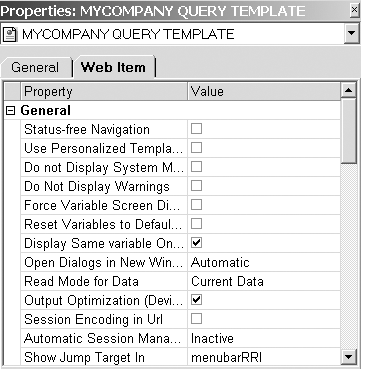
Figure 2
Web template attributes are customized in the Web Item tab
While the context menu in the template supports a host of features, some may not be relevant to your end users. The Web Item tab allows you to customize context menu settings and configure each entry by setting flags in the Entries in Context Menu section (Figure 3). Set the Always Display option to make the item available in a report’s basic menu or designate it to be displayed only in the Enhanced Menu. Web items can also be hidden from users altogether using the No Display setting.
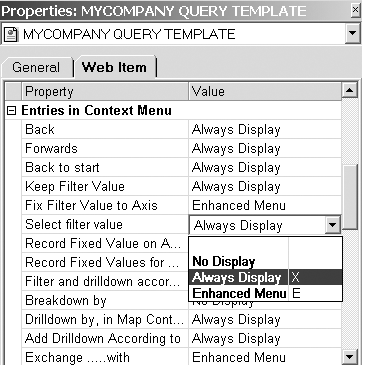
Figure 3
Web template context menu
Customize Web Items
You can customize individual Web items in the standard template via Web AD. For example, you can decrease or increase the space allocated to the navigation block by setting its width via the HORIZONTAL_ALIGNMENT and HORIZONTAL_NUMBER attributes (Figure 4). Decreasing the space allocated to the navigational block will make the report data more accessible and could help minimize scrolling.
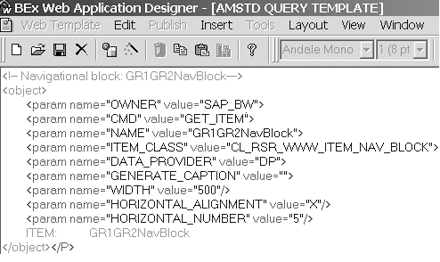
Figure 4
Customize navigation block
Customized Web items can be saved to the library for efficient reuse in other Web templates. After you make the changes to the Web items in your standard template, use the Save in Library button to add the customized item to the library (Figure 5). Create the library object by providing a name and description.
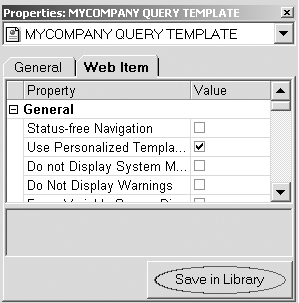
Figure 5
Save the customized item in the library
Better Toolbar Buttons
The toolbar can be altered to meet end-user demands. For example, some may find functions such as bar charting hard to use. You can remove the button related to bar charting in the toolbar section of the template. Likewise, additional toolbar buttons can be developed to enhance the end user’s experience. Last January, for example, I described a JavaScript function that simplifies the BW bookmark process (see “Make BW’s Bookmark Functionality a One-Step Process,” for more details). The new function is evoked from the toolbar by adding the new button described in Figure 6.

Figure 6
New toolbar button calling a custom JavaScript function
Tip!
While Web AD supports many tags, it does not support all HTML tags and JavaScript. Frame tags, for example, are not supported by Web AD, but a page containing frames can be uploaded directly to the server and then work fine. You may not be able to use some graphical editing features like those needed to modify a table Web item attribute if the scripts or tags in the standard template are not supported by Web AD. If your editing functionality is not supported, edit any HTML code associated with the template in a text editor or HTML editor, then upload the file using the Web Template>Upload to Sever menu path in Web AD.
Specify Style Sheets
Style sheets are used in BW to separate presentation elements such as font style from the main Web template HTML code. The BW default style sheet in the standard template is BWReports.css, but it may not always be adequate for your end users. For example, it does not print reports properly that exceed a width of one page. Many find it helpful to add another style sheet to the standard template to handle printing. Style sheets better suited for printing Web reports are available that offer smaller fonts.
To add a style sheet, open your query template in Web AD and follow the menu path Insert>Print Style Sheet. Alternatively, you can directly enter the script into the HTML of your company’s customized template via the Web AD (Figure 7).

Figure 7
Add style sheet to facilitate printing
You can also select a different style sheet from the palette of style sheets included in BW or add your own custom style sheet. Use transaction SE80 and select the MIME Repository button to review the available style sheets (Figure 8) or to add your own style sheet into the repository.
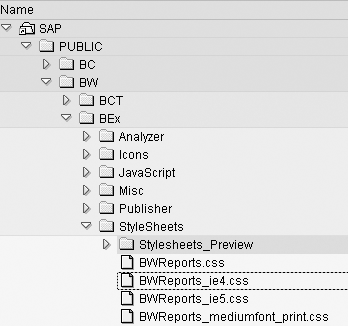
Figure 8
Style sheets in MIME repository
Configure BW to Use Your Query Template
It is a simple task to configure your system to use a customized template. Transaction RSCUSTV11 allows you to specify the standard Web template, style sheet, and template attributes (Figure 9) for your BW instance.
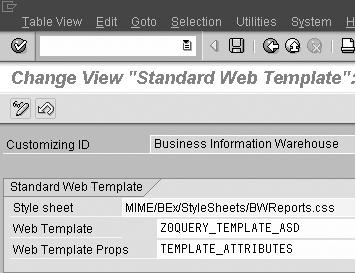
Figure 9
Transaction code RSCUSTV11
Enter the name of your custom template in the Web Template field. The name of the appropriate style sheet, including the path information is then entered into the Style sheet field and the library object name is inserted in the Web Template Props field. BW will use your Web template, specified style sheet, and template attributes instead of the default settings after this step. Note that the settings made directly to the Web templates will override the standard settings.
Your Company Logo
You can add a logo or other graphical element to your query template in two steps. First, upload the image to the Customer/Images directory in the MIME Repository using transaction SE80. Then, add a link to the image in the headline section of your Web template as shown in Figure 1. This method gives the you ability to link standalone BW reports to your company portal, BW report menu page, or any other Web page you choose.
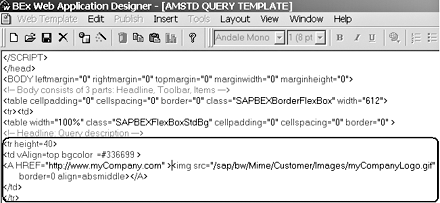
Figure 1
After uploading the image, add the circled code to insert a company logo into the report header
Alternatively, you can add your company logo to a style sheet instead of the standard template. This approach makes the logo visible in every Web template that uses the modified style sheet, including templates that you develop using Web AD.
Mukunda Krishnaswamy
Mukunda Krishnaswamy is the CTO and founder of MimosaSoft. He has extensive experience developing technology solutions to solve business process challenges. He is currently focused on helping companies increase sales, brand awareness, and supply chain efficiencies through automated syndication of product catalogs to multiple channels including social networks, comparison shopping networks, marketing data pools, and GDSN.
You may contact the author at mukunda.krishnaswamy@mimosasoft.com.
If you have comments about this article or publication, or would like to submit an article idea, please contact the editor.