CRM Text Management allows you to copy business partner data and create a view of all the follow-up documentation for a customer issue. Learn how to configure CRM Text Management to meet your business needs.
Key Concept
A text type is the text classification, such as a detailed customer description, internal information, or header information. SAP provides several text types, but you can create others that fit your business needs better.
A text object establishes the connection between a business object and a text type. It defines the allowed texts for each business object (e.g., lead item document, business activity, and business partner master data).
A text determination procedure represents a group of text types that you maintain or display in a business context. It also contains the additional settings for each text type — for example, if the text is required, if it should only be displayed, or the kind of access sequence the system should follow (used for copy control and to set a default text).
Say a customer (business partner) calls you about a problem with one of your products. A front-office employee documents this initial call and records the relevant business partner information. Back-office employees then can refer to this document to view the history of the problem. As other employees add follow-up information, you can use CRM Text Management to easily maintain the flow of information from one document to another.
CRM Text Management allows you to copy important business partner text data into a business document. In addition, you can set the system to copy information from the initial document into the follow-up document, avoiding the need to navigate into the document flow to see all the previous notes.
This functionality also can save you time, because you can set the system to determine default text automatically from text you commonly use. In this case, the user only needs to add more detailed information to the default text. Here are some options you can configure in CRM Text Management to meet your business needs.
Create Text Types and a Text Determination Procedure
Standard SAP CRM includes a range of different text types (text IDs) that you can assign to your text determination procedure. If needed, you can create a text type for specific use in your processes.
For example, you may need to insert specific business information in your vendors’ master data, such as the time your vendor takes to deliver a product directly to your customer. SAP delivers the text types 0001 (correspondence) and 0002 (accounting note) in the standard text determination procedure for text object BUT000 (business partner master data).
To create the text “Time frame for direct delivery” for the BUT000 text object, access transaction SPRO and follow menu path Customer Relationship Management>Basic Functions>Text management>Define text objects and text types. Select the text object BUT000 and click on the Change button. Then, enter a text ID, such as Z001. Enter the description Time frame for direct delivery and save it. The description is language-dependent.
Next, you must assign your new text type to a text determination procedure so the system displays it in the application. Go to transaction SPRO and follow menu path Customer Relationship Management>Basic Functions>Text Management>Define Text Determination Procedure.
Select the text object BUT000 and on the left navigation tree, select Procedure. Choose the procedure you want to add to your text type. Then, in the navigation tree, select Definition of Procedure. Click on the New Entries button to insert the text type you created and save it. The result in the business partner master data application appears in Figure 1.
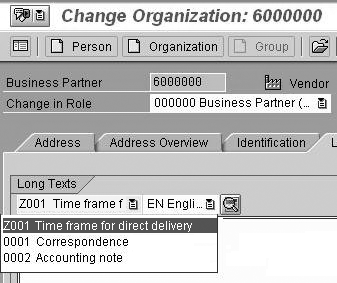
Figure 1
Long texts in business partner master data
Set a Default Text in a Document
This option is useful when your business process requires you to use the same text repeatedly. The system gives you the option to create a default text and assign it to a text type in your text determination procedure.
Imagine that you want to quickly maintain the time frame for direct delivery text as you create or maintain your business partner master data. In this case, you could define a default text that the system fills in automatically.
To set up this functionality, create your default text in transaction code SO10 (menu path SAP: Basis Tools>Form Printout>SAPScript>Standard text) as a standard text in a specific language (Figure 2). Enter the text name (in my example Z_VENDOR_TIME_FRAME), the identifier ST in the Text ID field, and the language identifier in which you want to create the default text (in my example EN). Click on the Create button, enter the required text, and save it.
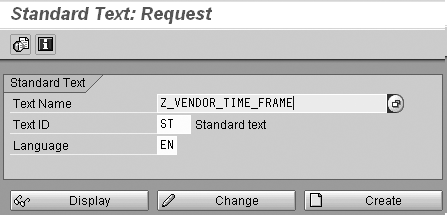
In transaction SE37, create a function module to read the standard text you created. Use the SAP example function module COM_TEXT_DETERMINE_ TEXT. Insert the standard text name as ES_REFERENCE-TDNAME.
Next, create an access sequence for text object BUT000. Go to transaction SPRO and follow menu path Customer Relationship Management>Basic Functions>Text Management>Define Text Determination Procedure. Select the BUT000 text object and on the left navigation tree select Access Sequence.
Click on the New Entries button to create a new access sequence with a name and description. In my example, I named the new access sequence ZTF for the instance Vendor Time frame. Select the new access sequence, and then select Definition of Access Sequence on the left navigation tree. Set the Sequence to 0001, the Ref. Object to BUT000, the Ref. Text Type to Time frame for direct delivery, and the Function field to the module you created earlier (in my example, COM_TEXT_ DETERMINE_TEXT) (Figure 3).
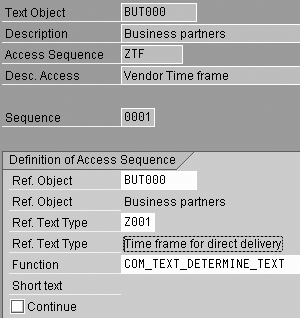
Figure 3
Define the access sequence
Finally, in the text procedure definition for text object BUT000, select the text type that corresponds to the Time frame for direct delivery text, in this example Z001 (Figure 4). Then assign the access sequence you created before in the field access, in this case ZTF. Figure 5 shows the result in the business partner master data application. When you maintain this business partner text data, you only need to insert the real time frame, for example, between 24 and 72 hours.
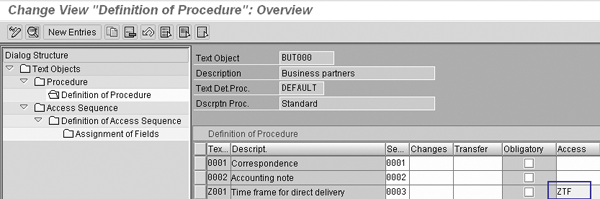
Figure 4
Define the business partner’s text determination procedure
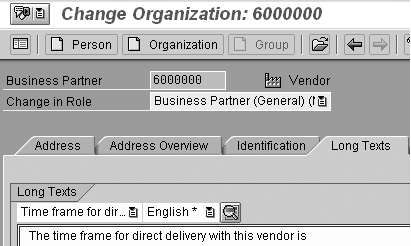
Figure 5
Default text in business partner master data
Copy Business Partner Text into a Document
Now imagine that you are creating a transaction document for a customer who requires a product replacement. In the document that contains the partner function Vendor, the system is set so that it fills the document text Internal note with the business partner text Time frame for direct delivery. The system then displays the information and registers it in the activity. This makes the call center employee aware of the time frame the vendor reports to deliver a replacement product, so the employee informs the customer correctly.
To set this text copy from business partner master data into a document, first create an access sequence for object CRM_ORDERH (transaction header) via transaction SPRO. Follow menu path Customer Relationship Management>Basic Functions>Text Management>Define Text Determination Procedure. Select the CRM_ORDERH text object. On the left navigation tree select Access Sequence.
Click on the New Entries button to create a new access sequence. Then give it a name (Z1) and a description (Vendor text). Select the new access sequence and select Definition of Access Sequence on the left navigation tree. Set the Sequence to 0001, the Ref. Object to BUT000, and the Ref. Text Type to Z001. On the left navigation tree, choose Assignment of Fields. For the Key Field PARTNER, choose Comm. Field VENDOR (Figure 6).
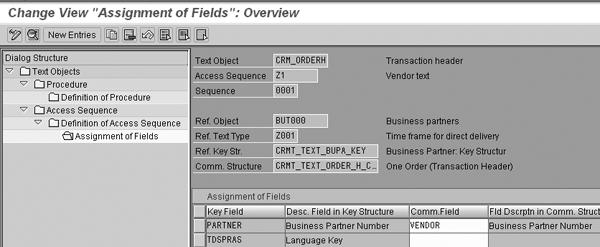
Figure 6
Define the Z1 access sequence
Finally, select the text determination procedure for the respective transaction document (defined under text object CRM_ORDERH). Select the text type that must receive the business partner text (in this example, text type Internal note) and assign the access sequence you created above. The result is shown in Figure 7. As soon as the system determines the vendor that should deliver the product directly to the customer, it fills the text type Internal note with the business partner text that you defined for time frame for direct delivery.
Note
Standard SAP provides only the option to copy texts from the business partner master of the sold-to party, the ship-to party, the payer, the bill-to party, or the vendor into CRM business transactions. However, refer to SAP note 509071 if you need to copy texts from other partner function categories assigned to your business transaction.
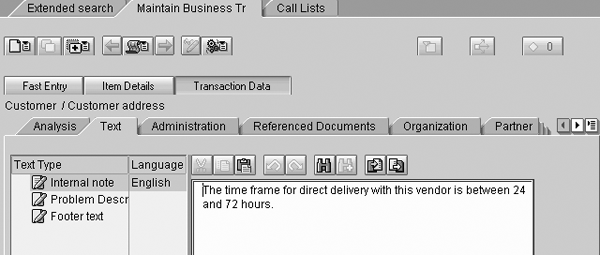
Figure 7
Text you want to appear in the follow-up in transaction document
Activate the Log for CRM Texts
With this functionality, after the user saves a text, the system assigns a user stamp and date stamp to the text, ensuring that no one can change this text. All of the texts inserted are displayed in a log (history).
Imagine that you wrote the customer’s complaint in the Problem Description text area. After a few minutes, the customer calls back. Another user receives and registers this new information in the customer’s document. You want the system to save this data and guarantee that anybody can change the registered information.
First, create a new text type for the text object CRM_ORDERH as described in the “Create Text Types and a Text Determination Procedure” section. Name this text type ZLOG (text log), and assign it to your transaction text determination procedure. This receives the history of texts inserted in the transaction document.
In transaction SPRO, follow menu path Customer Relationship Management>Basic Functions>Text Management>Define Text Determination Procedure. Select the text determination procedure for the respective transaction document and navigate to Definition of Procedure. For the text types, whose content should be saved in a log, enter the text, select the option P (reserved; special additional subscreen required) in the Changes field. For text type ZLOG, which receives the historic text log, select option R (reserved; do not use).
As a result, for the text type Problem Description, you can enter and edit texts as long as you do not save. After you save, the system assigns a user stamp and a time stamp to the text and changes the text type to R. You once again can make entries in the original text type. The texts inserted in Problem Description then are registered in the Text Log (Figure 8).
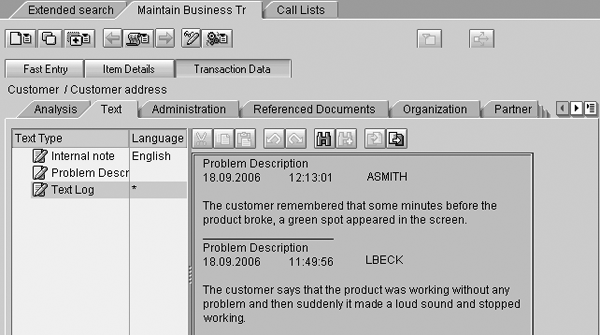
Figure 8
Inserted texts in transaction document
Copy a Text Log
With this functionality you can copy text from one document into a follow-up document. Imagine that after you create a transaction document for a customer product replacement in the customer master data you must create a repair order. You want to copy the text log from the first document into the follow-up document. The employee who receives this new document can see a detailed description about the problem, without having to navigate into the first document.
To customize this, first create an access sequence for object CRM_ORDERH in transaction SPRO. Follow menu path Customer Relationship Management>Basic Functions>Text Management>Define Text Determination Procedure. Select the CRM_ORDERH text object and on the left navigation tree select Access Sequence.
Click on the New Entries button to create a new access sequence. Enter a name (Z2) and a description (Copy text in follow up doc). Select the new access sequence and select Definition of Access Sequence on the left navigation tree. Set the Sequence to 0001, the Ref. Object to CRM_ORDERH, the Ref. Text Type to ZLOG for the text log text, and the Function to function module CRM_REFERENCE_TEXT_GET (Figure 9).
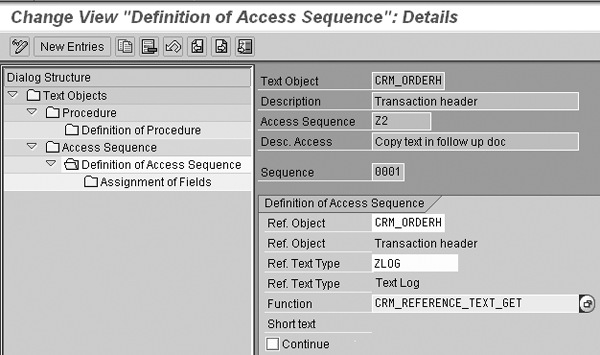
Figure 9
Define the Z2 access sequence
Then assign this access sequence to the text type of the follow-up document that you want to receive the content of the text log. Go to transaction SPRO and follow menu path Customer Relationship Management>Basic Functions>Text Management>Define Text Determination Procedure. Select the text determination procedure for the target transaction document and navigate to Definition of Procedure.
For the text type Complaints Text, which receives the source text, enter sequence 0001, option A (copy) for the Transfer field and assign the access sequence Z2 that you created in the Access field. As a result, the Complaints Text in the follow-up document receives the content of the text log from the source document, as shown in Figure 10.
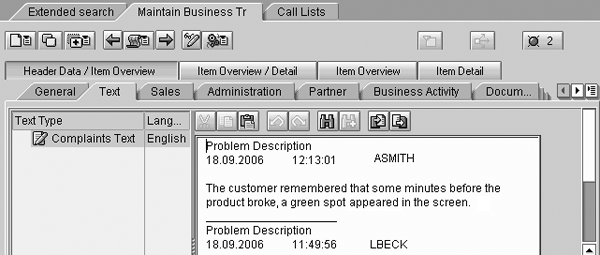
Figure 10
Texts in follow-up transaction document
Susana Messias
Susana Messias has an administration academic background and has been a CRM business consultant since 2002. She has participated in several CRM projects implementing interaction center solutions with sales, service, and marketing functionalities, and she is certified in these solutions.
You may contact the author at Susana.messias@gmail.com.
If you have comments about this article or publication, or would like to submit an article idea, please contact the editor.





 Premium