Link your query results with transaction codes and other SAP Queries to allow users to drill down into the results for more information.
Key Concept
The report assignment functionality allows you to nest reports and transactions inside each other. You can use this technique to create user-friendly drill-down queries that run further reports or execute transactions based on the output of an initial query.
You can configure an existing SAP Query to create drill-down reports that generate new information by double-clicking on the result. SAP Query allows you to link your query results into the following functions:
- Another SAP Query
- A transaction code
- An ABAP program
For example, you have an SAP Query that lists all the new employees in a set period and you have another SAP Query that shows all the payments and deductions assigned to an employee. You can nest the second report in the first one so that when you run a new employee’s report, you simply double-click on one of the employees. The system runs the second query automatically for the employee you selected and displays the results for this employee. When you have finished viewing the data, you return to the results of your first query.
You could also link a transaction code into the first query such as PA20 (display master data) and display all the details of the employee in question by double-clicking on the employee number. You can even link an ABAP program to run that program for your employee when you double-click on the employee’s personnel number.
You can use this drill-down functionality in hundreds of scenarios, but some of the most popular ones I use are:
- Create a drill-down report on absences, starting with a cost center-level summary. Drill down into the cost center to show all the employees in the cost center and their absence summaries. Drill down again into an employee’s individual absence summary.
- Write a drill-down report to pick up all employees who have missing IT0105 email addresses and then allow the users to drill down into the employee record to maintain the data.
You can also link more than one of these options to a single report, so you could add two reports, allowing you to select the specific report that you want to drill down into after double-clicking on your field, or add one report and one transaction, giving you multiple options for further processing. As you can imagine, this can create very complex reports with numerous drill-down levels and processing branches, all run from a single SAP Query.
I will explain how to create the most popular type of nested function to link another SAP Query.
The screenprints are from SAP R/3 Enterprise Release 4.7. This functionality works in SAP ECC 5.0 as well.
Note
This article assumes that the user is already familiar with creating SAP Queries.
Link Another SAP Query
To demonstrate this technique, I created two simple queries. The first query shows all the company codes valid for the organization and the sum of the annual salaries for all employees in each company code. I based the query on infotype 0008 (basic pay data). The second query is for a specific company code and shows the annual salaries of individual employees.
For this example, I drilled down on the company code in the output of the first query so that when I clicked on a company, R/3 ran the second query for just that company. For this technique to work, make sure that the company code is a specified selection field in the second query so that R/3 has somewhere to enter the data when you double-click on the field. The SAP Query overview screen in Figure 1 shows my two queries.
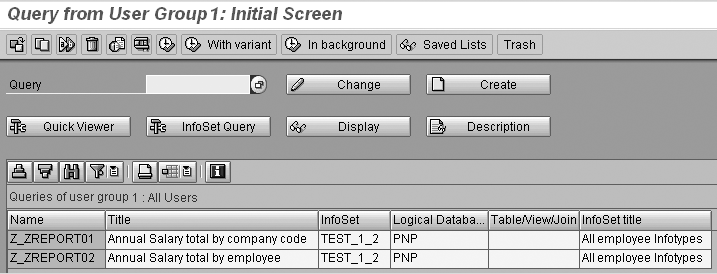
Figure 1
Two sample queries click here for a larger version of this image
Z_REPORT01 is the higher-level report, with a company code-level summary.
Z_REPORT02 is an employee-level report showing employees’ basic pay. This report will link to the first report. If you want to designate a field as a drill-down field from the first query, then you need to include it in the selection screen of the second query. As you can see in Figure 2, the Company code field appears in the selection screen of this query.
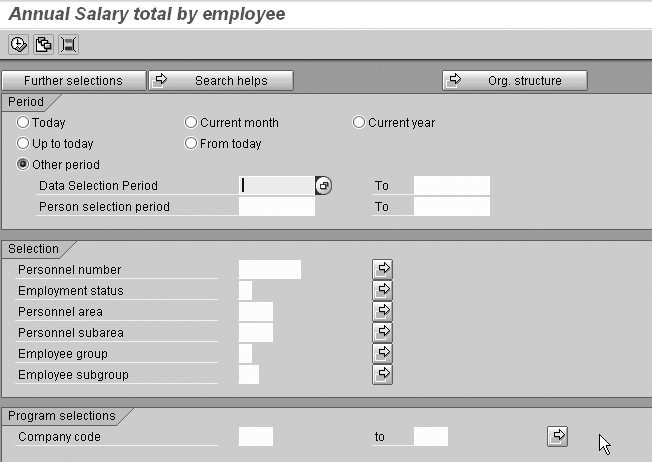
Figure 2
Company code added as a selection field click here for a larger version of this image
After you set up your two queries, you need to attach them. Go into the first query (in this case Z_REPORT01) by selecting the Change button. This takes you to the first screen of your SAP Query (Figure 3). Select Goto>Report assignment. You then see the Assign Reports screen (Figure 4).
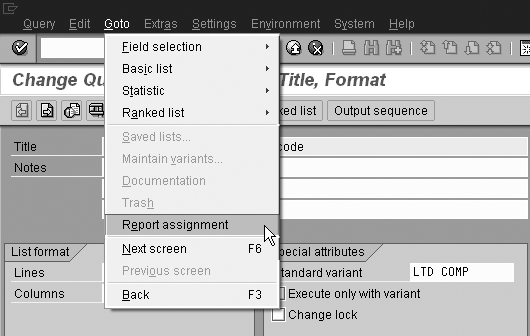
Figure 3
Select Report assignment click here for a larger version of this image
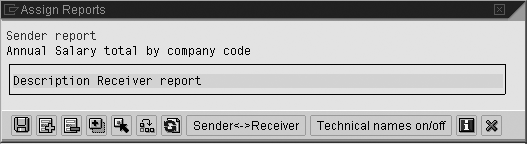
Figure 4
Assign Reger ports screen click here for a larversion of this image
Insert your new nested functions by clicking on the insert row icon  or pressing F6. By default, R/3 takes you to the screen where you insert an SAP Query. Link your SAP Query by entering the User group, Query, and Variant as required (Figure 5).
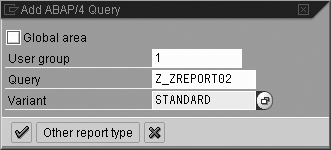
Figure 5
Link your SAP Query
Click on the enter icon or press F8 to enter these items into the query. The nested query appears as the receiver report (Figure 6).
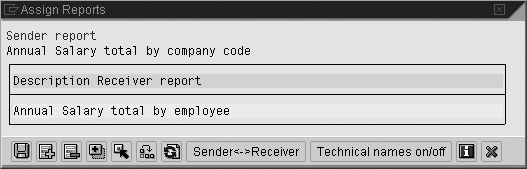
Figure 6
Nested report listed as receiver report click here for a larger version of this image
Click on the save icon or press Ctrl-S to save this nested query. R/3 takes you back to the main screen of your query, which you must save again by clicking on the save icon or pressing Ctrl-S. You have now successfully nested the second query into your first one. To test it, run the first query and display the output (Figure 7).
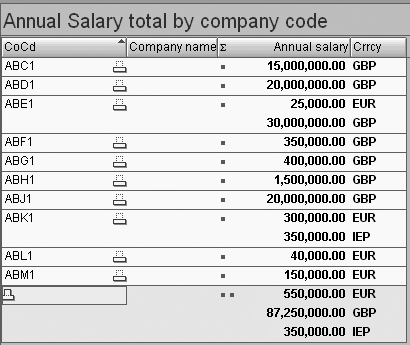
Figure 7
Output display
Double-click on the CoCd field you want to run for the second report and R/3 runs your nested query, inserting the company code into the selection criteria. R/3 indicates that it is processing the nested report at the bottom of the screen with the message in Figure 8. The results of the nested report display only for the company code on which you double-clicked (Figure 9).

Figure 8
Processing message click here for a larger version of this image
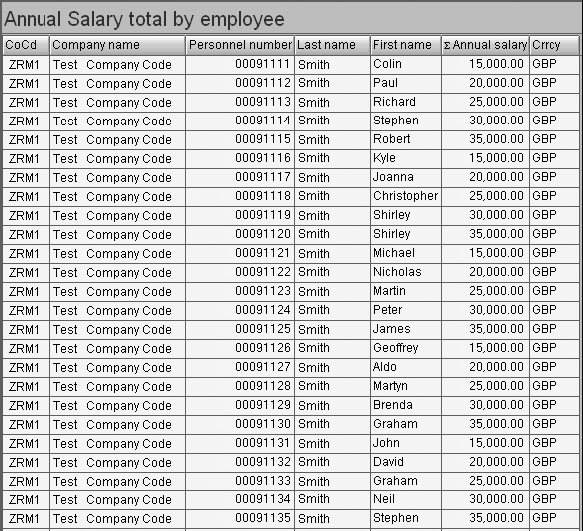
Figure 9
Results by company code click here for a larger version of this image
Tip!
You can link more than one type of nested function into your query using these methods. When you drill down into the query, R/3 prompts you to select the function to perform.
Tip!
This functionality does not transfer if you run your SAP Query through the Ad Hoc Query front end.
Other Options
You may nest many other functions into your query, as shown in Figure 10. For an example of how to include a transaction in your SAP Query, refer to Manish Thakkar’s article, “Quick Tip: Seamlessly Connect SAP Queries to Transactions.”
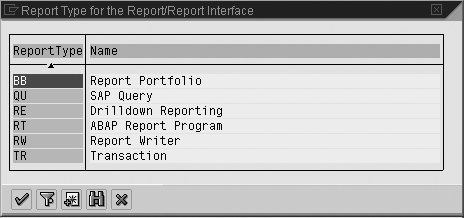
Figure 10
Other options for nesting click here for a larger version of this image
Greg Newman
Greg Newman is originally from New Zealand, and has been implementing and supporting HR and Payroll systems since 1999. He has worked on numerous SAP HR and Payroll implementations for Great Britain, the Republic of Ireland, Australia, New Zealand, and several other international rollouts. Currently Greg is a managing consultant working for Newhit HR and Payroll Solutions in England.
You may contact the author at greg.newman@saphr.com.
If you have comments about this article or publication, or would like to submit an article idea, please contact the editor.