Use SAP status management to bring greater flexibility to your SAP ERP Central Component (ECC) applications and control business transaction processing to meet the specific needs of your organization. Learn how to define user statuses and assign them to SAP objects.
Key Concept
SAP status management includes system statuses and user statuses. System statuses are the standard method in SAP transaction processing to indicate that the production order has been processed. User status is a custom method that you can configure to use in a production order execution control to meet a specific need.
SAP-provided system statuses appear in the transaction screen of a production order to indicate what has happened to the order at any given point. For example, a system status of CRTD, SETC, or REL indicates that the order has been created, a settlement rule has been created, or the order has been released, respectively. Because SAP system statuses cannot be modified, an option to meet custom requirements over and above system status control is to create user statuses. Table 1 defines the features of system status versus user status. Although user statuses can be used in a variety of SAP transactions, this article’s focus is on production order user statuses.
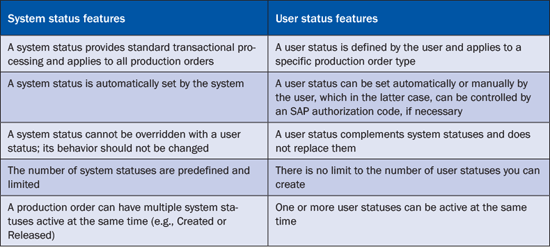
Table 1
A comparison of a system status with a user status
System statuses and user statuses influence business transactions of a production order. For example, when a production order is created, the system assigns the system status CRTD (i.e., created). If a user status for the order type has been configured appropriately, the system also sets the user status for the order. The system checks the user status configuration when a user attempts further transaction processing, such as releasing the order. The check might result in the system allowing the transaction, issuing a warning message, or prohibiting the transaction depending on the configuration setting. If the system prohibits the transaction, a new user status needs to be set before the production order can be released. Only a department or user to whom authorization has been granted can set a new user status to enable further processing.
Figure 1 shows multiple system statuses at the status line for a production order. It shows that this order has been released (REL), partially confirmed (PCNF), and so on. On the other hand, you only see one user status for a production order. In this example, the user status PAH is an example status code for a test case application. To see other user statuses configured for this order, you drill down the user statuses by clicking the blue i icon.
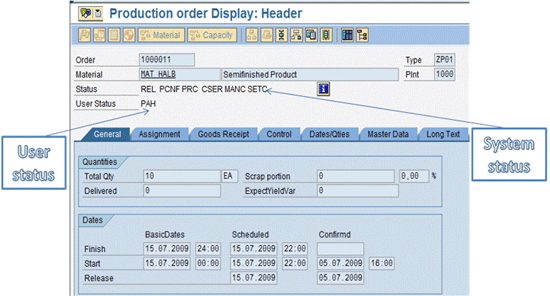
Figure 1
System status and user status display of a production order
For an example of how a user status can help in controlling the release of certain type of product, see the sidebar below.
User Statuses Working in the Wine Industry
A customer in the wine industry uses a weekly bottling schedule for all products. A compliance review process checks to ensure that the information on the label (such as vintage, variety, or appellation) is consistent with the composition of the wine that is actually going into the bottle. Projects that apply labels to unlabeled, previously bottled wines are not listed on the usual bottling schedule, so many of these projects were going forward without this compliance review. A new production order type with a user status prevents the production order from being printed, and therefore prevents the wine from being physically labeled, until the compliance department is able to review the label against the composition of the previously bottled wine.
By applying the user status, the compliance personnel are able to scrutinize the production orders to make sure that the production order for the wine contains the consistent and compliant labeling parameters. After ensuring this, compliance personnel set the appropriate user status to production orders, thereby allowing the production orders to be released for shop floor execution.
There are seven production planning (PP) configurations required to successfully complete the user status configurations for a production order. Five of them are general configurations used for standard production orders and require no explanation. The two specific configurations require detailed explanation: defining a user status profile and defining a selection profile. You specify the scope of the user status, define an authorization key and assign it to the user status, link the user status to the production order, and define the transaction controls of the user status. The second configuration involves defining the selection profile to determine report output.
Configurations for Production Orders
The article does not cover the five standard production order settings, such as the order type dependant parameters, checking control for availability, and confirmation parameters for order type that are required when a new production order type is defined. I have included these standard PP configuration steps for order types below. Steps 2 to 5 are required whether user statuses are used or not:
- Define the order type using transaction OPJH. In the order type details screen, enter the user status profile name. For the purpose of this article, I entered a user status profile name PP000003 for a production order type ZP01.
- Define order type dependent parameters for ZP01 using transaction OPL8.
- Define the checking control using transaction OPJK.
- Define the confirmation parameter using transaction OPK4.
- Copy an existing plant and order type (for example, PP01) combination parameters, modify them, and then apply them to the new order type used for user status control.
Defining a User Status Profile
You need to define the following user statuses:
- INIT ? The initial user status that is automatically set by the system when the production order is created
- APRV ? The user status that the compliance department can use to approve or reject a production order. Using the wine industry example found in the earlier sidebar, consider the following: There were instances in which wines were bottled but not labeled. They would be labeled when they were ready to be shipped at a later time. These bottles were not listed in the bottling schedule. Instead, a manual production order was needed to label the bottles. However, if the production order went unchecked by the compliance department, an incorrect label (i.e., vintage, variety, or appellation) might be put on these bottles. Because incorrect labeling has government compliance consequences, there needed to be a correct production order for labeling the wine. To address this issue, the company created the production order user status APRV. After reviewing the label for previously bottled wine, only the authorized compliance department user can set the APRV status for the production order.
- CHCK ? The compliance department sets this status if the production order is in APRV status
To define the three statuses, complete the following steps:
- Create a new entry using transaction code BS02. Click the create icon
 on the toolbar to display the New Entry screen.
- Enter a status profile number and a description of the user status. Select a maintenance language, so the system displays the user status in this language (Figure 2).
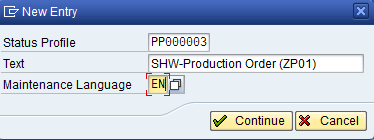
Figure 2
Create a new status profile
- Click the Continue button to see the status profile just created and any existing status profiles (Figure 3). Status profile PS000001 already exists in the production order environment.
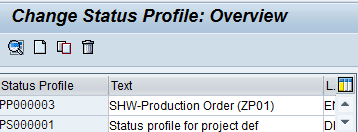
Figure 3
List of status profiles
- Double-click the status profile (i.e., PP000003) to continue the definition process (Figure 4).
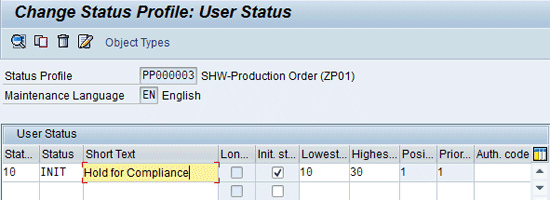
Figure 4
Set the parameters for the INIT status
There are several fields that define the scope of the status you are creating:
- Status number ? Identifies a status by a numerical number
- Status ? Displays the name of the status in the production order screen
- Short text ? Describes the purpose of the user status
- Long text indicator – If needed, enter a long text description for the user status by clicking the long text icon
 . The system sets the long text indicator to ON in the transaction screen indicating that long text exists so that the user can read the detailed description of the user status.
- INIT status indicator – Enables the system to set an initial user status, if there is one, when the production order is created. You can only set this option for one of the statuses you create for an application or transaction.
- Lowest ? Indicates the lowest status to which the user status can be set back from current user status in a production order. For example, the lowest status to which the current status CHCK (status number 30) can set back is INIT (status number 10). Hence, if a user wants to revert back the user status to INIT, the system would allow this. Accordingly, the lowest status entry here represents the lowest status allowed to be set back for a current user status.
- Highest ? Indicates the highest status to which the user status can be set forward
- Position ? Shows the position in which the user status appears in the production order screen. Because only one user status is displayed at a time (Figure 4), set this value to 1 or leave it blank and the system automatically sets a value to 1.
- Priority ? Shows the priority in which multiple user statuses are displayed. Because only one user status is displayed at any time, set this value to 1.
- Authorization code ? Displays an alphanumerical value for communicating with the security team to link authorized users to this user status. In the example, the security team links the compliance department to the user status.
- Repeat the steps to define the other user statuses, APRV and CHCK, as shown in Figure 5.
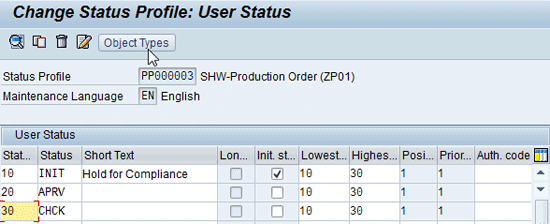
Figure 5
Define the scope of the three user statuses
Assign an Authorization Code
Next, define an authorization key and then assign it to user status APRV.
To assign an authorization code, complete the following:
- Use transaction code BS52, and then click the New Entries button
- Enter an alphanumeric key as the authorization key and a brief description, as shown in Figure 6. Save the key.
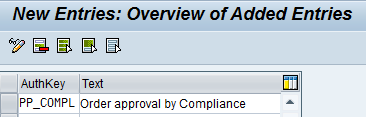
Figure 6
Create an authorization key
- Go back to transaction BS02 and double-click the status profile (i.e., PP000003).
- Enter the authorization key for the user status APRV in the Auth. code field (Figure 5). Save the settings.
Link the User Status to an Object
The next step is to link the user status to an object, in this case, the production order.
- Click the Object Types button in the toolbar in the Change Status Profile: User Status screen (Figure 5).
- As shown in Figure 7, the next screen provides two options for linking to the production order: the order header and the operation. Because you want to control the production order at the header level (vs. the operation level), select the PP/PM: order header.
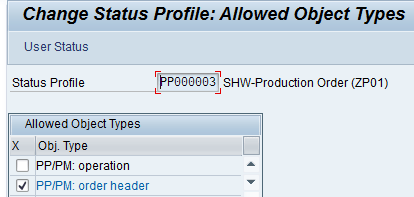
Figure 7
Link the user status profile to the order header object
It is not enough to assign a user status profile just at the object type level. Assign the user status profile to a specific value of the object type that requires this user status functionality (in this case, the production order type ZP01). This is one of the standard settings in production order configurations (as mentioned earlier in the sidebar “Configurations for Production Orders”) that needs to be configured. The system only applies a user status to an order type if you’ve assigned that user status to it. Therefore, don’t assign a user status to other order types, such as standard production order types.
To exclude plant maintenance (PM) orders from the user status profile, for example, do nothing. The setting implies PM order types could also potentially use this user status. However, you are not assigning the user status profile to the PM order types, so the PM setting is not activated. Similarly, for production orders, because you assigned the user status profile only to the order types that you need to control, other order types, including standard production order types, are not affected by user status controls.
- Click the User Status button to return to the User Status profile screen (Figure 5).
Define Transaction Controls for the User Status
For each status, define how it controls transaction processing as follows:
- Double-click the first user status (i.e., Status 10 INIT) in the user status profile screen (Figure 5).
- Select the option button for each transaction control based on how the transaction should behave when the user status is active. For example, in the Compliance production order scenario, select the Confirm order control and then select the Forbid option. This means that executing a transaction to confirm an order is not allowed.
- As shown in Figure 8, continue setting the controls for each required business transactions. Leave the rest of the field selections as provided by the system.
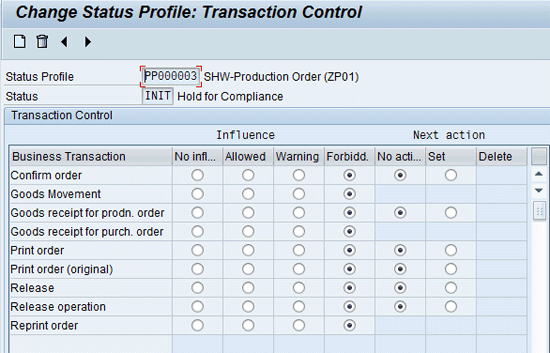
Figure 8
Set transaction controls for INIT status
There are two main options that affect how the system deals with a user status: the Influence settings and the Next action settings. Select an Influence option to indicate what the system should do when the user status is active: No influence, Allowed, Warning, or Forbidden (in the example, the Forbidden option is selected for each business transaction). You also need to select the Next action, so that the system knows what to do when the specified business transaction is carried out (in this case, there is no action).
Next, continue to set the controls for any other user statuses you have created. Because the APRV status works in combination with the compliance department, you don’t need to set any transaction controls giving a green signal to process the production order further. Because the CHCK status also doesn’t require any transaction controls, you do not need to specify any settings.
Note
I included the CHCK status to make it consistent with other statuses active for other applications used later in the article. By including the CHCK status, using few selection profiles, you can select all production orders from the standard report Production Order Information System using transaction COOIS, which is a transaction frequently selected by users entrusted with the task of production order execution. Instead of using the CHCK status for the production order case, you could define more selection profiles.
Define the Selection Profile
The next step in user status configuration is to define an appropriate selection profile. The selection profiles help to select the production orders of certain user statuses in the production order information system report (executed using transaction code COOIS).
To define the selection profiles, follow these steps:
- Navigate to the configuration path: Production > Shop floor control > Master data > Order > Define selection profiles (Figure 9).
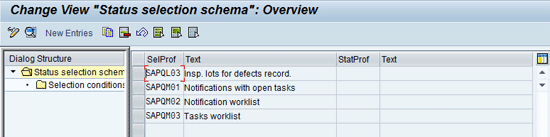
Figure 9
Changing the selection profile
- Click the New Entries button, and enter a selection profile name (e.g., Z000010) and a description (Orders Initial Status not REL) (Figure 10).
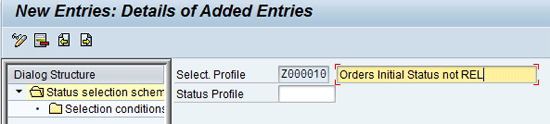
Figure 10
Create a new selection entry
- Double-click the Selection conditions option in the Dialog Structure, and then click the New Entries button in the toolbar again.
- Set the selection attributes (Figure 11).
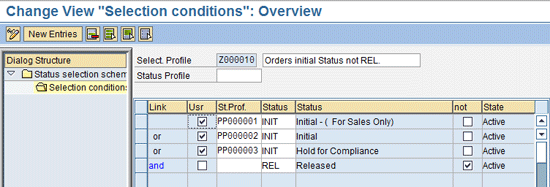
Figure 11
Specify the report output attributes for the production order
For example, to use the selection profile name Z000010 in the transaction COOIS selection screen, set the following attributes:
- User status profile PP0000001 with initial status INIT
- User status profile PP0000002 with initial status INIT
- User status profile PP0000003 with initial status INIT
- None of them should have the system status REL
Note
PP0000001 and PP0000002 are user statuses used for other applications. Although you don’t need to know the details of these profiles, you should know that they exist, and should take them into consideration when selecting production orders from a COOIS transaction report. If a selection is simple, a simple selection profile would do without the need to link other user statuses active in the system.
There could be other user status profiles definitions active in SAP system to meet other business application requirements. The selection profile has to take into consideration all user status profiles together while selecting the production orders.
Continue in a similar manner to define each selection profile required for selecting production orders of different statuses. Consider each profile and user status, before selecting the orders with these statuses active. Accordingly, set the indicators (Figure 12).
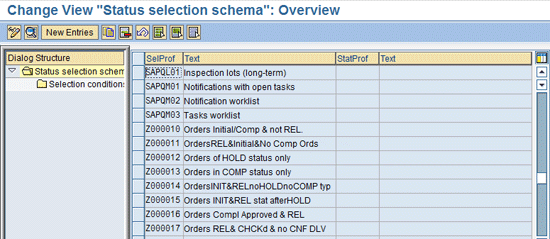
Figure 12
Selection profiles for production orders
I provide an appendix showing definitions of the above profiles, which you can download here. They have been defined, considering the logic required for selecting production orders in the report. The logic can be easily understood based on whether the not active indicator is checked ON for a selection profile and its user status.
Testing the User Status Profile
To verify that the user statuses work as expected, you need to test the configurations as follows:
- To check the user status INIT, create a production order for a material in a plant. Make sure to use an order type for which user status profile is assigned. In the example, the material is 104201309 in the plant is SH10 with an order type of ZP01 (Figure 13). Note that the user status INIT is set by the system automatically.
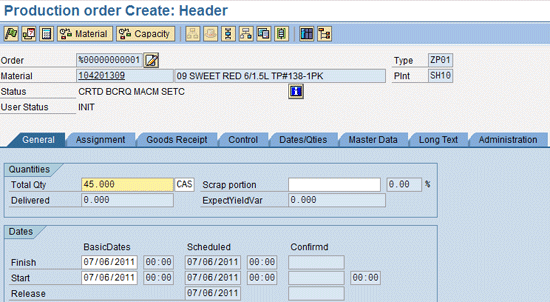
Figure 13
Create a production order with the required field entries
- Click the blue i icon to view the other user statuses. As shown in Figure 14, the three statuses (INIT, APRV, and CHCK) appear, and the 10 INIT Hold for Compliance option is active. This confirms the configurations for the production order of order type ZP01 work. Save the production order.
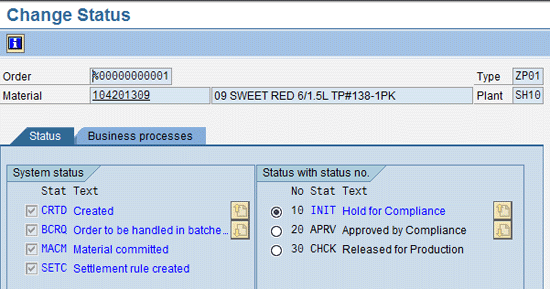
Figure 14
User statuses for the production order
Although the results so far are as expected, the real test starts when you try to change the production order status.
- Use transaction CO02, change the production order, and attempt to release the production order using the Release button. The warning screen appears, indicating the business transaction cannot be carried out (Figure 15). This is expected because, based on the profiles set, you cannot release the production order when the user status INIT is active, making this a successful test.
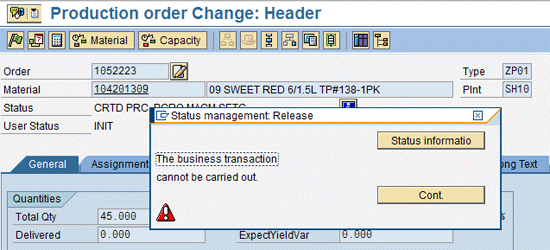
Figure 15
System warning that the production order cannot be released
- Now, test the user status APRV. Assume the security department has set up the security control to allow an authorized user to set the user status. In this example, the authorized user name is TEST_COMP_USER and the authorization code is PP_COMPL. Log in using TEST_COMP_USER. Use transaction CO02, and change the production order. Click the blue i icon, and select the APRV button. The header status line of production order changes to APRV.
- This time, change the user status to CHCK. The new status appears in the production order header. Save the production order. Log off from SAP.
- Log in again using your user name. Use transaction CO02, and change the production order. Enter the same production order number as before. Click the Release button. The system allows the release of production order. This concludes the test.
Testing Selection Profiles
Assuming you have created a few production orders in the system and they are processed with the user statuses INIT, APRV and CHCK, you can test the selection profiles by following these steps.
- Use transaction code COOIS. The system displays the Production Order Information System screen
- Select the PPIOH000 Order Headers in the list of production orders, as shown in Figure 16.
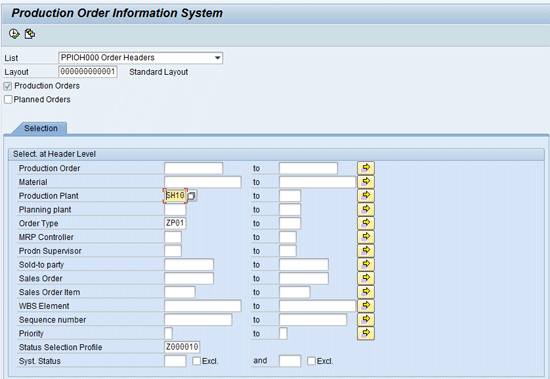
Figure 16
Production order details
- To specify the selection criteria, enter the plant number (e.g., SH10), the order type (e.g., ZP01), and then Status Selection Profile (e.g., Z000010).
- Click the Execute button. The system outputs the selected production orders that meet the criteria to a report. In my example, Z000010 selects production orders of order type ZP01 in plant SH10 with the following condition: All production orders with an active user status of INIT.
Using these four steps, you can test other selection profiles created in the system.
Note
User status functionality can be used for any industry. Another example from a consumer industry
can be downloaded here.
Janev K. Veettil
Janev K Veettil has more than 15 years of SAP experience in SAP Production Planning and logistics modules. He has worked on various SAP implementation projects for different industries and his key focus is on manufacturing.
You may contact the author at jveettil@deloitte.com.
If you have comments about this article or publication, or would like to submit an article idea, please contact the editor.