Understand how to set up text types to communicate with business partners and learn how to configure a text determination procedure.
Key Concept
Texts, which are associated with business objects, customers, materials, or documents, allow you to attach information to a process for others to see. You can use texts for logistics purposes, such as to create purchasing, sales, or shipping texts. For example, sales texts contain notes for customers and shipping texts contain shipping instructions in deliveries. Text objects connect texts to business objects. Specific text types exist for each text object standard delivered by SAP.
A text determination procedure allows you to create texts automatically when you create a text object. You can define different text determination procedures for each text object, such as the sales document header or the central texts for customers. The text determination procedure contains all the text types that you maintain for a text object.
Exchanging information among business partners is a key function within the logistics supply chain. Sales and
Distribution (SD) supports this in the form of texts in master records and documents. With texts, you can configure the
system to meet a customer’s specific requirements. You also can create and link the text to document processing.
Texts in the SD module carry and share information, such as shipping instructions, through master data and
transactional data. You can configure the system to propose the text from the master data or within a document and carry
it across the supply chain process. The system then can copy the text to subsequent documents, so you don’t need to
enter the information again. You also can use the text as an instruction for subsequent processes — for example, a
note in the delivery document that specifies pick-up instructions.
For instance, you could record customer instructions for receiving the goods. You also could use texts when you
have an agreement that is about to expire and you want to send a note with the document that accompanies the goods you
send the customer. Another example would be if your customer would like to receive products in a particular sequence. In
this case, you could include this information in the shipping instructions, which would notify the warehouse folks of the
request before they ship the product.
Although the available documentation explains the business application of texts, it doesn’t explain how to
configure texts in simple steps. In many implementations, you learn this through trial and error. I’ll walk through
the three-step text configuration process using the text object VBBK (sales document header). These steps
are:
Step 1. Identify the text types
Step 2. Identify the access sequence for determining texts
Step 3. Define and assign the text determination procedure
After you understand this process, you can enhance it to perform additional tasks. To read other articles that
describe how you can use texts, refer to the sidebar, “Other Ways You Can Use Texts.”
Step 1. Identify the Text Types
Define specific control options for each text type by following menu path SAP Reference IMG>Sales and
Distribution>Basic Functions>Text Control>Define Text Types or use transaction code
VOTXN. mySAP ERP Central Component (ECC) and R/3 include a variety of text types. You also can create
customer-specific text types.
In my example, I use the standard text type sales order header. Select the Sales Document –
Header text object. Click on the display icon on the top icon bar or press Shift-F1 to display the text object
VBBK (the text object for which you want to configure the text). This brings up the screen shown in
Figure 1.

Figure 1
Click on Text ID’s in Textprocedure to view the available text IDs
This step also gives you a window into the configuration steps for the text determination procedure (step
3). The screen in Figure 1 displays the text IDs that the system uses within the text determination procedure, the access
sequences assigned to the text IDs, and the text determination procedures assigned to the text object selected (in this
case, the sales document). Select one of text determination procedures for the text object you selected (in my example,
01 Sales header) and click on the Text ID’s in Textprocedure folder to list all of
the available text IDs.
In this screen, you can add a new text type if the list doesn’t have the text type you need. In
Figure 2, you can see the list of text IDs maintained for text object VBBK and grouped
for Sales Document Header. After you identify the text IDs that apply to a particular text object, you
must identify the access sequence for the new text ID you just created.
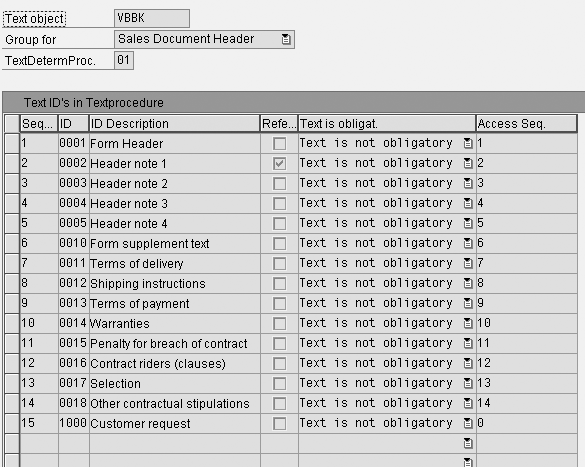
Figure 2
Text IDs for text object VBBK grouped by Sales Document Header
Step 2. Identify the Access Sequence for Determining Texts
An access sequence consists of individual accesses. Access sequences are part of the condition techniques
that the ECC or R/3 system uses in the SD area. They define the search sequences that the system uses when it searches for
texts within a particular record. You can save an access sequence for every text type in the text determination procedure
for documents.
In this example, the access sequence determines the sequence in which the system tries to determine a text
automatically. Every access contains a text object that specifies the source of the text for which you are searching. You
also can store specific requirements for each access to restrict the search to:
- Partner
- Language
- Any other defined requirement
SAP delivers access sequences for the standard text types, but you need to maintain access sequences for
any new text IDs and text types that you create. In my example, I used a standard access sequence because I used a
standard text type. If the existing access sequence doesn’t meet your requirements, you may need to select another
standard one or create a new one. To create a new text ID, copy a text ID with reference to a standard one that closely
matches your needs and that you can modify to meet your requirements. In this case, the system also copies the access
sequence.
Click on the Access sequences folder in Figure 1 to list all the access sequences
available in the system (Figure 3). Select one of the access sequences, such as Notes,
and click on the Access sequence for Text ID’s folder to display the access sequence details
(Figure 4). This screen lists all of the access sequences available or maintained in the system for the
sales document header. In Figure 4, you define what text to search for and where (text object) to search for it. You must
review these details to see if the access sequences meet your requirements in terms of extracting the text from the
source, master data, or document.

Figure 3
Access sequences available in the system
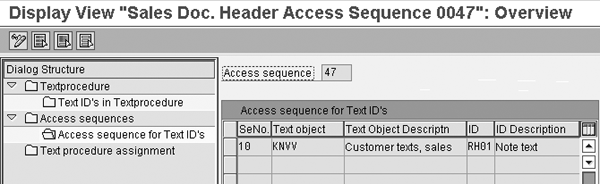
Figure 4
Access sequence details for the Notes access sequence
Table 1 represents how the system defines an access sequence within the text determination
procedure configuration. The Number column defines the sequence in which the system searches the text
object listed in the Text object column. The ID column contains the Text
ID that the system assigns to the text object (Figure 5).
| 1 |
VBBK |
0001 |
|
X |
|
|
1 |
| 2 |
KNVV |
0001 |
AG |
|
AG |
|
|
| 3 |
KNVV |
0001 |
AG |
|
|
X |
|
|
| Table 1 |
The number column indicates in which order the system should call each
access sequence |

Figure 5
Text IDs for text object VBBK
The Partners column specifies whether the text applies to a specific partner type. The
Language column indicates whether the system maintains the text in a specific language that the system
needs to pull (restrict from being retrieved if the language criteria is not met). Three different categories exist for
language — the search might apply to all languages (All), to a specific partner
(Partner), or to a specific sales organization (SOrg). The numbers in the
Requirements column are codes that refer to the ABAP program that the system uses to perform additional
checks while running this search (e.g., check for a particular order type before determining the text).
In Table 1, the system first searches for the most relevant text object to the transaction document, in
this case VBBK with the ID number 0001 and with all languages selected. That means if
the system maintains the text in any language, the system picks it up. The partner or sales organization options are not
selected, so the system doesn’t restrict the search by those two parameters. The requirement 1 is
standard.
If the system can’t find texts for text object VBBK it moves on to text
object KNNV, which is the sold-to customer text specific to the business partner. The system searches
from specific to generic, so it searches for text specific to business partner AG with the language maintained in the
business partner master data and then repeats it without the language maintained.
If the data is maintained in the partner record, the system retrieves it. Note that when you set up a new
access sequence or change an existing one, you must generate the accesses to activate the new access sequence or changes.
Every access contains a text object as a text source for the access. You enter the text objects that you can use in the SD
module in the permitted values that the access sequence contains. Table 2 lists all the permitted values
for text object VBBK.
| KNA1 |
Central customer texts |
| KNMT |
Text for customer material information |
| KNVK |
Contact person texts, sales |
| KNVV |
Customer texts, sales |
| KONA |
Agreement texts |
| MATERIAL |
Material texts, purchasing, storage |
| MVKE |
Material texts, sales |
| TEXT |
SAPscript standard texts |
| VBBK |
Sales header text |
| VBBP |
Sales item text |
| VBKA |
Sales Computer-Aided Selling (CAS) texts |
| WHBH |
Trade contract item |
| WHBI |
Trade contract header |
| WBRK |
Agency document header texts |
| WBRP |
Agency document item texts |
|
| Table 2 |
Permitted values for text object VBBK |
After you define the access sequence, you need to define the procedure the system should use for automatic
text determination. You assign this text procedure to an appropriate process, such as a sales document. In this case, the
text procedure lists all the text IDs that must appear in the sales document. When you create a sales document, the system
calls this text procedure automatically.
Step 3. Define and Assign the Text Determination Procedure
You must assign each characteristic in a text object to one of the defined text determination procedures so
that when you create a customer master record, the system uses the text determination procedure that you assigned to that
customer’s account group. In the sales order entry, the system assigns the sales document text determination
procedure for the sales header text type.
Text determination procedure attributes vary for each customer or text object. In the text determination
procedure for text objects you can specify whether the system should:
- Make the text mandatory (incomplete log)
- Determine the text automatically
- Display the text in the document’s text field
In Figure 1, when you click on the Text procedure assignment folder, you can assign a text
determination procedure to the appropriate business object such as sales document, item, or customer account group
(Figure 6). In this figure you can see that I assigned the text determination procedure
01 to the majority of the sales document types. In Figure 1, you saw that 01 was the
text procedure for Sales Header. In Figure 6, you can see that the text procedure 01
also applies to documents such as Inquiry (IN) and Quotation
(QT).
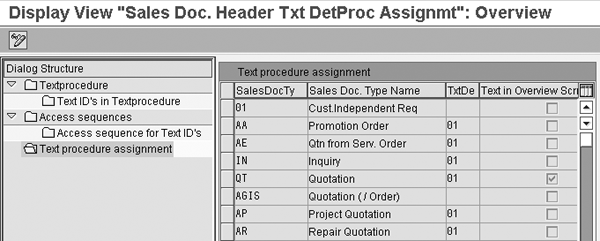
Figure 6
Assign the text determination procedure to a business object
A typical text determination procedure for the sales header text type appears in Table 3.
You add these entries to the Text Determination Procedure New Entries screen. In this screen, the
Sequence number column defines the sequence number in which the text appears in the text determination
procedure. In this example, the system determines the text ID 0001 (header text) first by using the
access sequence assigned to it. The Access sequence column contains the access the system assigns to the
text ID, which the system uses as a search criterion to search this text.
| 1 |
0001 |
Form header text |
Checked |
1 |
| 2 |
0002 |
Header note 1 |
|
2 |
| 3 |
0003 |
Header note 2 |
|
3 |
| 4 |
1004 |
Form attachment text |
|
4 |
|
| Table 3 |
Text determination procedure for the sales header text type |
The Reference check box applies if you copy texts. For example, you could move a text from
a sales order to a delivery document and reference it so if the source text changes (sales order), the system reflects
these changes in the target (delivery note). If you reference the text from the original document, it uses less space
because it is not copied to the follow-on documents.
When you check the Reference check box, the system uses the text object as a reference,
but does not duplicate it from the source. However, you should be aware of the following if you decide to reference a
text:
- When the text in sales document 2 (target) refers to the text in sales document 1 (source), you cannot
change this text in sales document 2 (target).
- If you change the text in sales document 1 (source), the text in sales document 2 (target) also
changes.
After you finish the configuration, you can use texts to communicate within your company and also to
business partners.
Other Ways You Can Use Texts
Rajen Iyer
Rajen Iyer is the cofounder and CTO at Krypt, Inc. Rajen has written several in-depth, best practice articles, white papers, patents, and best-selling books on SAP Logistics and SAP Global Trade Services, including Effective SAP SD and Implementing SAP BusinessObjects Global Trade Services. He is also an invited speaker at industry conferences.
You may contact the author at Rajen@kryptinc.com.
If you have comments about this article or publication, or would like to submit an article idea, please contact the editor.