Manager
Learn how to set up SAP End User Experience Monitoring (EEM) in SAP Solution Manager with enhancement package 1. See how to configure and ready SAP Solution Manager to support EEM functionality, including the proper SAP Notes you need to use.
Key Concept
SAP Solution Manager supports six phases of application life cycle management based on information technology infrastructure library (ITIL) best practices. End User Experience Monitoring (EEM) is part of the Operate phase of application life cycle management. It was introduced in SAP Solution Manager starting with Support Package 20. EEM functionality is part of SAP Solution Manager and falls under the technical operations process.
Running SAP Enterprise applications requires monitoring the end-user experience to ensure that the end users are not having any application issues. End User Experience Monitoring (EEM) in SAP Solution Manager gives you the ability to monitor your key business processes before end users are affected. EEM simulates the execution of recorded end-user business transactions as the end user was doing it by measuring availability and response times.
EEM supports both Web-based business (HTTP) and SAP GUI (thick-client) translations. Examples of Web-based end-user translations include time entry in SAP NetWeaver Portal employee self-services or creating a sales order in the ABAP stack using SAP GUI.
EEM is fully integrated into SAP Solution Manager and is the only monitoring tool that supports central administration and distributed SAP GUI support, HTTPS support, trace technology, realistic scenario, performance data, availability data, and alerting and monitoring of your productive systems from a client-side perspective. EEM has three main components:
- Design time: The key business processes to be monitored are identified and recorded using EEM recording tools. Depending on which GUI you have deployed, the recording tools support both Web-based and thick SAP GUI transactions.
- Configuration time: Recorded business translation scripts are taken and distributed in different locations via SAP Solution Manager diagnostic agents (sometimes called robots). The key here is that you record these transactions once and distribute to as many diagnostic agents as you need. In configuration time, the service level agreements (SLAs) are set for the end-user experience scripts as well. If the SLAs are breached, an alert can be sent out to the owners of applications or operation team in charge of supporting these applications.
- Run time: Real-time monitoring of recorded business transactions are executed via diagnostic agents in SAP Solution Manager. Based on how often you want to execute those recorded scripts, the execution of the run time and response time is reported back to EEM dashboards.
The detailed configuration in the text and screenprints in this article are based on SAP Solution Manager 7.0 with SAP enhancement package 1 and Support Package 25, running on Microsoft Server 2003 SP2 with a MSSQL 2005 SP2 database. To set up EEM you need at least Support Package 20 or later, along with SAP Solution Manager Diagnostics Agent 7.2 Java Development Kit (JDK) 1.5 or later.
Install and Configure SAP End-User Experience Monitoring
To install and configure this functionality, you need to perform the following steps in SAP Solution Manager:
Step 1. Download and Deploy the Latest LMSERVICE Patch
First, download and deploy the latest LMSERVICE from the SAP Service Marketplace. The latest LMSERVICE patch available for download is patch level 8. Go to https://service.sap.com/swdc and follow menu path Download > Support Packages and Patches > SAP Technology Components > SAP SOLUTION MANAGER > SAP SOLUTION MANAGER 7.0 EHP 1 > Entry by Component > Solution Manager JAVA Stack > SOLMANDIAG 7.01 > # OS independent > LMSERVICE08_0-20004805.SCA.
After you download the LMSERVICE patch, move the downloaded LMSERVICE software component archive (SCA) file above to <DIR>:usrsaptransEPSin where SAP Solution Manager is installed. Now that the software to be deployed is downloaded, launch SAP Java Software Deployment Manager (SDM) in the SAP Solution Manager Java stack to deploy the LMSERVICE patch. SDM is a deployment tool delivered as part of the Java stack. To launch SDM, click RemoteGui.bat for Windows hosts and RemoteGui.sh for Unix hosts (Figure 1). Before you can launch SMD, you have to log in to the operating system level where SAP Solution Manager is installed with an <SID>ADM username and launch SDM by navigating to <DIR>::usrsap<SID>/<instance>SDMprogramRemoteGUI.bat (Figure 2).
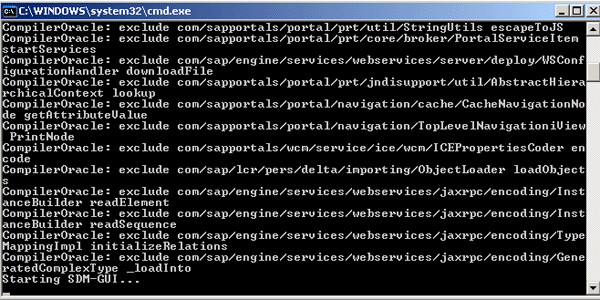
Figure 1
Start Java SDM RemoteGui.bat

Figure 2
Log in to SDM
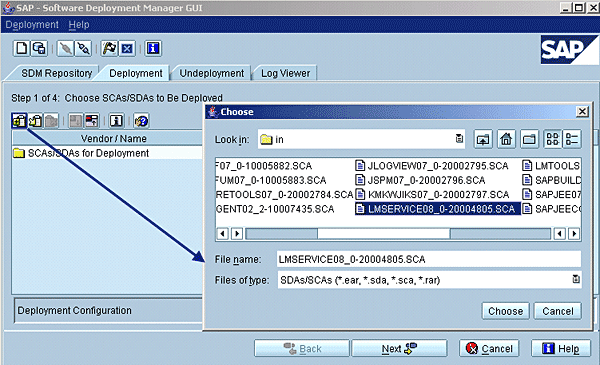
Figure 3
Select LMSERVICE****.SCA
Click the Next button until you see the ready-to-deploy screen (Figure 4).
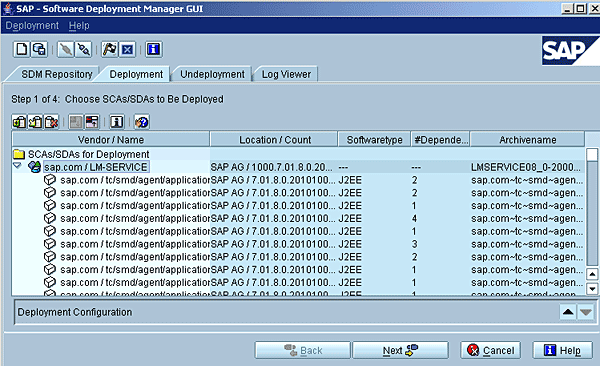
Figure 4
Start the deployment of LM-SERVICE
Deployment might take several minutes to complete. Once the deployment of LM-SERVICE is completed successfully, confirm it by clicking the Confirm button.
Step 2. Install SAP Note 150311
Before beginning with the configuration, you need to download and install SAP Note 1503111, which contains corrections for EEM. The Note Assistant allows you to automatically implement note corrections in your ABAP systems. To install this SAP Note, use transaction SNOTE and navigate to GOTO > Download SAP Note (or GOTO > Upload SAP Note if you already downloaded it through SAP Download Manager). SAP Solution Manager connects to the SAP back-end support system to download the SAP Note. Enter the note to download and then click the execute icon (Figure 5).

Figure 5
Enter the note number to download
After downloading the note, click the SAP Note 1503111 and then click the SAP Note menu and select Implement SAP Note (Figure 6). The Note Assistant begins implementing the SAP Note.

Figure 6
Implement the SAP Note via the Note Assistant
During the implementation the system requests a workbench, which you create by clicking the create request icon and filling the Short Description field (Figure 7). Click the save icon and the request is automatically generated (Figure 8).
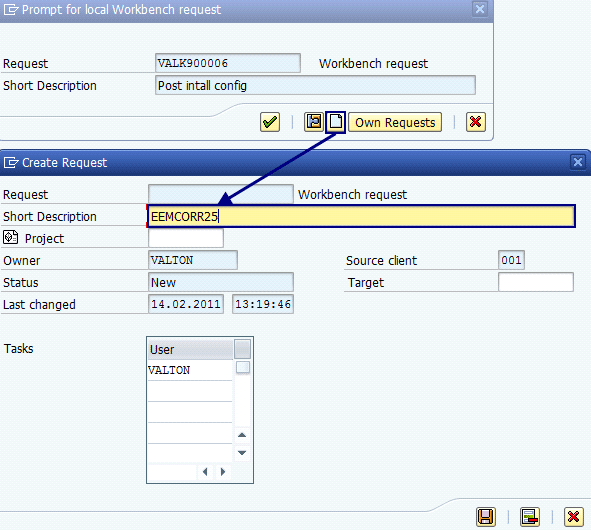
Figure 7
Create a new request
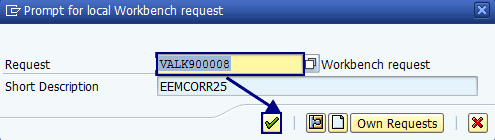
Figure 8
Continue to begin with implementation
Note
Workbench requests contain changes to client-independent tables. A workbench request is for transporting objects such as programs and function modules. They record changes made to ABAP Workbench objects.
Click the green check mark icon and the system begins implementation (Figure 9).This screen lists the SAP program objects that will be corrected by applying SAP Note 1503111.

The next pop-up screen appears requesting a workbench for Interface (ABAP Objects) for IWCI_AI_EMM_SETUP and IWCI_AI_EMM_ADMIN. You can either create a new change request or use the one you created above (Figure 10).

Figure 10
Confirm the change request
Click the green check mark icon and the screen in Figure 11 appears. This screen shows Inactive Objects. Click the green check mark icon to finish with the implementation.
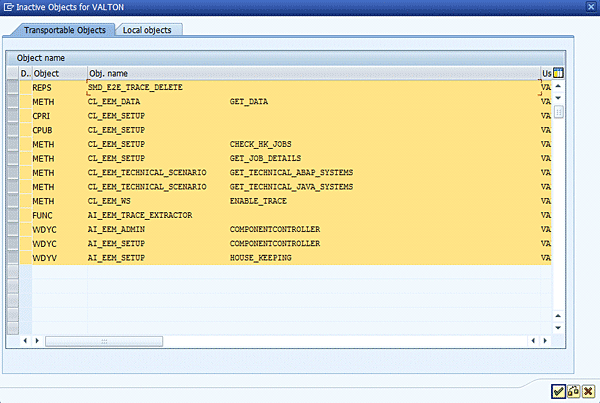
Figure 11
Finish the implementation
Figure 12 confirms that SAP Note 1503111 is successfully installed.
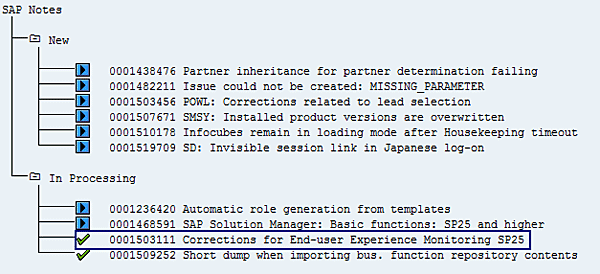
Figure 12
SAP Note 1503111 is now successfully implemented
Step 3. Upload the SAP Roles for EEM
A role is a grouping of privileges that can be assigned to database users, user groups, or other roles. Refer to SAP Note 1357045 to download the roles for the EEM administration task.
The needed file is Z_EEM_ADMIN.SAP. To upload the role, use transaction PFCG and follow menu path Role > Upload, or press Ctrl-F12. Locate the downloaded content from SAP Note 1357045 which contains the administrative roles for EEM in SAP Solution Manager. Double-click Z_EEM_ADMIN.SAP to open a screen to locate SAP roles (Figure 13). Z_EEM_ADMIN.SAP allows users to perform administration, while Z_EEM_DISP.SAP only allows users display authorization.
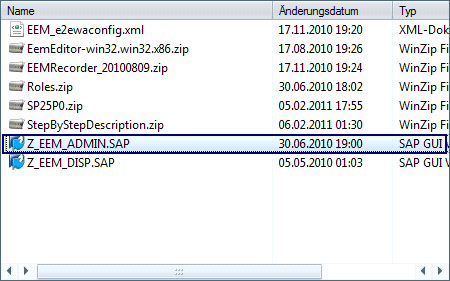
Figure 13
Upload Z_EEM_ADMIN.SAP
After uploading the Z_EEM_ADMIN.SAP, click the green check mark icon to import the role into the database (Figure 14). Make sure that the Status shows as green, meaning it’s ready to be imported.
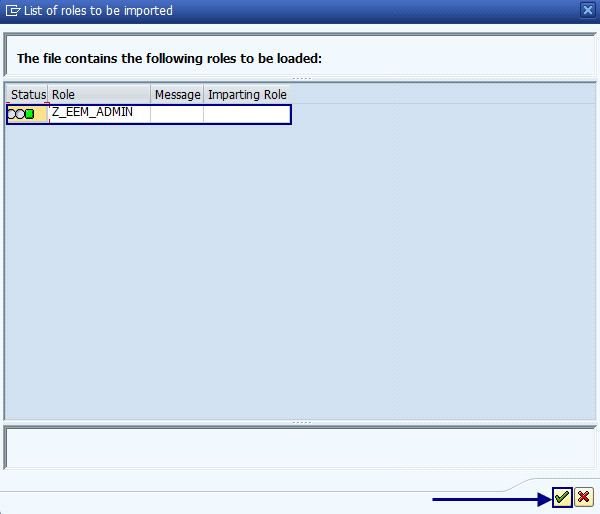
Figure 14
Import the role
Before you save or import the SAP role, you need to do some modification. Click the edit (pencil) icon in the screen shown in Figure 15.
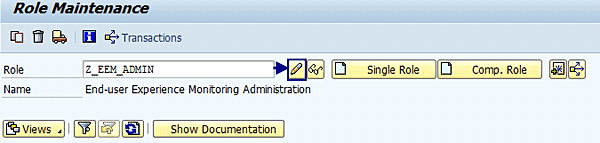
Figure 15
Edit the Z_EEM_ADMIN role
Click the Authorizations tab and review the information about the authorization profile that is automatically generated by the system when you click the generate information icon circled in Figure 16.
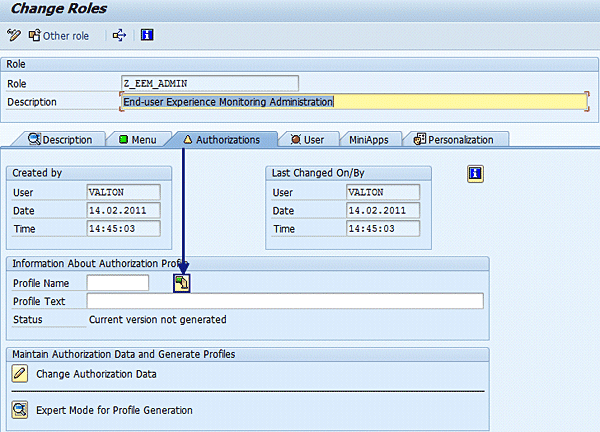
Figure 16
Generate authorization profile information
The system then fills fields like Profile Name and Profile Text. Click the edit icon to change the authorization data (Figure 17).
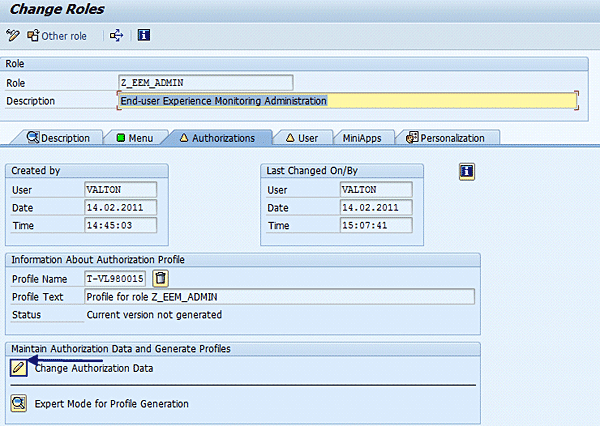
Figure 17
Save changed data and continue
After you click the icon, you can see that everything is green, which means that the SAP Note has been successfully imported (Figure 18). Click the generate icon to generate authorization objects and save your changes.
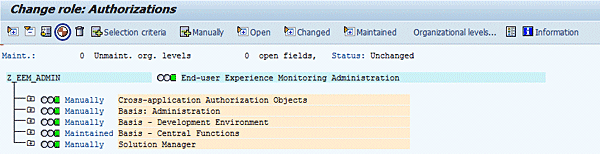
Figure 18
Generate and save changes
After generating, go back and confirm that the status of Authorizations tab is green (Figure 19).

Figure 19
Completed authorization step
To add a user to have administrative privileges to EEM, enter a user name in the User ID field of the User tab and press Enter (Figure 20). If the user exists, it automatically fills all the other fields. You can add as many users as you want.
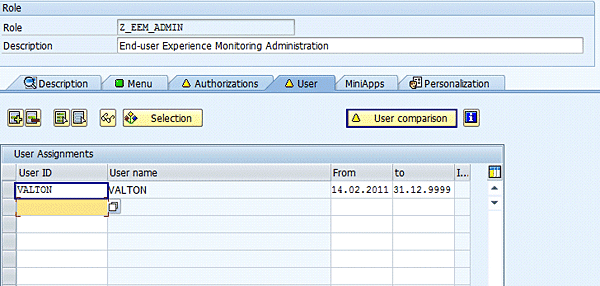
Figure 20
Add users to the EEM admin role
Then click the User comparison button to make sure there is no inconsistency with the users added to the EEM admin role. If all tasks are successfully completed, they will be marked green. Click the save icon to save your changes (Figure 21).

Figure 21
Compare users and save the changes
As a result of this, under the SAP Solution Manager main menu the EEM links now appear (Figure 22).
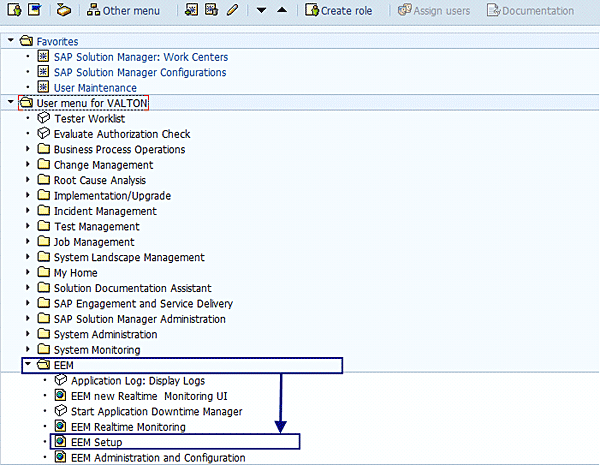
Figure 22
Launch EEM Setup
Step 4. Enable EEM in SAP Solution Manager
To configure EEM, use transaction SE38. In ABAP Editor, enter AI_EEM_SETUP in the Program field and click the execute icon (Figure 23).
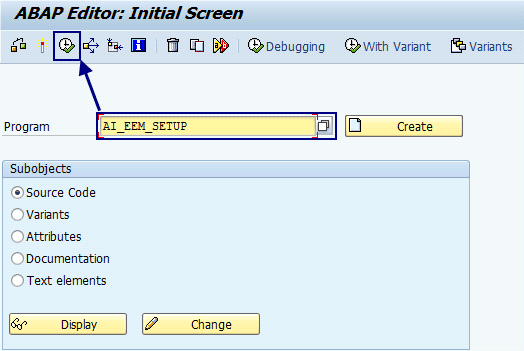
Figure 23
Run setup
A new window opens and takes you to the EEM configuration setup procedure. In the Web Service Configuration step, you configure endpoints for communication between EEM Editor and SAP Solution Manager, and also a logical port for communication between SAP Solution Manager and Diagnostics. The Protocol, Server Name, and Port automatically appear and you can add a User Name and Password. You can use existing credentials by selecting the Single sign-on check box. In this case, I click Single sign-on and leave the rest as it is by default. Click the Save button and then click the Continue button (Figure 24).
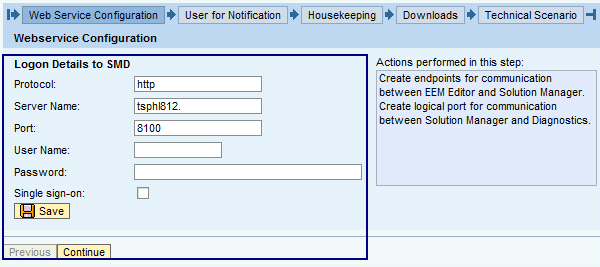
Figure 24
Logon details to SMD
The SAP Solution Manager diagnostic is used to carry out centralized analysis and monitoring of the SAP NetWeaver system landscape. It helps simplify the tasks associated with root cause analysis.
Now you move on to the User for Notification step. Here you create a user or change your password. This user role is for communication between EEM robots (clients) and SAP Solution Manager. In the User field, enter your actual user name or a new user name and a password, and click the Save button to save the changes (Figure 25). After the changes have been saved click the Continue button to go to the next step.
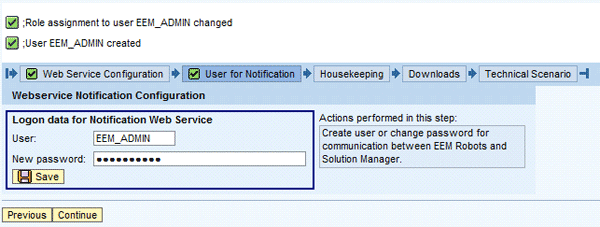
Figure 25
Logon data (user name and password)
This takes you to the Housekeeping step. Housekeeping is meant as a way to help keep the system organized and running properly. First fill the Lifetime of EEM data (in days) field, where you can schedule a job for deleting EEM data after a specified lifetime. As you can see in Figure 26, there are two other fields: Lifetime of E2E Trace data (in hours) and Lifetime of E2E Traces not rated red. The fields are automatically filled, but you can change them to your requirements. Click the Save button, then click Continue.
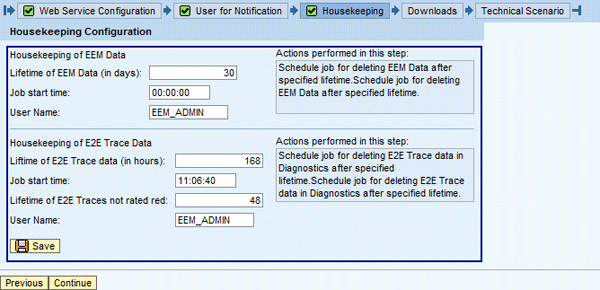
Figure 26
Housekeeping information
This takes you to the Downloads step. Here you download the EEM Editor that is used to edit and deploy the scripts, and also the EEM Recorder that is used to record them (Figure 27).
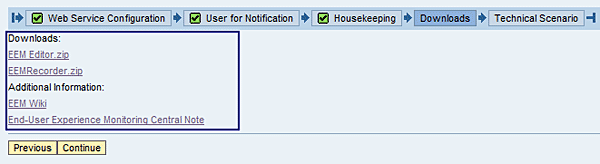
Figure 27
Downloads and additional information
The last step is the Technical Scenario (Figure 28). Here you can schedule an extractor for all technical scenarios that are assigned to EEM scripts. The extractor job is to read all the system related response times during the execution. To schedule an extractor, you select the technical scenario and click the Create Selected button, but this is to be done later.
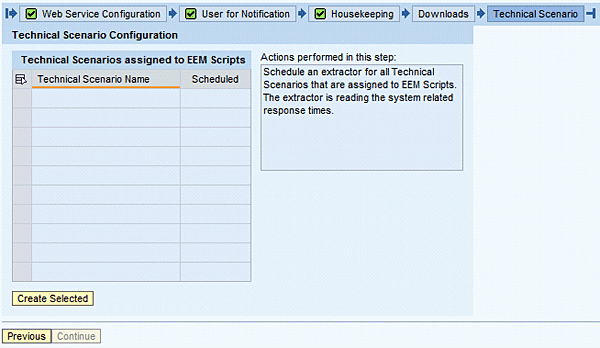
Figure 28
Configure the technical scenario
Step 5. Upload EEM_E2ewaConfig.xml
EEM_E2ewaConfig.xml contains specific configuration for EEM that will be added to the current configuration of the SAP Solution Manager end-to-end workload, change, and exception analysis part of the root cause analysis functionality. It’s recommended that you back up the current .xml file (Figure 29) before uploading EEM_e2ewaconfig_SP25.xml. To back up the current .xml file, go to https://<Solution Manager _Host _Name>:<SolMan Port number >/sap/bc/webdynpro/sap/e2ewa_cfg. Click the Download configuration link.
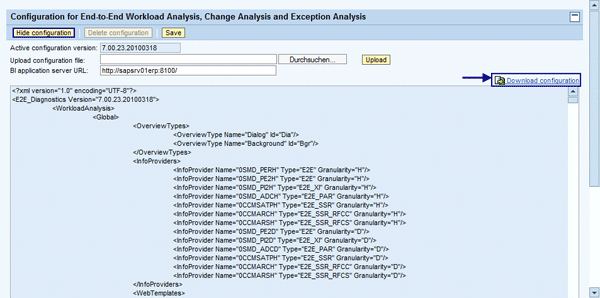
Figure 29
Display or hide the current configuration and back up the current configuration
Navigate to the folder containing the EEM_e2ewaconfig_SP25.xml file and double-click it (Figure 30).

Figure 30
Upload the new configuration file
Click Upload to begin implementing the configuration file (Figure 31).

Figure 31
Click the Upload button
If file was successfully uploaded and saved, the message in the screen in Figure 32 appears.

Figure 32
The configuration file has been uploaded successfully
Step 6. Start EEM Realtime Monitoring
You’ve finished the installation of EEM configuration. Now go back to the user menu and start the EEM Realtime Monitoring option (Figure 33). This is an Adobe Flash interface of EEM, providing navigation to robots and scripts as well as to other tools (Figure 34).

Figure 33
Start EEM Realtime Monitoring
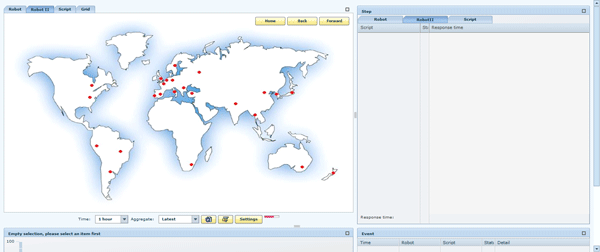
Figure 34
Adobe Flash UI monitoring
The Monitoring application is divided into several parts, including the graphical area and the detailed tree:
- Graphical area: Provides views of the data with different entry points: Robot, Scenario, Grid, and Graph
- Robot: A robot is an SMD Agent where EEM scripts are executed. On the Robot tab the script executions are grouped by the robot on which the scripts are executed. Each robot is displayed as a box containing all the scripts that have been executed or scheduled in the selected time frame. The background color of the boxes represents the most critical status of a script on this robot. Each script has its own execution status displayed at the first position.
- Script: All script executions are grouped by the script name
- Grid: This tab gives a matrix overview about all scripts running on different agents
- Graph: The Graph view displays all script execution as a graph with forward navigation into robots and steps
- Detailed tree: The detailed tree provides two views of the data, grouped by robot and grouped by scenario. Here you can see all executions including the status and response times of each step of a script in the selected time frame.
This concludes the configuration you need to perform.
Valton Berisha
Valton Berisha has more than 15 years of consulting experience in managing, developing, and implementing software solutions, including SAP solutions. He has been associated with several SAP implementations in various capacities. Valton is the co-founder of Corealm Consulting Company, specializing in SAP consulting — in particular, application life cycle management, SAP Solution Manager, and third-party solutions that are integrated with SAP Solution Manager. He is Microsoft, Red Hat Platform, and Novell certified.
You may contact the author at valton.berisha@corealm.com.
If you have comments about this article or publication, or would like to submit an article idea, please contact the editor.