See how to create an application in Schedule Manager to carry out period-end closing activities. Discover Schedule Manager’s main components, features, and technical foundation.
Key Concept
Schedule Manager is an integral component of several modules in SAP such as Profitability Analysis (CO- PA), Product Cost Controlling, Accounts Payable, Accounts Receivable, Asset Accounting, and Funds Management among others. Because SAP did not tightly weave it into any particular application or module, making it more of a cross-application component, there is virtually no restriction on its use by any application or module. In other words, there isn’t one version of Schedule Manager for CO-PA and another for Funds Management — both use the same Schedule Manager tool and functionality. While primarily focused on period-end closing activities, Schedule Manager has become more versatile than its predecessor, Period-End Partner (PEP), and you can use it with more modules and sub-modules than PEP. The tool has no special requirements or costs and is part of the standard SAP releases since R/3 4.6 including R/3 4.7, mySAP ERP 2004, and mySAP ERP 2005.
SAP rolled out Schedule Manager as a comprehensive centralized tool for the first time in the R/3 4.6 release. It is almost synonymous with period-end closing activities, and provides functions such as:
- Complete control over period-end closing activities
- A standard interface that facilitates activities such as job or process scheduling in the background and executing various closing-relevant reports via transactions
- Integration of flow definitions and worklists into this tool that allow you to define relationships between various tasks and activities. This also provides the framework for communication among various users affected by these activities.
- Monitoring capabilities that enable users to keep themselves apprised of the status of jobs and activities, and to carry out meaningful error analysis
However, Schedule Manager also works beyond these period-end closing activities. I have seen and used the tool with other activities such as Profitability Analysis (CO-PA), execution of dunning, and scheduling of payments using the automatic payment program in Accounts Receivable and Accounts Payable. You can also use the tool for activities in the Funds Management arena such as carry-forward of commitments and other activities related to fiscal year change in Funds Management. I have seen some creative uses of Schedule Manager chiefly as a job scheduling tool for recurring jobs, activities, or reports. I have taken advantage of its job scheduling features and its monitoring capabilities for repetitive tasks such as scheduling nightly batch jobs.
I’ll provide the steps I developed from my own experience for creating an application in Schedule Manager. The scenarios and screenprints in my example are based on mySAP ERP Central Component (ECC) 6.0. First, I’ll guide you through Schedule Manager’s interface and explain the major components of the application, including the task list. I’ll also look into the technical aspects of the application.
Schedule Manager Interface
To start Schedule Manager, use transaction code SCMA or follow SAP Easy Access menu path Accounting > Controlling > Cost Center Accounting > Period-End Closing > Schedule Manager (Figure 1). The task list in Figure 1 is a default one supplied by SAP called 0-SAP-DEMO.
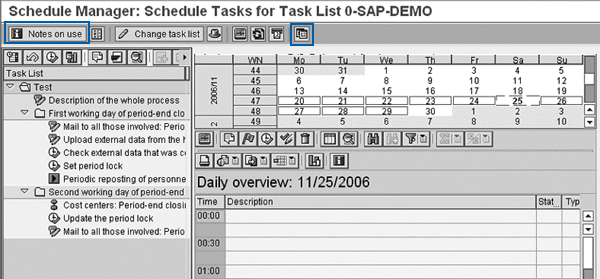
Figure 1
Schedule Manager interface (transaction SCMA)
Click on the Notes on use button to bring up an additional vertical frame that contains documentation on all relevant aspects of the tool. The feature replaces the Help > Application Help option that most tools use, and integrates in the interface of the tool.
The Schedule Manager interface has several options you can customize, including:
- SAP wove all of the components into the interface and navigation from one component or functionality to the other.
- As part of the processing of a task list, you can send emails to the relevant personnel. You can bring up the Create Document and Send screen by clicking on the email icon available in the application toolbar.
- By clicking on the settings icon, you can customize the display of the daily overview in the monitor (the interval in minutes and the number of rows per interval up to a maximum of 10). The number of rows corresponds to the granularity of the time slice. In Figure 1, you can see two rows in every time slice of 30 minutes with each slice representing 15 minutes. By increasing this to a maximum of 10, each slice would represent three minutes. You can regulate the granularity by changing the time interval or by changing both the time interval and the number of rows.
- You can customize the layout of your task list by changing existing layouts and creating new ones.
- By pressing the F7 key or clicking on the select time frame icon, you can set the display of the daily overview to the date of your choice. You can achieve the same effect by double-clicking on the desired date on the calendar that the system displays in the default view.
Now that you have an understanding of Schedule Manager’s interface, I’ll look at the major components of the application.
Schedule Manager’s Major Components
Schedule Manager has four major components:
- Scheduler. Using the Task List (shown in the left panel of Figure 1), you can define different classes of jobs. You can carry out and monitor complex business processes per your requirements and definition. You use task lists to schedule jobs and activities in a flexible manner. I’ll go into detail about task lists in the next section.
- Monitor. As the name suggests, the monitor allows you to find the status of jobs that you scheduled using the scheduler. It also allows you to: view existing worklists and their processing steps; view the status of objects that you processed in these worklists and analyze errors encountered in these objects or processing steps; control further processing of objects including sending objects to the relevant personnel for their subsequent action; and display and compare the hierarchical relationship between objects.
- Flow definition. SAP integrated its workflow engine into Schedule Manager so users could create workflows. You can define a workflow as a graphical sequence of activities based on a set of steps in a business process.
- Worklist. Upon creating a flow definition, the system generates multi-level worklists. In other words, instead of a linear sequence of tasks, worklists represent a hierarchical arrangement and each node in the hierarchy may contain one or more related tasks. This ensures more efficient usage of system resources.
Note
In addition to invoking the monitor directly from the main Schedule Manager interface, you can run transaction SCMO to monitor tasks and activities per application and based on the selection criteria you enter.
Task List
You can use Schedule Manager’s task list to schedule jobs and activities. If you are new to task lists, you might benefit from looking at existing templates. To browse templates that SAP provides, go to the main menu and click on Task List and then Other Task List. This produces a pop-up screen called Choose Task List, as shown in Figure 2. Press the F4 key to bring up a list of task list values — the Task List column in Figure 2 that includes the SAP-supplied values and any that you created.
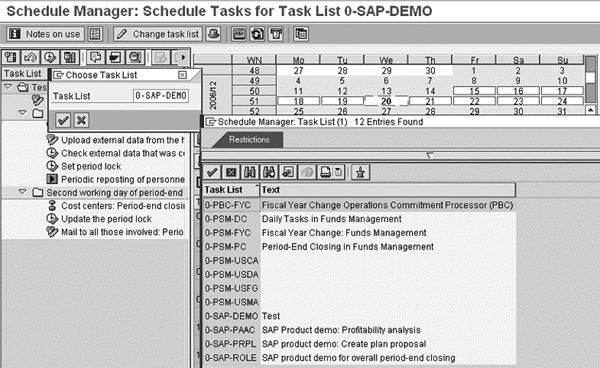
Figure 2
Task lists in Schedule Manager
To get a better feel for task lists, select 0-SAP-PAAC, the demo task list for CO-PA (Figure 3). On the left panel, you see a list of task groups — Regular tasks, Period-end closing tasks, Irregular tasks — and the individual tasks. Each of these tasks corresponds to a report or a transaction that you can then schedule.
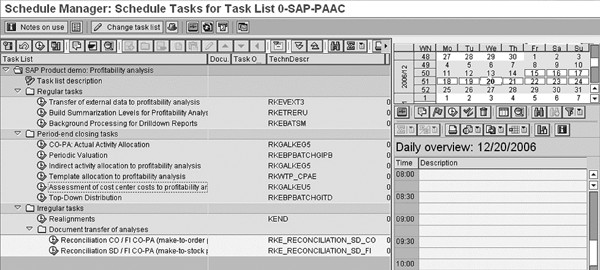
Figure 3
Task list for SAP product demo on CO-PA
Create an Application in Schedule Manager
To carry out period-end closing activities or similar processes that consist of a set of activities you need to schedule, you need to know how to build your own application in Schedule Manager. Depending on the specific scenario for which you want to use Schedule Manager, you may have to add or take out a step.
Let’s take a very simple example: Say you use Schedule Manager for period-end closing activities and you realize that you need to add a step for opening and closing the posting periods in FI (transaction OB52). In this case, you have to insert this new task into your task list. Or, say you use Schedule Manager for scheduling automatic payment proposals and payment runs in Accounts Payable. You might have a requirement that asks for a certain employee to approve the payment proposal for the system to execute the payment run. You have to change the existing flow definition to add a user decision step that allows the employee either to approve or reject the payment proposal.
Beyond alterations such as these, you can follow these general steps:
- Step 1. Create a task list
- Step 2. Schedule a task
- Step 3. Monitor activities and jobs
Step 1. Create a task list. This is the most basic prerequisite. In the Choose Task List pop-up screen shown in Figure 2, enter the technical name of your new task list. Press Enter to bring up the header view of the task list where you enter the description of your task list and configure settings such as choice of calendar — Gregorian, Factory, Holiday — first day of the week, daily view, and so on (Figure 4). Here, you can override the SAP-supplied defaults with your desired values. Once you make all changes and entries, you need to save them by clicking on the save icon.
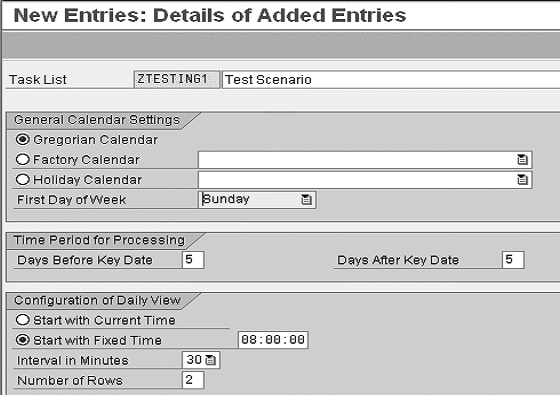
Figure 4
Configuring header settings for a task list
After you save your object to a transport, you need to populate your task list. Use the back icon to bring up the screen shown in Figure 5.
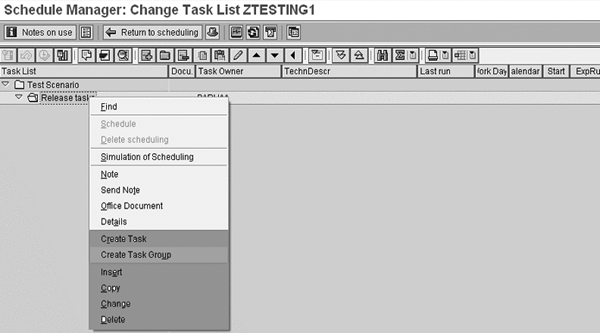
Figure 5
Create tasks and task groups for a task list
Note
A task list, like other Schedule Manager objects, is a transportable object. In other words, when you save, the system prompts you for a change request, commonly known as a transport. Check with your Basis administrator if you do not have authorization before creating your own change request. If you do, select an existing one or create a new one.
Right-click on the top node (the name of your task list) to bring up the context menu. The context menu provides you with a variety of options to create a task or a task group, which is a hierarchical grouping of tasks. As shown in the highlighted portion of the menu, you can insert, copy, change, and delete tasks. For this example, I started by creating a task group called Display documents in which I inserted various related tasks such as display of vendor and G/L line items. Select Create Task to bring up the screen in Figure 6.
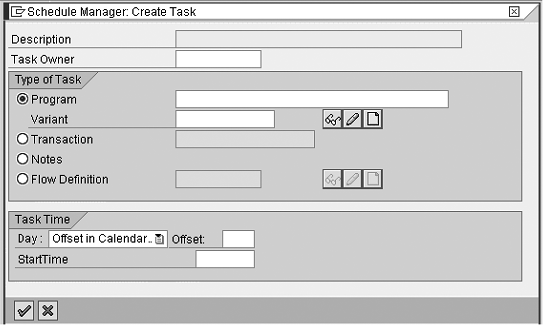
Figure 6
Various task options in task list
You can specify a program (with a variant), transaction (with a variant), or flow definition. You can either enter the transaction codes — FBL1N for vendor line item and FBL3N for G/L line item display — in the individual tasks or program names — RFITEMAP and RFITEMGL. I chose to do the latter so that when I specify the program name, I can create a variant that allows me to schedule its execution. For this example, I created a variant for the vendor line item program (RFITEMAP). When you are finished creating your task list, click on the Return to scheduling button (Figure 5).
Step 2. Schedule a task. As you can see in Figure 7, the panel on the right displays the Daily overview, which contains the time, description, status, task type, user, task owner, start time, instance ID, and instance text. You can drag-and-drop your task to the row in the daily overview that represents the time you would like to run it. Alternatively, you can schedule the report either by clicking on the schedule icon (circled in the left panel in Figure 7) or by selecting Schedule from the context menu after highlighting the desired task. In the resulting window for scheduling jobs, you can specify an immediate start or a future start date and time and also configure parameters to make this a recurring activity.
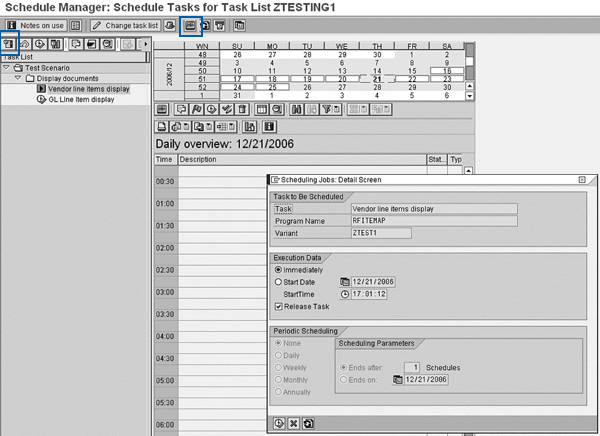
Figure 7
Figure 7 Scheduling a job or report
Note
You cannot schedule transactions and programs without variants. You have to execute them directly, which is not really a shortcoming because you can always schedule programs with a variant. Because a lot of transaction codes are associated with programs, you can indirectly schedule transactions.
Step 3. Monitor activities and jobs. Once you have scheduled activities and jobs, you need to monitor their status. You can do so in the monitor (circled in the toolbar in Figure 7). However, if you are using the monitor for activities around period-end closing, you can gain more sophistication — including enhanced information flow to relevant recipients and easier correction of errors — and efficiency in the processing of these jobs by using multi-level worklists. To use a worklist, you need to create a flow definition and then schedule it as a job in the scheduler.
Flow Definition
When you use Schedule Manager to carry out multi- task activities such as period-end closing, you need to carry out these activities in a certain sequence. To do so, you need to create a flow definition or use an existing one. Under such circumstances, your first step should be to create a flow definition. You create a flow definition using the workflow builder integrated with Schedule Manager, and you’ll need working knowledge of the basics of SAP workflow. You arrive at the workflow builder by choosing Extras > Edit Flow Definition from the main menu of the scheduler screen.
SAP supplies a few standard and demo flow definitions that you can use or save as a copy for future modifications. If you are creating one from scratch, you need to give it a technical name and meaningful description, and choose an application. Choose the application to which your flow definition belongs. In other words, if you are creating one for CO-PA, select this application by pressing F4 on the Application field. This brings up the workflow builder screen with basic start and stop workflow processes (Figure 8).
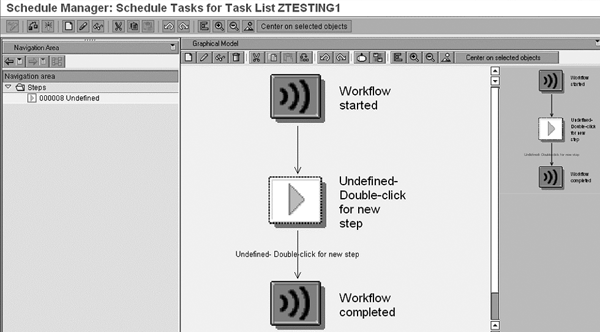
Figure 8
Create a flow definition in the workflow builder
Double-click on the undefined step for a new step and you then can choose to insert a program, user decision, fork, or another flow definition. While a description of each of these categories is beyond the scope of this article, it is important to look into the use of a program in a flow definition because this is the element that you are likely to use most commonly. When you enter the technical name of the program or report, you must assign a variant. If one is not available, you can create one by clicking on the create icon in Figure 9.
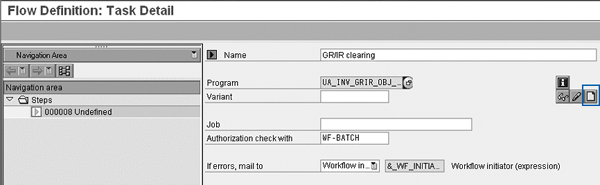
Figure 9
Create a report variant for a program
Note
A fork enables you to define parallel activities or tasks in a flow definition. In fact, each of the branches of a fork allows you to define multiple tasks and activities with the caveat that all of the branches converge at some point. The system executes the task that comes directly after the convergence of the parallel tasks only when the system executes all of the tasks in all of the individual branches.
You can reuse a flow definition, especially for programs and reports. By using selection variables, you can set the values of certain key variables such as the fiscal year and period prior to the execution of the program. This eliminates the need for creating multiple flow definitions because you can reuse your existing one by changing the values of these selection variables.
A Technical Perspective on Schedule Manager
When you run transaction SCMA, the system invokes program SAPLSCMA. All objects relevant to Schedule Manager are in package (formerly known as development class) KPEP. Here are some important technical objects with their names and categorized by their class:
- Tables. There are several tables in this application, among them SCMATRANSACT, SCMASEQUENCES, SCMAPROGRAMS, SCMAPROG_CUST, and SMAPPL that hold information relevant to Schedule Manager. You can query on these tables using transaction SE16. One of the most important tables is SCMAPROGRAMS. It contains a list of all standard SAP programs registered in Schedule Manager. This registration is required for programs to interact with the Schedule Manager interface as opposed to the ability to schedule them (which does not require registration). Similarly, SCMAPROG_CUST is the customer counterpart of SCMAPROGRAMS in that all (non-standard) customer programs registered in Schedule Manager save to this table. A basic understanding of these tables, or at least the names, is helpful.
- Transactions. In addition to SCMA, there are a few others that are noteworthy:
- SCMACUS: Maintain task lists
- SCMAPROG_CUST: Register programs. You should run this transaction if you have a non-SAP standard program, such as a company- specific program (commonly known as Z programs) that you would like to schedule and monitor in Schedule Manager. You can also do this via the main menu of the Schedule Manager interface by selecting Extras > Settings > Customer Programs. In the next screen, maintain the customer programs that you need to integrate into Schedule Manager.
- SCMATP: Task list maintenance
- SCMATRANS_CUST: Register transactions
- SCMA_PROG_CUST: Registration of customer transactions
- SCMO: Monitor for Schedule Manager
- Message Classes. If you are not a developer and therefore do not know much about this tool but are asked to troubleshoot, you should know that Schedule Manager messages belong to two message classes: KPEP and PEP. Every message in any SAP program must belong to a message class. Generally, you save messages related to the same application in the same message class. This should improve your efforts in debugging errors encountered during the use of Schedule Manager: If you know the message class, you can search for where you encountered the error message and find all of the places in which you could potentially include your breakpoints.
Note
A good starting point for getting additional information about Schedule Manager is SAP’s Service Marketplace at service.sap.com. Type in Schedule Manager as your search criterion to display several SAP Notes. By appropriately limiting your search criteria, you are likely to get more specific matches. Very few notes belong to the FAQ genre.
Note
If you want to get a thorough understanding of this tool, SAP offers a two-day course, “Schedule Manager 4.7” (course code: AC690). Before you consider taking the course, keep in mind the prerequisites for taking it. You need to have a fair understanding of accounting principles, especially around closing activities, and some technical understanding of job scheduling and processing in SAP.
Anurag Barua
Anurag Barua is an independent SAP advisor. He has 23 years of experience in conceiving, designing, managing, and implementing complex software solutions, including more than 17 years of experience with SAP applications. He has been associated with several SAP implementations in various capacities. His core SAP competencies include FI and Controlling FI/CO, logistics, SAP BW, SAP BusinessObjects, Enterprise Performance Management, SAP Solution Manager, Governance, Risk, and Compliance (GRC), and project management. He is a frequent speaker at SAPinsider conferences and contributes to several publications. He holds a BS in computer science and an MBA in finance. He is a PMI-certified PMP, a Certified Scrum Master (CSM), and is ITIL V3F certified.
You may contact the author at Anurag.barua@gmail.com.
If you have comments about this article or publication, or would like to submit an article idea, please contact the editor.





 Premium