Find out how you can create a custom text type in seven steps that allows you to record all the data you need to support your customers.
Key Concept
Text types are components of a basic function known as text management. They support the organization and classification of texts that serve to identify and describe transactional elements or objects. Text types are used in many business contexts, such as a sales or activity process, and although SAP supplies numerous text types, you can create new ones to accommodate your particular needs.
Implementations require you to incorporate text management into their overall design. Text management plays a major role in every aspect of SAP transactional processing from E-Commerce to Interaction Center to Field Sales. For example, in a call center environment, agents must access key information while logging key notes or comments from the customer collected during the call.
In this particular case, tools such as the scratch pad or text types provide a quick and efficient means for agents to leverage the standard functionality they need to meet increasing customer demands. However, more often than not, my clients expect more from text management in their SAP systems. Given that no one business or industry is alike, the demands from clients are far from typical and strong opinions favor more accommodating software.
SAP text management functionality ensures that agents can access or identify key text sources or notes during a call from almost any view. However, there comes a time when identification is not always enough. In some cases it may be deemed necessary to assist agents further by incorporating templates within the text type to guide the user in collecting all the necessary details.
For example, your business may decide to leverage the sales order process to cater to multiple business scenarios. Each situation requires different details to be documented as part of that call so that the proper post- processing procedures can occur. As such, your agent may not always remember to capture each of these particulars due to the various processes. Predefined text templates extend the usability and functionality of text processing by allowing users a means of accessing key information. They serve as a reminder to populate the aspects of the call necessary to process the transaction properly. I will explain in detail how you can enable this functionality to meet these needs.
Set Up Text Type Templates
Follow these steps to set up and maintain text templates, which you can use within the text editor of frequently accessed transactions. By selecting a particular text type, the system produces a predefined template that reminds users to update key information or minimize the input required.
Step 1. Determine whether the existing text determination procedure contains a text type that suits your needs. This determination is made based on the transaction type you intend to use. For example, I used the Service Ticket transaction in the Interaction Center (IC) WebClient. This transaction type uses the standard text determination procedure SRV00001.
When I viewed the standard text types that are assigned to this procedure I quickly determined that none of the standard types suited my business need. Therefore, if the text type does not already exist, you must create one. Go to transaction SE75 (SAPscript settings). Press Enter to confirm the information message and then click on the Change button.
Note
It is necessary to select the Change button because you are about to create a new text type and this setting enables the system for modification.
Next, determine the object context in which you plan to use the text type. For example, I am creating a text type for a service header process. Given that this is a CRM header transaction, I select the text object CRM_ORDERH by double-clicking on the node.
Understanding which object to choose is not difficult as long as you are aware of the structure for your business transaction. Almost all transactions in SAP systems contain a header, item, or header and item view. For example, a complaint or sales transaction contains both header and item information. This means that each of these transactions has multiple text determination procedures (one at header and one at item level). Therefore, you can modify a text determination procedure at header level only and keep the item level text determination procedure as is. When you understand the structure of the transaction, you know right away whether you are making a text change at the header or item view and can choose your text object using this knowledge.
When you have confirmed the object, you can scan or browse from the entire catalog of text types available. Select a text type from the list or create a new one. In my example, I am creating a new text type. Characterize the text type accordingly and confirm (Figure 1). For this basic process, I only need to enter the Text ID, Description, and the Display in Title check box for most common purposes. Save and exit the transaction.
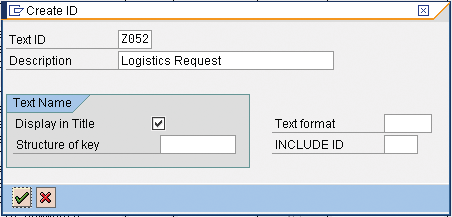
Figure 1
The minimum settings to create a new text type
Next, define the text determination procedure. To do this, follow IMG menu path Customer Relationship Management>Basic Functions>Text Management>Define Text Determination Procedure.
Select the object (row) CRM_ORDERH and then click on the Procedure folder from the Dialog Structure. Again, in this case the reasoning for selecting the text object CRM_ORDERH as opposed to all other objects has to do with the transaction type you are using and whether you are modifying the header or item text determination procedure. Considering that my example is illustrating the header level determination procedure, I chose this text object. Now choose your relevant text determination procedure from the list (in my example, ZSRV0001 – Service Text Det. Proc.) and double-click the Definition of Procedure folder in the Dialog Structure area.
On this screen, click on the New Entries button to set up the text type assignment within the text determination procedure (Figure 2). The Text Type, Sequence, Changes, and Transfer Type fields are necessary during the initial customizing to support text type assignment. The sequence dictates the order in which the text type is displayed in the overall list of text types. The Changes field controls the overall text type behavior, such as whether the text type is editable or display only. Then Transfer Type influences how text is transferred. It determines whether text should be copied from its reference versus only reading the text dynamically. Figure 3 shows the successful assignment of the new text type to the text determination procedure.
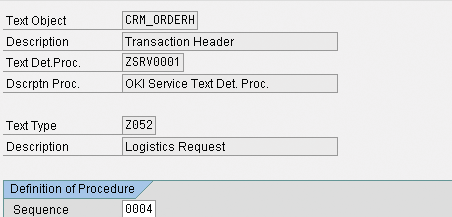
Figure 2
Define the text type
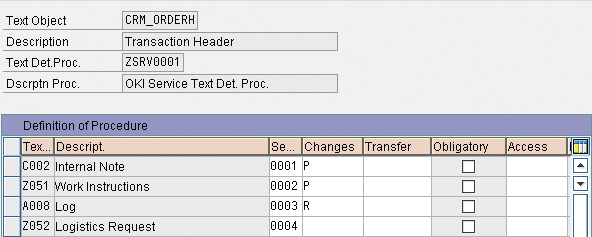
Figure 3
Text type assigned to the text determination procedure
Save your work and exit the transaction for the moment. You come back to this customizing later, but at this point the text type is now observable in the Notes view in IC WebClient (Figure 4).

Figure 4
The new text type is now observable in the IC WebClient transaction
Step 2. Define the template for this text type. Use transaction SE80 and create a new function group to enable template processing. Right-click on the COM_TEXT_DETERMINATION folder and select Copy from the context menu (Figure 5). Rename the function group as YCOM_TEXT_DETERMINATION and click on the Copy button (Figure 6).
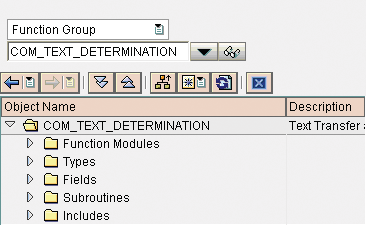
Figure 5
Standard function group for text transfer
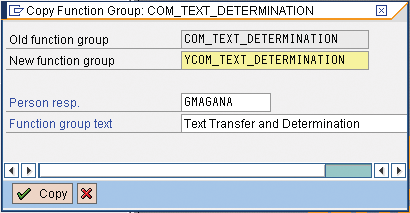
Figure 6
Create the YCOM_TEXT_DETERMINATION function group to support text templates
Step 3. Save the development. Next save the development to a local object unless you are transporting it to another system. Choose your package accordingly. In my example, I save it as a local object by clicking on the Local Object button because I don't intend to transport this development to another CRM target system. Click on the enter icon to acknowledge the information screen that appears. Then rename all the function modules accordingly (Y or Z) and click on the Copy button (Figure 7).
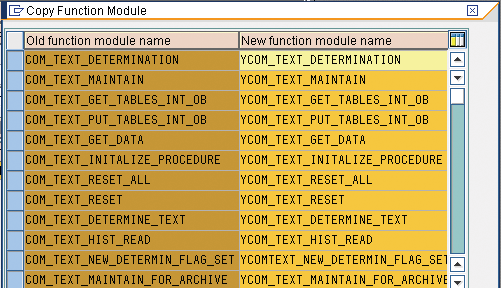
Figure 7
Designation of analogous function modules used in the function group
Step 4. Activate the new function group. Upon completion of the copy, activate the function group by right-clicking on the function group and selecting Activate from the context menu. After activation has completed, click on the enter icon in the following screen to confirm.
Step 5. Define the template to be called by the function module. Go to transaction SO10 (standard text: request). I am building a new template to support my text type customizing, so next I must construct the text that makes up the template shell. Enter the Text Name used to classify the type of text to be used. In my example this is Z_LOGISTICS_REQUEST (Figure 8). The Text ID represents how you use the text (e.g., ST is used for user-specific texts). The Language field determines how the system displays the text.
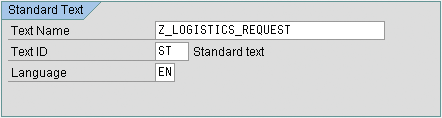
Figure 8
Create standard text to support template design
After you populate these three fields, click on the Create button. In the following screen enter the text that you want the system to display each time the text type is chosen (Figure 9). Save your work and exit the transaction.
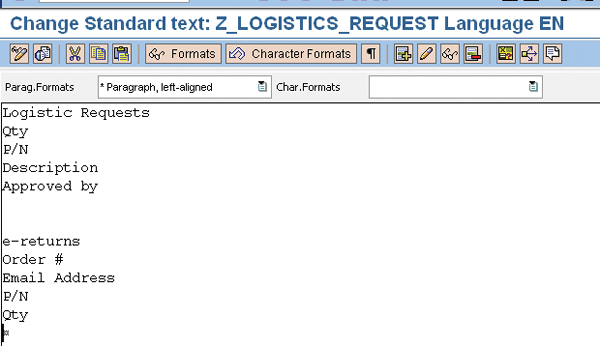
Figure 9
The text contents the system displays each time the Logistics Request text type is selected
Step 6. Edit the function module source code. Now launch transaction SE37, enter YCOM_TEXT_DETERMINE_TEXT into the Function Module field and click on the Change button. This is the function module that the system uses when calling the template at the time the text type is selected on the user's interface. Within the Source Code tab only modify the value indicated in Figure 10 to instead call your text template. Save your changes and then click on the activate icon to activate the program.
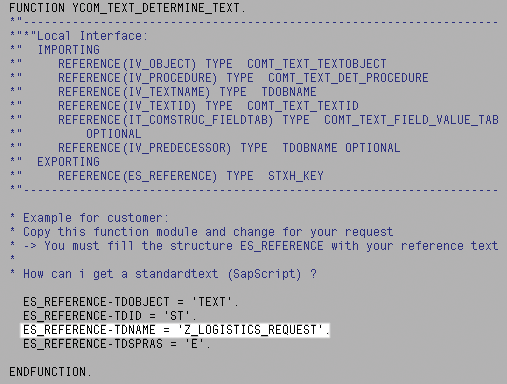
Figure 10
Update the source code to call your new text template
Step 7. Create a new access sequence and assign it to your text determination procedure. This ensures that the system calls the appropriate function module and template. Follow IMG menu path Customer Relationship Management>Basic Functions>Text Management>Define Text Determination Procedure.
Again, select the object (row) CRM_ORDERH, and then choose the Access Sequence folder from the Dialog Structure. Click on the New Entries button and establish the entry as shown in Figure 11 by entering an Access Sequence ID and Description.
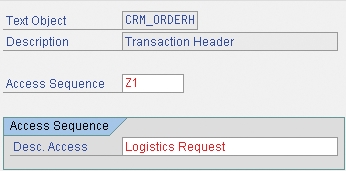
Figure 11
Generate the access sequence to support function determination
After filling in the entries, choose the Definition of Access Sequence folder in the Dialog Structure area. Click on the New Entries button and update the Ref. Object, Ref. Text Type, and Function fields as shown in Figure 12.
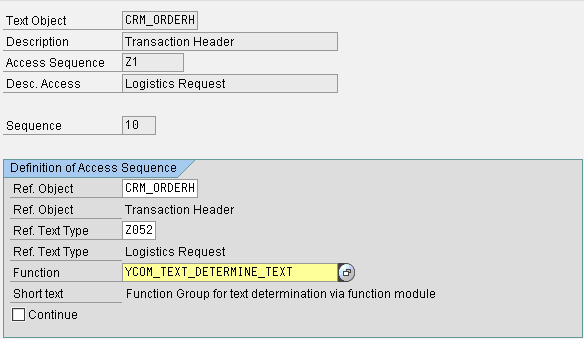
Figure 12
Access sequence model for text type
After you have entered these settings, click on the save icon. Then choose the Procedure folder in the Dialog Structure area. Choose your relevant text determination procedure from the list — in my example, ZSRV001 — and double-click on the Definition of Procedure folder in the Dialog Structure area.
Select your text type (e.g., Z052 [logistics request]) and click on the display item details icon. Assign the access sequence you just created to your text type (Figure 13).
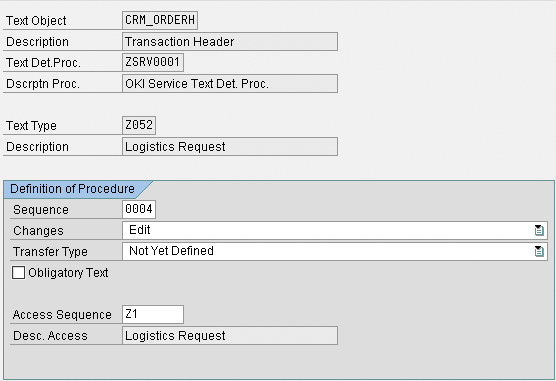
Figure 13
Access sequence assignment to text type
Click on the save icon and exit. Now you can test your configuration and verify that the text template appears as designed. Launch the user interface and verify the template view is reflected properly (Figure 14).
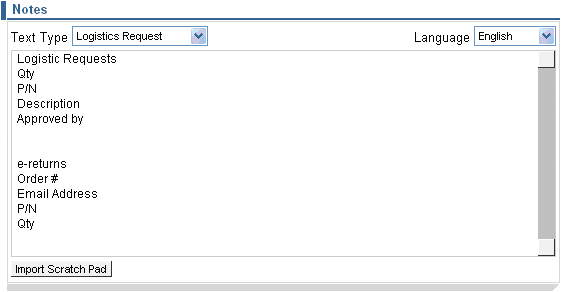
Figure 14
Text template displayed after selection of the Logistics Request text type
Gil Magana
If you have comments about this article or publication, or would like to submit an article idea, please contact the editor.



 Premium