Many sites do not initially implement the cash forecasting capability of Treasury's Cash Management module. Configuring it retroactively is easy to do and requires little knowledge of the Treasury module.
The cash-forecast functionality within Treasury’s Cash Management module provides the ability to track potential cash all along the pipeline from sale to order fulfillment to invoice to payment on the collection side, and from purchase order to invoice to payment on the disbursing side. All businesses do cash forecasting. However, many R/3 sites perform it off-line, probably due to a desire to keep the original implementation small.
Fortunately, bringing cash forecasting into FI retroactively is easy to do, especially if you already have an understanding of A/R, A/P, and the banking area. In this article, I’ll show you how. You probably already know much of the supporting configuration, and it requires little knowledge of the Treasury module.
Treasury’s Cash Management module lets you do the following to help your users (most likely the company treasurer) improve the accuracy of cash forecasts:
- Indicate expected dates when cash goes in and out of a business.
- Overlay at query time the observed patterns of cash flow by type of transaction.
- Directly input "off system" information as "payment advices" in Treasury — for example, an estimate of customs duty tax due in two weeks for which no order or invoice is in the system. It can be integrated with the transactions that eventually occur.
What You Need to Know Before Configuration
Before I present the 10 steps for configuring the cash-forecast functionality, let me explain where the data that it uses comes from so that you understand the hows and whys of the process. Cash-forecasting data comes from all transactions that have cash-flow implications, including G/L postings in cash and bank accounts (outgoing checks or transfers, incoming payments, maturing deposits, and loans), accounts receivable and payable transactions (invoices, credit notes, payments), SD sales orders, MM purchase orders, Treasury Management transactions, special G/L transactions (if configured), memo records (planning advices), planned payments of wages and salaries, and planned payables for taxes on sales and purchases.
In response to those downstream transactions, a handful of configuration and master data settings tell the system how to group or summarize the data into a dedicated set of cash-forecast-related tables (e.g., FDSB and FDSR) that, in turn, act as the source for your treasurer’s or cash manager’s reports. All the settings below are mandatory, except the last, which is optional:
- Planning level field in the G/L cash- management account group.
- Value date field in the G/L field status group for G/L accounts in the cash-management account group.
- Planning group field in A/R and A/P master-record account groups.
- Bank masters and the specifications of the default value dates to be used in the A/P payment program configuration.
- The Record payment history field switched on for customers (optional), and the A/R-SD credit-management master records created so that payment history can be viewed.
Note in Figure 1 how the cash forecast reports the incoming and outgoing financial amounts by the planning date, which is the date of expected receipt at or disbursement from the bank. The planning date is derived from the following information:
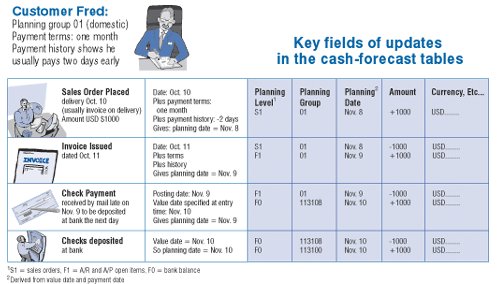
Figure 1
Cash-Forecast Updates from Sales Order to Cash in the Bank
- The value date (G/L module) is the date the transaction is expected to occur at the bank. You would specify it on line items that are posted to the G/L bank and bank clearing accounts. For example, the value date for a batch of checks entered via the check deposit transaction would be the expected date the batch will be deposited at the bank. The field status group for bank-related accounts typically have value date as a mandatory field.
- The payment date (A/R and A/P modules) is determined by the payment terms, possibly adjusted by payment history (if the Record payment history option has been selected in the credit management section of the customer master). If a customer normally takes the Cash discount 1 option, then the baseline date plus the number of days to Cash discount 1 determine the planning date1. The payment date can also be switched on for entry to allow manual override of the system defaulted date. Click on More Data in the line item to see the payment date if it has been switched on (in the Planning group field).
Ten Steps to Configuring Cash Forecast
Now that you understand where cash forecast gets its data, you can begin the configuration process. Most of the cash-forecast configuration is straightforward, so I’m presenting it checklist style by menu path and with comments. The structure or "grouping" step of the cash-forecast configuration requires more explanation. I’ve provided more detail on this portion with an example. The following steps apply to all versions of R/3 and, except for steps 5 and 6, begin by first navigating to the IMG.
Step 1. Define Source Symbols
Treasury>Cash Management>Basic Settings Define Source Symbols
This is a "check" step to ensure that the standard configuration has not been changed. You should see a code in the source column for each area being included in the cash forecast (Figure 2). In my example, the areas are bank accounting, materials management, subledger accounting, real estate management, and sales and distribution. Note that these are SAP codes and you cannot change them. The bank source symbol should be flagged as Cash Position. The others will by default belong to the cash forecast.
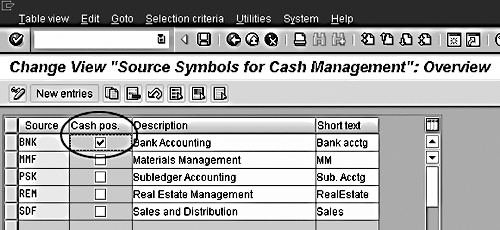
Figure 2
Flag the Bank Source Symbol as Cash Position
Step 2. Define Account and Field Status Groups
Treasury>Cash Management>Master Data>G/L & Subledger>Define Account Groups & Field Status Group
The various groups themselves probably were created in your system as part of G/L, A/R, and A/P customization. You only need to verify a few settings in this step and, if necessary, involve G/L, A/R, and A/P team members in changing those settings. The G/L account groups must have all the banking fields set as mandatory or as optional. The A/R and A/P account groups must have the Planning Group field set as mandatory. The field status group for G/L bank accounts should have the Value Date field set as mandatory. These settings will then allow those fields to be available for entry in the G/L masters, the vendor masters, and the customer masters data-entry screens. You will later access those master data screens to type in your summarization rules in steps 5 and 6.
Step 3. Define Planning Levels
Treasury>Cash Management>Master Data>G/L Accounts or Subledger Accounts>Define Planning Levels
Planning levels indicate the type of business transaction and its source (Figure 3). Later, the planning levels are specified on the bank-related G/L account master records. A transaction does not contribute to the cash position and cash forecast unless it is designated by planning level and planning group. You next turn to planning group in step 4.
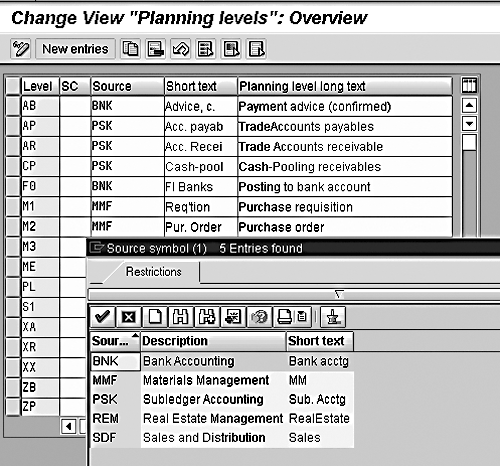
Figure 3
Specify Planning Levels at This Screen
Step 4. Define Planning Groups
Treasury>Cash Management>Master Data>Define Planning Groups
Planning groups allow your users to analyze the cash forecast by classifying customers and vendors. It is meaningful to classify them in a way that relates to their likelihood of paying, or perhaps their nature of payment. The planning group is specified on the customer or vendor master record during step 6. Groups are first mapped to planning levels here in step 4, though. (See Figure 4 for an example of the most simple case of mapping). Note that for G/L accounts, the G/L account number is effectively the planning group (i.e., you cannot specify a planning group on G/L accounts).
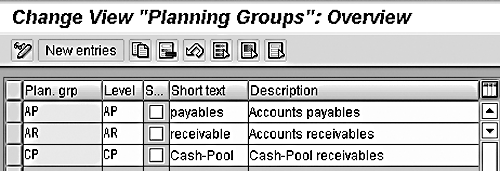
Figure 4
A Simple Example of Mapping Planning Groups to Planning Levels
Step 5. Check Account Group Settings for Cash-Position Accounts
Accounting>Financial Accounting>General Ledger>Master Records>Change
To quickly see if all accounts required in the cash position have the appropriate account group, planning level, and field status group (that you created or verified in steps 2, 3, and 4), use transaction code SE16 for table SKB1. In addition to BUKRS (company code) and SAKNR (G/L account number), the fields to include on your display will be FDLEV (planning level), FDGRV (planning group), and FSTAG (field status group). Then, as needed, use the Master Records>Change transaction to edit.
Step 6. Check Planning Group Settings for Cash-Forecast Records
Accounting>Financial Accounting>Accounts Receivable & Payable>Master Records>Change
To quickly see if all customer and vendor master records required in the cash forecast (normally all) have a planning group specified, use transaction code SE16 for table KNB1 (customers) and table LFB1 (vendors). As with the G/L master, the technical name for the planning group field is FDGRV. Then use the Master Records>Change transaction to edit as needed.
Step 7. Define Cash Management Account Names
Treasury>Cash Management>Structuring>Define Cash Management Account Names
Give all G/L bank accounts a mnemonic name in the Description column (Figure 5). This might already have been done as part of the bank setup for other bank-related areas.

Figure 5
Name All G/L Bank Accounts in the Description Column
Step 8. Define Cash-Position and Cash-Forecast Headings
Treasury>Cash Management>Structuring>Groupings>Maintain Headings
Define headings for the cash-position and cash-forecast reports.
Step 9. Define Your Groupings
Treasury>Cash Management>Structuring>Groupings>Maintain Structure
This is the main piece of configuration that you will come back to as you refine the display of the cash-position and cash-forecast reports. It looks simple, but some key points here tend to confuse people. Follow the menu path and you should see a screen with values similar to those shown in Figure 6.
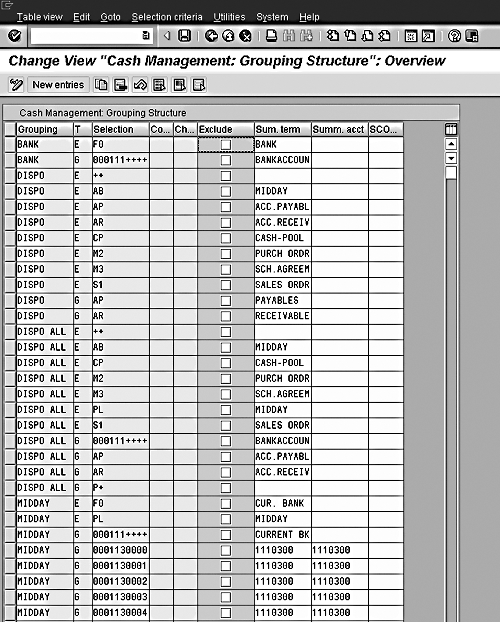
Figure 6
Grouping Configuration Example
Groupings are a combination of the planning levels and planning groups that are defined in the structure configuration. The grouping is just a name for a different structure or view and is used in the execution of the query to select the scope and initial presentation of the data. (I’ll show an example of this in the next section.)
Both planning levels and planning groups are linked to the grouping using the same configuration, each in their own lines. The Type column indicates whether planning levels ("E") or planning groups ("G") are being specified in that row. Planning levels and planning groups are displayed in separate drill downs from the initial view of the reports. The default double-click drill down expands to planning groups first, then to planning levels.
Summarization terms are used to summarize planning levels and planning groups for the groupings. The summarization term is key to controlling the first display screen of the cash position and cash forecast reports. You can control the level of detail that appears either by linking more or by linking fewer planning levels and planning groups to a summarization term. You can use wildcards (the "+" symbols) to reduce the number of lines that have to be specified.
You can define multiple groupings referring to the same planning levels and planning groups. If a level or group is not linked to a grouping, then it does not appear in the cash-position and cash-forecast report when that grouping is used. For G/L purposes, the planning group is the 10-digit account number (i.e., including leading zeroes).
Step 10. Activate Cash Management
Treasury>Cash Management>Tools>Define Production Startup
Activate (tick) the CM indicator for the required company codes. If required, select the option to update transactions from MM and SD.
Running the Cash-Position or Cash-Forecast Query
Once you’ve configured the cash-forecast functionality and data-entry transactions are performed,1 you are ready to make cash-forecast queries. First, follow this menu path to reach the screen shown in Figure 7:
Treasury>Information System>Treasury Reports>Treasury: Strategic View>Liquidity Analysis>Cash Position [or Cash Forecast]
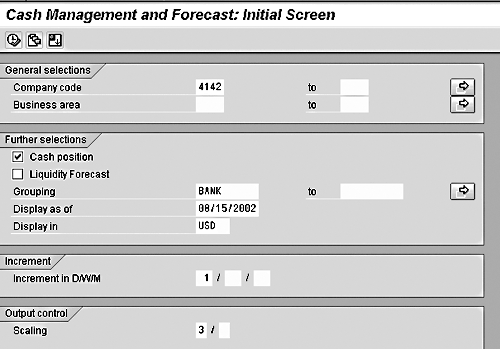
Figure 7
Liquidity Analysis Showing Bank Account Status
As with many SAP transactions, the user has significant control over how the query transaction works. This is achieved through specification of parameters to the query. Here’s how the user’s choice of parameters will influence the resulting data display:
- Grouping defines the scope of the query (which accounts and transactions are included) and the initial presentation or summarization of the data. It is possible to use just one grouping for a complete query. The user might typically have groupings called "Banks" for the cash position or "Total" for a complete cash position and cash forecast.
- Display as of is usually today’s date, but it could be used to take a look into the future without scrolling across the displayed data screen, or for training or demonstration purposes when the test data is not up-to-date.
- Display Type value Balances shows the expected balances, value Delta shows only the expected changes, and value Delta with Balances shows a total balance for all lines and then the expected incoming and outgoing changes. This parameter can be changed on the fly within the query.
- Increment determines whether the Balance or Delta amounts are shown summarized by days, weeks, or months. It allows the user to take a detailed short-term view or a longer summarized view. This parameter can be changed on the fly within the query.
- Planned Currency is optional. It is used to select only the transaction amounts where the transaction currency equals the entered currency. Otherwise, all transaction amounts are displayed.
- Display in is optional. It sets the currency in which the user wishes the display to be made.
- FC/LC and LC/FC Exchange Rate is optional. It sets the rate types to be used for foreign to local conversions and vice-versa.
- Distribution is optional. It specifies whether expected amounts are distributed by the configured percentages to more accurately indicate the spread of expected funds.
Once the user has entered suitable parameters and executed the transaction, he or she will first see a summarized display controlled by the grouping he or she has selected. The level of summarization is controlled by the summarization terms in the grouping configuration. For example, this could be a single total line for all bank accounts (Figure 8), or by defining more lines of configuration in the grouping, the user could have a line for each bank showing on the first screen.
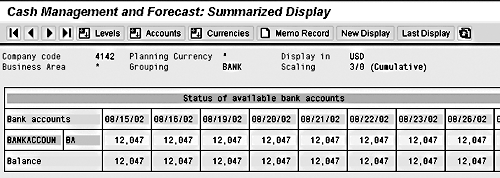
Figure 8
Initial Screen After Executing the Cash Forecast Report
When you double-click on a line, the screen then displays the groups for that bank. For G/L accounts (cash position), this is the bank account level (Figure 9). For the cash forecast, this could be the expected amounts by classified customer or vendor.
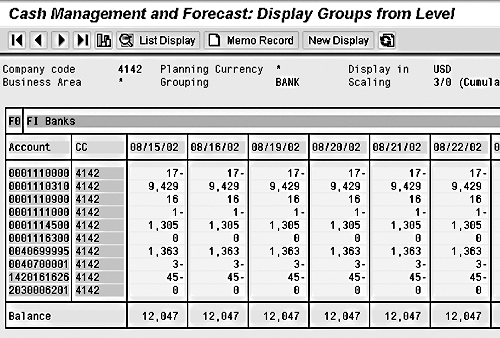
Figure 9
Results of Drilling Down to Groups from a Level
When you double-click on a line at this point, the screen will then display the planning levels. This is sort of a summarization by transaction type. For the cash position, the planning levels are the types of G/L bank accounts (bank balance and bank clearing accounts). For the cash forecast this could be sales orders or purchase orders, for example. Double-clicking further should take you to a line-item display or further detailed report.
Explore all the menu options that you have available within the execution of the query. Their functioning is usually self-explanatory. If you are having difficulty relating to the display, you might wish to post some data and see how the effects are reflected in the cash forecast.
Figure 8 shows an initial (i.e., summarized display) cash-position screen with a total line for all bank accounts only. Remember, this is what the grouping configuration controls. Figure 9 shows a later screen that you would see if you drilled down from the initial display to a groups display. Again, for the cash position the G/L account is the planning group.
Once you have the above configuration working happily, you can then expand your prototype to include integrating the SD and MM modules, items blocked for payment, planning types (memo records, which are also used in Treasury Management), special G/L transactions (used in A/R and A/P), and defining the distribution function. See the sidebar, "Expand Cash Forecast by Integrating Other Modules," on page 14 for more details.
Expand Cash Forecast by Integrating Other Modules
You have several ways to build on your cash-forecasting capability. All involve incorporating additional data from various R/3 modules to improve the outlook (the length of view that can be taken) and the accuracy of the forecast. To get you started, I’ve listed those modules below with the IMG menu paths that you need to integrate them with the cash forecast functionality.
MM and SD
Integrating MM and SD data expands the view of the cash forecast, allowing a longer-term perspective, albeit with decreasing accuracy. Not all sales orders or purchases orders become invoices! For this reason you (or your users) should use the distribution function to “smooth” the base data. Purchase-order and sales-order amounts need to appear separately from the A/R and A/P open items, as they have a lesser degree of certainty about their timing or reliability of actually happening (i.e., a different planning level). Integrating MM and SD data requires three steps:
Step 1. Define the Levels to Use for MM and SD
Treasury>Cash Management>Master Data>Define Planning Levels
Step 2. Allocate Planning Levels
Treasury>Cash Management>Master Data>Define Planning Levels for Logistics
Allocate the planning levels that you have defined to the internal code for the MM and SD transactions (e.g., 1 = purchase requisition, 2 = purchase order, 101 = sales orders, and so on).
Step 3. Select Options to Integrate SD and MM
Treasury>Cash Management>Tools>Define Production Startup
Blocked Items
Treasury>Cash Management>Structuring>Maintain Blocked Levels
Items that are blocked for payment in A/P or A/R will appear under a separate planning level that is built up from the letter “X” and the payment blocking indicator. This is necessary because there is uncertainty about when they will be paid or whether they will be paid at all.
Planning Types
Treasury>Cash Management>Structuring>Manual Planning>Define Number Ranges>Define Planning Types
Planning types are different types of memo records and are a way of entering into the system knowledge that is not yet “formal” for planning purposes.
Distribution Function
Treasury>Cash Management>Structuring>Define Distribution Function
The distribution function can be used to provide an alternate display, which might give a better view of expected flows. Use of the distribution function is specified on the cash-forecast parameter screen. To configure a distribution of the value amounts for a planning level, you need the historical pattern of expected incomings and outgoings.
An analysis of A/R invoices for a customer group may show that 70 percent are paid on time, 20 percent are paid two days late, and 10 percent are not paid at all. At the same time, an analysis of unconfirmed payment advices may show that 50 percent of total amounts actually come in on
the expected day, 5 percent come in early, 30 percent come in later, and 15 percent come in even later. You could then configure this distribution for unconfirmed payment advices as shown in the Figure below.
Expand Cash Forecast by Integrating Other Modules
You have several ways to build on your cash-forecasting capability. All involve incorporating additional data from various R/3 modules to improve the outlook (the length of view that can be taken) and the accuracy of the forecast. To get you started, I’ve listed those modules below with the IMG menu paths that you need to integrate them with the cash forecast functionality.
MM and SD
Integrating MM and SD data expands the view of the cash forecast, allowing a longer-term perspective, albeit with decreasing accuracy. Not all sales orders or purchases orders become invoices! For this reason you (or your users) should use the distribution function to “smooth” the base data. Purchase-order and sales-order amounts need to appear separately from the A/R and A/P open items, as they have a lesser degree of certainty about their timing or reliability of actually happening (i.e., a different planning level). Integrating MM and SD data requires three steps:
Step 1. Define the Levels to Use for MM and SD
Treasury>Cash Management>Master Data>Define Planning Levels
Step 2. Allocate Planning Levels
Treasury>Cash Management>Master Data>Define Planning Levels for Logistics
Allocate the planning levels that you have defined to the internal code for the MM and SD transactions (e.g., 1 = purchase requisition, 2 = purchase order, 101 = sales orders, and so on).
Step 3. Select Options to Integrate SD and MM
Treasury>Cash Management>Tools>Define Production Startup
Blocked Items
Treasury>Cash Management>Structuring>Maintain Blocked Levels
Items that are blocked for payment in A/P or A/R will appear under a separate planning level that is built up from the letter “X” and the payment blocking indicator. This is necessary because there is uncertainty about when they will be paid or whether they will be paid at all.
Planning Types
Treasury>Cash Management>Structuring>Manual Planning>Define Number Ranges>Define Planning Types
Planning types are different types of memo records and are a way of entering into the system knowledge that is not yet “formal” for planning purposes.
Distribution Function
Treasury>Cash Management>Structuring>Define Distribution Function
The distribution function can be used to provide an alternate display, which might give a better view of expected flows. Use of the distribution function is specified on the cash-forecast parameter screen. To configure a distribution of the value amounts for a planning level, you need the historical pattern of expected incomings and outgoings.
An analysis of A/R invoices for a customer group may show that 70 percent are paid on time, 20 percent are paid two days late, and 10 percent are not paid at all. At the same time, an analysis of unconfirmed payment advices may show that 50 percent of total amounts actually come in on
the expected day, 5 percent come in early, 30 percent come in later, and 15 percent come in even later. You could then configure this distribution for unconfirmed payment advices as shown in the Figure below.
Unconfirmed Payment Advice Distribution
| Level |
+/- sign |
Days |
Percentage |
Comment |
|
| UA |
|
0 |
50 |
50% as per planning date |
| UA |
+ |
1 |
30 |
30% a day late |
| UA |
+ |
2 |
15 |
15% two days later |
| UA |
- |
1 |
5 |
5% a day early |
|
Special G/L Transactions
Treasury>Cash Management>Structuring>Special G/L Transaction Levels
Special G/L transactions (down payments or bills of exchange, for example) in A/P or A/R appear under a separate planning level. Note the naming conventions for these. An “F” followed by the special G/L indicator used on the line item activates the special G/L transaction. For example, FF indicates “down payment request.” Refer to R/3 Library under A/R and A/P.
1Treasury>Cash Management>Tools>Data Setup
Anna-marie Redpath
Anna-marie Redpath is an independent SAP consultant specializing in the Financial and Controlling modules of SAP R/3, as well as some Sales and Distribution, Materials Management, and Treasury areas. She has been working in the SAP field since starting with R/2 in January 1991 with Accenture in South Africa. She continued onto R/3 with Accenture in Australia and in New Zealand in a variety of forms, as project manager and later consulting occasionally back to Accenture. She has also consulted in Singapore and has conducted training for SAP in Australia and developed the Australian GST Training Course for SAP’s Sapient College. Anna-marie has developed a Web site, www.sapscene.com, which provides SAP configuration advice. She has a B.Sc (Honors) degree in Computer Science from the University of Natal in South Africa.
You may contact the author at anna-marie@sapscene.com.
If you have comments about this article or publication, or would like to submit an article idea, please contact the editor.




 Premium