The employee portal in SAP ERP self services iViews are country specific and are not available for all countries. Learn how to extend the SAP personal data services by using configuration without any custom development of iViews.
Key Concept
Simple configuration tweaks can be used to make country-specific employee self services (ESS) available to countries that do not have them as part of standard SAP ERP. You can reuse an existing country-specific ESS standard service and, with a few configuration steps in the SAP ERP HCM system, facilitate your entire global workforce in accessing the SAP NetWeaver Portal application in a standard and consistent fashion without any development work, thereby reducing ongoing data maintenance or manual intervention.
This step-by-step guide explains how to provide employee self services (ESS) for a country that does not have the employee portal in SAP ERP included as part of its standard functionality. Using the example of a country that already has a standard service (France), we show how to modify and extend it for another country (Israel) that does not have it. You can use this for any country that does not have the standard functionality without resorting to complex development work. You just adapt the user interface by changing the screen and screen fields for existing services. All these steps come preconfigured with SAP best practices and can be configured to change the text on area and subareas. You can add information notes and change the order in which they appear to meet your business needs.
Step 1. Define Resources
In this IMG activity, you define resources to be used in the area group pages and area pages. In the homepage framework configuration step, you define various pages containing objects links, such as text, pictures, hyperlinks, Web services, and URLs that the SAP system displays in SAP NetWeaver Portal.
Follow IMG menu path Personnel Management > Employee Self-Service > General Settings > Homepage for Self-Services > Resources > Define Resources. In this case, the France bank service is available and pre-configured as a resource. The Directory Path and the Object Name are important criteria that show which iView is being used (Figure 1).
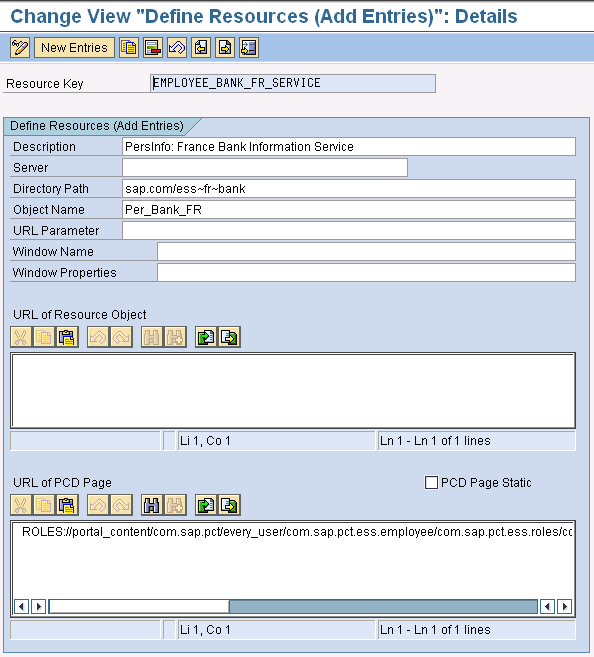
Figure 1
Define resources
Step 2. Define Area Group Pages
Here you define the headers for the homepage and area group pages with descriptions of areas and hyperlinks to access area pages and start services. You define the area group page using IMG menu path Personnel Management > Employee Self-Service > General Settings > Homepage for Self-Services > Headers and Area Group Pages > Define Area Group Pages. On this screen you configure Area Group Role Text, Area Group Text, Quick Link Heading, Area Group Link Type, Link Resource, and Area Group Description (Figure 2).
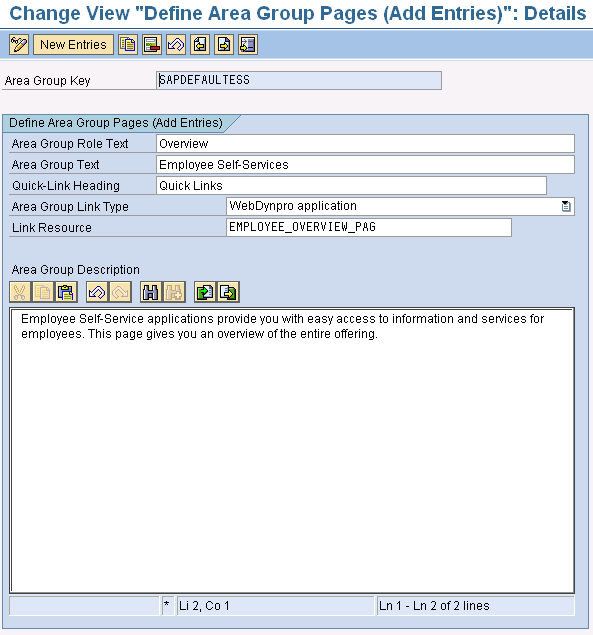
Figure 2
Define area group pages
Based on the above configuration, the output on the SAP NetWeaver Portal screen is as displayed in Figure 3.
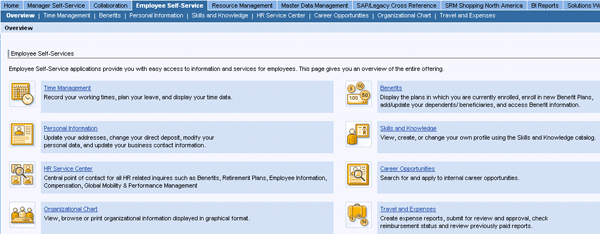
Figure 3
SAP NetWeaver Portal screen as seen by the user
Step 3. Define Area and Assign Area Group Pages
In this IMG activity, you define area pages then assign each area to an area group page and define each a position on the SAP NetWeaver Portal homepage. When the user logs on to the Portal, they see the ESS homepage Overview (Figure 3). Here the users see all the attributes they can access. Area pages contain services (Web applications) that are related to each other. Employees access an area page from an area group page.
In this example you are looking at the personal information area. The text in the area description can be changed to fit your needs and provide information to the users.
Follow IMG menu path Personnel Management > Employee Self-Service > General Settings --> Homepage for Self-Services > Areas > Define Areas. Here we configure Area Link Text, Picture Resource, Area Link Type, and other elements that are to be displayed on the SAP NetWeaver Portal screen (Figure 4).
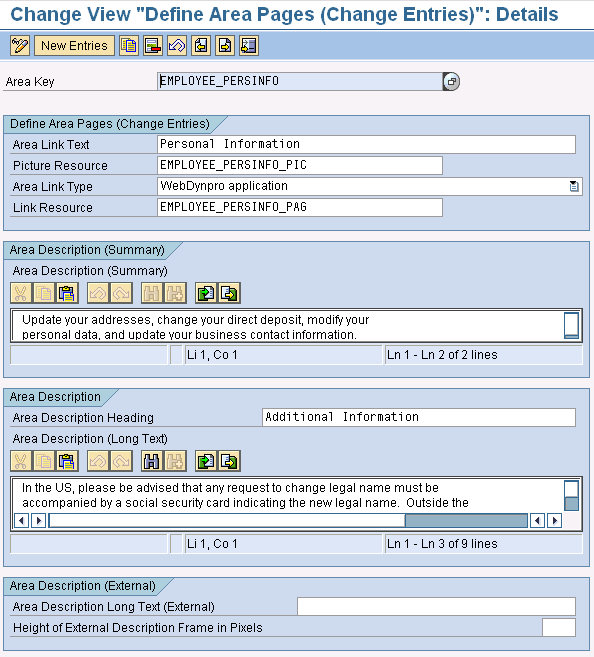
Figure 4
Define area group pages
The output from the above configuration is displayed in Figure 5.

Figure 5
Area group page as displayed in the SAP NetWeaver Portal screen
Here you define the position of Personal Information on the SAP NetWeaver Portal page. We define this in the third position (Figure 6). In Figure 3, Time Management is in the first position (top left), Benefits is in the second position (top right), and Personal Information is in the third position (second row left).
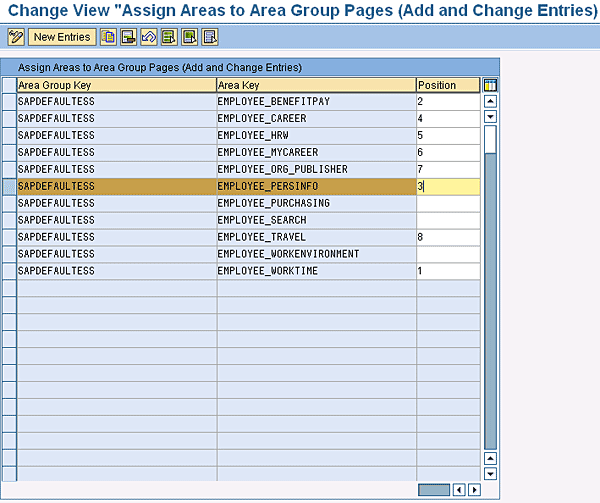
Figure 6
Assign Areas to Area Group Pages
Step 4. Define Subareas and Assign to an Area
In this step, you define subareas, assign subareas to area pages, and define their positions (Figures 7 and 8). Areas and subareas can be compared to headings and subheadings in a document. You use subareas to group the services that belong to an area on the screen.
Follow IMG menu path Personnel Management > Employee Self-Service > General Settings > Homepage for Self-Services > Subareas > Define Subareas. Here we define the name on the subarea section. The subarea header in this example is Personal Information (Figure 7). On the SAP NetWeaver Portal screen, this is displayed as a header (Figure 9).
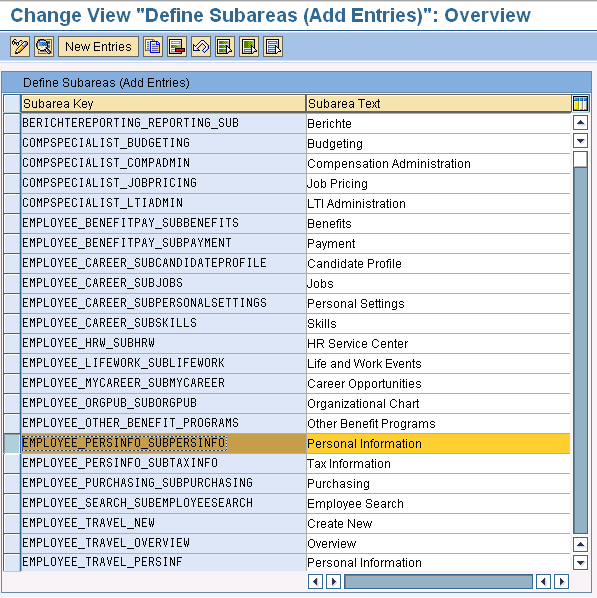
Figure 7
Define subareas
In this step you define the position of a subarea on the area page. In this example, we configured personal information in Position 1 and tax information in Position 2. You can see this in Figure 8.

Figure 8
Assign subareas to areas (contains the position of a subarea on the area page)

Figure 9
SAP NetWeaver Portal screen where users can access Personal Information and Tax Information
Note
If a position number is not entered for a table entry for area or subarea, the relevant area or subarea does not appear on the screen. You can change the position number to blank if you want to remove the whole standard area or subarea links. Also, if all the services in a subarea are disabled the subarea does not show.
Step 5. Define Service, Country-Specific Services, and the Subarea Position
In this step you define country-specific services. When an employee starts a service from SAP NetWeaver Portal based on the employee’s country grouping, the system checks to see if there is a country-specific service definition in the V_T7XSSSERSRVCG and V_T7XSSSERSRVCGC views. This configuration enables you to define country-specific variations of services for certain countries, while using a general service definition for all other countries. For example, say you want to add an additional contact for the France service. In this case, you do the configuration in these views. The system looks to see if there is a country-specific service definition, and if there is, the system uses this definition. If there is no country-specific service definition, the system uses the general service definition in the V_T7XSSSERSRV and V_T7XSSSERSRVC views.
You also have additional control here to specify quick links, emphasis, disablement, service groups, and proxy class (Figure 10). Follow IMG menu path Personnel Management > Employee Self-Service > General Settings > Homepage for Self-Services > Services (Define Services, Define Country-Specific Services, and Assign Services to Subareas). In Figure 10 you can define service details (for example, Service Link Text, Service Type, and Link Resource).
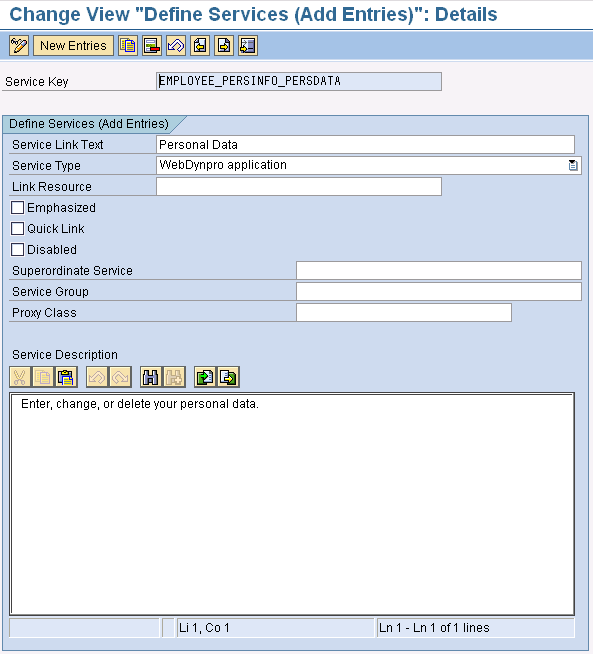
Figure 10
Define services (Web applications) that appear on the area pages
In Figure 11, you link the resource to the services for country grouping (06 = France). When the France user accesses the bank information from the SAP NetWeaver Portal, the ESS service enables the bank resource for France.

Figure 11
Define country-specific services
In Figure 12 you define the position of the bank information on the SAP NetWeaver Portal subscreen.
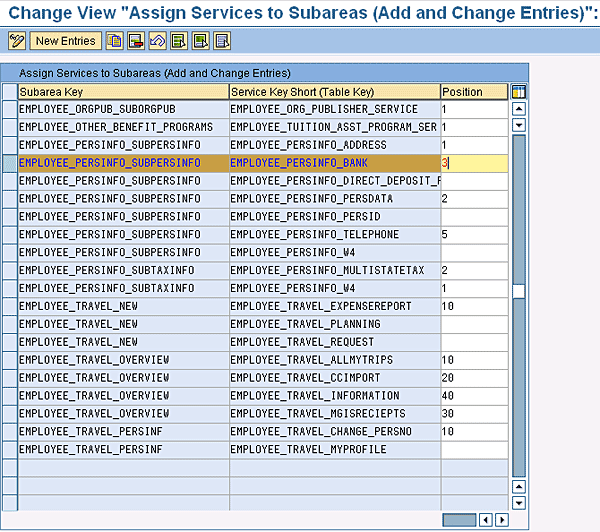
Figure 12
Assign services to subareas (assign each service to a subarea and define its position)
Note
If there is no country-specific service definition, the system uses the general service definition in the V_T7XSSSERSRV and V_T7XSSSERSRVC views. If the general service definition does not contain a resource object, the system does not display the service. You can access these views via transaction code SM30 (Call View Maintenance).
Step 6. Define Active Subtypes and Specify Use Case in ESS Personal Information
By defining the active subtype, you can control what subtypes show on the ESS services screen for the particular infotype (Figure 13). The use case is where you control the validity period, such as future dated records and the visibility of the new button and delete button (Figure 14).
Follow IMG menu path Personnel Management > Employee Self-Service > Employee Self-Service > Service-Specific Settings > Own Data > Determine Active Subtypes and Make Setting/ Reuse Country-Specific Applications (Specify Use Case and Active Subtype).
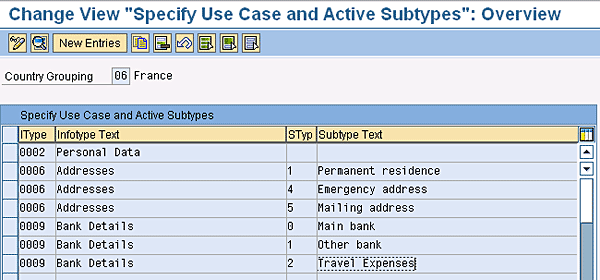
Figure 13
Specify use case and active subtypes (overview)
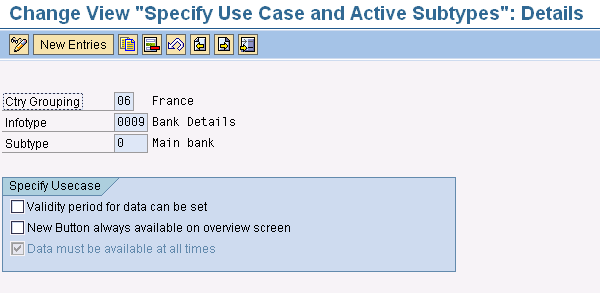
Figure 14
Specify use case and active subtypes (details)
You see the output as displayed via ESS > Personal Information > Bank Information. France is an example of a standard ESS service and, based on the simple configuration steps, ESS users can access the personal bank data via SAP NetWeaver Portal and add the bank information successfully (Figure 15).
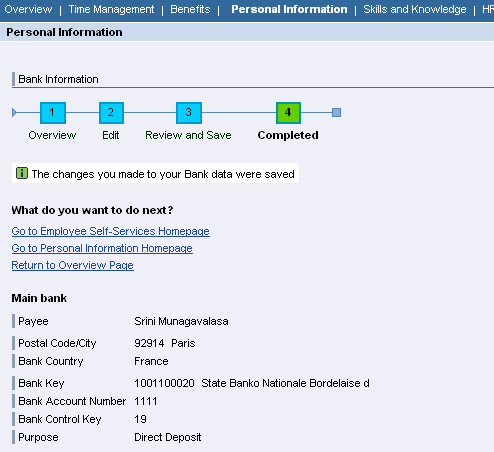
Figure 15
SAP NetWeaver Portal — Bank Information Screen
To extend the bank information for France’s (02) service to Israel (IL), take the existing country-specific (France’s) ESS standard service and apply this to Israel. After this simple configuration your Israel employees will be able to access and make changes to their bank data via SAP NetWeaver Portal seamlessly with the same look and feel as your standard service user. Now the Israel users’ experiences are similar to the experiences of users in France.
In addition to the above steps that had to be followed for country-specific service, you need to configure the following three key steps that are critical for reuse of standard services:
- Reuse the already created screen structure from one country for another country
- Specify active subtypes and use case
- Define country-specific services
The first step is to identify the country-specific application that is best suited to be copied and adapted to your new country-specific application (Figure 16). Then select and specify the screen structure to be used for the new country (Figure 17). You can then specify for each infotype which subtypes are active and can be changed by your employees (Figure 18), and you also define the use case for each infotype or subtype for the new country (Figure 19). The final step is to define the country-specific service (Figure 20). Follow IMG menu path Personnel Management > Employee Self-Service > Service-Specific Settings > Own Data > Reuse Country-Specific Applications.
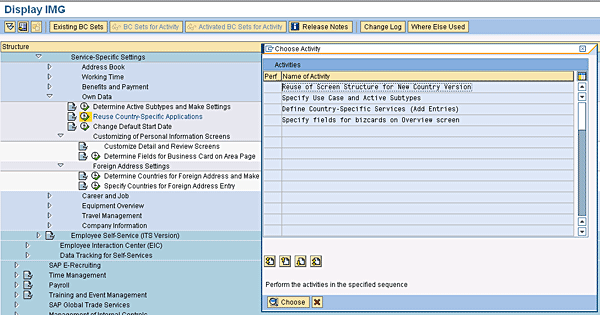
Figure 16
Reuse the country-specific application IMG path
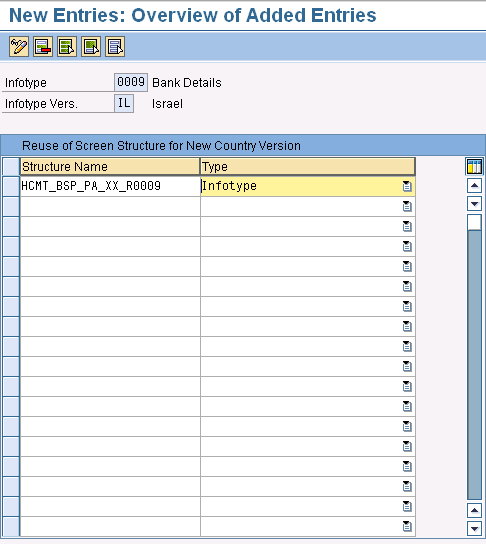
Figure 17
Reuse screen structure for new country version
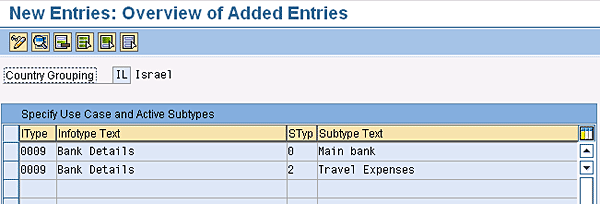
Figure 18
Specify active subtypes
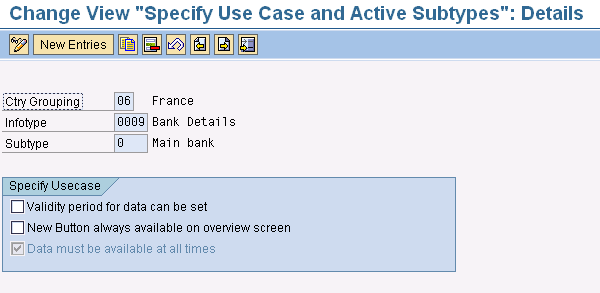
Figure 19
Specify use case
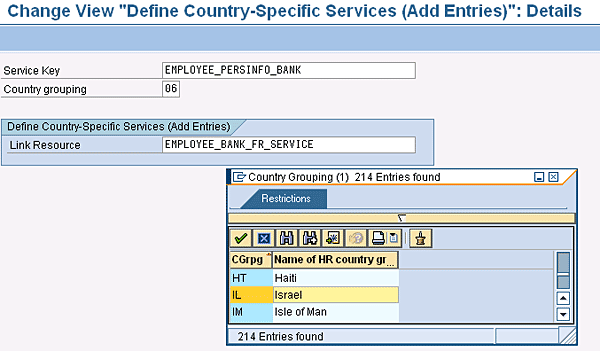
Figure 20
Define country-specific services
In this step you assign a screen structure to infotype sessions (Figure 17). Before performing the step, you need to identify the country-specific application that is best suited to be copied and adapted as new country-specific application.
You need to look in the V-T588IT_SCREEN view to find the country-specific structure based on which country suits your need. You see in this V-T588IT_SCREEN view that the structure is different for some countries (screen versions) while XX is used for others. In this case, as there is no standard country-specific structure for France that is planned to be reused, reuse the existing generic structure, HCMT_BSP_PA_XX_R0009, for Israel (IL) (Figure 17).
Define this structure for infotype 0009 and infotype version IL (Figure 17). This is the country version for Israel.
In the next step, you define subtypes to be available in the main bank and the travel expenses banks (Figure 18). These subtypes will be available for the employee to add/modify their bank details for Israel. In Figure 18, let Israel users view/create/modify only Main Bank (Subtype = 0) and Travel Expenses (Subtype = 2). In the case of France, you configure the system to let users maintain Main Bank, Other Bank, and Travel Expenses (Figure 13).
We specify the use cases in this configuration step, such as Validity period for data can be set, New Button always available on overview screen, and Data must be available at all times (Figure 19). This can be configured for each subtype (e.g., Main bank and Travel Expenses).
In this last step, you copy country-specific service FR (Country group = 06) to IL (country group = IL). You do this by selecting the EMPLOYEE_PERSINFO_BANK for country grouping 06 – France (Figure 20). Click the copy function icon  and you are able to copy this to Country grouping IL-Israel.
Use the service key EMPLOYEE_PERSINFO_BANK and assign this to Country Group IL (Israel) and link this service to resource EMPLOYEE_BANK_FR_SERVICE (Figure 20). Note that you are using the same resource as that for 06-France. Now your employees from Israel can log on to SAP NetWeaver Portal and access their bank information. Figure 21 displays the Personal Information screen.
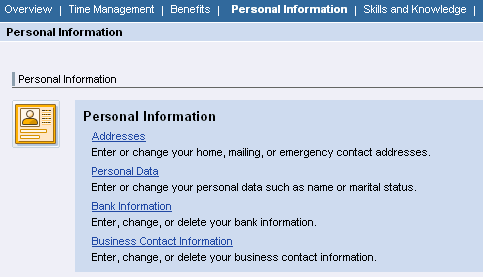
Figure 21
Employees have access to their bank accounts
As per the configuration steps listed above, Bank Information is in the third position on the screen (Figure 22).
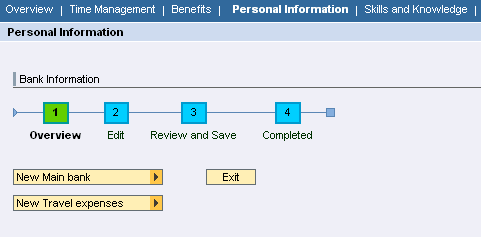
Figure 22
SAP NetWeaver Portal Personal Information subscreen (bank information)
Now the user is able to see Main Bank (Subty 0) and Travel Expenses (Subty 2) as per the configuration step in Figure 18. In this example the user will create bank information from the SAP NetWeaver Portal. The user inputs the bank information for the main bank, and reviews and saves the data (Figure 23).
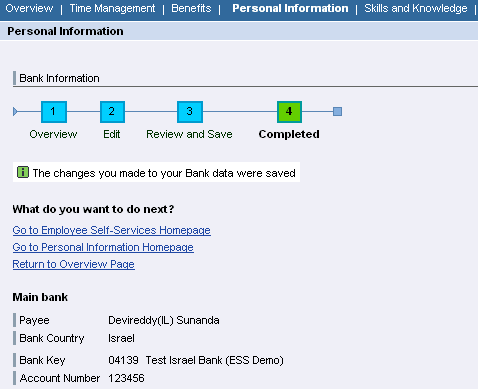
Figure 22
Completed change to bank information
The same holds true for address information. Follow similar configuration steps as those outlined for bank information and your user will be able to successfully edit their address information (Figure 24).
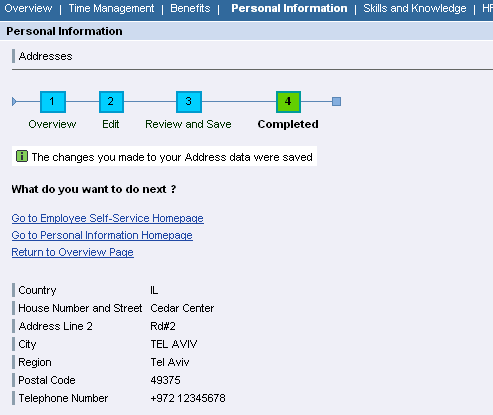
Figure 24
Address screen
Another important functionality that you can control via configuration is field properties. You can do so via Maintain View - V_T588MFPROPS (standard) and V_T588MFPROPC (custom) HR: Field Properties. In Figure 25, for the county Israel, you can configure the system to make the payment method mandatory (Field Name ZLSCH) on the SAP NetWeaver Portal screen. This forces the user to enter a payment method and does not offer the check option. The unused check box is especially useful when you have some fields that are hidden on SAP NetWeaver Portal but still used on SAP ERP Central Component (SAP ECC). This should be used judiciously as some fields may be used on SAP ECC that the company does not want employees to be able to update. When a new record is created in ESS, the previous values in the field are copied over. To prevent this from happening and to keep the field blank when creating data from ESS, the field needs to be set as unused.

Figure 25
HR: Field Properties (SM30 view of V_T588MFPROPS and V_T588MFPROPC)
Keep in mind that any changes that SAP makes to the standard application reflects on the new country. This means that you need to analyze the impact with Enhancement Packages. The subtypes, use case, field settings, validations, and drop-down help field values, however, are all country specific, so you can control them separately for the new country.
With this simple step-by-step configuration instruction for ESS customization for Israel, you can successfully implement services or replace services for countries including China, Brazil, and Japan. When changing screen layouts, make sure that any valid existing data is converted properly. Also make sure that selected country-specific screens are consistent for that country and that the inherent code logic does not conflict.
By following this step-by-step flow, you will be able to simplify your ESS implementation by reusing the standard SAP functionality.
Sunanda Devireddy
Sunanda Devireddy has more than 10 years of SAP experience in the SAP HR Payroll, Time Management, Compensation, and ESS/MSS functional areas. Sunanda worked on multiple global implementations at Micron Technologies and Walt Disney Company. Sunanda joined her current company four years ago and works as a principal business analyst in the SAP team.
You may contact the author at editor@hrexpertonline.com.
If you have comments about this article or publication, or would like to submit an article idea, please contact the editor.
Srini Munagavalasa
Srinivasa (Srini) Munagavalasa has 14 years of experience in various SAP modules. Srini has worked on multiple SAP global implementations at major clients. He has experience as a project manager, deployment lead, build manager, and technical development manager.
If you have comments about this article or publication, or would like to submit an article idea, please contact the editor.



 Premium