Learn how to automate the process of settlement and transfer to finance of trip reports created in the SAP Travel Management module. Then, once the trip report is approved, it is automatically settled and posted into FI. Understand the settings, as well as the tips and tricks, needed to set up this automation batch job.
Key Concept
In a standard SAP ERP process, you can use SAP Travel Management for accounting of employees’ traveling expenses. It enables employees to enter the expenses that they incur for official purposes. These expenses are then sent for approval and the amount is paid to the employee.
In standard SAP Travel Management there are various steps for handling trip reports, such as creating, confirming, approving, settling, and posting to accounting. After the finance department confirms the trip report, it is sent to the relevant approver based on the defined workflow.
Managers manually approve these types of reports. They should not be autoapproved as the approver should verify the amounts, eligibility, and other data. Autoapproval is for exceptional scenarios only, such as petty expenses. However, you can design a workflow in such a way that if the trip report is for a small expense or for the top-level manager’s trip report, then the workflow program automatically approves the trip report.
The system then sends it directly to the finance department for settlement (using transaction code PREC) and posting to FI (using transaction codes PRFI and PRRW). Once the trip reports are approved, the business can automate the next steps for settling and posting them into finance. I show you how to automate certain steps (trip settlement and posting) in the process of accounting for travel expenses.
Note
Generally, businesses create self-service employee and manager portals for travel expense management as a front end. The SAP system runs as a background system for the actual execution of the transaction. I explain the travel expense flow using the transaction codes and access paths in an SAP system.
Understand the Standard Flow for Travel Expense
Travel expense management contains several steps in a standard SAP system.
Step 1. The traveler (employee) creates a trip report. Use transaction code TRIP or follow SAP Easy Access menu path Accounting > Financial Accounting > Travel Management > TRIP - Travel Manager. The traveler adds the details of the trip (e.g., dates of travel and line-by-line details on expenses incurred) and then submits the trip report.
Tip!
Before travel, the employee first creates a trip request using transaction code TRIP or follows SAP Easy Access menu path Accounting > Financial Accounting > Travel Management > TRIP - Travel Manager. Once his travel request is approved and the employee has traveled, he can submit the trip expense report to claim the expenses.
Step 2. An accounts payable (AP) clerk (in the finance department) approves the trip report. Use transaction code PRAP or follow SAP Easy Access menu path Accounting > Financial Accounting > Travel Management > Travel Expenses > Periodic Processing > PRAP - Approve Trip. Once the traveler submits a trip report, an AP clerk checks the amount with the supporting receipt produced by the employee and the cost centers assigned to ensure that no clerical issue is in the trip report. If there is any issue, the AP clerk rejects the trip report, and the trip report automatically is diverted to the traveler for correction. Otherwise, the AP clerk approves the trip report, and the trip report moves closer toward approval.
Step 3. The manager (approver) approves the trip report. Use transaction code PR05 or follow SAP Easy Access menu path Accounting > Financial Accounting > Travel Management > Travel Expenses > PR05 - Travel Expense Manager. Once the AP clerk approves the trip report, the trip report automatically is sent to the approver for approval. This approver is usually the reporting manager of the employee. The approver verifies that the employee has incurred the expense for business purposes and within authorized limits.
Step 4. The AP clerk settles the trip report. Use transaction code PREC or follow SAP Easy Access menu path Accounting > Financial Accounting > Travel Management > Travel Expenses > Periodic Processing > PREC - Settle Trips. At a periodic interval (e.g., at the end of the day), the AP clerk settles the trip report, and this settlement determines the final amount payable to the employee for the trip. This activity stores the resulting amount into SAP Travel Management, which is used in the further steps to post it to an employee account.
Step 5. The AP clerk creates a posting run for transfer of the trip report. Use transaction code PRFI or follow SAP Easy Access menu path Accounting > Financial Accounting > Travel Management > Travel Expenses > Periodic Processing > Transfer to Accounting > PRFI - Create Posting Run. The AP clerk creates the posting run for the settled trip reports. This activity stores the data to be passed on to FI, such as the accounts for posting or the amount. The AP clerk can check the output of this posting run, and if everything is correct, then the AP clerk posts the posting run as shown in step 6.
Step 6. The AP clerk executes the posting run for transfer of the trip report to accounting. Use transaction code PRRW or follow SAP Easy Access menu path Accounting > Financial Accounting > Travel Management > Travel Expenses > Periodic Processing > Transfer to Accounting > PRRW - Manage Posting Runs. The AP clerk executes the posting run, and the posting automatically is sent to FI. The amount payable to the employee can now be observed in the employee account (i.e., the vendor account of the employee as each employee is also created as a vendor in the system for making payments of trip expenses to them).
Step 7. The employee is paid. As a final step, the amount payable to the employee can be paid by any of the various methods available as needed by the business (e.g., automatic payment run or manual check).
Many businesses are interested in automating steps 4 through 6 instead of having the finance department handle them manually. This automation reduces the total processing time in trip report accounting and also reduces the overhead in the finance department for process execution.
Setup for Automation in Travel Expense Flow
You need to configure the prerequisite settings before scheduling a batch job for automatic settling and posting of trip reports.
Creation of Variables for Handling Period Determination for Automation
For executing the settlement and creation of a posting run, you have two options for selecting periods for which you want to settle and create the posting run:
- Current period. When you use this option, the payroll period is used to determine the period for execution. This option should be selected for automation when your payroll execution is happening in SAP regularly and payroll period is representing the current period.
- Other period. When you use this option, you need to provide the calendar year and calendar month for execution. This option is more relevant for automation batch job creation as your payroll period does not need to be the current one for automation to work.
In this example, you use the option Other period (and thus the automation should automatically determine the current calendar month and current calendar year). The standard SAP system does not provide the dynamic field for such calculation, so you should create custom variables using the following steps:
1. Execute transaction STVARV and create the two TVARVC parameter variables:
These variables are used in variant creation for transaction PREC and PRFI.
2. Create a custom program using the ABAP editor in SE38 (with the developer Access needed to create custom program) with the logic to update Z_CURRENT_CALENDER_YEAR by year from system date and to update Z_CURRENT_CALENDER_MONTH by month from system date. Whenever this program is executed, the TVARVC variable created is updated with the current calendar month and year. This custom program is executed via a batch job as explained in the section titled “Schedule a Batch Job for Automation.”
Create a Distribution List
Create a distribution list that receives the output of the automatic execution of settlement and transfer to finance so that the user can check the output to ensure that trip reports are correctly processed. This step helps in monitoring the automation.
Execute transaction SBWP (or follow SAP Easy Access menu path Office > SBWP - Workplace). Click the Distribution List button. Click the Create button and then in the Attributes tab enter the Distribution List name and description. (You can also make this a subscription list, and then users can add or remove their user IDs to this distribution list.) Go to the Distribution List Content tab and enter the list of recipients (Figure 1).
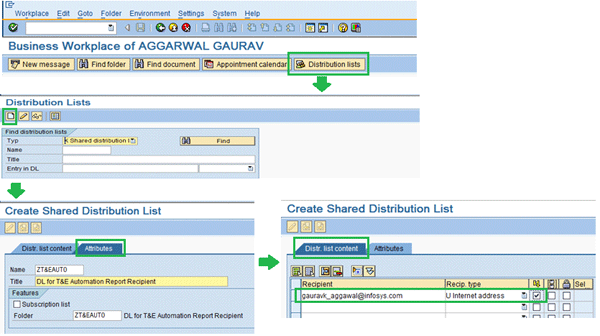
Figure 1
Create a distribution list to be used for travel expense automation
Create a Variant for PREC for Settlement of Trip Reports
Create a variant for transaction PREC (Background Program RPRTEC00). Execute transaction PREC or follow SAP Easy Access menu path Accounting > Financial Accounting > Travel Management > Travel Expenses > Periodic Processing > PREC - Settle Trips. Populate the Payroll area field, select the Other Period indicator with the current month and year, enter the company code, and click the save icon (Figure 2). Keep the personnel number and trip number blank to consider all the employee trip reports during this settlement period.
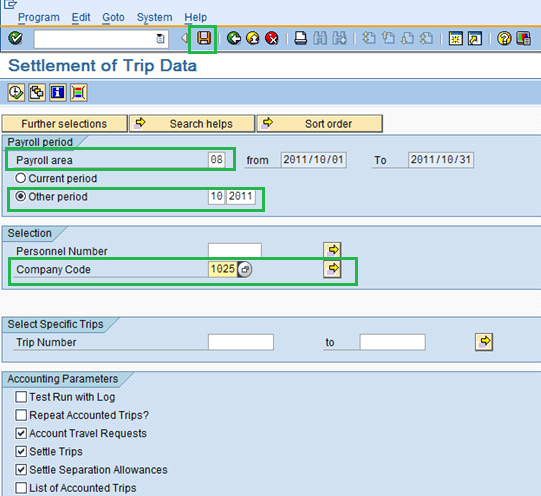
Figure 2
Saving settlement transaction (PREC) variant
Now click the save icon in the screen in Figure 2. In the Variant Attribute screen (Figure 3) save the dynamic characteristics of the variant. Now provide the variant name and meaning (description) and assign the TVARVC variable parameter to the field Period Selection: Period and Period Selection: Year. Save this variant by clicking the save icon. Using the TVARVC variable ensures that period and year on the selection screen for this variant are always picked up from the custom variable created.
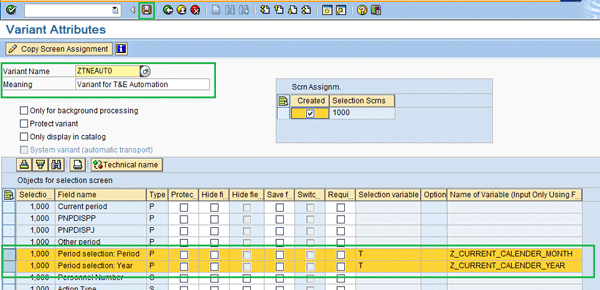
Figure 3
Save transaction PREC variant attributes
Create a Variant for PRFI to Create a Posting Run
Create a variant for transaction PRFI (Background Program RPRFIN00_40). Execute transaction PRFI or follow SAP Easy Access menu path Accounting > Financial Accounting > Travel Management > Travel Expenses > Periodic Processing > Transfer to Accounting > PRFI - Create Posting Runs (Figure 4). Populate the Payroll area field, select the Other period indicator with the current month and year, enter the company code, and enter the name of the posting run to be created. Click the save icon to save the dynamic characteristics of the variant. Keep the personnel number and trip number blank to consider all the employee trip reports during the period selected.
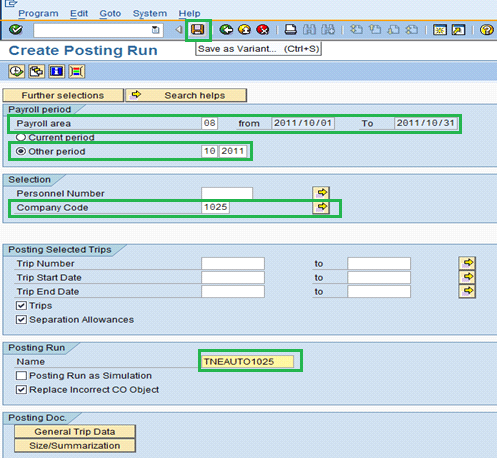
Figure 4
Save the transaction PRFI variant
Note
Use a well-defined name (where you can identify the company code for which you are running the posting run) for the posting run, as the same name should be used while creating the variant for the next step of executing the posting run.
Now provide the variant name and meaning (description) and assign the TVARVC variable to the field Period Selection: Period and Period Selection: Year (Figure 5). Assign the current date to the default value fields of Posting Date and Document Date. Save this variant by clicking the save icon. Using the dynamic variable ensures that the period, year, posting date, and document dates on the selection screen for this variant are always determined dynamically with current values.
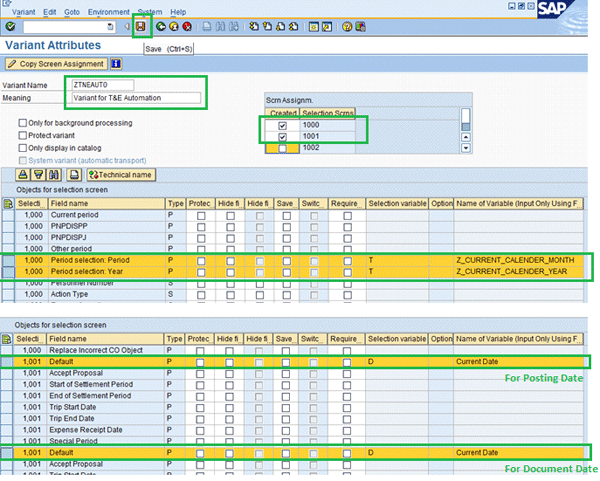
Figure 5
Save the transaction PRFI variant attributes
Create a Variant for PRRW for Posting the Posting Run
Create a variant for transaction PRRW. This variant cannot be directly created from the transaction, as transaction PRRW involves the manual step of clicking the Post button after selecting the relevant posting runs.
To schedule the variant, execute transaction SE38 (or follow SAP Easy Access menu path Tools > Development > SE38 – ABAP Editor), enter program RPRPOSTD, and click the execute icon. On the next screen, select the mode as Post and the option Last posting run created with the name as given while creating the variant for the posting run creation as in the screen in Figure 4. Click the save icon. In the next screen for attributes, enter the variant name and meaning (description) and save the variant by clicking the save icon (Figure 6).
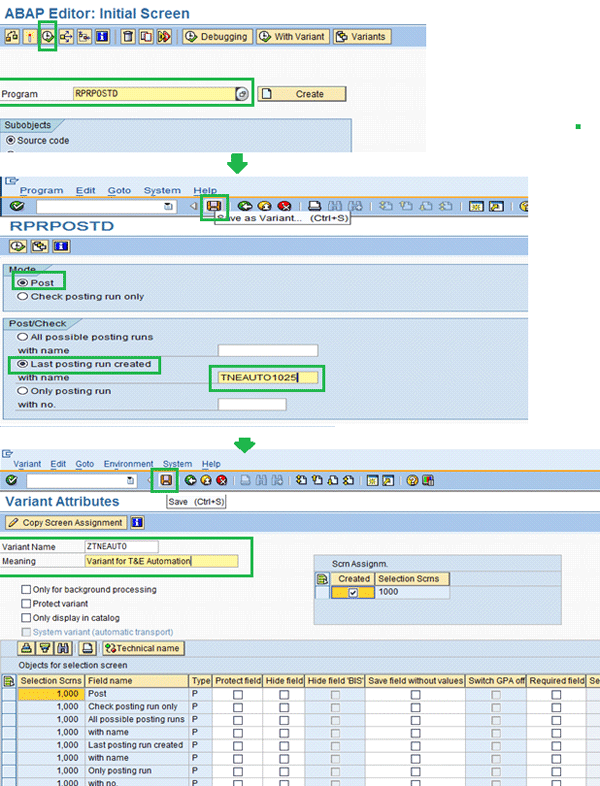
Figure 6
Save the transaction PRRW variant
Schedule a Batch Job for Automation
Now schedule a batch job using transaction SM36 or follow SAP Easy Access menu path Tools > CCMS > Background Processing > SM36 - Define Job (Figure 7). Enter a name for the batch job. Click the Start Conditions button and define the period (Period Values) as Daily (as an example). Click the Step button and define these four steps one by one:
- Custom program for updating of TVARVC variables
- Program RPRTEC00 (Transaction PREC) with variant ZTNEAUTO as created for settlement of trip reports (Figures 2 and 3)
- Program RPRFIN00_40 (Transaction PRFI) with variant ZTNEAUTO as made for creating the posting run (Figures 4 and 5)
- Program RPRPOSTD (Transaction PRRW) with variant ZTNEAUTO as created for executing the posting run (Figure 6)
When you click the step button, the system asks you to enter the program and variant names. Provide these details and click the new step icon. Once all steps are entered, click the save icon to save the batch job. Then click the Spool List Recipient button and enter the name of the distribution list as created in Figure 1 and save the batch job by clicking the save icon.
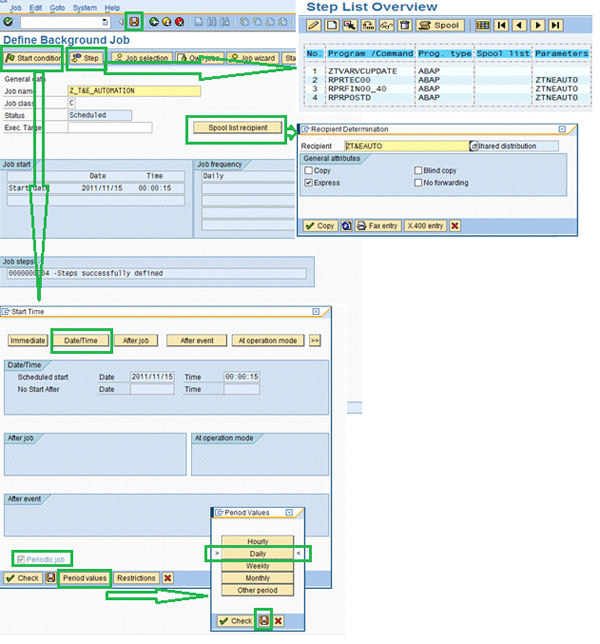
Figure 7
Schedule the periodic batch job using transaction SM35
Note
Businesses can also opt to schedule the batch job for the custom program for updating TVARVC variables separately so that you can execute it once at the start of every calendar month.
Monitoring the Automatic Execution
The batch job is executed with the defined period values. The values were daily in the preceding example (Figure 7). Each step in the batch job creates an output of the execution results, and that output is sent via email to all the recipients maintained in the distribution list assigned to the batch job (Figures 8 to 10). Users can check the output in email to check whether the trip report is successfully transferred to finance.
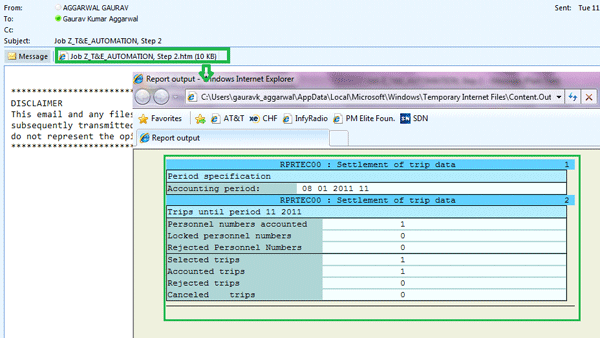
Figure 8
Email generated for settlement of trip reports
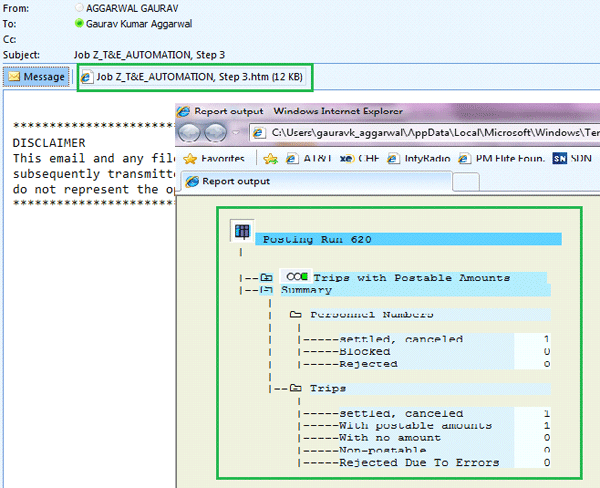
Figure 9
Email generated for creation of the posting run
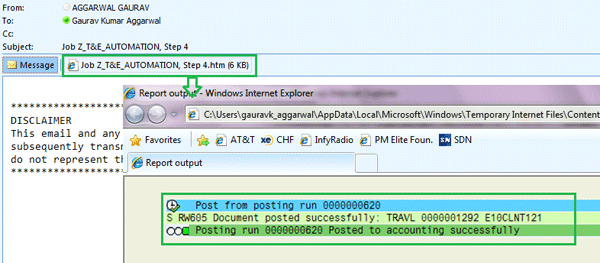
Figure 10
Email generated for posting of the posting run
Gaurav Agarwal
Gaurav Aggarwal is SAP S/4HANA lead consultant at Infosys Limited. He has more than 14 years of experience, including 11 years in SAP Finance. He has expertise in both SAP FI and Controlling (CO) with integration to other modules in manufacturing and process industries. He is a chartered accountant and SAP Certified Financial Consultant. He holds a bachelor’s degree in commerce and is a techno-functional expert with thorough knowledge of the necessary ABAP for functional experts. He is a veteran in G/L, AR, AP, banking, FA, Travel Management, and closing cockpit and has handled greenfield implementation, upgrades and conversions, rollouts, and support projects.
You may contact the author at gka2707@gmail.com.
If you have comments about this article or publication, or would like to submit an article idea, please contact the editor.