Many organizations now use the SAP Financial Closing Cockpit for making the period-end closing activity faster and more integrated. Organizations create a task list for each period-end closing from the template defined in the SAP Financial Closing Cockpit. See how you can automate the creation of the task lists from the template defined in the SAP Financial Closing Cockpit.
Key Concept
The Closing Cockpit is a standard SAP tool to monitor and control the entire period-end closing cycle. In this tool first the templates are defined and then the task list is created from the template each month to enable users to process the task list for the period-end closing. An SAP Financials system includes special tools to automate the creation of the task lists on a periodic basis.
When an organization implements the SAP Financial Closing Cockpit, it also needs to create and release a task list every month from the template. This process can be time-consuming. For example the amount of time to prepare a task list increases if an organization uses multiple templates (e.g., one template for each company code).
I explain how you can automate the process of creating a task list by using business functions or SAP Notes depending on which SAP release your organization uses. This feature is available from SAP ERP Central Component (SAP ECC) 6.0 enhancement package 5 and higher. You do not need any custom development. All the steps for automating creation of a task list can be completed via standard SAP functionality.
Note
For information on the detailed standard SAP process for configuring the SAP Financial Closing Cockpit, see Gary Fullmer’s SAPexperts articles: “Set Up SAP Closing Cockpit for Speedier and Better-Controlled Financial Closings in 5 Steps” and “SAP Closing Cockpit in mySAP ERP Automates Fast Close.”
I focus only on the aspect of automating the creation of a task list creation in the SAP Financial Closing Cockpit.
There are different ways to automate the creation of a task list based on the SAP release version. Table 1 lists the procedures available for different SAP releases.
| SAP release version |
Functionality for creagtion of task lists |
Below SAP ECC 5.0
|
The SAP Financial Closing Cockpit itself is not available in SAP ERP versions below SAP ECC enhancement package 5
|
|
SAP ECC 5.0 andSAP ECC 6.0 up to enhancement package 4
|
An option to create multiple task lists for a fiscal year based on a fiscal year variant |
SAP ECC 6.0 enhancement package 5
|
Provides an option to create multiple task lists for a fiscal year based on a fiscal year variant or an option to create a task list via the CREATE_TASKLIST program after applying SAP Note 1696446
|
SAP ECC 6.0 enhancement package 6
|
An option to create multiple task lists for a fiscal year based on a fiscal year variant or an option to create a task list via the CREATE_TASKLIST program after activating the business function FIN_ACC_LOCAL_CLOSE_3 |
|
|
Table 1
A comparison of procedures for automated task list creation in various SAP ERP releases
I now discuss the functionalities listed in Table 1 in detail.
For SAP ECC 5.0 and SAP ECC 6.0 through Enhancement Package 4
For these releases, the only available option to create multiple task lists is based on the fiscal year variant. To do this, execute transaction code CLOCOC or follow SAP Easy Access menu > Accounting > Financial Accounting > General Ledger > Periodic Processing > Closing > CLOCOC - Closing Cockpit (Manage Templates and Task Lists). On the screen that appears select the option Template/Task List and then the Other Template/Task List … option.
On the next screen, double-click the template for which you want to create a task list as shown in Figure 1.
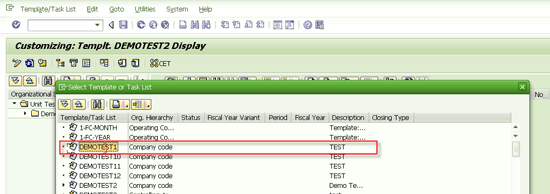
Figure 1
Select a specific template for creation of a task list
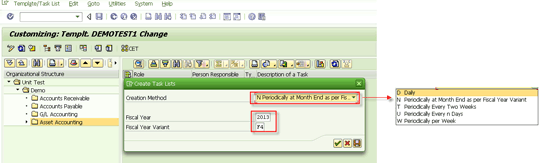
Figure 2
Enter the parameters for creating multiple task lists for the template
Note that Figure 2 shows the options based on the N Periodically at Month End as per Fiscal Variant Creation Method. You can select other options from the drop-down list, such as Creation Method D Daily (Figure 3). You use this option to enter the number of the daily task lists to be created.
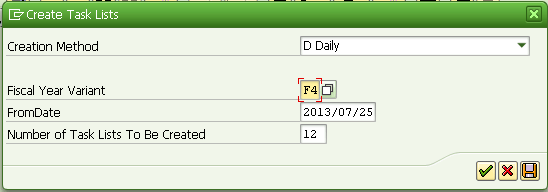
Figure 3
The D Daily method
For the T Periodically Every Two Weeks Creation Method (Figure 4), enter the number of biweekly task lists to be created in the Number of Task Lists To Be Created field. Click the green checkmark icon.

Figure 4
The T Periodically Every Two Weeks method
For the U Periodically Every n Days Creation Method, (Figure 5) enter the number of task lists to be created (12) and the time interval between each task list (1). Click the green checkmark icon.
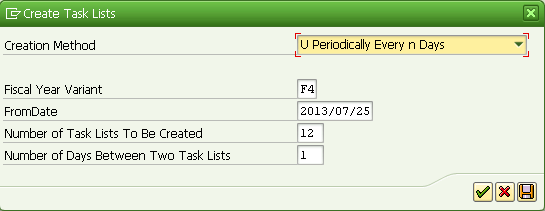
Figure 5
The U Periodically Every n Days method
For the W Periodically per Week Creation Method (Figure 6), enter the number of weekly task lists to be created (12). Click the green checkmark icon.
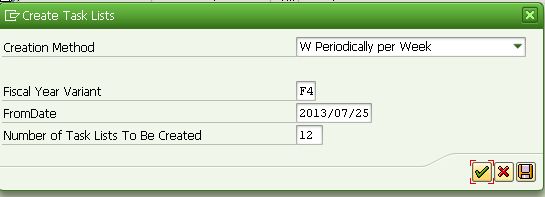
Figure 6
The W Periodically per Week method
Task lists are created with the key date as the last date of each period in the fiscal year according to the fiscal year variant (e.g., F4). To check the task lists created, select the Template/Task List option and then Other Template/Task List … option as mentioned earlier. In the screen that appears (Figure 7) you can see the various task lists created.
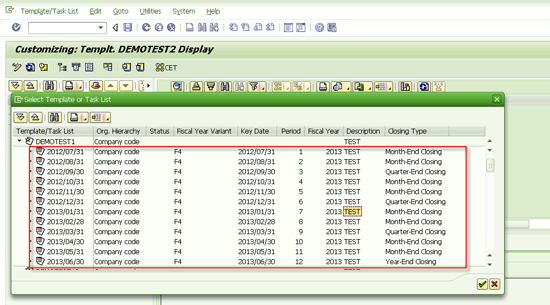
Figure 7
Various task lists created from the template
Note
When you use the Create Multiple Task Lists option, the created task lists take the definition of the tasks from the template that exists during task list creation. Therefore, if you make any change in the template, then task lists already created do not take into account those changes.
These task lists are created with status as Not Released. In the template the Status column is blank when task lists are not released. They have to be released manually by changing the status. To release a task list, use transaction code CLOCOC or CLOCOT. Select the task list and then go to change mode. Select the option Basic Data from the Edit menu and then change the status changed to Released.
For SAP ECC 6.0 Enhancement Package 5
In addition to the Create Multiple Task Lists option, for SAP ECC 6.0 enhancement package 5, you can also implement the CREATE_TASKLIST report. After implementing SAP Note 1696446, a new program called CREATE_TASKLIST is available in your system. To use this program, execute transaction code SE38 and enter the Program name as CREATE_TASKLIST. Execute the program by clicking the execute icon on the selection screen of transaction code SE38 (Figure 8).
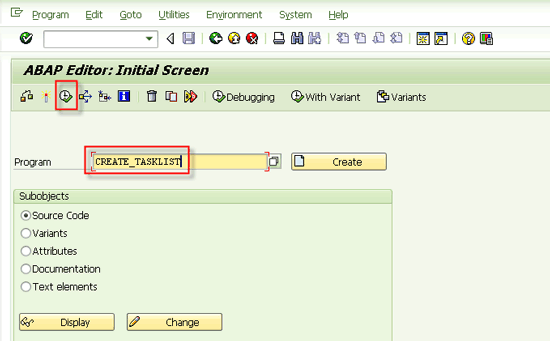
Figure 8
Execute the CREATE_TASKLIST program
The selection screen of program CREATE_TASKLIST appears (Figure 9). Enter the various details for the task list creation and click the execute icon.
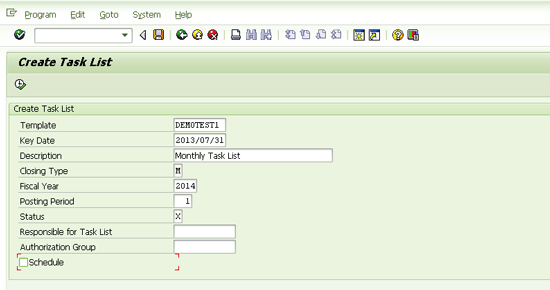
Figure 9
The selection screen of the CREATE_TASKLIST program
Table 2 describes the various fields shown in Figure 9.
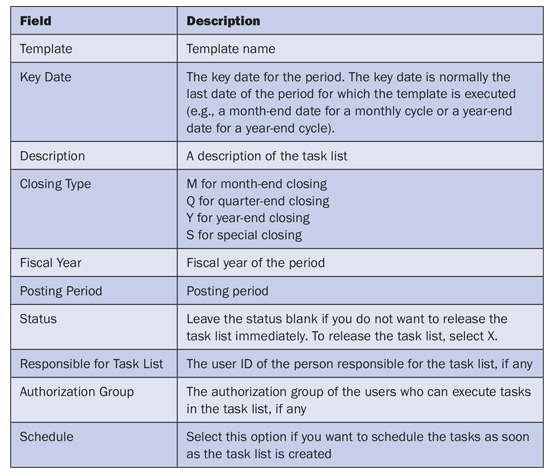
Table 2
Fields in the selection screen of the CREATE_TASKLIST program
The CREATE_TASKLIST program allows you to create only a single task list at a time. However, you can schedule this program in the background in a batch job by using dynamic variables for Key Date, Fiscal Year, and Period. These dynamic variable values can be maintained in transaction code STVARV and can be updated manually or automatically via a custom program. For details on how to schedule a batch job using dynamic variables in program, refer to my article “Automate Travel Expense Settlement and Transfer to Finance.”
For SAP ECC 6.0 Enhancement Package 6
Figure 10Figure 10
Figure 10
Display the business function status
After you activate this business function, two programs become available:
- CREATE_TASKLIST – This program works in the same way as explained earlier in the section on SAP ECC 6.0 enhancement package 5.
- CREATE_TASKLISTS – This program is the background program for the Create Multiple Task Lists method as explained in the section on SAP ECC 5.0 and ECC 6.0 up to enhancement package 4.
To use the CREATE_TASKLISTS program, execute transaction code SE38 and enter the program name as CREATE_TASKLISTS. Execute the program by clicking the execute icon on the selection screen of transaction code SE38 as shown in Figure 11.
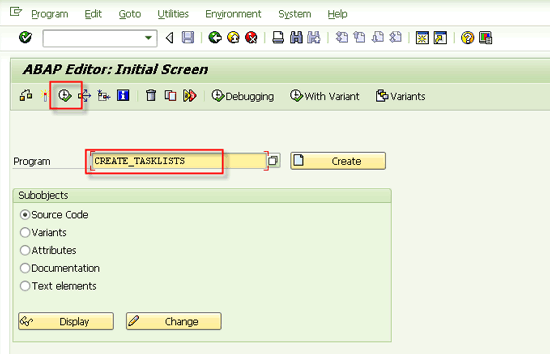
Figure 11
Execute the CREATE_TASKLISTS program
The selection screen of the CREATE_TASKLISTS program appears (Figure 12). Enter the template name and select the Creation Method.

Figure 12
The selection screen of the CREATE_TASKLISTS program
Based on the creation method other options appear, as explained earlier. For this example, assume that you select the creation method N Periodically at Month End as per Fiscal Year Variant from the list of options shown in Figure 12, and then click the execute icon. The options for Fiscal Year and Fiscal Year Variant appear in the next screen (Figure 13).
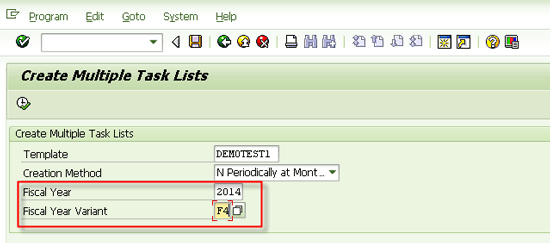
Figure 13
Options based on Creation Method N
After entering these details click the execute icon. The task lists are created and you can verify the task lists were created in the same way as shown in Figure 7. These task lists have the status as Not Released and you need to release the relevant task list when it is to be executed by users.
Gaurav Agarwal
Gaurav Aggarwal is SAP S/4HANA lead consultant at Infosys Limited. He has more than 14 years of experience, including 11 years in SAP Finance. He has expertise in both SAP FI and Controlling (CO) with integration to other modules in manufacturing and process industries. He is a chartered accountant and SAP Certified Financial Consultant. He holds a bachelor’s degree in commerce and is a techno-functional expert with thorough knowledge of the necessary ABAP for functional experts. He is a veteran in G/L, AR, AP, banking, FA, Travel Management, and closing cockpit and has handled greenfield implementation, upgrades and conversions, rollouts, and support projects.
You may contact the author at gka2707@gmail.com.
If you have comments about this article or publication, or would like to submit an article idea, please contact the editor.