Account determination in RE-FX improves productivity by automating customer invoicing and increasing the flow of information by executing a periodic posting run. See how to automate your FI postings by integrating FI and Flexible Real Estate Management (RE-FX) through automatic account determination.
Key Concept
Flexible Real Estate Management (RE-FX) is used for management of real estate, space management, lease-in, and the control of business processes relevant to real estate. You create a real estate contract with a customer specifying all terms and condition amounts. When you execute the periodic posting program in RE-FX, the system automatically posts FI documents updating the customer account and income GL account through account determination.
Imagine your company has leased commercial spaces to tenants and invoices them on a yearly basis. You have implemented Flexible Real Estate Management (RE-FX) and managed the payment terms and conditions within it. You are required to invoice the customers on due dates by posting the FI document periodically, updating the customer account and revenue GL account. With these two components running separately, data can become inconsistent and requires more effort to maintain them both. I’ll show you how to integrate RE-FX with the accounting modules (FI and CO) so that these postings are automated.
All the master data in RE-FX (e.g., business entity, building, and rental objects) falls under a company code that you create in FI. Automatic account determination is the process whereby the system finds the relevant GL accounts to be posted. The system debits the customer account specified in the real estate contract and credits the income account. These settings are mandatory, and without them you cannot execute the periodic postings for real estate contracts.
In RE-FX, the flow of accounting happens through condition type. You assign the condition type to a flow type, which you then link to reference flow types for three different scenarios: 1) condition amount is increased retroactively, 2) condition amount is reduced retroactively, and 3) object transfer postings. You then assign the flow type and reference flow types to account symbols that in turn are assigned to the GL. I’ll show you how to do all of this with examples from an SAP ERP Central Component (SAP ECC) 6.0 system. You can also do this in R/3 4.7, though the menu path and screens may look slightly different.
Account Determination Process
Figure 1 shows an overview of the account determination process in RE-FX. The bolded values indicate those I use in my example. This integration helps automatic invoicing when the user executes the periodic posting program. Any subsequent changes made in the real estate contract ensure follow-up postings. For example, if the real estate contract condition amount is changed (e.g., rent increased), the necessary postings take place in the next periodic posting run. RE-FX has a provision to account for the imputed or lost rental income during the vacancy period of rental objects, but this is beyond the scope of this article.
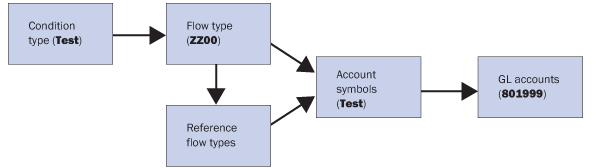
Figure 1
Overview of the account determination process in RE-FX
You need to follow these eight configuration steps:
- Step 1. Create the condition type for which account determination is to be done
- Step 2. Create condition group
- Step 3. Assign the condition group to the real estate contract per contract type
- Step 4. Create flow types and reference flow types
- Step 5. Assign a reference flow type to the flow type for each relation
- Step 6. Assign flow type to the condition type
- Step 7. Assign the account symbol to the flow type
- Step 8. Assign GL accounts to the account symbols
Step 1. Create the condition type for which account determination is to be done. The condition type represents the nature of the income or service (e.g., rent income or water charges). In my example, I create a new condition type called TEST and show you how to configure account determination for this condition type. Follow IMG menu path Flexible Real Estate Management (RE-FX) > Conditions and Flows > Condition Types and Condition Groups > Define Condition Types. Click the New Entries button to produce the screen in Figure 2. Fill in the details, such as Short Name and Long Name. You can also fill in the Default Values if the values are to be defaulted while creating this condition type in the real estate contract or rental objects (e.g., executive offices or rooms given or taken on lease).
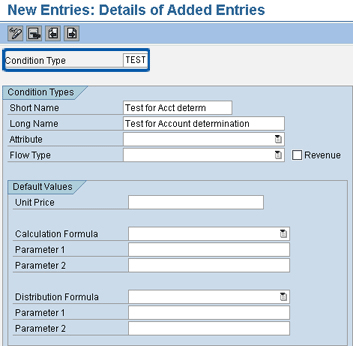
Figure 2
Create a condition type
Step 2. Create a condition group. Assign the condition type to the condition group. Access the transaction from IMG menu path Flexible Real Estate Management (RE-FX) > Conditions and Flows > Condition Types and Condition Groups > Condition Groups > Define Condition Groups and Assign Condition Types. I have created the condition group TEST, and in the Dialog Structure I navigated to Condition Group > Assignment of Condition Types to Condition Group (Figure 3). I have assigned condition type Test for Acct determ to Condition Grp TEST. You can assign multiple condition types to a condition group. You maintain the numerical values in the Sequence field to indicate their order of display. The Condition Purp. field controls whether the posting is statistical, one-time, or entry to be posted.
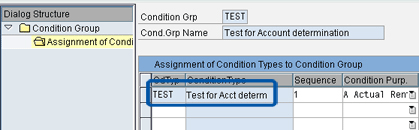
Figure 3
Assign the condition to the condition group
Maintain the default entry to minimize data entry at the time of inputting condition amounts in the real estate contracts. You assign the condition group to the contract type in the next step. A user who creates a contract with this contract type is only able to input those condition types assigned to this condition group. Take this into consideration when you assign the condition type to the condition group.
Step 3. Assign the condition group to the real estate contract per contract type. Follow IMG menu path Flexible Real Estate Management (RE-FX) > Conditions and Flows > Condition Types and Condition Groups > Condition Groups > Assign Condition Group to Contract per Contract Type (Figure 4). Assign the condition group to the contract type as explained in step 2. In this case, I am assigning condition group TEST to contract type CO01. With this assignment, when a user creates a real estate contract with contract type CO01, only condition type TEST is allowed for input.
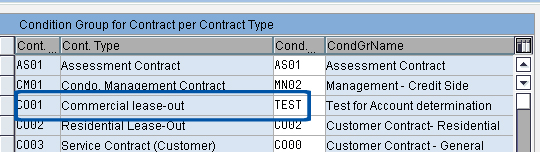
Figure 4
Assign condition group to contract type
You can only assign one condition group to each contract type. This is because the system determines the condition types that will be displayed while creating real estate contracts under these contract types. If more than one condition group is assigned to a contract type, the system cannot determine the condition types while creating the real estate contract under this contract type. If you later add a new condition type due to changing business requirements, then you must determine the condition group assigned to the contract type and ensure that the new condition type is assigned to that condition group.
Step 4. Create flow types and reference flow types. A flow type is a way to classify a cash flow. For example, one flow type represents the basic rent income while another represents water charges income. The flow type influences account determination and is assigned to the condition type. To define flow types, follow IMG menu path Flexible Real Estate Management (RE-FX) > Conditions and Flows > Flow Types > Define Flow Types (Figure 5). You need to create six flow types for every condition type:
- One flow type for posting the real estate condition amount (ZZ00, in my example)
- One flow type each for cash flow resulting from an increase and decrease in condition amount (ZZ01 and ZZ02)
- Three flow types for transfer postings (ZZ40, ZZ41, and ZZ42)
I recommend that you follow consistent numbering for the flow types. For example, ZZ00, ZZ01, and ZZ02 represent basic customer posting flow types, whereas ZZ40, ZZ41, and ZZ42 represent the transfer postings to rental objects. This assists with identification when you start assignment, which is the next step.
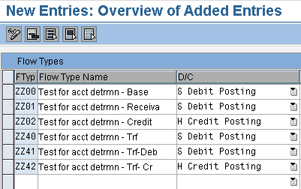
Figure 5
Create flow types and reference flow types
Step 5. Assign a reference flow type to the flow type for each relation. Reference flow types are necessary for certain situations, such as assigning the distribution (also called transfer) postings or assigning a cash flow that appeared from a retroactive increase or decrease of condition amounts. You need to define the relation for these kinds of scenarios. You only need to assign one basic reference type to a condition type. You then assign this condition type to different reference flow types. Follow IMG menu path Flexible Real Estate Management (RE-FX) > Conditions and Flows > Flow Types > Assign Reference Flow Types. I have completed the assignment of reference flow types to the flow types as shown in Figure 6.
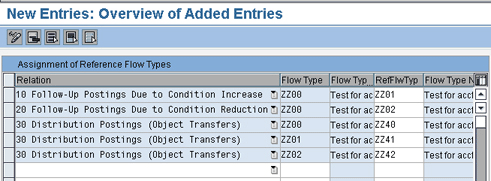
Figure 6
Assign reference flow types to flow type
As explained in step 4, if you follow a consistent number range, you can assign the flow types easily and correctly. When the condition amount increases (relation type 10), the follow-up postings from the flow type are made to the corresponding flow type ZZ01, and when the condition amount is decreased (relation type 20), the follow-up postings are made to flow type ZZ02. For distribution postings (i.e., object transfer postings), flow type ZZ00 is assigned to ZZ40, ZZ01 is assigned to ZZ41, and ZZ02 is assigned to ZZ42. Thus, the consistent numbering of the flow types helps you set up the flow type relations correctly, especially when you have many flow types that need to be set up.
Step 6. Assign the flow type to the condition type. In my example, I assign flow type ZZ00, created in the previous step, to the condition type created in step 1. Access the transaction by following IMG menu path Flexible Real Estate Management (RE-FX) > Conditions and Flows > Flow Types > Assign Flow Type to Condition Type (Figure 7).
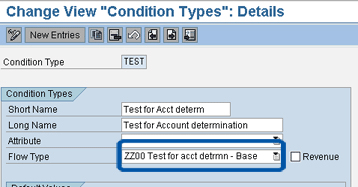
Figure 7
Assign the flow type to the condition type
Step 7. Create an account symbol and assign it to the flow type. I created account symbol TEST for this example. An account symbol is an intermediate link between flow types and GL accounts. Account symbols are assigned to flow types, and in turn GL accounts are assigned to account symbols. Thus, SAP determines the relevant GL account for every flow type. To create an account symbol, follow menu path Flexible Real Estate Management (RE-FX) > Accounting > Automatically Generated Accounting Documents > Account Determination > Account Symbols. Create the account symbol by clicking the New Entries button and entering the symbol and a longer name. I have created two account symbols, D* and TEST, representing the customer reconciliation account and the GL account, respectively (Figure 8).
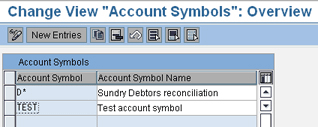
Figure 8
Define the account symbol
After creating account symbols, you need to assign them to the flow types created in step 4. Follow IMG menu path Flexible Real Estate Management (RE-FX) > Accounting > Automatically Generated Accounting Documents > Account Determination > Assign Account Symbol to Flow Type. Click the New Entries button and complete the assignment of entries to account symbols as shown in Figure 9.
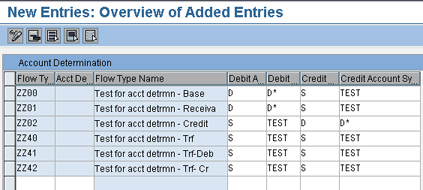
Figure 9
Assign account symbols to the flow types
For flow type ZZ00, the debit account is a customer’s and credit is a GL account. Enter D (customer) in the Debit Account column and D* (customer reconciliation account) in the Debit Account Symbol column. For the same flow type, in the credit columns enter S (GL account) and TEST, which is the account symbol.
Because ZZ01 is the flow type for increasing the condition amount, the rule for flow type ZZ00 still applies and I have configured the same assignment. However, because flow type ZZ02 is for reducing the condition amount, the customer account should be credited and the GL account should be debited — so I have reversed the above configuration.
Flow types ZZ40, ZZ41, and ZZ42 are transfer postings that transfer the revenues from the real estate contract to rental objects. Because of this, the GL account remains the same, so I have assigned the same GL account for both the debit and credit columns.
Step 8. Assign GL accounts to the account symbols. In my example, I assigned GL account 801999 (sales revenue account) to account symbol TEST (Figure 10). Follow IMG menu path Flexible Real Estate Management (RE-FX) > Accounting > Account Determination > Replace Account symbols (Figure 11). Account symbol D* represents the customer and needs to be dynamically derived from the real estate contract master data. Because of this, I am not assigning any GL account to the account symbol D*.
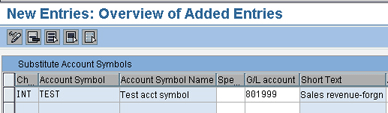
Figure 10
Assign the account symbol to the GL account

Figure 11
Account symbol D* is not assigned to any GL account
You have completed the customization for periodic posting of real estate contracts. You can now automate the invoicing process so that the customers are invoiced periodically, without any delay, as you execute the program. With this complete, you can move on to testing it.
Testing
In this section, I’ll create a real estate contract with the condition type you created in step 1 of the previous section and then save and activate it. You can execute periodic posting for the real estate contract on the due dates and check the FI postings to ensure your settings are correct.
Step 1. Create a real estate contract with the new condition type TEST using transaction RECN. In my example, I have a customer (ABC Corporation) to whom I have leased an executive office. I invoice it with the unit price of 1000 per year in advance. I created a real estate contract number 9 in company code 0001 for testing, and maintained a unit price of 1000.00 (Figure 12). Click the Simulate button to check the amount entered (1000), due amounts, and due dates (15.08.2007) (Figure 13). Simulation allows you to spot any errors in configuration or in the master data.
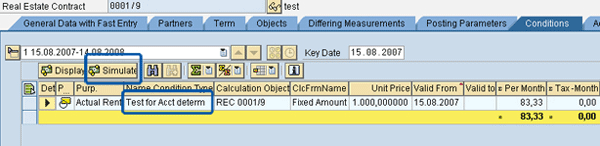
Figure 12
Real estate contract master data after maintaining the contract condition TEST
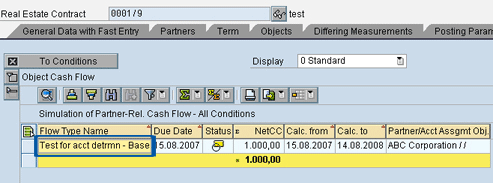
Figure 13
Simulate the condition amounts with the due date
In this example, you have two cash flow views. First is a partner-related cash flow (e.g., ABC Corporation) and second is an object-related cash flow distributed to the rental objects (e.g., executive office). Figure 13 shows the partner-related cash flow. You can expand Object Cash Flow as an alternative.
Step 2. Execute periodic posting for the real estate contract and check the results and accounting documents posted. Use transaction RERAPP to carry out the periodic posting of the contract (Figure 14). This is necessary to post the due amounts to the customer on the due date. Now when you run this program, the SAP system recognizes the flow type and the relevant GL accounts as per the customization settings. Enter the values of the company code, real estate contract number, month of posting run, posting date, document date, run mode, and type of posting run, and click the execute icon. I recommend you select REDT Periodic Posting + Transfer as the type of posting run so that the periodic posting and transfer postings take place simultaneously.
Tip!
Schedule the periodic posting as a background job at the end of day to minimize load on the system.
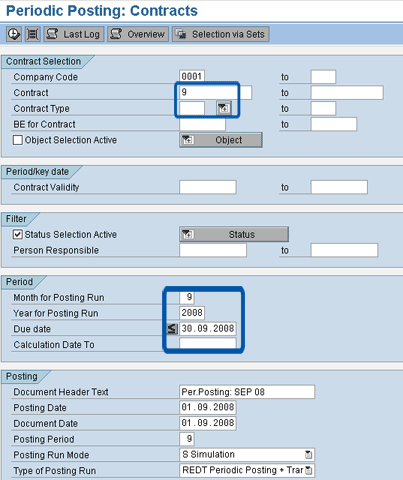
Figure 14
Execute periodic posting
Because I have specified the due date as on or before 30.09.2008, the system posts the due amount for contract number 9 to the relevant GL accounts. Figure 15 shows the details of posting in simulation mode. Click the log icon (circled at the top of the figure) to see whether there are any errors. Correct any errors and re-run the periodic posting in simulation mode. Click the Documents button at the top of the screen in Figure 15 to see the account documents that you’re posting (Figure 16).
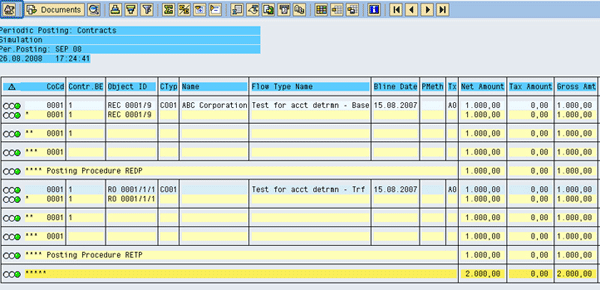
Figure 15
Simulated output of the periodic posting
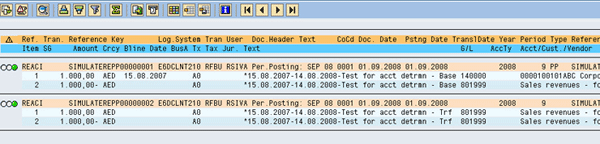
Figure 16
Simulated view of the documents to be posted in periodic posting
After you ensure that there are no errors, run the posting in update mode. Figures 17 and 18 show the documents posted. In the first FI document in Figure 17, the revenue has been recognized on a real estate contract and the transfer entry posted the amount to the rental object attached to the real estate contract. The transfer posting document is a transfer entry of the account assignment object (Figure 18).
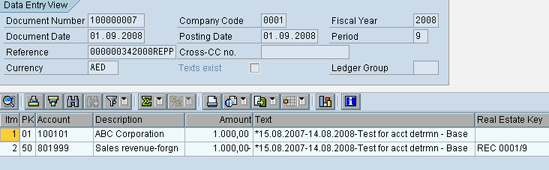
Figure 17
Document posted with periodic posting
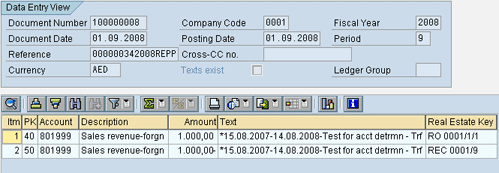
Figure 18
Transfer document posted
Sometimes when you execute the periodic posting transaction, the system might not post any documents and returns an error in the error log. Some common reasons for no periodic posting run are:
- Contract is inactive
- Blocked or Deletion flag is set on the master data maintenance screen
- Account assignment is locked on the master data
- Customer is blocked from posting
- No cash flow due or all due cash flow items are already posted
- Wrong account assignment in customizing
Note
You can check the posting log using transaction RERAPL for all periodic posting details. If you have executed the periodic posting by mistake, you can reverse the posting run using transaction RERAPPRV.
Note
You can assign different document types depending on the flow type in customizing. This is especially necessary if, for example, you want to post basic rent income to document type AB and furniture charges income to document type SA. In this case, basic rent and furniture charges represent different condition types.
The above account determination does not allow you to change the GL accounts according to the user requirements for any real estate contract. Account determination values give you the flexibility to post with a different GL account. You can create the setting for account determination values in customizing. Now I’ll show you how to set up this customization and testing.
Account Determination Values Configuration
You need to make the following additional settings to configure account determination values.
Step 1. Create account determination values. I have created MISC as an example (Figure 19). I have also created one more account symbol, ACTDET, similar to TEST in step 7 in the previous section (Figure 8).
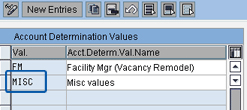
Figure 19
Define account determination value
Step 2. Assign the account symbol to flow type with account determination MISC. I assigned account symbol ACTDET using the New Entries button in the same way as I did in step 7 of the previous section (Figure 20). The creation of an additional account symbol facilitates the assignment of another GL account. Depending on your requirements, you can create many such combinations.
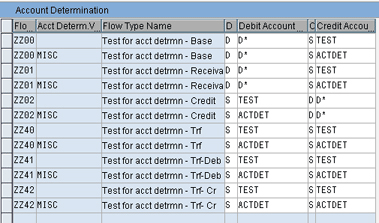
Figure 20
Assign an account symbol to a combination of flow type and account determination values
Step 3. Assign the GL account to the account symbol. This step is similar to the step 8 in the previous section (Figure 10). Click the New Entries button and assign the GL account (e.g., 8000000) to the account symbol (e.g., ACTDET) (Figure 21).
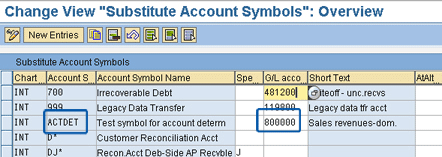
Figure 21
Assign the GL account to the account symbol ACTDET
With these three steps, you have completed customizing for the account determination values. Now you need to test the process. The steps are similar to the testing steps described earlier. The only additional step is to specify the account determination value MISC in the real estate contract master data in the Posting Parameters tab, as shown in Figure 22.
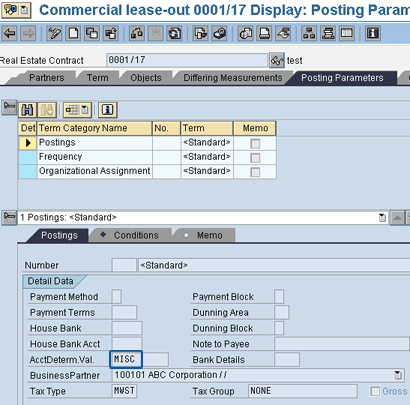
Figure 22
Assign the account determination value MISC in the real estate contract master data
Next, run the periodic posting. Notice that the GL accounts posted are 800000 instead of 801999 (Figure 23). In the previous test, the GL account is 801999 (Figure 16). This shows that the user can successfully change the account determination by changing the real estate master data. He can select the relevant account determination value while creating the real estate contract master data, so that the system posts to the required GL accounts assigned to this account determination value. This gives the user the necessary flexibility. In the absence of this capability, the system posts the GL accounts configured in customization and the user cannot change the GL accounts.
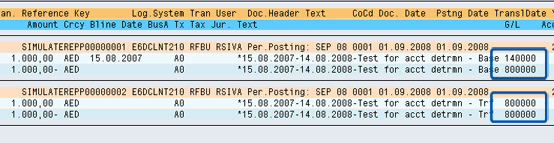
Figure 23
Postings generated with the account determination value MISC in the real estate contract
Sivaprasad Ramachendruni
Sivaprasad Ramachendruni is a solution architect (SAP Financials and SAP S4/HANA Finance) with SAP professional certification. He is currently working for a multinational corporation in the IT sector. He has more than 17 years of functional and SAP system experience spanning across several industries. He has expertise with various modules, including FI, Controlling (CO), Funds Management (FM), Flexible Real Estate Management (RE-FX), Financial Supply Chain Management (FSCM), and SAP S4/HANA Finance. He helps companies design, implement, deploy, and streamline business processes and gain efficiency. He is an Indian cost and management accountant and has a master’s degree in financial management.
You may contact the author at sivaprasadr@rediffmail.com.
If you have comments about this article or publication, or would like to submit an article idea, please contact the editor.



 Premium