Akash Kumar describes the Service Provider Infrastructure Framework (SPI),which is an application and user interface (UI) technology layer that is developed in integration with Floorplan Manager (FPM). It helps developers to build timeless software and to code without thinking too much about the back-end code.
Key Concept
Service Provider Infrastructure Framework (SPI) is a Model View Controller (MVC) architecture framework used primarily for the development of Web applications. The difference between Floor Plan Manager (FPM) and SPI is the interface that is implemented and the methods of the interface. The application can run on enhancement packages 6 and 7.
- Metadata provider class provides the complete information about the nodes, such as actions, queries, cardinality, and dependencies. It gives you the complete node model.
- Service provider class provides access to the application back end, which includes handling requests for creating, deleting, or changing data.
- Collector class is used to provide the information beyond the data flow. The information is provided by the service provider to the collector interface. It includes information such as messages, field properties, operation properties, invalid nodes, and key replacements.
- Connector class handles the data flow and also in Internet scenarios enables the demilitarized zone (DMZ) capability.
- Application building block is used to link the metadata provider class and service provider class.
SPI provides more interface methods than Floorplan Manager (FPM) and therefore leads to more flexibility during development. I show you how to create an application using FPM and SPI. In my example, a user enters a plant on the initial screen and the material data for the plant is shown on the next screen. Below are the required steps to develop the application.
Step 1. Create an application building block that links the service provider and metadata provider. As mentioned earlier, the service provider class links the UI to application logic. It contains information on how fields on the screen are displayed, and the metadata provider has information about the nodes on the screen (i.e., complete node model). An application building block can be created in two ways:
- Call transaction code SM30 and enter /PLMB/V_SPI_ABB in the Table/View field as shown in Figure 1. Click the Maintain button, which opens the screen shown in Figure 2. Enter the Application Building Block ID (ABB ID), service provider (SP) class name, and metadata provider (MP) class name.
- Call transaction code SPRO and follow menu path SPRO > SAP customizing implementation guide > Plant Maintenance and Customer Service > Maintenance Roles > Maintenance Worker > Asset Viewer > Setting for BO framework and navigation > BO framework > Define Application Building Blocks. Click the IMG-activity icon of Define Application Building Blocks, which takes you to Figure 2. Enter the ABB ID, MP class name, and SP class name. Click the save icon.
The SP class CL_SP_CLASS and MP class CL_MP_CLASS names entered in
Figure 2 are created in steps 2 and 3.
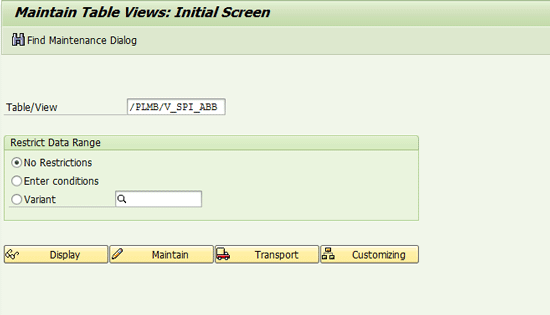
Figure 1
Enter the view /PLMB/V_SPI_ABB

Figure 2
Enter the application building block, metadata provider, and service provider class name
Step 2. Create a metadata provider class with MP class name CL_MP_CLASS as shown in
Figure 2 of step 1. Follow these steps to create it.
Create a normal OO class by calling transaction SE24. Add the interface /PLMB/IF_SPI_METADATA_BASE to the class by clicking the Interfaces tab. Implement the GET_NODE_DEFINITION method. Enter the value of the attribute PLMB/IF_SPI_METADATA_BASE~GV_VERSION. You can enter the value either as a default value or in the method GET_NODE_DEFINITION. You can select the value of GV_Version from class /PLMB/IF_MDP_C, which is shown in
Figure 3. Double-click GS_C_Version to find the metadata version for the application. Click the save icon and then the activate icon.
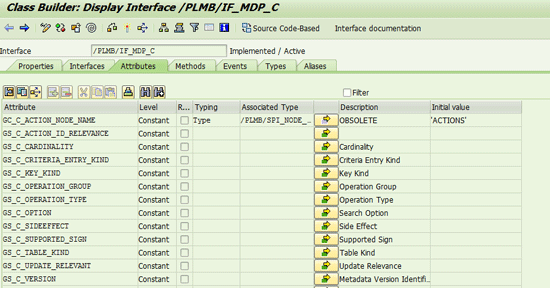
Figure 3
Select the value of GV_Version after double-clicking GS_C_Version
Figure 4 shows the methods present in the metadata provider class. The Get_Node_Definition method is used to retrieve the data model of nodes in the application.
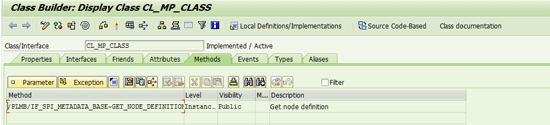
Figure 4
CL_MP_Class and its method
Step 3. Create a service provider class with SP class name (CL_SP_Class) as shown in
Figure 2 of step 1. Follow these steps to create it.
Create a normal OO class by calling transaction SE24. Add an interface by clicking the interface tab /PLMB/IF_SPI_APPL_ACCESS and PLMB/IF_SPI_APPL_ACCESS_INIT. Implement the methods of the interface. Double-click the method name. Write the code per your requirement. Click the activate icon to activate the method.
In my example, I want to retrieve the material data for the entered plant, so I have implemented the retrieve method, which I explain later in the article.
Figure 5 shows the method present in the service provider class.
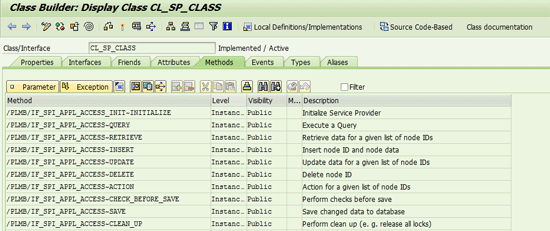
Figure 5
CL_SP_Class after adding interface
Step 4. Create a Web Dynpro application that acts as an entry point for the UI. Follow these steps to create it.
Call transaction code SE80. Navigate to the package in which the application has to be created. In my example I have created the application in $temp. Right-click the package and choose Create, Web Dynpro, and Web Dynpro application as shown in
Figure 6. Enter the details, such as component name, interface view, and plug name, depending on the floorplan, as shown in
Figure 7. Click the save icon.

Figure 6
$temp package and Web Dynpro Application creation
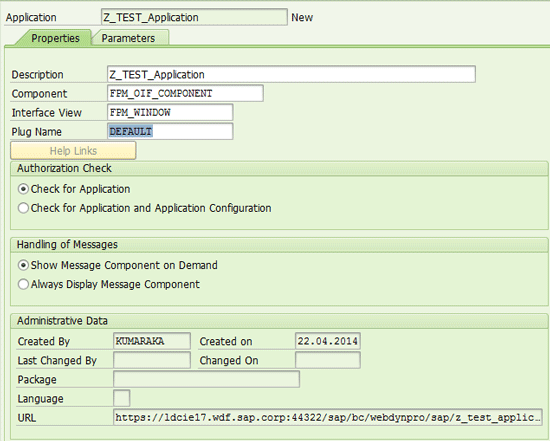
Figure 7
Web Dynpro Explorer: Change Web Dynpro Application
Step 5. Create a Web Dynpro configuration from the Web Dynpro application by calling transaction code SE80 (
Figure 8). The path can be different for different users as it is not fixed. Follow these steps to create it.
Right-click the Z_TEST_APPLICATION folder to select Create/Change Configuration to open the configuration screen in
Figure 9. Enter the name of the configuration ID. If the configuration ID does not exist, then create a new configuration by clicking the New button. Press Enter and the application configuration opens as shown in
Figure 10.
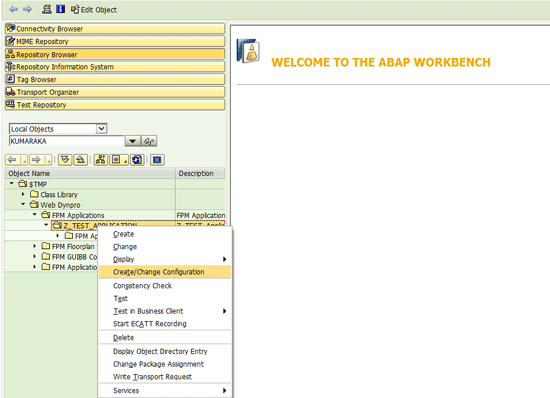
Figure 8
Path to create configuration in transaction SE80

Figure 9
Enter the configuration name and press Enter to open the application configuration
Step 6. Assign the floorplan configuration to the above application by clicking the Assign Configuration Name button in
Figure 10. If the configuration does not exist, then create a new configuration by entering the name in the Configuration Name column.

Figure 10
Configuration assigned to application
Step 7. When the floorplan configuration is created or changed, the system opens the screen in
Figure 11. In this screen you can add the User Interface Building Blocks (UIBBs) by clicking the Configure UIBB button. Enter the details of UIBB such as component, configuration ID, and window name as shown in
Figure 12. Click the Save button.
Later I create the wiring between them, which is explained in step 10. You create the application using generic UIBBs as it saves a lot of development effort. The other technique of creating an application by use of a Web Dynpro component takes a lot of time.
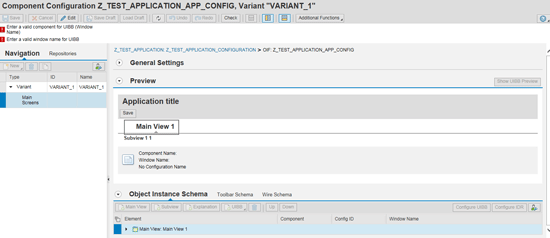
Figure 11
Component configuration
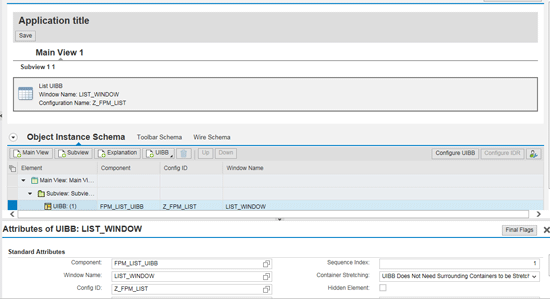
Figure 12
User Interface Building Blocks creation
You can use any of the generic FPM feeder classes according to your business requirement.
Step 8. Click the New button under Navigation in the lower left corner in
Figure 13 and add an initial page. Take the initial page as Form_Window as I have created a form on the first screen of the application. Enter these details: Component – FPM_FORM_UIBB; Config Id – Z_INITIAL_SCREEN; and Window Name – FORM_WINDOW. Click the Save button and then the Configure UIBB button, which takes you to
Figure 14. Enter the feeder class name and press Enter.
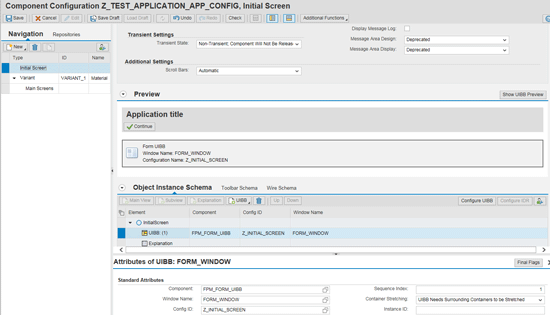
Figure 13
Component configuration screen with Navigation view
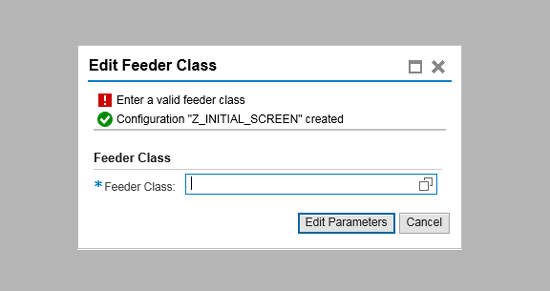
Figure 14
Enter the feeder class for the initial screen
Step 9. Create a new class Z_Initial_Screen that inherits the /PLMU/CL_FRW_G_FEEDER_FORM. You create the class by clicking the Configure UIBB button in
Figure 13. Enter the Feeder Class name in the text box and press Enter, which takes you to
Figure 15.
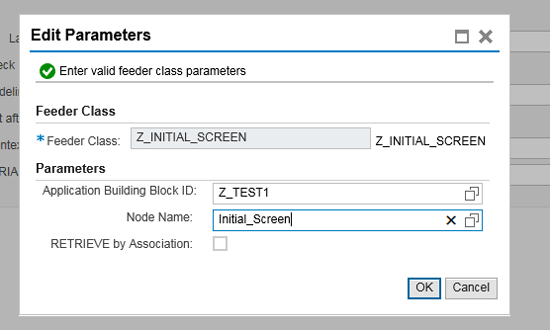
Figure 15
Enter the parameters for the initial screen
Enter the Node Name of your choice and application building block ID in the text box. Follow the same configuration steps as shown in the first part of step 9 for the next screen of the application (
Figure 16), which is called after the initial screen of the application.
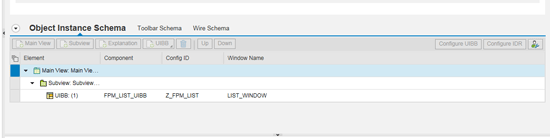
Figure 16
UIBB for the initial screen
I have created two new feeder classes for the list and form UIBBs as shown in steps 7, 8, and 9.
Step 10. Create the mapping between the nodes (i.e., parent/child relationship). To create this mapping click the Wire Schema link shown in
Figure 17. This mapping helps to transfer the data from one UIBB to another UIBB (i.e., it helps to transfer the plant entered on the initial screen to the next screen, which is used to retrieve the material data).
Figure 18 shows the mapping that I have created for the existing application.
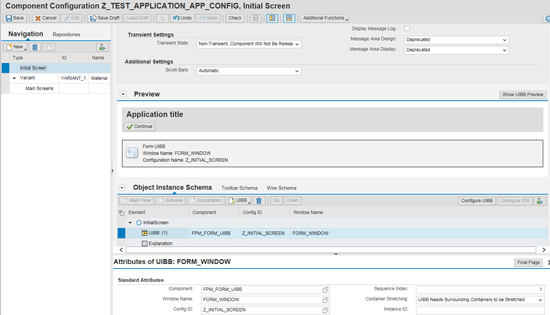
Figure 17
Component configuration of the application

Figure 18
Wiring for the application
Step 11. Once the configuration is complete, you write the code in the method of service provider, metadata provider, and feeder class for the required functionality:
- Metadata provider class: This method has the information about the nodes used for the application such as data type of nodes, actions that can be executed on the node, and side effects applicable on the nodes. In my application I have created two nodes, both of which are shown in the code in Figure 19.

Figure 19
Method of CL_MP_Class
- SP Class: This acts as an interface and provides access to the back-end application (Figures 20 and 21). Figure 20 shows the interface method that you can implement per the business requirements. The application logic is written in the back-end class. It is called from the SP class as this helps in providing the DMZ scenario. In my example, I have implemented the method retrieve to retrieve the material data for the entered plant as shown in Figure 21.
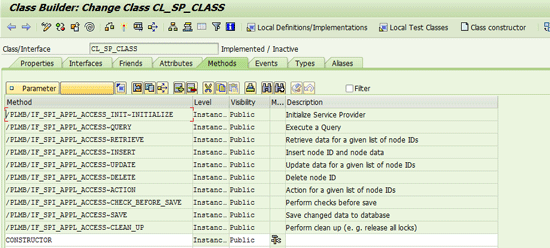
Figure 20
Methods in CL_SP_Class
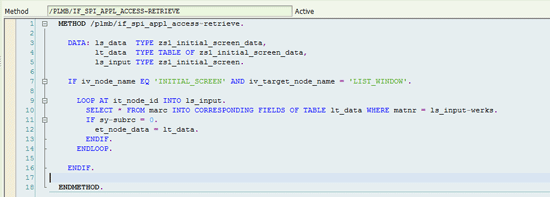
Figure 21
Retrieve method in CL_SP_Class. You use the code to retrieve the material on the basis of plant
- Feeder Class: I have created feeder classes for the initial and the next screen of the application. SPI has more methods than FPM that can be used for development. Some of the extra methods provided in SPI are as follows: After_Get_Data, Before_Get_Data, Before_Flush, and Process_Action_Event (Figure 22).

Figure 22
Methods provided by the SPI Framework
The application is functional and running after all the above steps are executed. The application looks as shown in
Figures 23 and
24. Enter the plant name in the initial screen shown in
Figure 23. Click the Continue button. You then see a screen with the material information for the entered plant (
Figure 24).

Figure 23
Initial screen of the application

Figure 24
Second screen of the application
Tools in SPI Framework
You can use these transaction codes to check if the application is functional and complete.
- MDB (Metadata browser) – This transaction provides information about the node model as shown in Figure 25. It provides information on the actions, queries, operations, and node attributes. It also sends warning and error messages if there are any issues in the metadata.

Figure 25
The node model and actions in the Application Building Block ID
- SPB (Service Provider browser) – This transaction helps in testing and identifying any issues in the application. In my application above, I have implemented the retrieve method. This tool helps me to know if my method is retrieving any value. The steps to execute the method follow.
Enter the application building block ID (i.e., Z_TEST1) and press Enter. Expand the Z_Test1. Click the Initial_Screen: Retrieve method at the right, which opens a pop-up to enter the input parameters as shown in
Figure 26. Enter the plant as ZKB1. Click the Execute button. You then see the results shown in
Figure 27.
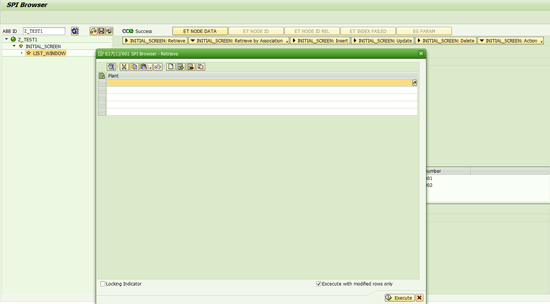
Figure 26
Enter the plant and click execute
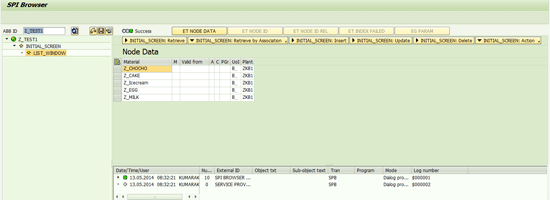
Figure 27
Results for the entered plant



 Premium