The application log is a handy tool that many people don’t know enough about. With some practice, you can use this tool to uncover useful system information such as who deleted an InfoCube.
Key Concept
The application log is a standard SAP feature. The tools to create application logs (mainly by using function modules) have been available since standard R/3 Release 3.0. This functionality has been available as part of BW and SAP NetWeaver BI since the earliest releases. Part of SAP NetWeaver 2004 and 2004s, the application log acts as a central repository for information about application events and thus enables easier analyses. It provides you with information about application activities related to who (which user), when (date and time), how (transaction code, program name), and what (technical name of object and other dependent objects, if any).
Regardless of your role in an SAP BW implementation, I bet you often have wanted to find out who modified or deleted objects in BW and when. The application log, a tool in R/3 and BW, can answer questions such as:
- “How can I find who deleted a query that I was running?”
- “I was trying to delete master data for the material InfoObject but cannot because someone is using it elsewhere — how can I find where?”
- “Who deleted InfoObject ZABC and when?”
I find that the application log in standard R/3, BW, and SAP NetWeaver BI systems (transaction SLG1) is well-suited to provide answers to these kinds of questions. While there may be some convergence with other SAP tools that enable you to retrieve an audit trail of steps and transactions, such as Audit Information System (AIS), note that AIS and the application logs serve different purposes. Application logs track and record events that are specific to applications, whereas AIS provides support in tracking and auditing security activities in your SAP system. You should use the application log with a sensible combination of selection criteria (for example, targeted searches, which I explain later) and to track meaningful information.
The ability to display or access application logs may require relevant authorizations according to your enterprise’s security and access policies. Although it has a reputation for being a resource hog, limiting your search criteria can mitigate the system resources it uses. The application log’s documentation is ambiguous, so I hope my tips and experience help you make the most of this tool.
Keep in mind that the application log is not a change log and does not track the changes that an object may have undergone. For example, if you are looking at application logs for an InfoCube, you should not expect to see which InfoObjects your team members added, deleted, or changed. Don’t confuse the application log with the change document feature that various SAP applications frequently use to track changes to objects in the context of the life cycle of an SAP document. A need to adhere to legal requirements usually triggers the use of the change document mechanism. Configuring the change documents feature is a complex topic outside the scope of this article. If you are interested in learning more about this feature, read this documentation at SAP’s Help Portal by visiting: https://help.sap.com/saphelp_nw2004s/helpdata/en/2a/fa0216493111d182b70000e829fbfe/frameset.htm and expanding the Change documents mode.
Note
To learn more about AIS, visit
https://help.sap.com/saphelp_nw2004s/helpdata/en/c7/69bcb4f36611d3a6510000e835363f/frameset.htm . You can also find detailed information about AIS at SAP’s Service Marketplace at https://service.sap.com/ais. You need to have a valid user ID to access the Service Marketplace.
You can retrieve all information pertaining to application logs in 13 tables, each starting with the prefix BAL. These tables contain all of the pertinent information about application activities. To get the complete list of the 13 tables, go to the data browser (transaction
SE11), type
BAL* in the table input box, and do an F4 search. The relevant function modules for creating, reading, deleting, and displaying application logs exist in function groups
SLG0,
SLG1,
SLG2, and
SLG3.
Use Application Logs in SAP NetWeaver BI
All scenarios and screenprints are based on the BI functionality in the SAP NetWeaver 2004s system. The concepts, interfaces, technologies, and results related to this functionality are release-independent.
Your SAP NetWeaver BI system provides two ways to get to the application log (display) functionality. The first one is by running transaction SLG1 (Figure 1). Note that not all users have access to this transaction, so you may need to get authorization. The second method in SAP NetWeaver BI is by going to the individual BW/SAP NetWeaver BI object such as an InfoObject, InfoCube, or DataStore object (formerly known as ODS object). You may encounter a similar access issue as I mentioned above. The advantage of using this method is that you do not have to worry about finding the name of the object, subobject, and the external ID because SAP populates them by default.

Figure 1
User interface for browsing application logs
Let’s assume that you want to look at application logs relevant to the Sales Overview InfoCube (0SD_C03). Open Data Warehousing Workbench (formerly known as Administrator Workbench) and right-click on this InfoCube to display its context menu. Choose Additional Functions>Display logs to bring up the screen shown in Figure 2.

Figure 2
Application log from context menu of InfoCube
When you run transaction SLG1, you’ll notice that the selection screen shown in Figure 1 has several sections. These allow you to restrict selection: by object, time slices, user, transaction code, program, and log class. I’ll explain each in detail.
The top of Figure 1 has three major parameters: Object, Subobject, and External ID. The pop-up screen in Figure 1 shows the result of conducting an F4 search in the Object field. Most of the BW-related objects are prefixed with RS, so a good way to search for BW-related log information is by entering RS* in the Object field and then doing an F4 search. Each object may have one or more subobjects to help users further restrict the selection. You need to put in the name of the technical object or subobject in the External ID field. Note that the online documentation that you obtain by pressing the F1 (help) key is too generic and may not help you to understand what information you need to enter.
Note
For more precise tracking, you can use the concept of application log objects (and subobjects). You can either use the ones that SAP provides or create your own objects and subobjects. I’ll explain SAP-provided log objects later in the article. If you are interested in learning how to create customized application logs (including your own log objects), refer to
https://help.sap.com/saphelp_nw2004s/helpdata/en/2a/ fa0216493111d182b70000e829fbfe/frameset.htm and expand the
Create application log node to read the relevant details.
If you are interested in knowing who deleted a certain InfoObject, then the most efficient way to run this application is by entering the relevant object, subobject, and technical name of the InfoObject in the Object, Subobject, and External ID fields, respectively.
The Time Restriction area of Figure 1 contains From and To fields. Here, enter the start and end dates and times to specify the period that you want to analyze. Obviously, wider time periods return more information, but you may not need all of this information. It is always a good idea to choose your time slice judiciously. A general notion of system users and usage may help you decide. In my experience, you can fine-tune your usage of this tool by practice.
Use the Log Triggered By area of Figure 1 when you have an idea which user may have triggered the change or deletion. In this case, enter the user’s name in the User field. A generic wildcard * search takes a lot of time and provides a lot of extraneous information. You can restrict your search by Transaction code or Program using those fields. This provides you with the logs that the identified transaction or program triggered.
The Log Class area lets you restrict your search by importance of the log class. A log class is the category under which a certain kind of action falls, such as very important or less important. It is sometimes difficult to know beforehand what is very important and what is important merely by the application logging mechanism (for existing application log objects that you are reusing), so I recommend selecting the last option, All logs. The system determines the category of the action (i.e., the log or problem class) because SAP NetWeaver BI users use standard SAP application logs. If your development team creates new application log functionality in a certain area, the developer assigns the log class category.
A Practical Example: Who Deleted My InfoObject?
Let’s take a common scenario in which you might use the application log. Someone deleted (accidentally or otherwise) an InfoObject that you created in the customer namespace and you need to find out who did it. To illustrate this situation, I created an InfoObject TEST123. Then I deleted it, as Figure 3 shows.

Figure 3
Screenshot of deleted InfoObject ZTEST123
Now, let’s find out the details of this activity in the relevant application log. In transaction SLG1, enter RSD as the Object, IOBJ_DEL as the Subobject, and ZTEST123 (the name of the InfoObject) in the External ID field. I selected a very narrow time slice because this is a test and I know the time period in which this activity took place. I did not change the other defaults. In a real-life situation, it is unlikely that you know beforehand who deleted your InfoObject (or else you wouldn’t be looking at the logs), so I kept the generic entry * for user restriction.
Upon executing, SAP NetWeaver BI displays a screen similar to the one in Figure 4. The first column displays the most important (header) information including the activity’s date and time and the user who triggered it. You can also find other information here, including the name of the object, transaction that triggered this activity (RSD1), program, and log number. Double-click on Problem class Additional infor (near the top of Figure 4 below Date/Time/User) to split the screen horizontally. The bottom half of the screen displays the detailed log information.
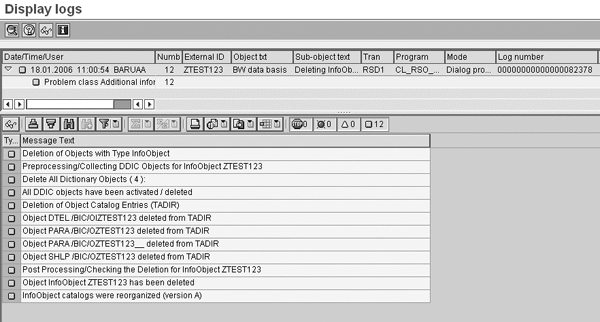
Figure 4
Application log for InfoObject deletion
Tips for Using Application Logs
Often, users run transaction SLG1 without restricting the selection criteria. They overlook the fact that there could be massive volumes of data to retrieve from the database despite a regular deletion schedule. As a result, they unintentionally trigger a very long-running and resource-intensive process that may cause system resources to divert from more urgent tasks. Therefore, users should specify the object and the subobject in the selection screen at the very least, and try to choose the appropriate time, transaction code, and program. BW uses fewer system resources if you are more specific.
Every user may not have access to transaction SLG1. Depending on each company’s definition of Basis-level activities, a small group of people (primarily Basis and security administrators) may receive access rights. While very restricted access to transactions SLG0 and SLG2 is common, access to SLG1 is more widespread.
Depending on the frequency with which your BW team deletes or archives application logs from the database, you may not find the information you are looking for if your selection yields results from deleted logs. If the information you are querying happens to be in application logs that someone archived, you have to retrieve this information from the archives. Application logs occupy a lot of space, so you need to delete or archive the information germane to application logs (that is saved to tables in the database).
Since it is common to restrict access to transaction SLG2, you may not have authorization to delete application logs. Generally speaking, using transaction SLG2 you can delete logs that have reached their expiration date as well as those that haven’t.
All of the logging information is available in tables, but the application logs provide a better interface to search this data than browsing data in database tables. However, if you prefer browsing the database tables relevant to application logs, you can do so in the data browser (transaction SE16) by entering BAL* in the table name field and then doing an F4 search. From the list of tables displayed, select the ones you have in mind.
Anurag Barua
Anurag Barua is an independent SAP advisor. He has 23 years of experience in conceiving, designing, managing, and implementing complex software solutions, including more than 17 years of experience with SAP applications. He has been associated with several SAP implementations in various capacities. His core SAP competencies include FI and Controlling FI/CO, logistics, SAP BW, SAP BusinessObjects, Enterprise Performance Management, SAP Solution Manager, Governance, Risk, and Compliance (GRC), and project management. He is a frequent speaker at SAPinsider conferences and contributes to several publications. He holds a BS in computer science and an MBA in finance. He is a PMI-certified PMP, a Certified Scrum Master (CSM), and is ITIL V3F certified.
You may contact the author at Anurag.barua@gmail.com.
If you have comments about this article or publication, or would like to submit an article idea, please contact the editor.




 Premium