This article provides you with an overview of HR Renewal 1.0 Feature Package 4, along with advice on how to install and configure it.
Key Concept
SAP Gateway is the technology that allows external applications, devices, environments, and platforms to connect to SAP systems in a secure way. It offers a unified and controlled framework through which new solutions can be developed to offer support to custom mobile or Internet applications. By using the Open Data (OData) protocol and REST service approach, SAP Gateway offers support for many languages, which allows connectivity to almost any possible environment.
Technology is constantly evolving and offering new ways for doing everyday tasks in a friendlier way. As such, it is important that companies continue to innovate and ensure that users of their products are provided with the best their products have to offer. With this in mind, SAP has released HR Renewal, the new environment for HR professionals (e.g., end users in the HR department), managers, and employees.
SAP recently released HR Renewal Feature Package 4, which is a Web-based solution developed using SAP’s new development environment called UI (User Interface) Development Toolkit for HTML5, or more commonly referred to as SAPUI5. SAPUI5’s technology allows for the development of user-friendly Web applications that connect to SAP systems in various ways, mainly using SAP Gateway.
The first Feature Packages of HR Renewal 1.0 concentrated on functionality for the HR professional. HR Renewal 1.0 in general gives HR professionals a complete overview of all their tasks on one page. This page, called the landing page, consists of lanes. Each lane provides users with specific information they need in order to perform daily tasks. Starting from Feature Package 4, which was released at the end of July 2013, new functionality for managers and employees was introduced. For more detail about this functionality and how it can help HR professionals do their jobs, see the section entitled “A Brief Overview of HR Renewal 1.0.”
Currently, HR Renewal 1.0 supports the following SAP modules: Personnel Administration (PA), Organizational Management (OM), Employee and Manager Self-Services (ESS and MSS), HCM Processes & Forms, and SAP Learning Solution (LSO). These modules are now delivered with more advanced features to the end user, which ensures that these users do not have to switch from SAP Portal to SAP GUI. Although the customization of these modules remains in the SAP GUI, some new transactions have been added to the IMG, allowing control over the HR Renewal offering. HR Renewal 1.0 Feature Package 4 only supports Enhancement Package 6—any system lower than this is not able to run this new update.
Technology
With every new technology comes evolution. In the case of HR Renewal 1.0, Feature Package 4 makes use of newer technologies. As mentioned above, you need at least SAP ERP 6.0 with enhancement package 6 installed. Note that when using Enhancement Package 6, HR Renewal is installed as an add-on. In Enhancement Package 7, HR Renewal is delivered as a standard solution.
HR Renewal 1.0 also requires SAP Gateway. This is used for communication between the SAP system’s back end and the SAPUI5 front end. The SAP Gateway server can be installed on the same instance as the SAP ERP HCM system, or it can be installed on a separate machine if required to fit the user’s preferred landscape. Normally SAP Gateway requires license fees to be paid, but in the case of HR Renewal 1.0, SAP allows anyone to use SAP Gateway for free as long as it is only used for HR Renewal 1.0.
Together with SAP Gateway, HR Renewal 1.0 needs the SAPUI5 framework to be installed on the same system as SAP Gateway. HR Renewal 1.0 is not able to run without the SAPUI5 framework as its fundamentals are based on the framework.
When the add-on is installed there are various configuration steps that need to be taken in order for the solution to work properly. These steps include activation of business functions, implementing necessary SAP Notes, activating SAP Gateway services, activating SAP services, and more. Each of these steps is discussed in more detail below.
Activating Business Functions
After the installation of HR Renewal 1.0 is complete, you must activate the necessary business functions to trigger the new functionality on the system. Activating a business function adds functionality to the system. Some of them just implement new modules, while others provide additional configuration options. The business functions of HR Renewal add specific configuration options to the landing page and other components of the product. These configuration options are visible in the Implementation guide.
Execute transaction code SPRO to access the HR Renewal configuration options, and then follow this path: Personnel Management > Personnel & Organization. The installation guide provides the list of all the available business functions. Note that most of these are required, but some are optional. The decision about which ones to activate depends on what functionality is required by your company. Do not be afraid to activate any of these business functions as all the business functions that come with HR Renewal are reversible.
Implementing SAP Notes
After the installation of HR Renewal and once the Business Functions are implemented, it is important to read the release notes of the installed HR Renewal version. These release notes provide you with more information about additional SAP Notes that need to be installed in order to fix bugs, enable specific functionality, or make adjustments to the system. SAP Notes can be implemented using transaction code SNOTE. If you just want to read the Notes, you may do so by searching for them on SAP’s service platform: https://service.sap.com (you need a valid S-user with enough authorization to access these notes).
For HR Renewal Feature Package 4, you can find the release notes in SAP Note 0001701634.
After installation, the notes contain a big list of SAP Notes that needed to be installed in order to fix various bugs and make some adjustments to the solution. Just follow the list and implement those notes accordingly.
Activating SAP Gateway Services
In addition to SAP Notes, it is important to activate all the SAP Gateway services that are a part of HR Renewal 1.0. They can be found in the Administration Guide and they can then be activated via transaction code IWFND/MAINT_SERVICE (Figure 1).
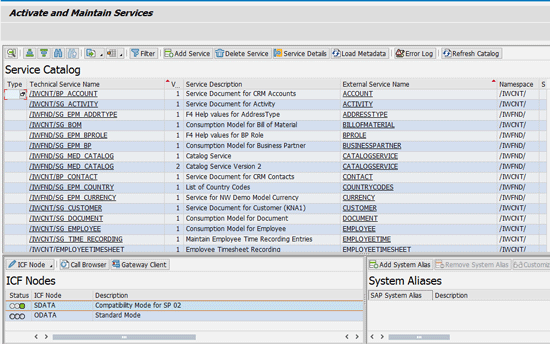
Figure 1
Gateway Service maintenance
The first step is to add the services in the Service Catalog. You can do this by using the Add Service button in the ribbon of the screen in Figure 1. Search for the service you want to add, highlight it, and click the Add Service button to add it to the catalog. You might have to provide some additional information (e.g., the Package where you want the service to be added) as shown in the pop-up screen in Figure 2.
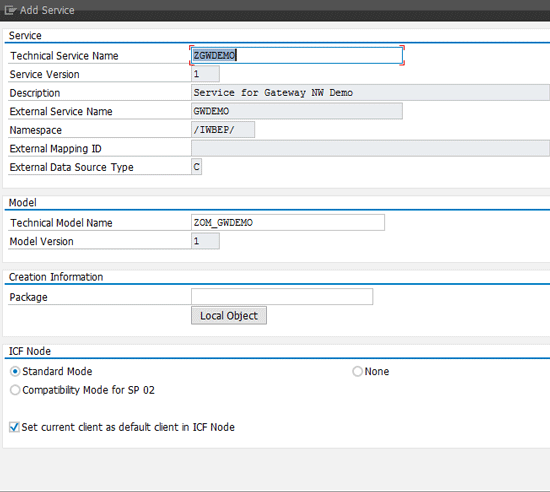
Figure 2
Adding service to catalog
Adding the service to the catalog allows you to activate it so it can be used by the applications trying to access it. To activate the Gateway Service, select the service you want to add in the service catalog. You select it by clicking on it. This opens the service’s properties, shown in the bottom of Figure 1. On the right you see which System Alias is configured for the service. Make sure this box is not empty as the service requires a System Alias to be attached to it. If the current system is to be used, then the System Alias is most likely LOCAL. If another system is to be used for the Gateway service, ask your Basis team for more information. On the left you see the Status of the service. Here is where you can activate, deactivate, delete, or configure the service to your needs. To make services accessible to the external applications, just activate them.
Activating SAP Services
To set up HR Renewal, you need to activate a set of Web Dynpros and additional HTTP services. These services can be activated using transaction code SICF. The list of necessary services and how to activate them is described in the configuration guide of HR Renewal.
During our installation of HR Renewal, we found out that some services were not listed in the guide, but had to be activated as well in order for the system to work. Those missing services may be found on the SAP Help portal. Click the following links to find a list of the services related to Employee Self-Service, Manager Self-Service, Personnel & Organization, and Workforce Viewer. You can find more about these services by following this path on the SAP Help portal: SAP Business Suite > SAP ERP Add-Ons > HR Renewal 1.0 > HR Renewal 1.0 Feature Package 4.
When a service is not active, an error message appears (Figure 3), notifying you that that the corresponding service is not available. By analyzing the URL you can find out which service you need to activate. For example, we tried selecting the Create Organizational Unit option from the Actions lane (Figure 4). This action is supposed to open a new window with the desired action. However, we forgot to first activate this precise action, so an error message appeared (Figure 3).
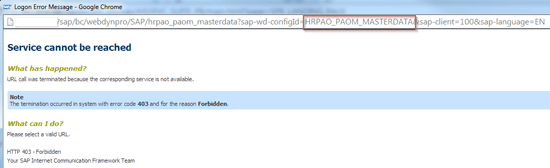
Figure 3
The Web Dynpro error page
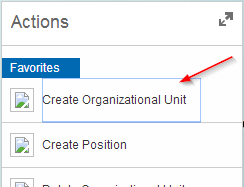
Figure 4
Launch the Web Dynpro
Now look at the URL of the error page in Figure 3. Notice that the service name is also included in the link (circled in red). Copy this service name and use transaction code SICF to activate this service (Figure 5). Once in transaction code SICF, enter the service name in the ServiceName field and press Enter. This starts a search in the system to find the desired service. Once found, the service shows up on the list at the bottom of the screen. Right-click the service and select the Activate Service option (Figure 5). This activates the corresponding service.
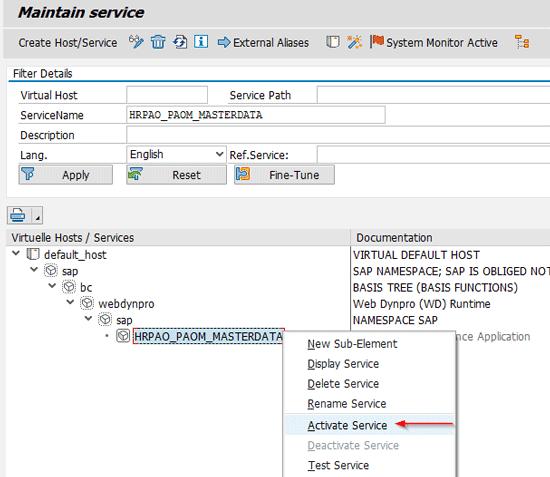
Figure 5
Activate the corresponding service
Configuration
HR Renewal requires the back-end system to be fully set up in order for add-ons to work properly. The add-on merely offers a front-end solution that works on top of your existing SAP back-end system. If you are to use the e-Recruiting components of HR Renewal, you need to have the e-Recruiting system attached to the solution fully set up. The configuration needed to set up this e-Recruiting system is not provided in the HR Renewal add-on. This needs additional work which is separate from the HR Renewal installation. This is similar for any of the other modules used in HR Renewal, including Personnel Administration (PA), Organizational Management (OM), and Talent Management.
For more information about HR Renewal 1.0, visit SAP help: https://help.sap.com/hr_renewal.
A Brief Overview of HR Renewal 1.0
In this section, we provide some more detailed information about HR Renewal 1.0 and what has changed with the release of Feature Pack 4. These details show how you can get the most from this solution.
New Features of HR Renewal 1.0
Several new features have been added to HR Renewal 1.0 that help usability; these include workforce viewer, manager services, and HCM Processes & Forms. We discuss each in more detail below.
The HR Renewal 1.0 HR Professional Role
The HR professional role has been a part of HR Renewal 1.0 since its initial release. It offers functionality such as searching for employees, positions, and organizational units, and allows the user to perform actions on these objects.
Below are the lanes available for the HR professional role (Figure 6):
- Actions: This lane offers a list of PA and OM actions based on the user’s authorization. Some examples of these actions are New Hire, Create Position, and Change Position.
- Analytics: Included for MSS, HR Renewal delivers standard reports with a refreshed look and feel. Some of the reports delivered are Personal Data, Position Overview, and Salary Overview.
- Discussions: This lane contains the social aspect of HR Renewal, where colleagues can communicate and share information with each other. For this functionality, you need to implement SAP StreamWork. More information about SAP StreamWork can be found at https://www.sap.com/streamwork.
- Organization: This lane gives users quick access to organizational units to perform actions or go to the Organizational Chart view.
- Processes: Gives an overview of all pending processes for a specific period.
- Search: This lane allows users to search through the organization to access information quickly; from this search, objects can be added to Favorites for later access.
- Tasks: This lane provides three different views of task lists:
- By draft: When an HR Process has been started, but could not be completed, it is marked as a Draft and made available in the in-box. The user can then resume this process later.
- By time: Tasks are grouped by due date and displayed in different colored task circles (red = overdue, yellow = due today, and green = due in the next 7 days).
- By priority: Tasks are grouped by priority and displayed in task circles ranging from very high to low.
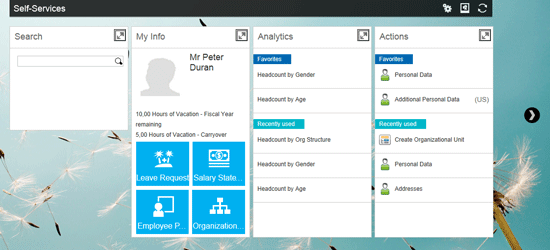
Figure 6
Example of an ESS landing page
ESS and MSS
When ESS and MSS were offered through SAP, users had to work through the SAP NetWeaver Portal or the SAP GUI to access standard reports, actions, and other relevant services. With the new release of HR Renewal 1.0 it is now possible for employees to see all of their required services on one page and customize the page to fit their needs (Figure 6).
For managers, HR Renewal 1.0 offers a new experience as well. Previously managers had to choose between accessing either ESS or MSS, but now managers can combine both ESS and MSS functionality on one page (Figure 7).
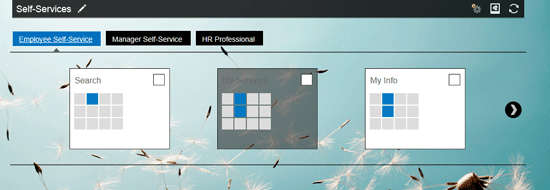
Figure 7
HR Renewal 1.0 lane selection options
When users enter the landing page for the first time, it is blank. Users can then customize what they want to see by selecting the content options available to them.
Based on the roles assigned to the user, they are able to choose lanes for different purposes: Employee Self-Service, Manager Self-Service, or HR Professional. By selecting the appropriate box on the screen, the lane is loaded onto the page and saved for future logins. Both ESS and MSS have their own set of lanes. Below is a list for each of the roles (Table 1).
| ESS lanes |
MSS lanes |
| My Info |
My Team |
| My Learning |
My Team Services |
| My Services |
My Reports |
| Work Feeds |
Approvals |
| Search |
My KPIs |
|
KPI Monitor |
Table 1
List of ESS and MSS lanes in HR Renewal 1.0
In addition to these customizable lanes, users can choose which background is used for this page (Figure 8). The list of available backgrounds can be modified by an administrator; this allows companies to customize pages with their own corporate designs or logos.

Figure 8
HR Renewal 1.0 background customization
UI Updates
With the release of HR Renewal 1.0 Feature Package 4, SAP has enhanced the UI of the landing page and its components. For example, the screens in Figure 9 compare the old and new landing pages. On the new landing page (on the right) notice the improved look of the lanes, which are in different colors. The lanes are completely opaque, making it much more visible and giving the user a better view of the data. The icons have been improved with added detail and the overall color scheme makes it easier to find and sort items.
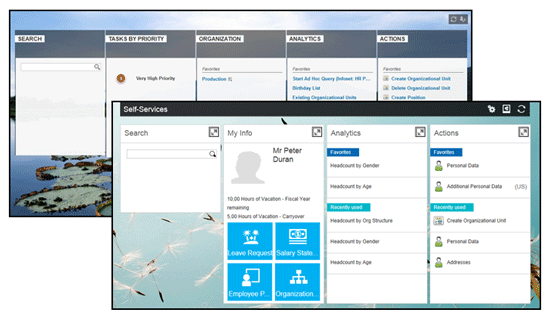
Figure 9
HR Renewal old (back) versus new (front) landing page
Besides improving the look and feel of the landing page, other components have received the same SAPUI5 treatment. For example, the employee profile page has also been developed using SAPUI5, and the concept of lanes is used again to show grouped information. This layout improves the visibility of the information, giving users a better view of all the data on the screen. In addition, the drag-and-drop functionality of the lanes has been improved to provide a better user experience (Figure 10).
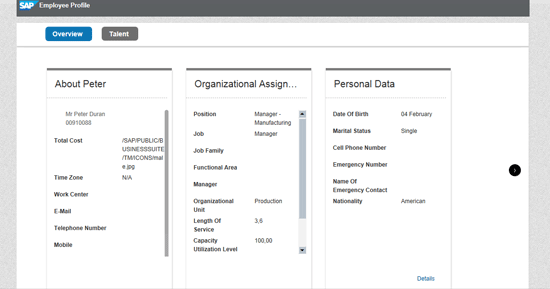
Figure 10
SAPUI5 improved Employee Profile
Corbu Theme
When components are not developed using SAPUI5, they are most likely Web Dynpros. These Web Dynpros use the new SAP Corbu theme. The SAP Corbu theme is delivered with Enhancement Package 6 and is now part of the standard SAP system. The Corbu theme brings a more modern look to the SAP system. By using various gradients of gray and white, and dividing layouts into compartments, the new screen provides users with a clearer view of what information is available. The new theme is designed to fit in with new technologies such as SAPUI5. With its more neutral design, the theme updates the Web Dynpros so they look different from the old Web Dynpros that users are accustomed to seeing. Using new icons, new fonts, and fewer colors, the Corbu theme offers users better readability and a more organized layout (Figure 11).
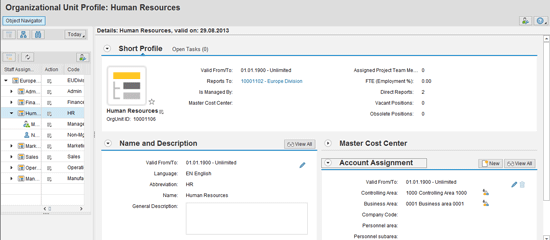
Figure 11
Web Dynpro with the new Corbu theme
Workforce Viewer
The workforce viewer is a new feature that has been introduced in Feature Package 4. It requires the SAP OM module to be implemented on your system in order for it to work. The workforce viewer gives users an easy-to-use and aesthetically pleasing graphical representation of their organizational structures. The viewer can be opened from the user’s My Info lane on the landing page (Figure 12). Once on the My Info page, select the Organization Chart icon to open a new page containing the organizational tree (Figure 13).
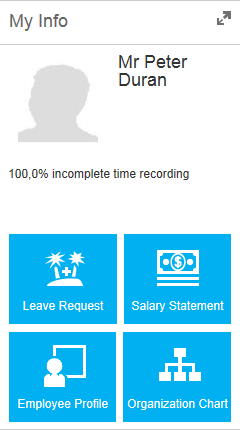
Figure 12
My Info
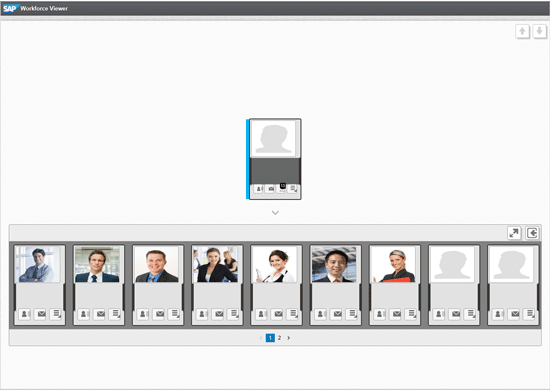
Figure 13
Workforce viewer
The workforce viewer shows only the following objects: Organizational units, positions, and employees. Every role inside HR Renewal has access to the workforce viewer, but certain roles (like the manager) are able to launch actions off of objects in the organizational structure. Click the menu icon on the bottom right of the object (role) to open its action menu (Figure 14). These action menus are specific to each object type and are adapted based on the roles assigned to the user.
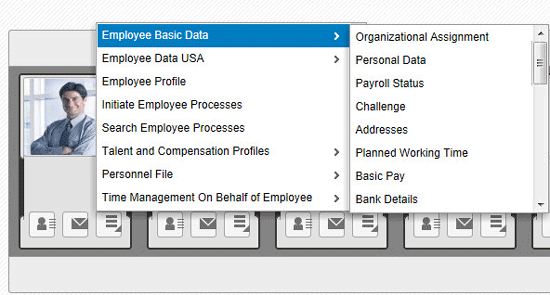
Figure 14
Action menu
The workforce viewer offers drill-down functionality to users so they can browse through the organizational tree until they get to the required objects. The viewer contains a quick view of each object to provide the user with more detailed information about a desired object. For instance, a manager wants to know an employee’s email address. With the quick-view option, this can be done easily by clicking the desired line, as shown in Figure 15.
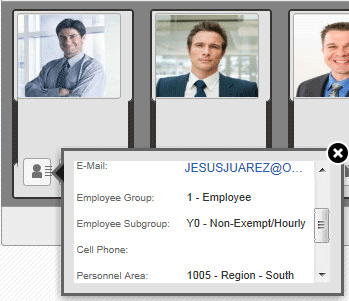
Figure 15
Object quick view
Additionally, SAP has added an enhanced search functionality that allows users to quickly get to their desired objects. The search field can be found in the upper right corner of the workforce viewer landing page. When users search for someone, the workforce viewer shows that search result on the screen, allowing the user to select the object and perform the desired actions.
Additional Manager Features
Next to the lanes in the landing page, there is a list of other services that have been added to the manager’s role. These services contain a team home page, with features such as an overview of the team, a birthday calendar, and a deadline monitor for processes (Figure 16). From this team home page, managers are able to perform actions on their team members. They can, among other options, view team member profiles, initiate a process, and review time management.
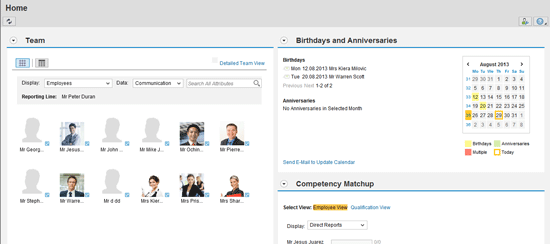
Figure 16
Manager’s team homepage
Other services available include a team calendar containing all the team members’ attendances and absences, MSS reporting, Organization Overview, Recruiting, Talent Management, Substitution Overview, and Work Overview.
HCM Processes & Forms
HCM Processes & Forms have been part of HR Renewal 1.0 since its first release. These processes are customizable forms that are modified using Floor Plan Manager, and can be used to perform actions throughout the Web environment. Users can change the layout and define all fields needed, as required. The forms can be used in processes such as a hire or transfer, and it allows users to customize processes to fit their unique needs.
In Feature Package 4, you are able to select a new form called a Roadmap Form. With this form type it is possible to configure multiple steps in the action. These steps can be customized to the needs of the process, allowing you to order the screens in logical order. With this configuration option it is possible to provide users with a better looking, more functional layout. You can find more information about these Roadmap Forms by following this link: https://help.sap.com/erp_hcm_ias_2013_02/helpdata/en/ab/daa5519178245de10000000a44176d/frameset.htm.
Lars Knockaert
Lars Knockaert is an SAP HCM consultant at Exaserv. He has over four years of experience working as a Time Management and lead technical consultant on several international projects. Lars is an SAP-certified Development Associate with a healthy curiosity towards new and innovating technologies.
You may contact the author at larsknockaert@exaserv.com.
If you have comments about this article or publication, or would like to submit an article idea, please contact the editor.

David Bellers
David Bellers is a Technical HCM Consultant with Exaserv, where he is part of the products team. He has worked in SAP for more than two years. He specializes in the technical field, working on internal projects like Exaserv’s AdminTool and Bodhi Portal, and offering support for existing products, such as Exalerate Ci. In addition to being a developer, David contributes to the research of new technologies involving SAP, and has experience in various environments, including iOS, SAPUI5, and SAP Gateway.
You may contact the author at davidbellers@exaserv.com.
If you have comments about this article or publication, or would like to submit an article idea, please contact the editor.



 Premium