How often have you wished that you could set up a report as a batch job, but did not know how to make the report selection parameters dynamic? Learn how to set up report variants that adjust themselves based on events and conditions.
Key Concept
A variant is a stored selection screen that can be recalled anytime you want to run the same report with the same selections.
A report variant is a convenient way of choosing selection parameters. Some standard SAP report selection screens are very complex. It takes a lot of time to figure out the best way to fill these reports so that they deliver the information you need, quickly and efficiently.
Creating Dynamic Report Variants
To demonstrate how to dynamically create a report variant, I use a standard report as an example: RCATS_DISPLAY_ACTIVITIES (Display Working Times). The first step is to execute transaction code CATS_DA. Let us look at the settings of the selection screen. In this example, I want to create a report that keeps track of all the timesheets that are created each month (Figure 1).
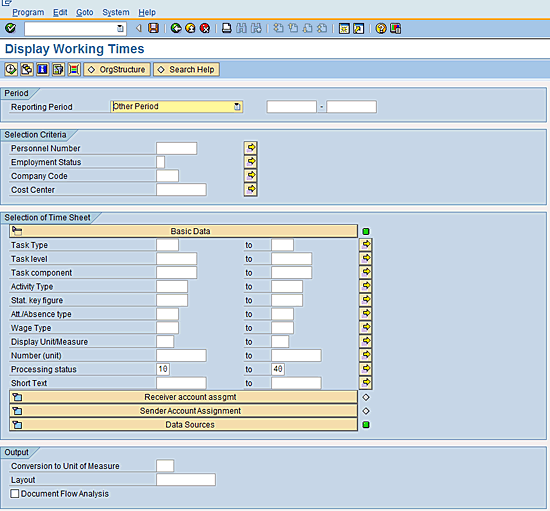
Figure 1
The initial selection screen to track timesheets
The key inputs for this report are:
- The Personnel Number (which identifies the administrator creating the report)
- The work date range (the Reporting Period field, which specifies the dates of the timesheets contained in this report)
- Other criteria if required (for example, by entering a code from the available drop-down options in the Att/Absence type field, you can select the time you have booked to a particular attendance or absence type for the month of the report).
When indicating the work date range, you have to specify the start and the end dates. In this case, they are 08/01/2012 to 08/31/2012, respectively. When you run this report, if you click the execute icon you receive the output shown in Figure 2.

Figure 2
Output of the Display Working Times report
The next step is to set up this report as a batch job to be executed at the beginning of each month. First, click Program in the ribbon and then, in the drop-down menu that appears, click Execute in Background (Figure 3).
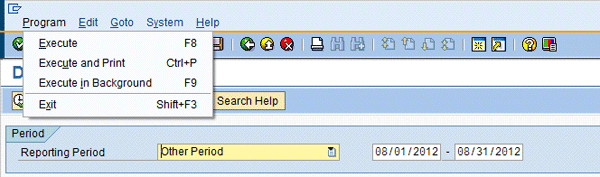
Figure 3
Set up a batch job for the report
The next step is to select an output device. In this example, I select the default device that is tied to my local printer (YPCC), which appears in the pop-up screen (Figure 4). Then click the enter icon.
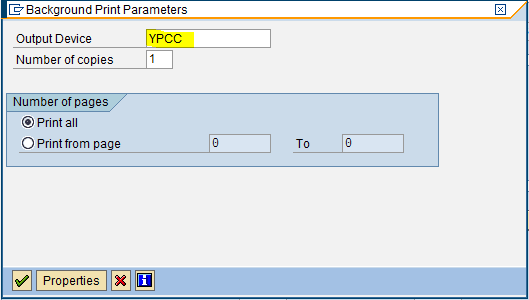
Figure 4
Background Print Parameters required
In the next screen (Figure 5), click the Period Values button and then select Monthly from the drop-down menu. Click the save icon to save your changes.

Figure 5
Job timing parameters
In the Date and Time sections of the next screen (Figure 6), set the date and time (09/01/2012 and 1:00 pm). Click the save icon again.

Figure 6
Enter the date and time to run the report
This sets up the report to run every month starting September 1, 2012, at 1:00 pm. However, a question remains: What good is it to receive a report in October that shows times from August, when I really want to receive times from the last month (in this case, September)? This is where dynamic variants come in to play.
Using Dynamic Variants
First, you have to save the variant that you created in the preceding section. Click the save icon. Now you see the Variant Attributes screen (Figure 7).
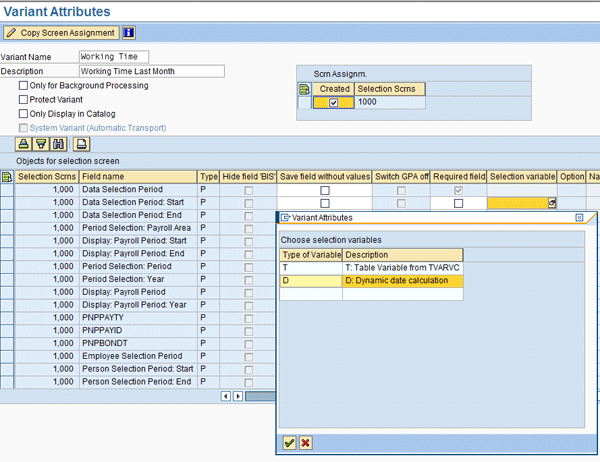
Figure 7
Set variables in the Variant Attributes screen
To illustrate how to set variables, I focus on two fields:
- The Data Selection Period: Start field
- The Data Selection Period: End field
Use your cursor to highlight the Data Selection Period: Start row and the corresponding Selection variable row (Figure 7). In the Variant Attributes drop-down screen that appears, choose D: Dynamic date calculation.
In the next drop-down menu that appears place your cursor on the Name of Variable (Input Only Using F…) field and highlight First day of previous month from the list of variable names shown in the Variant Attributes dialog box (Figure 8).
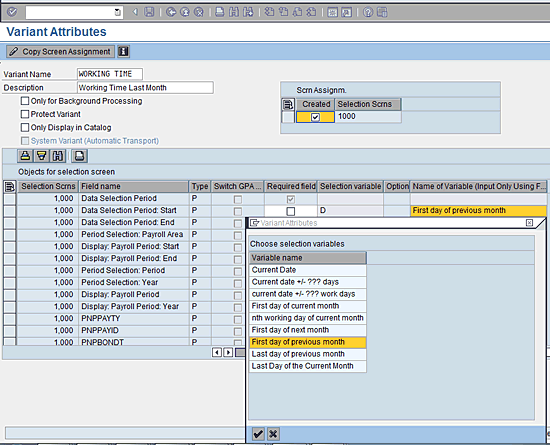
Figure 8
Choose a selection variable
Now repeat the same process for the second field (Data Selection Period: End) and choose the Last day of previous month field in the Name of Variable (Input Only Using F…. column.
Save the variant by clicking the save icon. Now, when you run the report each month, it shows you the time records for the previous month. You can use any of the listed variables for other situations that you may encounter.
Complex Cases Using Table TVARVC
Let’s discuss the more complex scenario for how to achieve this if your selection involves a date variation not included in this list of variant attribute variable choices. For example, consider a scenario in which you want to receive the time report only for the last two weeks. You can achieve this by setting up the variable in the TVARVC table. To complete this step, you need to execute transaction code SM30.
Note
To update the TVARVC table, your technical support group will most likely have to create a specific transaction code for you to use because transaction code SM30 is not a transaction that is typically given to end users in the production system.
Once you have accessed the table maintenance screen, enter TVARVC in the Table/View field, keep the default radio button No Restrictions selection (Figure 9), and click the Maintain button.
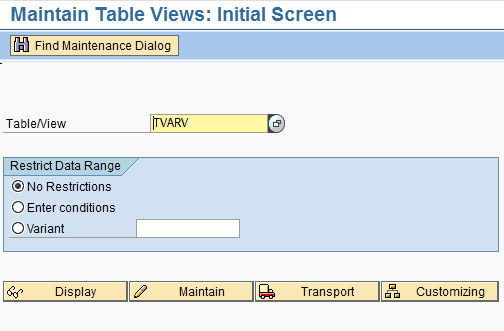
Figure 9
Table TVARVC maintenance using transaction code SM30
In the next screen (Figure 10) click the Parameter tab. Click the create icon and enter the two variable names and their values one at a time. Click the save icon at the top of the screen to save your settings.
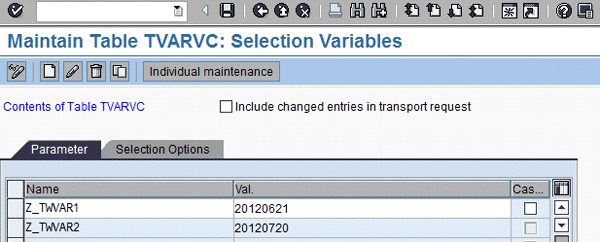
Figure 10
Set selection variables and their values
Once you have completed the TVARVC table settings, go back to your report and bring up the Variant Attributes screen as described earlier (Figure 7). Highlight the Data Selection Period: Start row in the Field name column and the corresponding row in the Selection variable column. In the Variant Attributes drop-down menu, select T: Table Variable from TVARC.
Now move to the Name of Variable (Input Only Using F… field in the same row. Click the drop-down menu that appears (Figure 11).
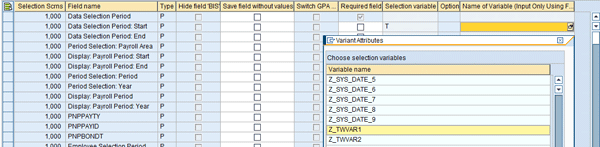
Figure 11
Choose a table TVARVC variable
Choose the first variable (Z_TWVAR1) you set up earlier using transaction code SM30 (Figure 10). Highlight the next row in the Field name column, Data Selection Period: End. Do the same thing for the second variable (Z_TWVAR2) for the second row (Figure 7). Click the save icon to save your changes.
Now you have successfully set up the timesheet date selection parameters for your report. Once this report is set up, you can edit the dates as you please, and the variant automatically picks them up when the batch job runs your report. This editing can be done using transaction code SM30 in the same way that you created the variables (i.e., by entering the values in the Val. [value] column shown in Figure 10).
Deepankar Maitra
Deepankar Maitra has more than 25 years of consulting experience specializing in SAP-based solutions for human resources, supply chain, and reporting in multi-national companies around the world. He has successfully directed large implementation projects as solution architect, delivery manager, global lead, and country lead. His expertise lies in pragmatic harmonization of data and synthesis of processes using tools that improve process execution through quantum leaps in productivity.
You may contact the author at deepankar.maitra@accenture.com.
If you have comments about this article or publication, or would like to submit an article idea, please contact the editor.



 Premium