Learn how to configure and customize the Employee Self-Service (ESS) application in both the SAP Enterprise Portal and NetWeaver Business Client in enhancement package 6 using the Floorplan Manager concept in Web Dynpro ABAP. Learn how to customize overview screens, and detailed screens and forms in the Personal Profile section of ESS. Get tips for showing and hiding fields and buttons (such as edit, display, and add) in ESS screens.
Key Concept
Floorplan Manager (FPM) is a Web Dynpro ABAP application that provides a framework for developing new Web Dynpro ABAP application interfaces. FPM provides pre-defined user interface (UI) building blocks (UIBBs) to support creating and configuring application-specific views (freestyle areas). The common UI patterns, such as form, list, hierarchical list, and tabbed area, can be configured using FPM configuration.
The Personal Profile section of Employee Self-Services (ESS) allows employees to display and change their own personal data. This includes information on their personal data, address, bank details, family members’ details, benefits information, medical information, and communication data. In the Personal Profile screen, multiple infotypes can be integrated as business cards (or BiZcard). A business card in the Personal Profile signifies personal data stored in the Personnel Administration infotypes.
My focus is on the new Floorplan Manager (FPM) concept that was introduced with enhancement package 5 and above to configure the ESS Enterprise Portal and NetWeaver Business Client (NWBC) using ABAP Web Dynpro. The Benefits module was delivered in Java Web Dynpro in enhancement package 5. However, from enhancement package 6 and above, all services (including Benefits) are in ABAP Web Dynpro, and the Homepage Framework has been replaced with Launch Pad customization.
The ESS Personal Profile is one of the most commonly and comprehensively customized screens. The Personal Profile screen contains most of the Personnel Administration (PA) infotype information such as personal data, bank details, communication, and address. These are the basic infotypes used by all organizations with SAP ERP HCM. Most companies prefer to customize this section to harmonize with their organizations’ policies and business processes. As a result, the Personal Profile section is one of the most heavily manipulated scenarios in ABAP Web Dynpro.
Components of FPM
The FPM application is a Web Dynpro application that is assigned one of the following three main Web Dynpro components (each of which corresponds to one of the supported floorplans):
- Component FPM_OIF_COMPONENT – Object Instance Floorplan (OIF): An application configuration based on an OIF-type of floorplan typically shows multiple-view tabs and the toolbar.
- Component FPM_GAF_COMPONENT – Guided Activity Floorplan (GAF): A GAF floorplan consists of roadmap steps. A guided activity is divided into a series of logical steps, each of which can be broken down further into sub-steps. One good example of a GAF component is Benefits Enrollment, where the system guides you through a series of interrelated screens.
- Component FPM_OVP_COMPONENT – Overview Page Floorplan (OVP): An OVP floorplan consists of pages. There are various page types; for example, a page can be a main page (displaying top-level information) or a sub-overview page (displaying a certain sub-section of the information). The OVP component contains the application-specific user interface (UI) building blocks (UIBBs). There are three types of UIBBs:
- Form UIBB (FPM_FORM_UIBB)
- List UIBB (FPM_LIST_UIBB)
- Tabbed UIBB (FPM_TABBED_UIBB)
An Overview of FPM
Let’s discuss the structure of an FPM application and its components. I have used Application HRESS_A_PERSINFO (personal profile) and the Personal Data section to illustrate this concept (Figure 1).
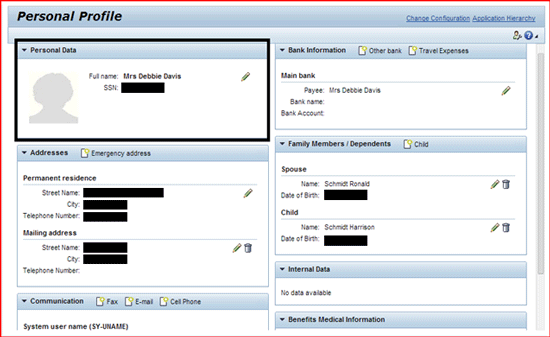
Figure 1
The standard Personal Profile view (Enterprise Portal)
There are six main components of an ABAP Web Dynpro application:
- Web Dynpro application (HRESS_A_PERSINFO): The Web Dynpro application is the main component of the Floor Plan Manager hierarchy.
- Web Dynpro application configuration (HRESS_AC_PERSINFO): Contains information on the configuration used for starting the main component.
- Web Dynpro component (FPM_OVP_COMPONENT): Web Dynpro components are more like prototypes where all the application-specific settings are stored.
- Web Dynpro component configuration (HRESS_CC_PER_OVP): Application-specific settings are stored in Web Dynpro components as component configurations.
- Web Dynpro component configuration ID (HRESS_CC_PER_OVR_PERSDATA_US): It is the configuration ID of the component configuration.
- Web Dynpro feeder class (HRESS_CC_PER_OVR_PERSDATA_US): The Personal Profile detail and overview screens consist of numerous GUIBBs (Generic User Interface Building Blocks). Feeder classes can be customized to achieve complex business requirements that are not possible with R/3 or FPM application configurations.
Customizing Options Available in the IMG (SAP R/3)
In both the SAP Enterprise Portal and NWBC versions, a lot of customizing is done in the IMG for the Personal Profile section. The following options can be customized in the IMG (note that most of the ESS-specific time constraints are configured via the IMG):
- Visibility of the Create, Delete, and Change Icons (e.g., showing or hiding them)
- Display of the Validity Fields
- Allowable Subtypes for Each Infotype in the Personal Profile BiZcard
Using four example scenarios, I show you how to make these changes. Some changes are done in SAP ERP and some are done in the SAP Enterprise Portal itself via FPM configuration. I have noted in the figure captions where the changes are being made for each example, either in SAP ERP or the SAP Enterprise Portal.
Example 1: Visibility of the Create, Delete, and Change Icons
Follow IMG menu path Personnel Management > Employee Self-Service (WebDynpro ABAP) > Service-Specific settings > Personal Information Personal Profile > Determine Active Subtypes and Make Settings (Figure 2). Under Edit Settings, select the Data must be displayed as read-only check box. By selecting this check box all the fields of this specific infotype will be read-only; if this is the requirement, click the save icon to save your entries. However, if the requirement is to only make a few fields read-only, then this may be done via the UI configuration in FPM.
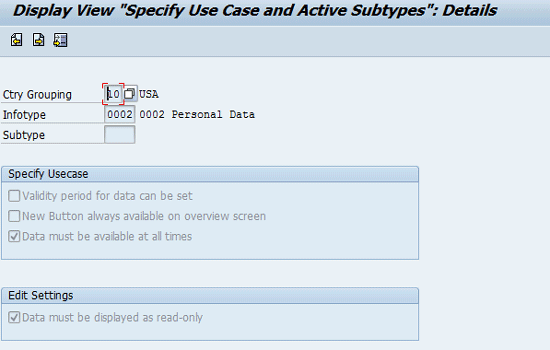
Figure 2
Set the use case and active subtype (SAP R/3)
Note
In the Edit Settings section in Figure 2, the Data must be displayed as the read-only check box option is only available from enhancement package 6 and up. You will not find this option in enhancement package 5.
Note
If the New Button always available on overview screen check box (shown in Figure 2) is selected, a new button is always placed in the overview screen in the BiZcard to allow the creation of a new record. If this check box is not selected, a new button is available only once and disappears when a valid record is available.
Now you can log into the Portal to verify the changes. The change icon that was previously displayed in the Personal Data section has been changed to a Details link (Figure 3). When the Details link is clicked, the screen in Figure 4 opens and all the fields are shown as read-only.
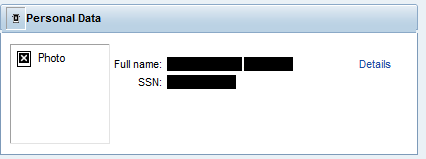
Figure 3
Personal Data view changes the Details from an icon to a link (Enterprise Portal)
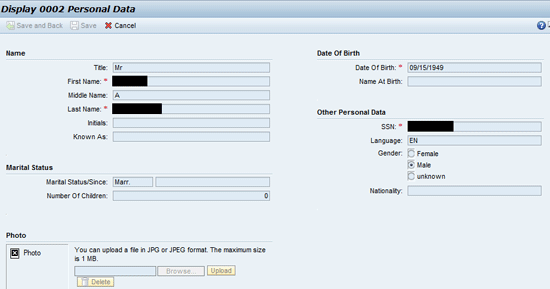
Figure 4
The personal data infotype (0002) is read-only (Enterprise Portal)
Example 2: Display of the Validity Fields
The default setting for both the Other Bank and Travel Expenses options enables them to be added or edited in ESS under the Personal Profile section (Figure 5). In this example, I show how to remove Other Bank information from this screen so that users can’t add or edit their Other Bank information via ESS.
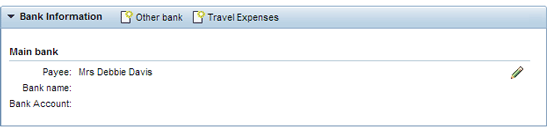
Figure 5
The Bank Information screen as it appears before the change (Enterprise Portal)
Follow IMG menu path Personnel Management > Employee Self-Service (WebDynpro ABAP) > Service-Specific settings > Personal Information > Personal Profile > Determine Active Subtypes and Make Settings, or go to Table V_T7XSSPERSUBTY via transaction code SM30. In the screen that appears (Figure 6) delete the highlighted line entry (e.g., 0009, Bank Details, 1, Other bank). Save the changes.
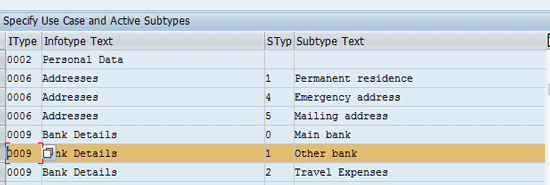
Figure 6
Table V_T7XSSPERSUBTY view (SAP R/3)
Now log in to the Enterprise Portal and access the Bank Information screen under the Personal Profile section (Figure 7), and you can see that the Other Bank option is no longer visible.
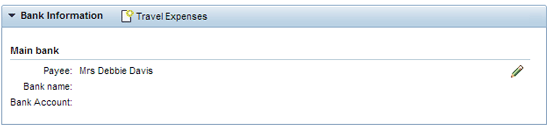
Figure 7
The Other Bank option is not shown (Enterprise Portal)
Note
Business Add-In (BAdI) HRXSS_PER_BEGDA controls the visibility of records and sets default start dates. This would be used, for example, to enable past date editing or to restrict editing from starting at a future date (e.g., the beginning of next month).
Available UI Customizing Options: FPM Configuration
The FPM configuration option provides numerous opportunities to enhance the standard applications as desired. As an SAP best practice, it is advised that you not modify the standard application. To make changes to the standard application, the best method is to either copy or enhance the standard application.
The following options can be customized in FPM:
- Making changes to the infotype details and list screens
- Removing an entire infotype section from a BiZcard
- Hiding the photo icon in the Personal Data screen
Example 3: Allowable Subtypes for Each Infotype in the Personal Profile BiZcard
In the Personal Profile overview screen in the Enterprise Portal (Figure 1), you can see the Benefits Medical Information section (on the bottom right of the screen). In this example, I show how to hide that section using FPM configuration. Most companies do not use all the SAP modules and services out of the box. If a service is not part of their process or for legal reasons, companies often hide or remove that service. For example, in this scenario, the company doesn’t store employees’ medical information as part of master data so they want to hide it.
Log in to the SAP Enterprise Portal and go to the main Overview screen. Right-click to open the context menu, where you see the Personal Profile section has the configuration ID HRESS_CC_PER_OVP. You need to check the configuration so you know which configuration ID to change. Next, execute transaction code SE80 and, in the screen that results (Figure 8), look for component configuration HRESS_CC_PER_OVP under the main Web Dynpro component FPM_OVP_COMPONENT.
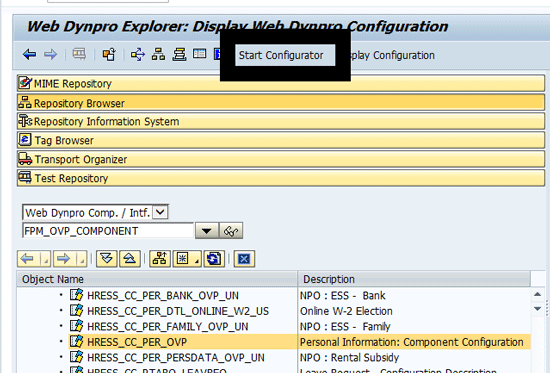
Figure 8
Transaction code SE80 view (SAP R/3)
Select the Object Name HRESS_CC_PER_OVP and click Start Configurator (circled in Figure 8). In the Editor for the Web Dynpro ABAP Component Configuration screen that opens (the back of Figure 9), click the copy icon. This opens the pop-up Copy Configuration screen where you can select the configuration to copy. In this case, you’re copying the original configuration component—HRESS_CC_PER_OVP—to the custom ZHRESS_CC_PER_OVP configuration ID. Then click the OK button to save your new custom configuration.
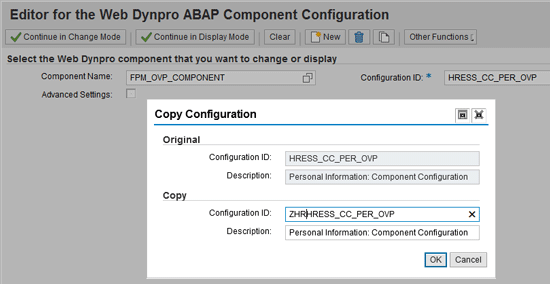
Figure 9
Creating custom configuration ID for-HRESS_CC_PER_OVP (FPM portal configuration)
Once you save the new configuration, you see the prompt screen shown in Figure 10, which displays the copied configuration ID. Click the Continue in Change Mode button to change the overview screen as per the requirement. A screen like Figure 11 opens.

Figure 10
Continuing configuration in change mode (FPM portal configuration)
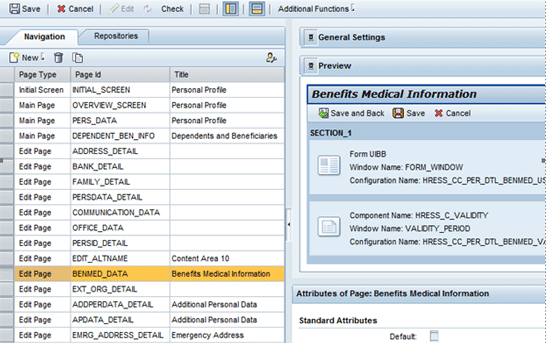
Figure 11
Modify the configuration HRESS_CC_PER_OVP ID (FPM portal configuration)
In this example, I want to delete the Benefits Medical Information section altogether. Select BENMED_DATA in the Page id column and click the delete icon (the trash can).Then click the save icon to save your changes to the component configuration.
Next, you want to create a custom application configuration—ZHRESS_AC_PERSINFO. Log in to SAP R/3 and execute transaction code SE80. Copy the standard application configuration HRESS_AC_PERSINFO (Figure 12) and follow the same steps described previously.
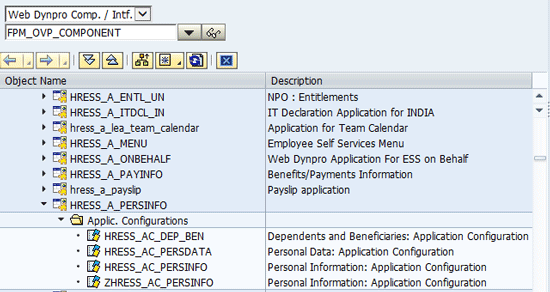
Figure 12
Transaction code SE80 – Modify configuration HRESS_AC_PERSINFO ID (SAP R/3)
In the screen in Figure 12, select the Object Name ZHR_ESS_AC_PERSINFO and click Display Configuration in the toolbar (not shown in Figure 12, but it’s at the top of the screen). This opens the screen in Figure 13. Click the Assign Configuration Name button and assign the custom component configuration ZHRESS_CC_PER_OVP. Click the OK button to save your changes. Then Click the Assign Configuration Name button, which opens the pop-up screen shown in Figure 13, where you assign a name to your custom component configuration. In this case, enter ZHRESS_CC_PER_OVP in the Configuration ID field. Click the OK button to save your changes.
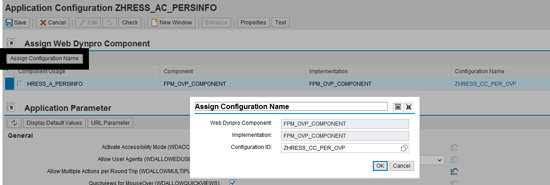
Figure 13
Assign the new configuration ID (FPM portal configuration)
When you log into the SAP Enterprise Portal and open the Personal Profile screen after these changes have been made, you see that the Benefits Medical Information section is no longer visible (Figure 14).
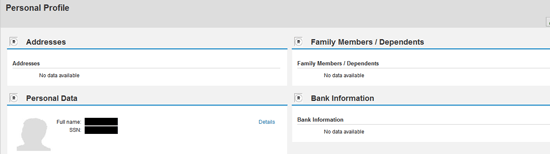
Figure 14
The Personal Profile screen without the Benefits Medical Information section (Enterprise Portal)
Example 4: Hiding Entire Sections of Screens, Hiding One Field, and Making Fields Read-Only
In example 4, I am going to show you how to:
- Hide Entire Sections of Screens: Hide the Physicians section in the Add Family Members/Dependents detailed screen.
- Hide Fields of Screens: Hide the Social Security Number field in the Add Family Members /Dependents detailed screen.
- Make Fields Read-Only: Make the First Name and Last Name fields in the Add Family Members /Dependents detailed screen read-only.
I am using the Family Members/Dependents service and its subtype, Emergency Contact, in my fourth example scenario. Before making these three changes (listed above), you first need to copy the standard Web Dynpro application to a custom one. Following are the steps you need to take to do this.
Copy the Standard Web Dynpro Application to a Standard One
Go to the Emergency Contact details screen by clicking the Add button in the Family Members/Dependents section of the Personal Profile overview screen (Figure 15). Here you can select any subtype (e.g., Spouse, Child, Step Child, or Emergency Contact) that you wish to change. In this example, I select Emergency Contact. This opens the Add Emergency Contact details screen (Figure 16).
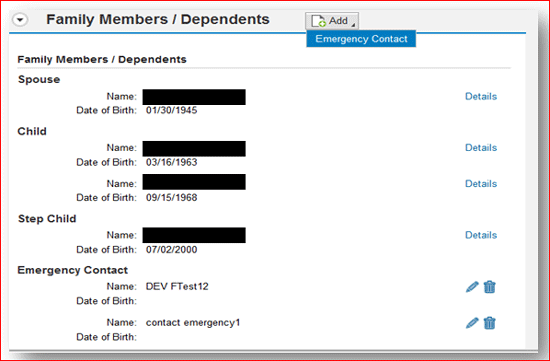
Figure 15
The Family Members/Dependents main screen (Enterprise Portal)
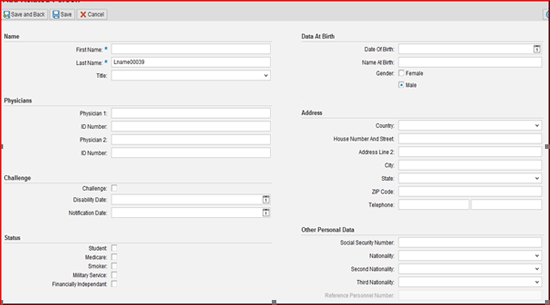
Figure 16
Standard Add Emergency Contact details screen before change
Before you can make any changes to the screen in Figure 16, you first have to figure out the relevant Component Configuration. Right-click over the screen and select Technical Help from the context menu options. This opens the screen in Figure 17 where you can see all the technical details related to the FPM hierarchy of the screen.
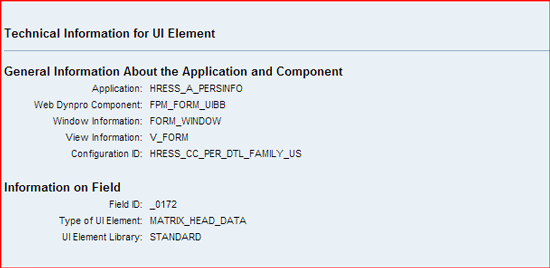
Figure 17
Add Emergency Contact technical information context screen
The next step is to find out the Web Dynpro component of the Add Family Members/Dependents details. In the General Information About the Application and Component portion of Figure 17 you can see the Web Dynpro component—in this case, FPM_FORM_UIBB—and the Configuration ID is HRESS_CC_PER_DTL_FAMILY_US.
Log into SAP R/3 and execute transaction code SE80. Find Web Dynpro Component FPM_FORM_UIBB and then locate the Configuration ID HRESS_CC_PER_DTL_FAMILY_US in the screen (not shown). Select the Configuration ID and click Start Configurator in the toolbar. This opens the screen shown in the back of Figure 18. Click the copy icon to copy the standard configuration ID. This opens the pop-up screen in Figure 18, where you enter an appropriate name for the custom Configuration ID and a description. In this example I use ZHRESS_CC_PER_DTL_FAMILY_US ID and US Personal Data Detail, respectively. Click the OK button to save the custom configuration.
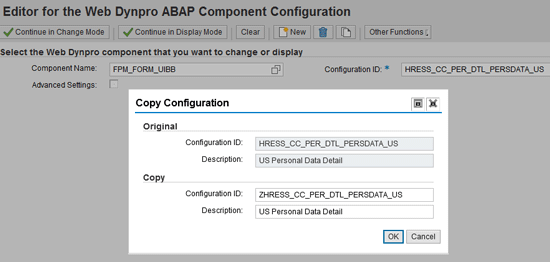
Figure 18
Copying to a custom configuration ID (FPM portal configuration)
Now that you have copied the standard Web Dynpro component to a custom component, you’re ready to make the following three changes as outlined earlier in this section.
Hide Entire Sections of Screens
After you copy the standard configuration into custom component ZHRESS_CC_PER_DTL_PERSDATA_US, click the Continue in Change Mode button (the back of Figure 18). This opens the screen in Figure 19, where you can select the section that you want to delete under the Form UIBB Schema section. In this example, you want to hide the Physicians option, so you select the Group for Physicians and then click the delete icon (the trash can icon under Form UIBB Schema). Then click the save icon to save your data.
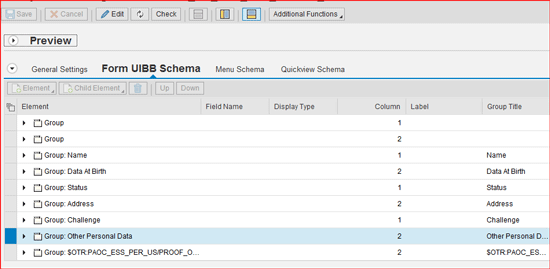
Figure 19
Configure ZHRESS_CC_PER_DTL_FAMILY_US ID (FPM portal configuration)
Click the Preview button (Figure 19) to confirm that your changes have been made correctly. You should see a screen that looks like Figure 20, where Physicians is no longer displayed.
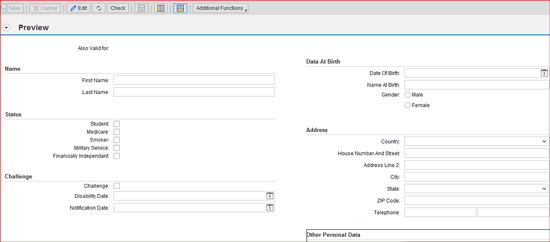
Figure 20
ZHRESS_CC_PER_DTL_FAMILY_US ID configuration without the Physicians options
Note
This change (e.g., removing Physicians from the Add Emergency Contact details screen) affects all subtypes of infotype 0021.This change can also be done in SAP R/3 (e.g., via backend configuration in table V_T588MFPROPC). You have to add the entries in this table—the infotype, subtypes, and fields—before you can make fields mandatory or hidden.
Hide Fields of Screens
To hide the Social Security Number field in the Other Personal Data section of the Add Emergency Contact details screen (Figure 16), expand the Other Personal Data section in Figure 19. This opens a screen similar to Figure 21, where you change the Social security number field from Is Visible to Is Not Visible.
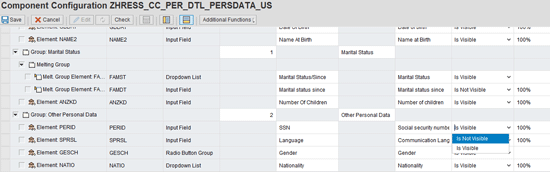
Figure 21
Hide the Social Security number field in the infotype 0021 details screen (FPM portal configuration)
Click the Preview button (shown in Figure 19) to confirm that your changes have been made correctly and the SSN field is no longer visible.
Make Fields Read-Only
In Figure 22 (the FPM configuration screen for ZHRESS_CC_PER_DTL_FAMILY_US ID), expand the Group: Name. For the Label’s first and last names, in the Display Type column change Input Field to Read-Only for the First Name and Last Name. Click the save icon to save your changes.
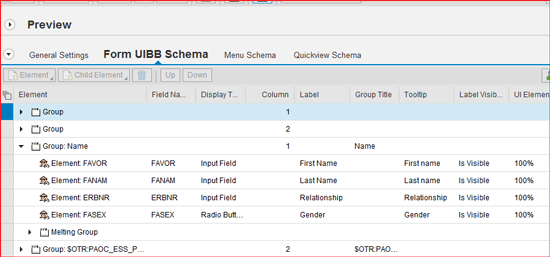
Figure 22
Make the First Name and Last Name fields read-only (FPM portal configuration)
Click the Preview button (shown in Figure 19) to confirm that your changes have been made correctly and the First Name and Last Name fields are now read-only.
FPM provides a variety of options for configuration such as, copying, enhancing, and customizing applications. Each method has its own pros and cons. Although copying an application provides greater flexibility in customization, any changes made to the standard application with future enhancement packages or support pack upgrades does not affect these copied versions. Enhancing an application is less time-consuming compared to copying the application, but you need to be careful when using this option. If any field or section is deleted, it could be difficult to bring it back if certain business processes changes in the future.

Rinky Karthik
Rinky Karthik serves as a Project Manager, HCM SuccessFactors, for the People LoB for itelligence and has 16 years of SAP HCM and SuccessFactors experience. This includes many global implementations, including support and upgrade of various SAP on-premise modules and SuccessFactors modules in diverse roles, like Solution Architect, Lead Consultant, and Project/Program Manager. Rinky has an MBA in Human Resources and she comes with a strong project management background; as such, she has managed a variety of global projects for clients in different domains. She has extensive experience with SAP SuccessFactors’ SAP Launch and SAP Activate implementation methodologies, and is a Certified SuccessFactors consultant in Recruitment Management, Recruiting Marketing, Learning Management Solution, and Employee Central. Rinky is a frequent contributor to SAP SuccessFactors blog forums, HR Expert, and a regular speaker at a variety of SAP/SuccessFactors conferences.
You may contact the author at rinky.karthik@itelligencegroup.com.
If you have comments about this article or publication, or would like to submit an article idea, please contact the editor.




 Premium