When building reports that show past and projected results, query designers might start by creating a large column structure. This approach might prove cumbersome. The author shows a more flexible method using structures and a little user input via simple variables.
Your company wants a report that shows all sales (value or volume) over a range of years, maybe for a product, a brand, or a market. This report shows actual sales trends for comparison against forecast and plan, enabling the business to spot growth areas or where products are stagnating. The report might look something like this:
- First column starts from early history (10 years ago to last year)
- Second column shows the current year (year to date, plus plan or forecast for remainder of year)
- Third column shows the short-term plan for next year
- The last few columns show strategic planning information for two to five years into the future
A query designer might start building this report by thinking about a large column structure. This would work, but it could result in changes every year as another year of history means adding columns. Alternatively, you could use a structure requiring complex user entry of variables to add flexibility, but thereby reducing user friendliness.
There is another way. I will demonstrate an approach that uses a combination of structures and characteristics in a column, providing a flexible report that is easy to develop. It also requires minimal user input via simple variables. This approach eliminates the need for annual changes to the structure. As one year rolls into the next, the structure design automatically takes this into account. For the scenario described above, this approach requires a structure with six entries. You also need to create a couple of simple exit variables, although depending on individual requirements, the content variable may be adequate. The end result will look something like Figure 1.

Figure 1
A complete trend report
Here's how the approach works: A formula pulls together all the data requested by the query. However, the inclusion of a calendar year object then disaggregates the data based on the calendar year of all the facts gathered. I will show you how to build such a structure. If you follow along and build it, you can review the structure and see that each element contains discrete data. The first two columns are combined to provide the total year data, which is a combination of actual and forecast data, for the year that the user enters.
At first, you might think that this approach hasn't saved much time. Depending on the volume of data (spread of years in the past and into the future), the amount of effort saved will vary. If the report was for one year of history, the current year, and one year of plan or forecast data, the effort required to produce the report is the same as using a column structure. As soon as additional years are added on either end, the time savings start to materialize. However, the approach also works for monthly, weekly, or even daily trend reports, depending on the time characteristics available, using the same size structure as for years.
Compare the approach outlined above with building a column structure for a five-year range, capturing each month to separate history (two years), actual and forecast (one year), and plan data (two years). This would be: 5 x 12 = 60 columns just for monthly trend reports. Big column structures like this not only have more maintenance overhead, but also have slower performance at run-time due to the need for the system to calculate the values in individual cells.
Let's look at the steps required for this structure-and-characteristics approach to trend reporting. The steps below apply to both BW 2.x and 3.x.
Step 1. Create a New Query
Go the BEx Analyzer (or Query Designer in BW 3.x) to create your new query. Keep the row/free characteristics definition simple to allow drill-down and display to whatever level of detail you require. In my example, I have included only Sales Office and Material Type in the rows. Drag and drop whatever you require from the Dimensions on the left.
Step 2. Create a Column Structure
Right-click on Columns in the BEx Analyzer or Query Designer and select New Structure as shown in Figure 2.

Figure 2
Begin to create a column structure with the New Structure option
Step 3. Make Column Structure Selections
The design of the query will vary by business and the volume of data available in the InfoCubes. In this example, it is necessary to create five selections for the column structure and one formula. Right-click on the Columns option (Figure 3) and create these one at a time using the New Selection and New Formula drop-down menu items.

Figure 3
Select column structures and formulas to use for the report
Each of these selections contains the relevant restrictions to ensure that the data in each selection contains unique data, avoiding overlapping records. This again will vary with InfoCube design, but in general the useful objects will be version, value type, and those that are time-based. I used these objects in my example:
0VERSION
0CALMONTH
0CALYEAR
When the New Selection window pops up, enter a suitable title. In Figure 4, I used Actual Sales Volume. Then drag in the appropriate key figure and the objects necessary to restrict. For this selection, only the Calendar year object is needed (Figure 4). Right-click on the year to restrict the selected data (Current Year derived from input variable ‘month' in my example), select a value range by changing Selection at the top of the window to Value Range from the default Single Values. Click on the Variables tab.

Figure 4
Once you've named a new selection, restrict the selection by year and provide a value range
Step 4. Specify the Variable Offsets
In the example, the selected variable is a customer exit to derive the year from the 0CALMONTH object that the user selects at run time. (This customer exit is a relatively simple process covered in the SAP online documentation. The sidebar, “Creating Variables with BW 3.x,” on page 12 shows how the process has changed from BW 2.x.) However, you could adapt standard variables to provide a suitable workaround. This variable will be set as both the “from” and “to” values described next. To achieve the range of the years the report requires, use the Specify Variable Offsets function. This feature allows you to define different data selections for different columns based on just one input from the user—e.g., the user enters “2003” as the current year, and the variable value -1 (the offset) captures 2002 data.

Figure 5
Set the "from" value in the first Enter Variable Offset pop-up window, and set the "to" value in the second Enter Variable Offset pop-up window
The two windows shown in Figure 5 should appear in succession. The first sets the “from” value—in this case, a value of -5 from the year derived from the calendar year and month that the user enters at run-time. Click on OK, and the second window where you set the “to” value appears; I used -1. So, if the user enters 06.2002 for the calendar year and month, the “from” value becomes 2002 - 5 = 1997 and the “to” value becomes 2002 - 1 = 2001.
Step 5. Complete the Other Column Structure Selections
Continue to define all the other selections in the Columns structure option (Figure 6). The details for achieving the required restrictions for my example follow. Again, restrictions will vary with InfoCube designs. All structure selections use the same key figure, so this is not repeated below. An alternative would be to include the key figure as a filter. However, other InfoCube designs may use separate key figures for plan and actual data.

Figure 6
Define the remaining column selections
- Actual Sales — from start of input year to month -1: Use the calendar month/year input variable as the “to” value. An additional customer exit variable calculates the “from” value as “month 1” for the year of the input variable. Use variable offset -1 for the “to” value.
- Forecast — from input month until year-end: Use calendar year month input variable as the “from” value. An additional customer exit variable calculates the “to” value as “month 12” for the year of the input variable. Use the Version option (on the left in Figure 6) to restrict to plan data rather than the actual sales data. This ensures no overlapping records.
- Annual Plan Forecast Year +1: Use the Actual Sales calendar year variable to default the year to what the user enters, but with a variable offset of +1 to capture the next year's data. Use Version to restrict to plan data and to segregate the annual plan from a rolling forecast or any different versions.
- Strategic Forecast Year + 2 to Year +5: Use the Actual Sales calendar year variable to default the year to what the user enters, but set the range with a variable offset (+2 to +5) to capture the future years' data. Use Version to restrict to plan data and to segregate the strategic forecast from a rolling forecast or any other versions.
Step 6. Put All the Selections Together
Now you must create the formula to add all the above structure elements together. Right-click on the column structure name and select New Formula. Describe the formula appropriately and add all the selections together. A click on the check icon will confirm it is correct (Figure 7).

Figure 7
Click on the check icon to confirm that the formulas syntax is correct
Step 7. Hide the Column Selections
The final trick is then to hide all the selections, leaving the formula as the only part of the structure to be displayed. To do so, right-click on each selection, choose Properties, and then flag the selection as Hide. Then drag the Calendar year InfoObject (in the Columns area) to be either above or below the structure. Do not add any restriction to this object. Doing this provides the needed drill-across capability.
Creating Variables with BW 3.x
With BW 3.x, you must create variables through the BEx Query Designer using the Variables Wizard. This is a useful feature as the query developer no longer has to go from the BEx Query Designer to BW's initial logon screen to create new variables. (Don't worry; you can still look up your variables using transaction code SE16.) I'll introduce you to BW 3.0's Variable Wizard using the trend reporting query as an example. The query developer needs to define a variable that is automatically populated with the value of the year from another variable. For example, if a user enters 03.2003 for 0CALMONTH, the new variable takes the value 2003. The steps to do so follow:
Step 1. Create an Input Variable
Go to the BEx Query Designer. To restrict the 0CALMONTH object, right-click on Calendar year/month and then choose New Variable (Figure 1). This executes the Variables Wizard. Step through the Variables Wizard, completing the fields with the required values as shown in Figures 2 through 5. Once you've completed the entries and saved the new variable, you can use it in the query. Remember the technical name you gave the variable for use later. In my example, the name is ZP_YRMTH.

Figure 1
Select New Variable from the BEx Query Designer to access the Variables Wizard

Figure 2
Enter a name and description for the variable, and then identify its processing type

Figure 3
Indicate what the variable represents, whether entering a variable is mandatory, and whether it has to be ready for input

Figure 4
Set a default value for the variable (blank=null)

Figure 5
Click on Finish to save the variable
Step 2. Create a Customer Exit Variable
This customer exit variable derives the calendar year for the value entered in the Calendar year/month variable. Right-click on Calendar year/month in the BEx Query Designer, select the Variables tab, and right-click on New Variable. Work through the screens as in step 1 to create another variable with the following attributes:
| Variable Name: |
ZX_CYEAR |
| Variable Description: |
Calendar Year from Input Cal Month Year |
| Processing by: |
Customer Exit |
| Characteristic: |
Calendar year should appear by default |
| Variable represents: |
Single Value |
| Variable is: |
Mandatory |
| Ready for input: |
Do not flag |
| Default value: |
Null (leave blank |
Click on Finish to save the variable.
Step 3. Create ABAP Code to Populate the Year Value in the Customer Exit Variable
The Basis team may complete this task. This includes creating the project and assigning the component as follows:
| Enhancement |
RSR00001 BW: Enhancements for global variables in reporting |
| Function Exit |
EXIT_SAPLRRS0_001 |
Use transaction code CMOD. Display the BW project by selecting from the drop-down menu and clicking the Display button. Click on the Components button, and then double-click on EXIT_SAPLRRS0_001. A screen appears at the bottom with the line INCLUDE ZXRSRU01. Double-click on ZXRSRU01 to get to the details of the include code. You or your Basis team can add the code shown in Figure 6 to perform the task of taking the year from the calendar month/year that the user enters. Save and activate each level of the enhancement while backing out of the screens until you reach the initial screen where you perform the final activation. Again, this is an area where you should work with an experienced ABAPer.
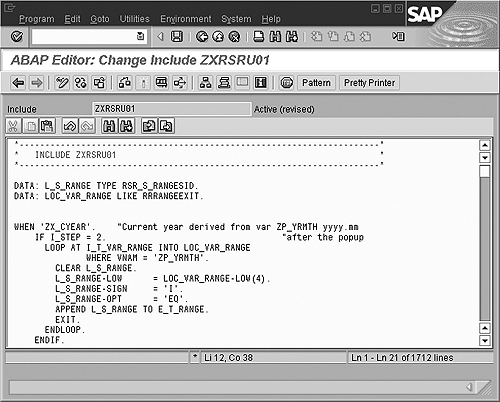
Figure 6
Code to capture the current year from what the user enters
Step 4. Execute the Query
Use transaction code CMOD. Display the BW project by selecting from the drop-down menu and clicking the button. Click on the button, and then double-click on . A screen appears at the bottom with the line . Double-click on to get to the details of the include code. You or your Basis team can add the code shown in to perform the task of taking the year from the calendar month/year that the user enters. Save and activate each level of the enhancement while backing out of the screens until you reach the initial screen where you perform the final activation. Again, this is an area where you should work with an experienced ABAPer.
When you execute the query, the only date-related variable that should appear is the one for Calendar year/month. The customer exit subsequently gathers the appropriate data for columns based on the variable offsets that you used.
Robert Oliver
Robert Oliver is an SAP BI developer working for an investment bank in London. He has been working with SAP R/3 since 1994 and SAP NetWeaver BW since 1999. Since 2005 he has been working with the planning and consolidation systems provided by SAP. Prior to his current role he was an end user and a consultant.
If you have comments about this article or BI Expert, or would like to submit an article idea, contact the BI Expert editor.
You may contact the author at Robert_Oliver@Hotmail.com.
If you have comments about this article or publication, or would like to submit an article idea, please contact the editor.





 Premium