Use this step-by-step procedure prepared by Christian Savelli and Marcos Poles to deploy the combination of Smart Data Access (SDA) and SAP BusinessObjects Data Services (BODS) for data migration from legacy systems to SAP HANA.
Key Concept
SAP Smart Data Access (SDA) is a technology that virtualizes remote data sources into SAP HANA, allowing users to easily access external datasets in real time. SAP BusinessObjects Data Services (BODS) is a complete extraction, transformation, and loading (ETL) tool containing many features for data cleansing, data transformation, and validation.
Many considerations are in play when migrating legacy database-related reporting applications to SAP HANA. From a functional perspective, one of the most important of these considerations is minimizing disruption to business users and operations. A big bang, database export/import may seem a simple and straightforward approach. However, it carries the risk of spending time and effort coping with obsolete tables, views, and system-specific procedures no longer applicable within an SAP HANA context. The challenge is how to clearly pinpoint the relevant, actively-in-use table footprint for migration.
Two technologies can be effectively combined during database-migration projects, which initially assist with the validation of tables prior to their migration. Subsequently, the same two can be used to support the data validation and materialization in the SAP HANA database during cutover and post-go live activities. These technologies are known as Smart Data Access (SDA) and SAP BusinessObjects Data Services (BODS).
SDA, which virtualizes remote data sources into SAP HANA, can be implemented as a straightforward connection with the installation of Open Database Connectivity (ODBC) drivers. These database-specific drivers provide the capability to transfer metadata from the external source to SAP HANA. The metadata is then used to establish virtual tables in SAP HANA that can be queried or used as reference points for the creation of SAP HANA views.
SAP BODS is commonly used to load data into SAP HANA. Among its features, SAP BODS carries a particular one named table comparison that is of interest for the procedure described in this article.
A Database Migration Scenario
Ideally, the scope of a migration of a non-SAP database to SAP HANA should be narrowed down to the collection of tables that are actively in use and supporting current operations and business users. This, however, is easier to say than to do as, typically, legacy systems have been within corporations for years or even decades.
Frequently, these legacy systems have grown to hold terabytes of data, filled with redundancy, obsolete tables, and procedures no longer required. One of the primary reasons for the large size of such legacy, row-based databases is usually the many layers of data providers required for aggregating and preparing data to maximize reporting performance.
In SAP HANA, however, aggregations and calculations can be performed on the fly while data is stored at the granular level only once. As a result, many of the data layers required on a typical row-based database become redundant models within the SAP HANA context.
To avoid redundancy of data models to be replicated into SAP HANA, some crucial questions must be answered up front: what to migrate from the legacy system and, at the same time, how to consistently minimize the impact on the business community. SDA and BODS can help answer these questions.
What to Migrate From the Legacy Database?
SDA can be used to help answer the “what to migrate” question. It can expose metadata from the legacy database into SAP HANA as virtual tables. This allows for a quick and easy replication of the base, granular tables required for reporting from the legacy database to SAP HANA. Analytical or calculation views can then be created on top of such virtual tables in SAP HANA, and the reports re-pointed to the newly created SAP HANA virtual version of the original legacy data models.
By following this process there should be no risk of data inconsistency between SAP HANA and the legacy system. After all, the replicated reports still read the data from the legacy system with SAP HANA acting more like a pass-through. No data synchronization or parallel-loading cycles are required between the two databases.
SDA then offers business users the opportunity to validate that all required data and related SAP HANA view-based models continue to address their day-to-day operations using familiar reports and applications. If a table or data is missing or wrong, immediate action can be taken to remediate the gap by simply creating one more virtual table from the legacy system metadata or by adjusting the definition of a particular SAP HANA view.
As seen in Figure 1, SDA is presented under the Provisioning folder within the SAP HANA modeler perspective. The Remote Sources folder contains all the connections available to external databases.
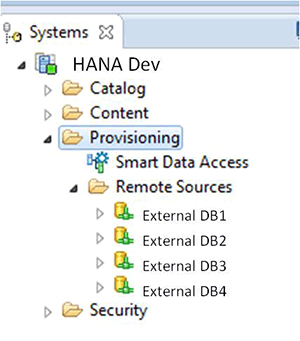
Figure 1
SDA in the Provisioning folder with the SAP HANA modeler perspective
The metadata related to one of the external databases can be visualized by expanding the hierarchy node under one of the connections. The schemas, tables, and views of the external database are then presented. If a particular table or view is required for consumption, right-click the element of interest to open the option to add it as a virtual table in SAP HANA (Figure 2).
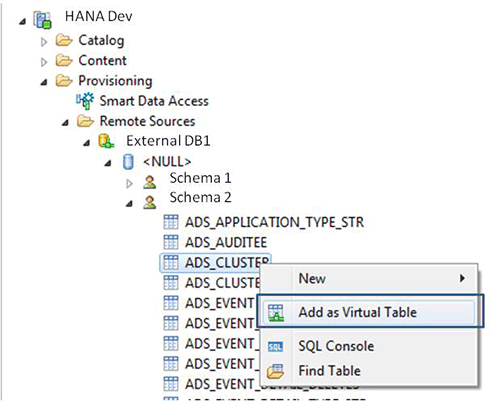
Figure 2
Right-click to add an element as a virtual table
It is important to highlight that with this SDA approach the functionality of SAP HANA is restricted to the legacy database performance and network bandwidth. In fact, there could even be cases of performance degradation with respect to extremely large tables as SAP HANA simply becomes one more layer in the overall reporting landscape. It is great for assisting in answering the question of what to migrate, but the need for migrating data to the SAP HANA database still remains.
How to Migrate With Minimum Business Disruption
Having answered the question of what to migrate now let’s focus our attention on how to migrate and keep disruption to a minimum. SAP BODS plays a central role in this process. BODS can fast-track the process of creating tables in the SAP HANA database, extracting and loading the data from the legacy system into SAP HANA, and performing data validation. This process can be divided technically into two main batch jobs in BODS: data initialization and data validation.
Data Initialization
During the data-initialization process depicted in Figure 3, a BODS job uses the following elements and features to migrate the legacy system table and its contents to an SAP HANA physical table with the same metadata:
- Template table object: Creating the table in the SAP HANA database during the first load
- Bulk load option: Enabled and based on the source’s primary key fields
- Query transformation: Connecting the source and target tables with 1:1 mapping and primary key identification
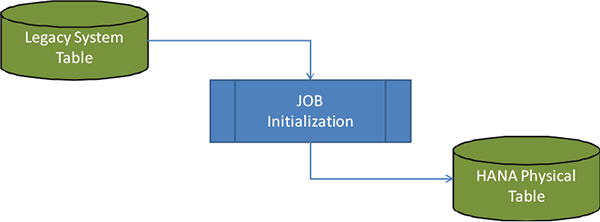
Figure 3
The data initialization process
A SQL command that adds the necessary partitions in SAP HANA after table creation is also required in the case of large volume tables, especially those in which partitions are used in the source. This is applied to the pre-load tab of the template table object.
Steps for Migration
The following section depicts the step-by-step migration of a generic sales item table (a typical case of a large volume table) from an Oracle 11G database to the SAP HANA database.
Following are the source table characteristics. The sales item table in my example has the following technical characteristics:
- 48 partitions – (these partitions are separated by Year/Month of the records’ creation date)
- 114 columns (record length: approximately 800 bytes)
- 232,522,880 records
The BODS data flow supporting the initial migration of data from an external sales item table into SAP HANA has three basic elements: source table, query, and target table (Figure 4).
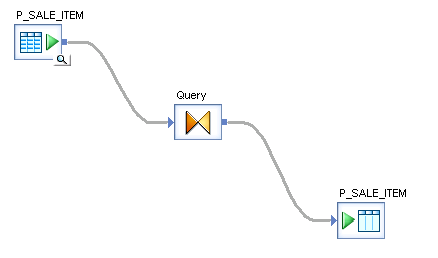
Figure 4
BODS data flow at a high level
In the data flow in Figure 4, double-click the source table P_SALE_ITEM (the first node on the flow) to open its Properties (Figure 5). Ensure the Enable partitioning check box is active and set the Array fetch size to 5000 records. (Those were the settings for the source table element that is shown on the top left of Figure 4 that brought the best run time performance in the example scenario.)
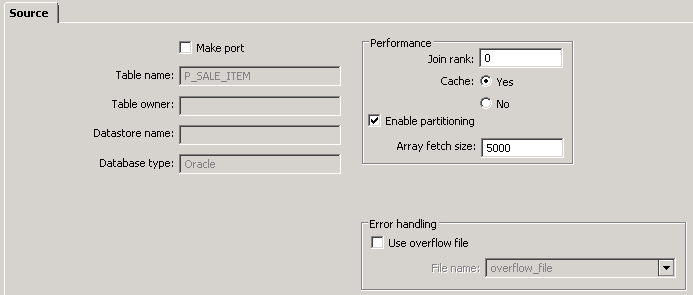
Figure 5
Source table performance-related settings
The query transformation has a 1:1 transformation for every field from the source table and target table. The objective here is not to perform data transformation but purely to migrate data. For large volume tables you may need to parse the data, minimizing the impact to other production systems and reducing the risk of re-work of the entire initialization job.
This can be achieved by using “where statements” that restrict the data to manageable data sets into multiple runs. Figure 6 presents a where clause using date-from and date-to variables as parameters for data parsing. The where clause shown is accessed by double-clicking the query icon of the data flow (Figure 4) and accessing the WHERE tab by clicking its label.
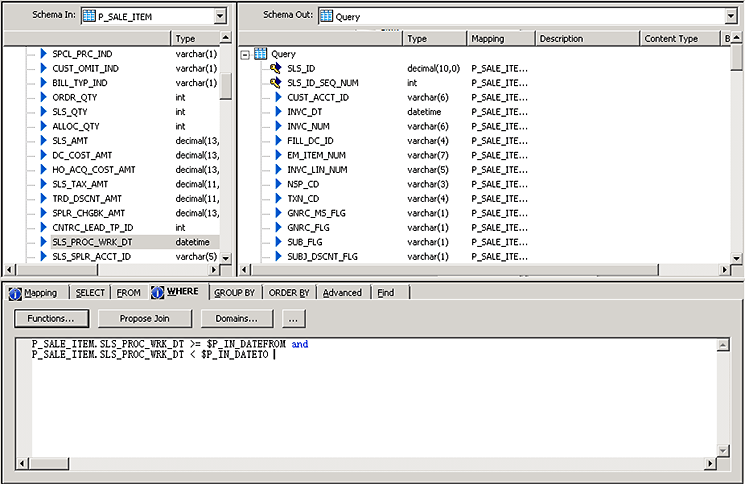
Figure 6
Query transformation example with restriction of data
The last element of the BODS initialization job is the template table object used as a target table of the flow (bottom right in Figure 4 with the same name as the source table in this case). It is important to have the following options (Figure 7) set on this element:
- Set the Drop and re-create table check box to off (blank) to ensure that the table that is created on the first load is not erased on subsequent loads of partitioned data for high-volume tables
- Set Use input keys to Yes under Update control
- Under the Bulk Loader Options tab, enter 100,000 in the Rows per commit: field
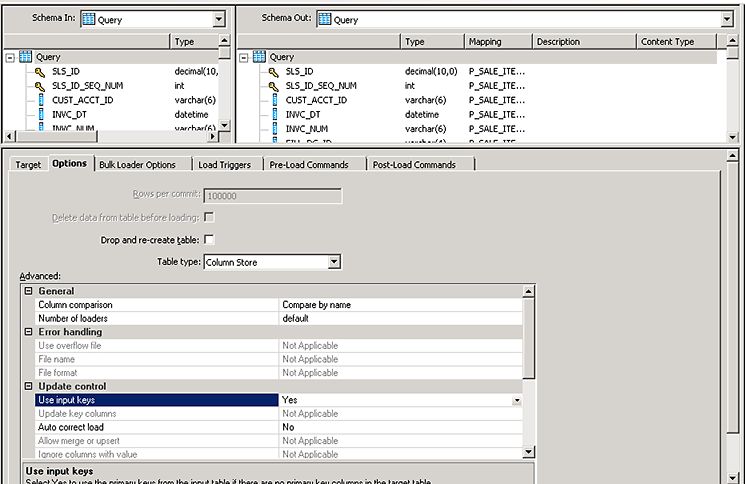
Figure 7
Template table data flow settings
These settings can be accessed by double-clicking the target table P_SALE_ITEM (the last node on the flow of Figure 4) and accessing the Options tab by clicking its label. These settings brought the best performance run time in our project.
For comparison purposes, with the BODS initialization job configured as suggested above, the initial migration of 232,522,880 records was achieved in an average time of two hours with the final allocation of 19.4 GByte of SAP HANA space following compression.
A compression rate of 10x was obtained during this exercise. However, it is important to highlight that the compression rate that one can achieve when migrating from a conventional database to SAP HANA varies primarily according to the type of data stored as well as the repetitive nature of the data within each column.
In other words, less variation of values within the records of a particular conventional database table yields a higher compression rate when moving content to a columnar table within SAP HANA. As table content in SAP HANA is treated as independent columns, the repetitive value is replaced by dictionary encoding, requiring less memory space for storage.
Data Validation
You may want to perform a post-initialization check to confirm that all data has been migrated successfully. You can address this need with a second job that re-purposes the table comparison transformation feature of SAP BODS. The table comparison transformation is normally used to identify delta records during load and follows a target-base Change Data Capture (CDC) approach.
This means that table comparison transformation compares the contents of all fields of the legacy system table with the target table contents in SAP HANA, and sends all records with differences for post-processing as its output. These records are internally marked as Insert, Update, or Delete flags that can be seen only when executing the BODS Job in debug mode:
- Insert flag: For records not migrated or with primary keys missing in the target table
- Update flag: For records with data discrepancies in any column
- Delete flag: For records that exist in the target table, but are no longer present in the source table
Our approach for validating the large sets of data loads was to use the table comparison functionality as a tool to identify discrepancies in the load comparing the source and target tables. We used the table comparison as a discrepancy log generator. If no discrepancies are identified, then no record is output from the table comparison transformation.
The output of the table comparison can be easily sent as a delimited flat file (CSV) to a file system location for analysis of discrepancies. If the flat file is empty, that indicates there are no discrepancies and that all data was properly transferred and initialized.
The following section depicts the step-by-step post-migration data validation of a generic product layout table, another typical case of a large volume table, from an Oracle 11G database to an SAP HANA database.
The source table characteristics follow:
- 18 partitions: Year/Month (nine partitions were used in this data selection)
- 44 columns (record length approximately 450 bytes)
- Total records: 7,006,094 (390 Mbytes in SAP HANA after compression)
- Used for comparison: 2,707,522
Besides the source table, query, and elements also used in the initialization job, the data validation job contains the table comparison and file name elements shown in Figure 8.
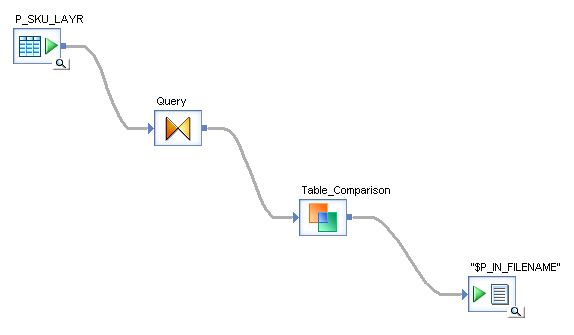
Figure 8
High-level table comparison of data flow
The source table element (top left in Figure 8) has the same performance settings as described for the initialization BODS job. For the query transformation element similar settings are also applied, including the 1:1 transformation for every field from the source table as well as restrictions around data output. This data volume where clause restriction is applied to prevent an extremely high volume of data from being processed in one run, potentially affecting BODS performance due to limitations around server memory and CPUs.
The following configuration steps in Figure 9 are applicable for the new table comparison element:
- Table name: The SAP HANA target table name from which the contents will be compared against the output of the query element. (If you are using the where clause for data parsing within the query element, the target table content should be filtered by the same where clause for valid comparison purposes.)
- Select the Cached comparison table radio button
- Check the Detect deleted row(s) from the comparison table check box
- All the columns from the target table should be added to the Compare columns box, with primary key fields in the Input primary key columns box
- A flat file structure with the same fields as the Schema Out should be set by right-clicking the Schema Out: name and selecting the Create File Format… option
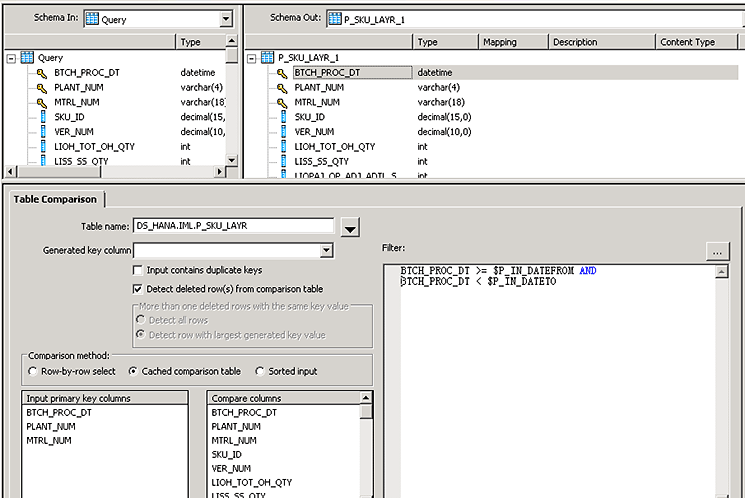
Figure 9
Table comparison main settings
These settings are accessed by double-clicking the Table_Comparison icon in the flow of Figure 8.
Note
The data validation job can continue to operate during the transition
time frame when the reporting legacy system is kept in parallel with SAP
HANA. This would be the case with subsequent delta loads coming from
one transactional source system and updated to both a legacy system and
SAP HANA. In this case, the data restriction at query transformation
would have the where clause in line with the delta parameters such as
time stamp or creation date.
Flat-file settings do not affect the performance of the comparison job and can be set at your discretion. Figure 10 shows a typical result of the comparison job. For the table scenario described in this section the average run time obtained was 1 minute and 40 seconds.
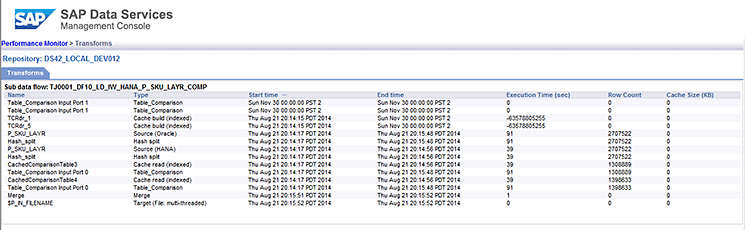
Figure 10
Run time results of the table comparison job
Christian Savelli
Chris Savelli, senior manager at COMERIT, has been dedicated to SAP BI and Analytics projects since 1998. He holds multiple SAP certifications covering HANA, BW and ECC applications and has expertise in managing all aspects of the information creation process, utilizing SAP BI technologies to satisfy strategic, analytical and reporting needs. Chris Savelli started his career at SAP and subsequently held senior level positions at consulting companies Deloitte and Accenture. His education background includes a bachelor of science degree in robotics and a master of science degree in engineering both from the University of Sao Paulo, as well as a post-graduate diploma in business administration from the University of California at Berkeley.
You may contact the author at csavelli@comerit.com.
If you have comments about this article or publication, or would like to submit an article idea, please contact the editor.

Marcos Poles
Marcos Poles, SAP Senior Consultant at COMERIT, has been dedicated to managing and delivering SAP solutions for companies across the globe focused on the integration of SAP ECC, BI, and HANA technologies with other SAP and non-SAP products since 1996. Marcos’s current focus is on the integration of SAP and non-SAP systems with SAP HANA utilizing Business Objects Data Services (BODS) as middleware. Prior to working for COMERIT, Inc., he held an executive level position at Accenture and a senior position at Deloitte consulting. His education background includes a bachelor of science degree in physics and a master of business administration degree in information systems and internet technology, both from the University of Sao Paulo.
You may contact the author at mpoles@comerit.com.
If you have comments about this article or publication, or would like to submit an article idea, please contact the editor.