See how companies are applying the resource planning application (RPA) in SAP CRM to meet the demands of their service delivery process. Learn about its key components, the information you need to maintain to assist in the Resource Scheduling Process, and the selection of resources in conjunction with Microsoft Outlook (groupware) integration.
Key Concept
At the core of the resource planning application (RPA) is a simple matching process. The system provides the user with the ability to match existing service demands with service arrangements maintained for resources. It includes service demand and employee availability, qualification management of employees and the installed base, and assignment selection and scheduling. Groupware integration with Microsoft Outlook for service engineer dispatch allows for immediate feedback about availability from the assigned resource.
Service organizations are quickly becoming a more prominent component of many businesses. In the not so distant past, service was seen as more of a necessity than as a supporting activity, but with today’s product life cycle focus, service organizations are transforming to drive revenue growth. SAP CRM 7.0 provides the resource planning application (RPA) to enable companies to improve their service.
The first three articles in this series have covered the essential core of the Service Management process: Installed Base, Service Contracts, and Service Orders. This part of the series focuses on SAP CRM 7.0 RPA. It is the engine by which the SAP CRM system creates a link between a customer’s service needs and fulfillment of the requested services. RPA is a Web-based application, as opposed to the resource planning tool (RPT) that you could access from SAP GUI in the previous version (SAP CRM 4.0). Companies that leverage RPA have a home base in the system to execute and track the scheduling and dispatch of service resources. As such, it is important for a company to have a good understanding of RPA functions before it can take full advantage of the advanced customization and determination rules of the scheduling process.
Business Drivers for the RPA
The integration of RPA in the service process is the key to increased visibility of employee availability, qualifications, and service demand. With the information provided by the RPA, resource planners can manage employees with more flexibility, making it easier to move away from the model of having dedicated resources for a specific customer. This model can be costly for a company as the employee may not be used onsite when demand is low.
With the resource planning dashboard, resource planners can provide customers with a real-time status of their service order and react quickly to any escalations. The RPA provides tools to allow a business to not only meet the time requirements of the assignment but to also get the appropriate resource on the job in order to better service customers’ requests. From a reporting perspective, the business can analyze, for example, the frequency that a certain qualification is required. It then can use that information to determine which skills are high in demand and plan training and development for employees accordingly. Certification expiration dates can be monitored to prevent a resource from being unavailable for an assignment due to lack of a qualification.
Getting Started with the RPA
To get started with the initial setup of RPA, you need to complete the prerequisite customizing tasks and to install the Workforce Management Server 2.0 add-on in the SAP CRM system. Refer to “Service Resource Planning” on SAP Help for support with the standard configuration. In that reference and in this article you can learn how to define service arrangements such as availability, qualifications, and service areas for your resources, determine resource schedules, and enable automatic notification of assignments to employees via groupware integration.
Once the standard configuration is established you can access the RPA using the standard service professional business role SERVICEPRO. It is necessary to activate the Resource Planning work center SRV-RPA so that it visible on the home page of the service professional. This configuration task can be found in IMG menu path Customer Relationship Management > UI Framework > Business Roles. Activate the work center by removing the check in the Inactive check box for the SRV-RPA work center (Figure 1).
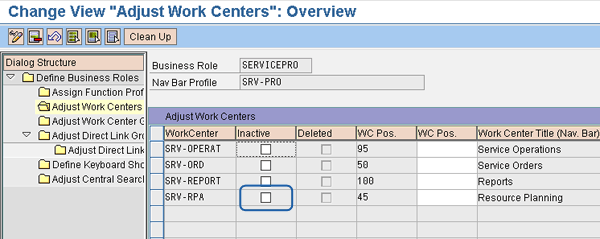
Figure 1
Business Role Work Center Group links for the service professional business role
You can now access the RPA in the CRM WebClient UI in SAP CRM 7.0 by clicking the Resource Planning Work Center on the navigation bar for the SERVICEPRO business role. The Resource Planning work center page appears, click the Resource Planning link in the Search section. The Resource Planner Overview page is displayed (Figure 2). In the RPA, you can view information such as details on the assignments, status, and location of a resource. The RPA makes it possible to quickly make assignments and dispatch the proper resource accordingly. Next, I will explore the key elements and capabilities of the RPA in further detail.

Figure 2
Resource Planner Overview page
Service Demand and Employee Availability
The scheduling process begins outside of the RPA with the creation of a demand in a service order. A demand represents a single unit of work that can be assigned to a service resource. When the service order is created, the customer service representative has the option to mark service order line items as relevant for scheduling. Consider, for example, a service order created for a company in the high tech industry. A customer calls the company with an issue that requires repair service and travel expenses. The travel expense just represents a monetary amount to be entered at the time of the service confirmation. The repair service item, however, is going to require scheduling and a trip to the customer site. As such, the customer service representative flags that particular service order item as relevant for scheduling. From the perspective of the RPA, the repair service item has now become a demand.
Once a demand has been created, it needs to be filled by a resource. The RPA defines a resource as an employee (internal) or service provider (external) for which a service arrangement has been maintained. A service arrangement can be accessed by following the menu path CRM WebClient > Resource Planning work center > Employees search link > Service Arrangement > Service Area (Figure 3). Resources and service arrangements have a one-to-one relationship, as a service arrangement is a collection of service delivery-related attributes for a resource. Availability, service area, and qualifications compose the three primary parts of a resource’s service arrangement.
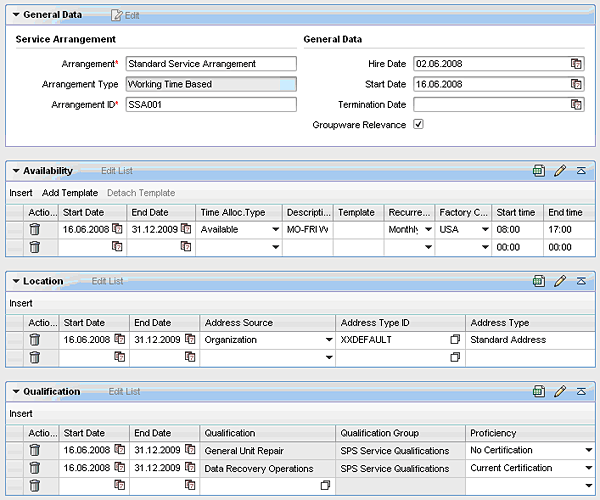
Figure 3
Employee service arrangements
Now that the customer service representative has created a demand, the RPA compares the dates and requirements of the demand to the service arrangements assigned to relevant resources. The repair service demand has a required date and time of completion. This is based on the service contract functionality discussed in a previous article "Drive Service Revenue Through Service Contract Management,” by Priya Natarajan, Dustin Droz, Andrew Caldwell, and Nicolas Galassi and posted to the SAPexperts CRM hub in January 2009. These requirements are met by the availability maintained for the company’s resources. Availability consists of one or more service profiles that have been designated for the resource. A service profile, in turn, delineates the hours and days that a resource is available to work.
In addition to availability, the RPA considers each resource’s service areas. The service area is maintained in the resource’s service arrangement, which can be accessed by menu path CRM WebClient > Resource Planning work center > Employees search link > Service Arrangement assignment block > Service Area assignment block (Figure 4). By default, the service area consists of the postal or zip code and country combinations where a resource is able to work on service demands. Service areas are different from service organizations in that they refer only to a specific geographic location rather than to a service branch within a company.

Figure 4
Maintain the employee service area
You define the service area by following IMG menu path Customer Relationship Management > Workforce Deployment > WFD Server > Business Settings for WFD Server > Resource Settings > Define Service Areas. In Figure 5 a service area is defined for the Manhattan area postal code range.
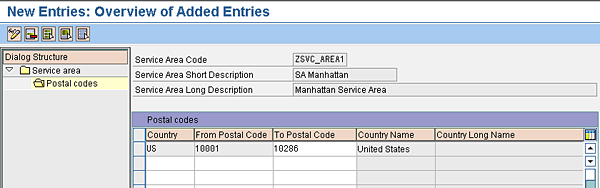
Figure 5
Define the service area
Depending on the nature of a company’s business, the standard definition of a service area may or may not be applicable. The postal/zip code method is best suited for businesses such as satellite television suppliers or appliance manufacturers that sell a high volume of units, which means a single technician is likely to work in a concentrated area. Note that the postal/zip code and country combination can be assigned to only one service area at time. Therefore, service areas need to be broken down so that no conflicts arise. Companies that sell a relatively small volume of large, complex equipment, on the other hand, are much better suited to maintenance and determination of sales areas on a regional basis.
Finally, the RPA matches the resource’s qualifications, which are maintained in the resource’s service arrangement with the qualifications required for the demand. I’ll discuss that next.
Qualification Management
Qualifications are used to track the knowledge, skills, and abilities of an employee. They are typically maintained in SAP CRM in one of three ways:
- Qualifications in SAP ERP HCM — In this scenario, qualifications of an employee are maintained in SAP ERP HCM and can be distributed with the employee to SAP CRM using an Application Link Enabling (ALE) interface. When integrating SAP ERP HCM, the employee qualification data becomes read only in SAP CRM.
- Qualifications from a Learning Management System — If a company uses an in-house learning management system, it can create a custom interface to distribute qualifications to SAP CRM and make them available to maintain employees.
- Qualifications in SAP CRM — Quite often, companies choose to maintain qualifications directly in SAP CRM to eliminate the need for additional interfaces and to take full advantage of SAP CRM’s qualification functionality.
In SAP CRM, employees are associated with relevant qualifications via the service arrangement on their business partner record. Similarly, qualifications can be associated with a product record or specific installed base component. In the case of a product or installed base component, however, any associated qualifications represent the knowledge and skills that a company has deemed as requirements for successfully fulfilling a service order demand involving that product or component.
SAP CRM stores qualifications in a hierarchical structure known as the qualification catalog. You can access a qualification catalog through menu path Customer Relationship Management > Workforce Deployment > Service Resource Planning > Qualification Management > Edit Qualification Catalog (Figure 6). This structure is composed of qualification groups, which are most commonly used to represent branches of qualifications and the qualifications themselves.
To edit the qualification catalog, follow this two-step process. To create a qualification group under the catalog:
Step 1. Place the cursor on the Catalog root node
Step 2. Hit the Create button and the Create Qualification Group pop-up appears
Step 3. Enter a description and select a scale on the Qualification Group tab
Step 4. Navigate to the Proficiencies tab
Step 5. Click the Save button
Then, to create a qualification for the qualification group:
Step 1. Place the cursor on the qualification group
Step 2. Hit the Create button and the Create pop-up appears
Step 3. Select Qualification, click the Enter button, and the Create Qualification pop-up appears
Step 4. Enter the Qualification description and the enter button
Step 5. Save the qualification
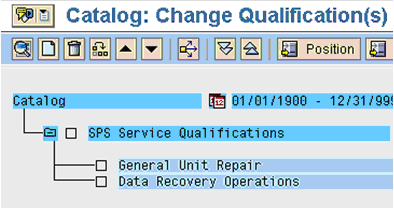
Figure 6
Qualification catalog
Each qualification or group is associated with a proficiency scale. This can be accessed by using transaction SPRO and following IMG menu path Customer Relationship Management > Workforce Deployment > Service Resource Planning > Qualification Management > Maintain Scale (Figure 7). The proficiency scale is a number scale ranging from 1 to 5 that is used to represent qualifications such as certification status or level of ability.
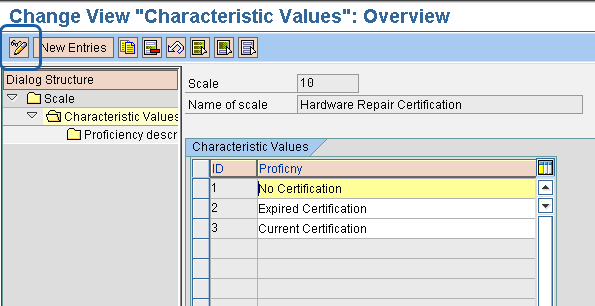
Figure 7
Maintain scales
To maintain the scale, you can follow these steps:
- Click the change icon highlighted in Figure 7 to switch in to change mode
- Click the New Entries button and the Overview of Added Entries screen appears
- Enter a numeric value in the ID field
- Enter a description in the Scale field
- Click the enter icon
- Select the newly created entry and double-click the Characteristic Values folder in the tree structure on the left side of the screen
- The Determine scale type screen appears. Select Quality scale or Quantity scale.
- Enter a numeric value in the ID field. This does not need to match the scale ID entered previously.
- Enter a description in the Proficiency field and save your work
Practical application of the qualification functionality depends on the complexity of your company’s service delivery requirements. A company delivering a high volume of repairs on a relatively uniform set of simple machinery may not wish to match qualifications as criteria for dispatching service resources. If, on the other hand, the company manufactures and services complex medical equipment such as life support systems and MRIs, then it is important that the resource dispatched to perform corrective maintenance on such equipment have the proper qualifications to ensure the work is performed accurately and correctly. Say for example that such a company did receive a service order for a life support system. The installed base record for the life support system would have a set of required qualifications maintained on the record. During the matching process, the RPA would consider those required qualifications and supply a list limited to those resources with the appropriate matching qualifications maintained in their service arrangements as shown in Figure 8. Specific qualifications necessary for the service event can be added to the service order on an ad-hoc basis.
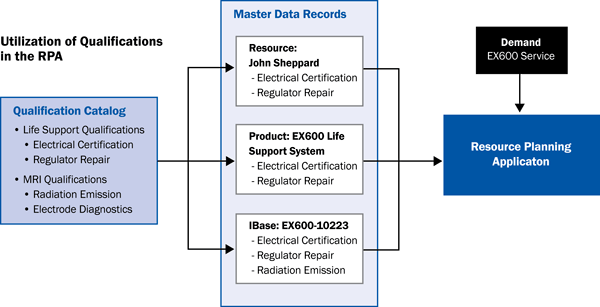
Figure 8
Use of qualifications in the RPA
Assignment Selection and Scheduling
The assignment selection functionality in the RPA provides the resource planner with the ability to manually create an assignment between service demands and resources. To begin this process, the resource planner searches for a demand and resource for matching. The RPA provides the resource planner with the ability to define searches for demands and resources based on different criteria, such as service area, product identification, qualifications, time frame, and maximum distance to travel. This functionality provides the resource planner with the flexibility to define the demands and resources for which they will perform scheduling. From a system administration perspective, authorizations can also be defined to limit which resources and demands the resource planner can schedule.
The RPA has the ability to represent the availability of employees in a way that is transparent and comprehensible to the resource planner. In the RPA, the resource team, which is the result when you search resources, can be displayed in a weekly list view or a Gantt view. The Gantt view serves as a dashboard with its visual representation of resource activities and assignment statuses and is typically preferred by the user. To enable the Gantt view in the RPA access the Resource Planning work center page appears, click the Resource Planning link in the Search section. The Resource Planner Overview page is displayed (Figure 9). Click the Settings link at the top of the screen and the Planning Settings Web Page dialog appears. In the Resource View field, select Gantt chart and then save your work to update the changes to your personalized view settings.
Availability in the Gantt chart is represented by white areas, while gray areas mean the resource is unavailable. Resource assignments are represented by the light grey bar highlighted in the chart. The assignment bar contains the current status of the assignment and indicates whether the resource has accepted, rejected, or completed an assignment. Resource planners can use this to provide a real-time assignment status update to concerned customers calling about their service order.
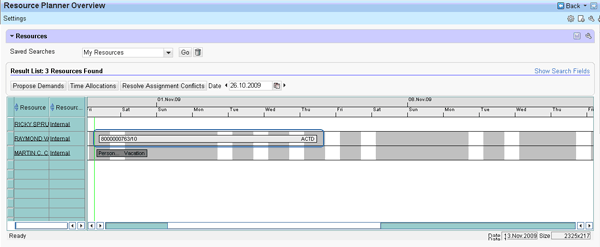
Figure 9
RPA Gantt view of resources
Time allocations, which allow you to define reoccurring absences (e.g., regular meetings or scheduled vacations), are maintained for a resource in the Resource Planning dashboard. Time allocation types determine if the time allocation is recognized as Available or Not Available in the RPA schedule. The time allocation types can be maintained by following IMG menu path Customer Relationship Management > Workforce Deployment > WFD Server > Business Settings for WFD Server > Resource Settings > Define Time Allocation Types (Figure 10).
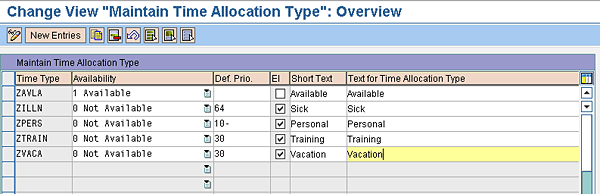
Figure 10
Maintain time allocation types
Once a resource and demand have been selected, the resource planner is ready to create an assignment. This is done by clicking the Create button in the Assignment section in the RPA. You can select multiple demand line items for a single resource. In the background, the RPA checks for existing qualification requirements and time allocations, whether the assignment is within the time capacity of the resource, and if the resource is exceeding his or her overtime limits. A warning message appears if any conflicts arise, and the resource planner can make changes to the schedule accordingly.
Figure 11 illustrates the configuration task for defining the overtime limits that you can access using transaction SPRO and following the IMG menu path Customer Relationship Management > Workforce Deployment > WFD Server > Business Settings for WFD Server > Resource Settings > Define Overtime Limit Profile. In this example, the overtime limit is set to 10%. If a resource is available for 40 hours a week but has been booked on assignments totaling 48 hours (approx 16% more than the available hours), a warning message appears indicating that the overtime limit has been exceeded.
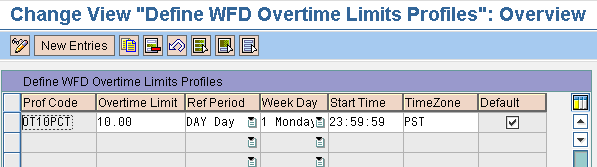
Figure 11
Define overtime limit profiles
If the resource planner does not want to manually search for resources or demands, he or she can use the proposal functionality to help find a suitable match. This functionality can either be used to recommend resources for a specific demand or to recommend demands for a specific resource. I’ll use an example in which the resource planner has already selected a demand and needs to assign resources to it. To use the proposal functionality, he clicks the Propose Resources link in the Service Demands assignment block shown in Figure 2. This brings up a list of all the resources that meet the requirements of the demand.
If one of the requirements of the demand is a certain type of qualification, then only resources that have the qualification would be listed. The proposal functionality also takes several factors into consideration, including the date and times of the demand, availability and time allocations of the resource, and even the maximum distance the resource can travel based on a starting location.
The starting location is maintained on the employee’s service arrangement and can be defined as either the employee’s individual address or the employee’s organization address. The RPA provides the necessary information to not only meet the time requirements of the assignment but to also get the appropriate resource on the job to better service the customer’s requests. The RPA allows companies to move away from the commonly used model of having dedicated resources for a particular customer or site. The RPA makes it possible for a planner to quickly make assignments and dispatch the resource accordingly, eliminating the costly need to keep a resource onsite.
Groupware Integration for the RPA
Once an assignment is created, it is important that the resource be aware of a new task. The integration of groupware provides the ability to synchronize the resource’s entries in the RPA calendar with their Microsoft (MS) Outlook calendar. The groupware integration is an optional feature that enables the transfer of RPA assignment information in the form of a groupware activity such as an appointment or task to the Microsoft Exchange Server. Note that the notification via groupware is only available for resources who are internal employees, not for external service providers. Alternative channels such as phone, text message, and e-mail can be used for external service providers as well as employees. After receiving a groupware activity the employee can make changes or deletions to the groupware activity and updates are transferred back to RPA. Figure 12 illustrates the bi-directional data flow of the groupware activity between SAP CRM RPA and the MS Exchange Server (MS Outlook).
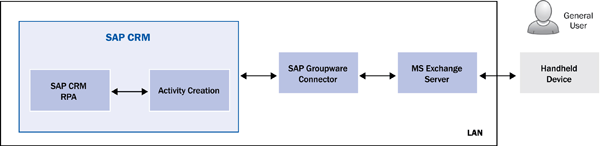
Figure 12
High-level groupware data flow
The notification contains assignment details such as the start and end date, assignment description, creator of the assignment, and resource name and email, all which derive from service order details and employee master data. In some cases, the standard notification is customized to include additional attributes that are specific to the business. Field engineers who spend much of their time in the field and view their calendar appointments using portable devices find it useful to have a complete view of their assignment. If groupware integration is not the preferred option, resources can be notified via manual or automatic (triggered by assignment status) email notification with the assignment details. The text of the email can be defined using SmartForms or mail forms.
Although the RPA helps achieve optimal management of demands and resources, short-term variations in resource availability can occur. For example field engineers can call in sick or a current assignment can been extended longer than expected, preventing them from taking additional assignments. To better manage short-term variations, the groupware functionality allows the resource to provide feedback to the resource planner as to whether or not an assignment can be fulfilled. When a resource receives the notification of the assignment and reviews the details, the resource can either accept or decline the appointment (Figure 13). If the resource declines the invitation, for example, SAP CRM groupware functionality updates the status of the assignment to Rejected in the RPA. With this kind of feedback, the resource planner can promptly re-assign the demand to the next available resource with less risk of compromising the critical nature of the customer’s issue. If groupware integration is not being used, the resource can access RPA dashboard to search for their assignments and manually update the status.
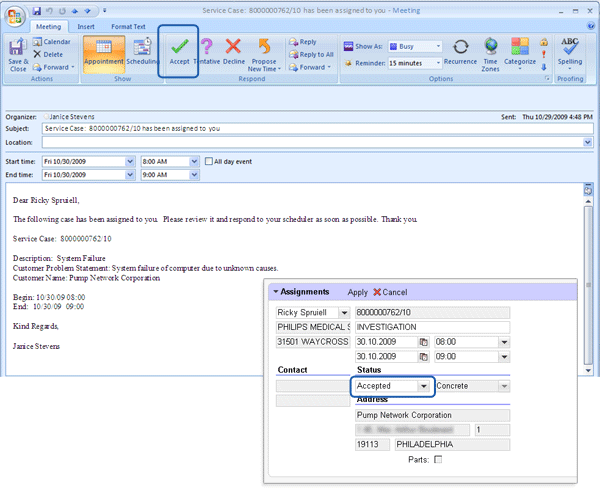
Figure 13
SAP CRM groupware updates RPA assignment status from MS Outlook appointment.
Lorena Ruiz Gilbert
Lorena Ruiz Gilbert is a consultant with BearingPoint’s Commercial Services SAP CRM Practice. Lorena has worked with SAP CRM and assisted in implementations in Field Service and Sales for high tech and environment control industries. She has focused in master data, data migration activities, and CRM WebClient UI configuration. Lorena holds a bachelor of science in business administration from California State University, Chico.
If you have comments about this article or publication, or would like to submit an article idea, please contact the editor.

Doug Hurley
Doug Hurley is a managing director in BearingPoint's Commercial Services practice responsible for the SAP CRM and leads the SAP Solutions Innovation Group. Having more than 13 years of experience delivering management and technology solutions for clients' SAP ERP and SAP CRM business needs, he holds responsibility for SAP and SAP CRM account engagements, assessments, and upgrades. Doug serves as Crestron’s engagement managing director with overall responsibility for supporting its roadmap prioritization and sequencing efforts, SAP ERP upgrade, and SAP CRM 2007 rollout. Doug brings valued experience from several mid-market and large enterprise customers, managing the constant challenge of balancing business enablement and IT delivery expectations.
You may contact the author at doug.hurley@bearingpoint.com.
If you have comments about this article or publication, or would like to submit an article idea, please contact the editor.


 Premium