The R/3 benefits module provides a variety of ways to configure eligibility for benefits plans. Macro-eligibility is determined by the first and second program groups, which prior to Release 4.5 were known as "benefit group" and "benefit status." Micro-eligibility is controlled through eligibility rules. Common criteria such as age, zip code, and number of scheduled hours can be used in eligibility rules, but many companies find that a criterion dictated by their company policy is not available in the configuration. This article explains the implementation of an eligibility rule that combines standard configuration and user exit programming that the author wrote to exactly model a complex company policy.
The R/3 benefits module provides a variety of ways to configure eligibility for benefit plans. Macro-eligibility is determined by the first and second program groups, which prior to Release 4.5 were known as “benefit group” and “benefit status.” Micro-eligibility is controlled through eligibility rules. Common criteria, such as age, zip code, and number of scheduled hours can be used in eligibility rules, but many companies find that a criterion dictated by their company policy is not available in the configuration.
I’ll explain the implementation of an eligibility rule that combines standard configuration and user exit programming that I wrote to exactly model a complex company policy.
A Complex Eligibility Rule
The challenge illustrated in this article involves the optional life insurance plan offered at a company I’ll call Company X. In 1998, the company changed the optional life insurance plan from a flat rate structure (OPT1) to an age-based rate structure (OPT2). It also changed the available options. Company directors decided that employees who were age 50 or older at the time would retain eligibility for the old plan. All employees hired after 01/01/1998, along with employees hired prior to 01/01/1998 who were not 50 years old on 01/01/1998, are eligible for the new plan only.
The eligibility rule modeled in this article is complex but not uncommon. The “divide and assign” approach I’ll show you can be used to automate many complex eligibility scenarios. In the user exit, you collect the required master data information and assign employees to either an “eligible” group or a “not eligible” group. In the configuration for eligibility rules, you assign an impossible rule to the “not eligible” group, thereby making them ineligible. You then configure the standard eligibility rule for the “eligible” group.
How It Works
Company X uses the first and second program groupings to place employees into categories that represent fundamental differences in the suite of benefits offered to them. Figure 1 illustrates the structure. Salaried employees at the headquarters location are offered medical, dental, basic life, and optional life insurance plans. Hourly employees at the headquarters location are offered medical and basic life insurance plans. Salaried employees at the manufacturing location are offered medical, dental, and basic life insurance plans. Hourly employees at the manufacturing location are offered only the medical insurance plan.
One solution to the eligibility problem would be to create a new value for program grouping 1, effectively splitting the salaried group into two. There would be one group for salaried employees who are eligible for the old plan and one for salaried employees who are not. Notice that no hourly employees are eligible for the optional life plan. This solution would have several undesirable side effects. It would create two new benefits program groupings, and the two salaried groups at the manufacturing location would be identical. Fifty percent more work would be required to configure standard selections and benefits programs. A user exit would be required to assign the value of program grouping 1. I’ll disregard this option, because it affects much more than the optional life insurance plan.
The selected solution retains the existing structure for program group 1 and program group 2. The benefits program for salaried employees at headquarters contains both plans OTP1 and OPT2. Eligibility rules are configured to ensure that only the appropriate employees are eligible for plan OPT1. All employees in this benefits program are eligible for plan OPT2.
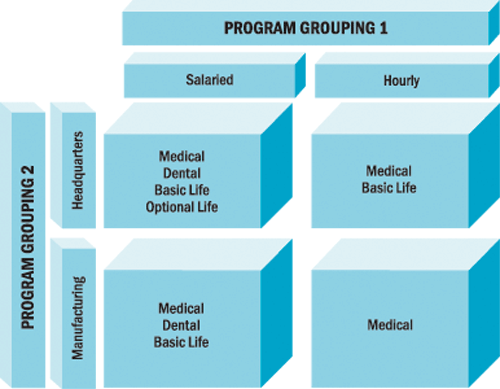
Figure 1
Benefits plan eligibility by program grouping
Solution Part 1: Configuration
Begin the configuration at IMG path Personnel Management>Benefits Administration >Flexible Administration>Programs>Employee Eligibility>Define Eligibility Groupings. This step separates the employees who are eligible for plan OPT1 from those who are not. Create two eligibility groups, as shown in Figure 2. Maintain the Feature ELIGR and assign the Regular eligibility group for all employees. The Grandfathered group cannot be assigned by the feature because Date of hire and Age on 1/1/1998 are not available on the data structure for the feature. For the time being, though, pretend that the feature is able to assign the Grandfathered group to those employees who are eligible for the old plan. Later, I’ll impleent a user exit to make the assignment.
Next, follow IMG path Personnel Management>Benefits Administration>Flexible Administration>Programs>Employee Eligibility>Define Eligibility Variant. Create a variant called GOPT with the description Grandfathered Opt Life. This variant will be used on the grandfathered optional life plan only. Company X’s regular eligibility rule requires a one-month waiting period and is defined in variant 1MTH.
The rules for variant GOPT are configured at IMG path Personnel Management>Benefits Administration>Flexible Administration>Programs>Employee Eligibility>Define Eligibility Rules, as shown in Figures 3 and 4. The GOPT variant contains two rules. The first rule, for employees in the Grandfathered group, specifies immediate eligibility for the plan. The second rule, for everyone else, specifies a minimum planned working time of 99 hours per week. This criterion will always be false (at least at Company X), effectively making everyone in the Regular eligibility grouping ineligible for the plan.
Finally, attach the eligibility variants to the plans at IMG path Personnel Management> Benefits Administration> Flexible Administration>Programs> Define Benefit Programs. Plan OPT1 uses the special GOPT eligibility variant and plan OPT2 uses the standard 1MTH eligibility variant, as shown in Figure 5.
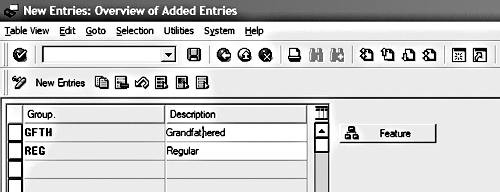
Figure 2
Configuration for table T5UB4 to create two eligibility groups
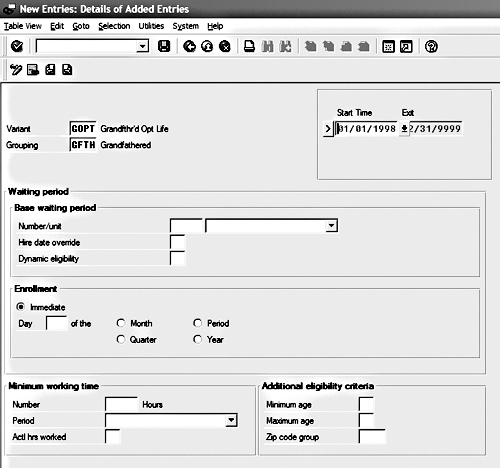
Figure 3
Eligibility rule GOPT group Grandfathered
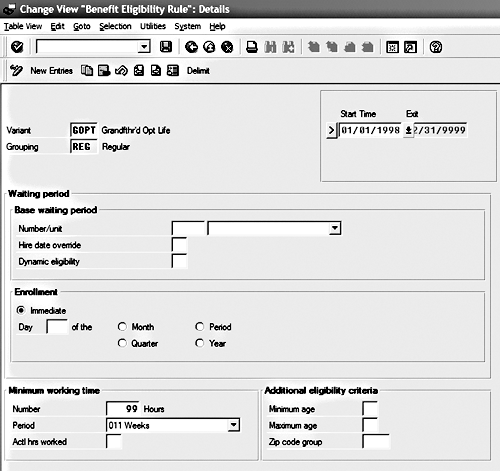
Figure 4
Eligibility rule GOPT group Regular
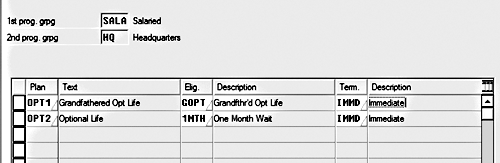
Figure 5
Configuration for table T5UBU showing the special and standard variants
Solution Part 2: User Exit
The configuration part of this solution is based on the principle that each employee is assigned to one of two eligibility groups based on birth date and hire date. The feature ELIGR cannot make this assignment, so you employ a user exit that overrides this feature.
Use transaction SMOD to begin the programming of this user exit. Enter PBEN0006 as the Enhancement, choose Components, and click on Display. The next screen shows Components in SAP Enhancement PBEN0006. Double-click on the name of the function module EXIT_ SAPLHRBEN00FEATURE_006. The source code is displayed, as shown in Figure 6. The IMPORTING parameters are values that are available for use in your own programming. The EXPORTING parameter is the return value for feature ELIGR. The two exceptions allow you to raise an error or defer evaluation to the standard feature.
Next, double-click on the name of the INCLUDE ZXPBEU06. Since this include does not exist, you are prompted to create it. Choose Yes and accept the default attributes for this object. Navigating to the new include in this manner allows R/3 to correctly assign the attributes of the object. The new include does not contain any code. Enter the ABAP code in Figure 7. This program first checks the _BPLAN parameter and raises the standard calculation for all plans other than OPT1. This causes the configured feature definition to be evaluated. Next, the program uses the _PERNR and _BEGDA parameters to look up the employee’s hire date and birth date. Finally, the program assigns the value GFTH for those employees with a hire date before 01/01/1998 who were also more than 50 years old on 01/01/1998.
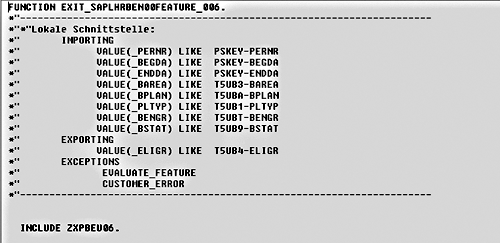
Figure 6
Source code for ELIGR user exit
*———————————————————————————————————*
* INCLUDE ZXPBEU06 - Feature ELIGR *
*———————————————————————————————————*
** Written by: Clay Molinari
** Purpose: Assign ELIGR value GFTH for employees ** hired on or before
** 1/1/1998 who were also age 50 on that date. This ** assignment is only
** done for plan OPT1. The configured ELIGR will ** be assigned
** in all other cases. data: hire_date like sy-datum,
birth_date like sy-datum,
subrc like sy-subrc. data: begin of date_spec,
dar like pa0041-dar01,
dat like pa0041-dat01,
end of date_spec. data: begin of i0002 occurs 2,
include structure p0002,
end of i0002.
data: begin of i0041 occurs 2,
include structure p0041,
end of i0041. if _bplan ne ‘OPT1’.
raise evaluate_feature.
endif. clear: hire_date, birth_date, i0002, i0041.
refresh: i0002, i0041. call function ‘HR_READ_INFOTYPE’
exporting
pernr = _pernr
infty = ‘0041’
begda = _begda
endda = _begda
importing
subrc = subrc
tables
infty_tab = i0041
exceptions
infty_not_found = 1
others = 2. read table i0041 index 1.
do 12 times varying date_spec from i0041-dar01 next i0041-dar02.
if date_spec-dar is initial.
exit.
elseif date_spec-dar = ‘HD’. “ date of hire
hire_date = date_spec-dat.
endif.
enddo. if hire_date is initial. “ hire date is required
raise customer_error.
endif. call function ‘HR_READ_INFOTYPE’
exporting
pernr = _pernr
infty = ‘0002’
begda = _begda
endda = _begda
importing
subrc = subrc
tables
infty_tab = i0002
exceptions
infty_not_found = 1
others = 2. read table i0002 index 1. birth_date = i0002-gbdat.
if birth_date is initial.
or * birth date is required
raise customer_error.
endif. if hire_date < ‘19980101’ and birth_date < ‘19480101’.
_eligr = ‘GFTH’.
else.
_eligr = ‘REG’.
endif.
|
|
| Figure 7 |
ABAP code for ELIGR user exit |
Clay Molinari
Clay Molinari has 20 years of experience in the IT industry and has been working as an SAP HR consultant since 1997. He is currently president of C&C Savant, Inc., an SAP consulting firm that specializes in combining standard SAP configuration and custom ABAP programming to help its clients solve unique or complicated requirements.
You may contact the author at claymolinari@comcast.ne.
If you have comments about this article or publication, or would like to submit an article idea, please contact the editor.