Manager
After you create a business map using Solution Composer, you can use it in SAP Solution Manager to quickly generate a blueprinting document.
Key Concept
Solution Composer is a PC-based tool developed by SAP that assists in the design of business solutions. The tool is available as a free download at the SAP Service Marketplace (https://service.sap.com/s-composer). You can use Solution Composer to design a business map that shows the flow of your company’s business processes. If the standard business maps do not meet your needs, you can customize them.
The blueprinting document is an important source of information for all stakeholders during an SAP implementation. It contains information gathered during workshops such as company requirements, a description of business processes, and a list of what needs to be configured and customized. SAP provides Solution Composer to help with mapping the business process. In many implementations, I have noticed a lot of time being spent in the first few weeks on understanding the business process and creating diagrams to map them. Instead, you can use the business maps delivered in Solution Composer to quickly understand the business process flow in an organization.
I’ll start by walking you through business maps in Solution Composer. Then I’ll show you how to create custom processes in your business map and how you can transfer these processes to SAP Solution Manager. Lastly, you’ll see how to use the business map to create a blueprinting document in SAP Solution Manager.
Note
To perform the steps shown in this article, I used Solution Composer 2.11.14 and SAP Solution Manager 7 SP 16. However, you can develop custom business maps with any version of Solution Composer and upload them to any release of SAP Solution Manager.
The Business Process Value Chain
As I mentioned, Solution Composer has business maps for various business processes. Figure 1 displays a typical recruitment value chain.

Figure 1
Recruitment value chain
If you click the Edit check box on the top left, you can edit the value chain, add a new business scenario or value chain elements, and change the description. In this way, you can customize it to meet your business requirements. Figure 2 shows the tree map structure and terminology in Solution Composer.

Figure 2
The business map structure
I am going to add a new, custom process step to the delivered business map — Requisition Levelling. Once the requisition is created, it is then sent to the compensation analyst for approval. This analyst determines if the salary offered for the particular position is within the salary range mentioned in the job pricing, and if it is on par with what is offered in the overall market. The compensation analyst might also be responsible for determining if the position is within the approved budget. If it is not, then the comp analyst might reject the requisition. I also added the Managing External Recruiting process, which organizations need if they are seeking candidates from outside the company and need to post the requisition on online job boards.
The Managing Internal Recruitment and Employee Career Planning process is included to review resumes of the employees who might be applying to this requisition. If your organization does not encourage employees to search for internal jobs, you can remove this process by deleting it from the business map. The Travel Planning process manages the travel logistics for the candidate when he or she is onsite for the interview.
The Business Blueprint Structure
Now that I have built the business process map in Solution Composer, I will show you how to use it to develop the blueprinting document in SAP Solution Manager. In SAP Solution Manager, use transaction SOLAR01 to display the Business Blueprint Structure screen (Figure 3). If the screen does not display the project you are currently working on, click the other project icon  located at the top of the screen. In the dialog box that appears, select the appropriate project.
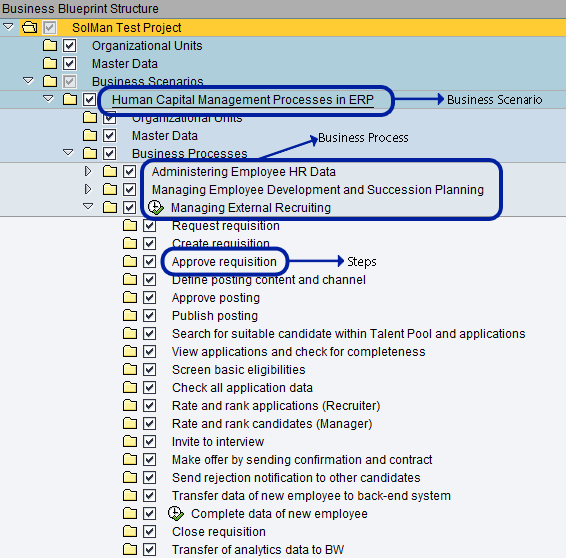
Figure 3
Business Blueprint Structure
Select a business processes node from the tree structure. This displays the processes and the corresponding steps available for this particular project. In the example shown in Figure 3, I highlighted the business scenario (Human Capital Management Processes in ERP) and its business processes.
If you compare Figures 2 and 3 you will notice that the Business Scenarios and Business Processes are similar in each figure. Because they are similar, you can integrate Solution Composer and SAP Solution Manager at both the process and scenario level.
In Figure 2, the business scenario group created in the Solution Composer is ABC Company Recruitment Process. In SAP Solution Manager, you should rename the business scenario shown in Figure 3 so it corresponds to the scenario in Solution Composer. To do this, click Business Scenarios in the tree structure. In the screen that appears, click the Structure tab and rename Human Capital Management Processes in ERP as ABC Company Recruitment Process. Next, I’ll use the business process level as a detailed example of the Solution Composer-SAP Solution Manager integration.
Uploading the Business Process from Solution Composer to SAP Solution Manager
In the Solution Composer business process structure (Figure 2), click Managing External Recruiting. This displays the details of the process as shown in Figure 4.
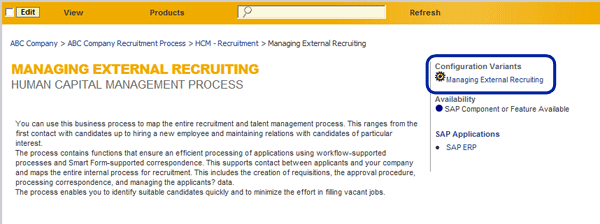
Figure 4
Details of the process Managing External Recruiting
In Figure 4, I highlighted the configuration variants used in the Managing External Recruiting process. Double-click the Configuration Variants link to display the details of the configuration variant (Figure 5).
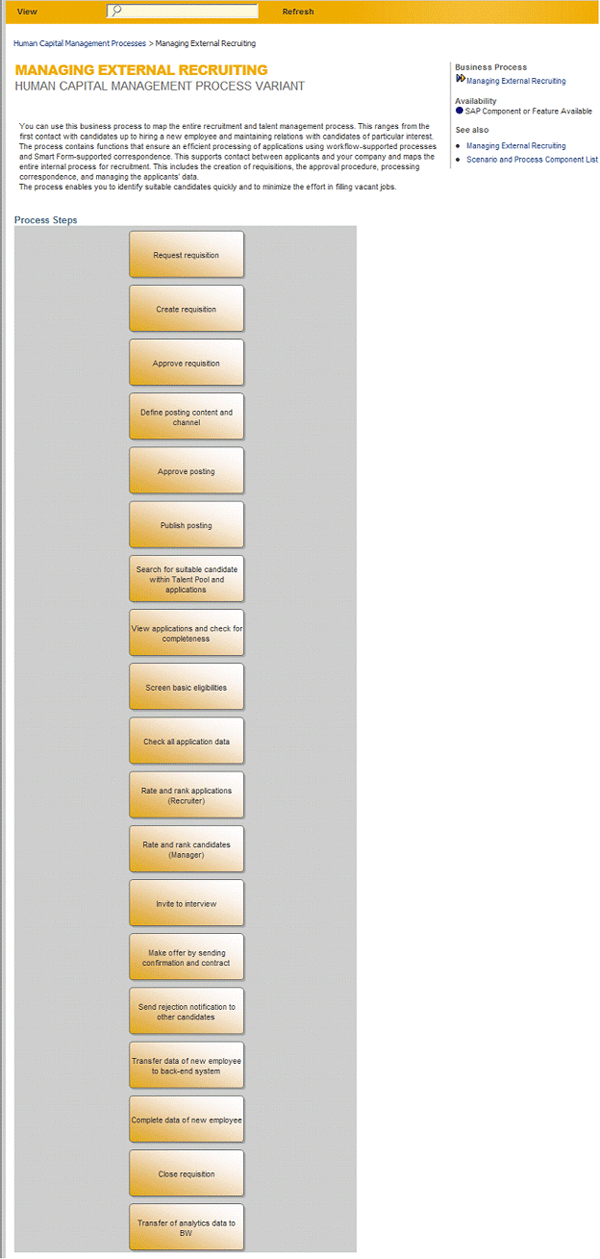
Figure 5
Details of the Managing External Recruiting configuration variant
Compare the details displayed in the configuration variant to the steps included in the Managing External Recruiting process displayed in SAP Solution Manager (Figure 3). If no customization is done to the SAP-standard business maps (in Solution Composer) and in the Business Process Repository (in SAP Solution Manager), then they should be similar. The structure of the configuration variant and the steps in SAP Solution Manager should be similar also.
If you have customized the standard map in Solution Composer, then the corresponding changes should be made in SAP Solution Manager. Normally, the only changes or customizations that are performed are the additions of new process steps. The standard maps reflect the business processes accurately.
The integration of the business map developed using Solution Composer and the Business Process Repository delivered in the SAP Solution Manager occurs at the business process level (Figure 6). This is what both standard and customized solutions should resemble.

Figure 6
The integration of Solution Composer and SAP Solution Manager
As shown in Figure 6, each configuration variant in Solution Composer should be tied to a corresponding step in the Business Process Repository. Now that I have explained the standard process, I will show you how to tie a custom configuration variant into SAP Solution Manager.
Integrating a Custom Business Process
In Figure 2, I included a custom process called Requisition Levelling. In SAP Solution Manager, use transaction code SOLAR01 to display the business blueprint structure screen. In the displayed tree structure, double-click the Business Scenarios node to display Organizational Units, Master Data, and Business Processes. Double-click the Business Processes node to display the business processes screen. As shown in Figure 7, select the Structure tab in SAP Solution Manager to display the processes included in the business scenario.
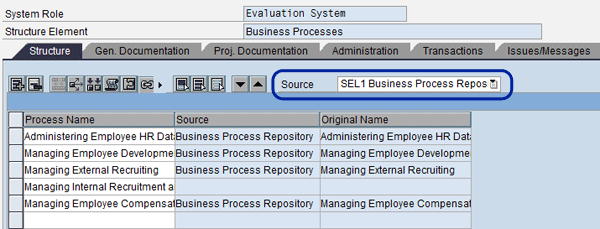
Figure 7
Business Processes screen
Before you create a new process, make sure you select Business Process Repository as the source from the list box. The other options are Solution and Project. To include a new process in the business scenario, enter the name of the new process in the line below the last filled row. If there are no empty rows, click the insert line icon  displayed in the tool bar. In the new line, click the BPR selection help icon
  to display the Business Process Repository Selection Help screen (Figure 8).
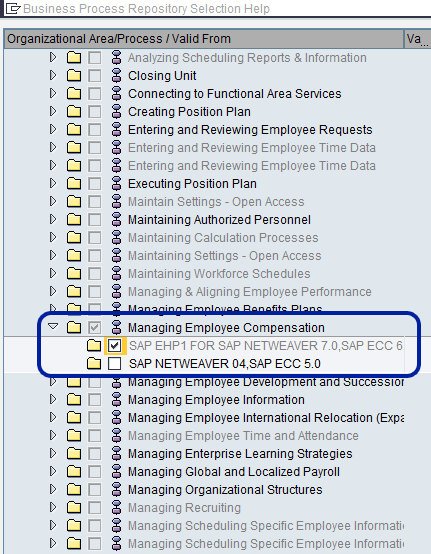
Figure 8
Business Process Repository selection help
In the dialog box, click the Human Capital Management node. From the displayed tree structure, click the Managing Employee Compensation node. In the displayed system, select the system that is relevant to you. If you double-click the system, the process flow for Managing Employee Compensation is displayed on the right side as a graphic. Confirm the selection by clicking the continue icon  .
.
The new Managing Employee Compensation process is now displayed in the Business Processes screen. You should notice the new process being added to the Business Processes tree structure. Click the save icon to save the newly added process.
Note
The Business Process Repository (BPR) is SAP standard implementation content for applications, solutions, and cross-industry solutions in the SAP ERP suite.
Customize the Business Process
Click the newly added Managing Employee Compensation process. This displays the process screen (Figure 9). Among the displayed steps, you require two for my example business process.
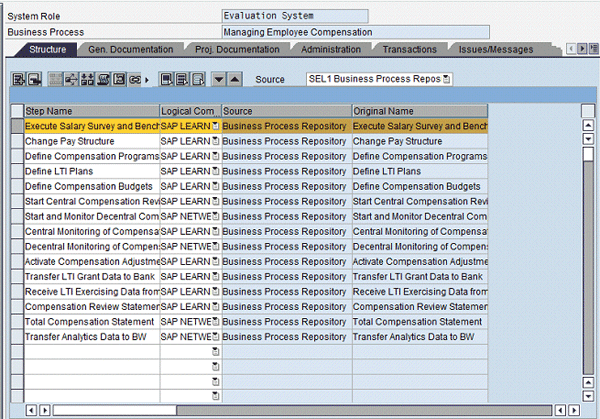
Figure 9
Managing Employee Compensation
They are Execute Salary Survey and Benchmarking and Define Compensation Budgets. You can delete the remaining steps. Highlight the process steps that you wish to delete. Click the delete row icon  . This takes you to the dialog box with the list of the rows selected for deletion (Figure 10). Click the Delete Entries button to confirm the selection and deletion.

Figure 10
Deletion of process steps
Click the save icon to save the process steps. Highlight the row Execute Salary Survey and Benchmarking and click the Gen. Documentation tab to display the link to the Job Pricing document (Figure 11).
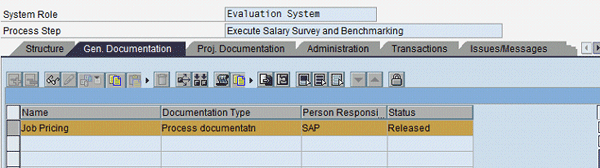
Figure 11
Use the Gen. Documentation tab to obtain job pricing information
You can get the details of the job pricing by clicking the display icon 
 . The system displays the document, which is used by the compensation analyst to determine if the salary offered for the position is within the range of the marketplace and the organization.
Proj. Documentation Tab
You can upload the Solution Composer business map into SAP Solution Manager. Because the business map is saved as an XML file, you can upload it to the SAP Solution Manager repository.
In the tree structure, click the Business Processes node. The details screen is displayed. Click the Proj. Documentation tab and then the insert document icon . In the displayed dialog box (Figure 12), enter the name of the document and click the Upload File button.

Figure 12
Add project documentation
After you have uploaded the document, click the attribute icon  . In the displayed dialog box (Figure 13), check the box for Business Blueprint-Relevant to include the document during blueprinting document generation. Click the save icon
  to save the changes.
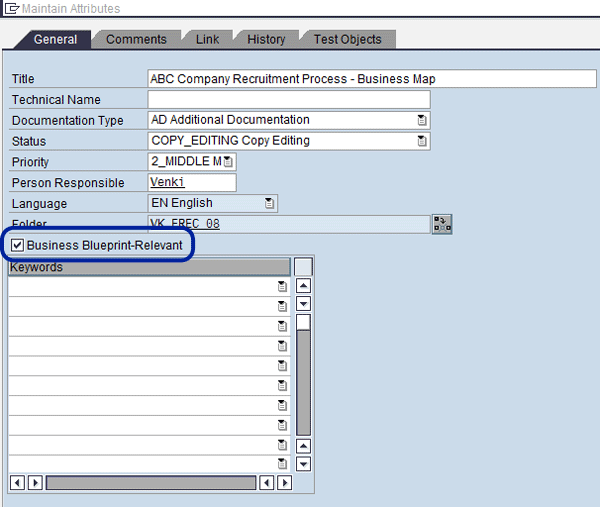
Figure 13
Include the mapping in the blueprinting documentation
Generate the Blueprinting Document
Make sure the business scenario, the processes, and the required steps are checked to be included in the business blueprint. Highlight the step and click the attribute icon . In the displayed dialog box, the Business Blueprint-Relevant box should be checked.
As shown in Figure 14, select the Generate Blueprint Document option from the Business Blueprint menu.
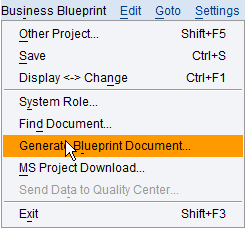
Figure 14
Generate Blueprint Document
In the dialog box that displays, enter the folder where you would like the blueprint document to be generated and downloaded. Enter the other selections as required. Click the execute icon  . You have now generated the blueprinting document.

Venki Krishnamoorthy
Venki Krishnamoorthy is an author, speaker, and SAP ERP HCM talent management solutions subject-matter expert. He is currently an independent SAP ERP HCM functional consultant. Venki has over 10 years of experience as a functional lead, project manager, and program manager in the HCM space. Besides implementing SAP HCM solutions, he has implemented and acted as a trusted advisor on SAP ERP HCM talent management implementations, including E-Recruiting, HCM Performance Management, Succession Planning, SAP Talent Visualization by Nakisa, Learning Solutions, and Employee Self-Service and Manager Self-Services. He is the coauthor of three books: E-Recruiting with SAP ERP HCM, SAP ERP HCM Infotypes: Your Quick Reference to HR Infotypes,
and SAP Transaction Codes: Your Quick Reference to T-Codes in SAP ERP.
You may contact the author at krish.venki1@gmail.com.
If you have comments about this article or publication, or would like to submit an article idea, please contact the editor.




 Premium