Learn how to avoid common errors in defining fiscal weeks when creating them in SAP ERP Central Component and then importing them to SAP Advanced Planning & Optimization. Examine the touch points of using the time bucket of fiscal week for the planning area, planning books, and supply network planning.
Key Concept
You can carry out demand and supply planning in different time buckets, such as calendar weeks, calendar months, or fiscal weeks. Unlike a calendar week, fiscal weeks can start on a day such as Saturday. It is critical to choose the right time bucket because the configuration setting has to remain consistent in the demand planning InfoCubes, planning areas, and planning books. Once you save data in the planning area, you cannot change the time bucket anymore.
With the advent of globalization, the era of central planning and local production has become a reality thanks to technology enablers such as SAP Advanced Planning & Optimization (SAP APO) and SAP ERP Central Component (SAP ECC). Global planners use SAP APO and SAP ECC to consolidate demand and supply across countries and across multiple business units within one country. This not only means that master data must be the same across the business units, but also that the time bucket for planning needs to be the same.
Let me give you an example of what I mean. Suppose all business units in one company need to use calendar weeks to consolidate demand and supply in their Sales & Operation Planning (S&OP) process. However, just like many other firms, they do not use calendar weeks starting on Monday. Instead, they use fiscal weeks starting on a Saturday or Sunday to have 52 or 53 fiscal weeks in a calendar year.
This is a real-life problem not just for my example firm, but for many companies across the globe. Some firms in countries such as India use a fiscal year starting on April 1. Other firms define a fiscal year in SAP ECC using 4-4-5 periods. This means that a year is split into 12 fiscal months and 4 quarters of 13 weeks each. Then each quarter has 4-4-5 weeks in the 1-2-3rd month of each quarter. As a result, using fiscal weeks can be complicated because you need to define fiscal variants and fiscal years into the future.
For example, in SAP APO, you must define the storage bucket profile up to 10 to 20 years in the future. This means that you need to obtain the exact fiscal week dates for 20 years in the future from the Finance department. This is not feasible in some companies that define the fiscal calendar of 52 or 53 weeks only a few years ahead of time. Those companies may need to create dummy entries and will need to delete data for those fiscal years to change them. Another example of a design complication is the business requirement of both the fiscal week and month. That means you need to define two different fiscal variants and aggregate data from one fiscal variant to the other.
Despite the complications of using a fiscal calendar, if your company decides to integrate SAP APO with SAP ECC, you need to have a good fiscal calendar in place. Not only that, but your company must use the same fiscal calendar definition across all applications, such as FI/CO, SAP APO demand planning, and SAP NetWeaver Business Warehouse (SAP NetWeaver BW). It is paramount that all calendars (fiscal, planning, and reporting) be in sync.
When using fiscal weeks, you need to develop a holistic design that includes SAP ECC, demand planning (DP), and supply network planning (SNP) in SAP APO. Because this involves a number of integration points, it is important to understand the end-to-end process to get the design right. Despite the complications, setting up a fiscal calendar doesn’t have to be painful. In this article, I explain the seven steps you need to take to configure the important time buckets parameters in fiscal weeks to operate a global planning system for a painless integration.
Business Scenario
A Fortune 50 chemicals company, ABC Limited, has its headquarters in Germany and operations in Germany, Switzerland, the US, Canada, China, and India. The company uses a single instance of SAP APO for global planning and has two SAP ECC systems — one in Europe and one in North America. The North American SAP ECC system uses SAP ERP Financials, materials management (MM), production planning (PP), and sales and distribution (SD) modules. The company also uses DP, SNP, and production planning/detailed scheduling (PP/DS) in SAP APO.
SAP ERP Financials uses fiscal weeks ranging from Sunday to Saturday. Certain years, such as 2009, have 53 fiscal weeks, but most others have 52 fiscal weeks. To ensure that SAP APO is in sync with SAP ECC, SAP APO imports the fiscal periods from SAP ECC. DP and SNP are also carried out in fiscal weeks. Sales history from SD is aggregated to fiscal weeks and imported to DP for statistical forecasting. An automatic batch job executes consensus demand planning in DP and releases the forecast in fiscal weeks to SNP.
To support this scenario, you must configure SAP APO and SAP ECC systems for fiscal weeks using the following seven steps:
Step 1: Create a fiscal year variant (FYV)
Step 2: Define fiscal years
Step 3: Import the FYV from SAP ECC to SAP APO
Step 4: Create the storage bucket profile and assign it to the planning area
Step 5: Create the planning bucket profiles and assign them to the planning book
Step 6: Check the planning book in DP interactive planning
Step 7: Release the forecast to SNP
Note
The screenprints in this article are based on SAP SCM Release 5.1 and SAP ECC 6.0 systems as of May 2009, but my process applies to earlier and later versions as well.
Step 1. Create an FYV in SAP ECC to define the number of end dates of each period. Use SAP ECC transaction OB29 (Figure 1).Create a new fiscal variant: F1- Test Fiscal Week FYV. I selected the Year-depend… box so that each year can have a different start date for the same fiscal week.
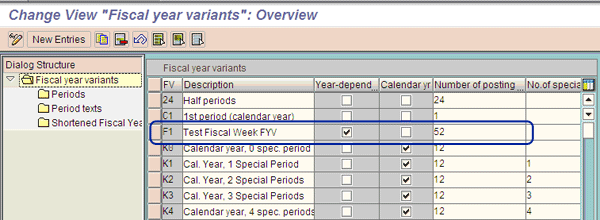
Figure 1
The fiscal year variant maintenance screen
Step 2. Define the fiscal years. Enter the end dates of each fiscal week for all the calendar years needed. The number of years to be defined depends on the historical and future horizon needed in demand planning, e.g., for the historical horizon use 2008-2009 (Figure 2) and for the future horizon use 2010-2011 (Figure 3). The system defines all the fiscal periods from 1 to 52 using the end date of each period. For example, 12/26 (December 26) is the end of period 52/2009. Note that period 01/2010 starts on December 27, which splits between 2009 (December 27 to 31) and 2010 (January 1 and 2). Following this process, configure all the years for the future horizon for use in the storage bucket profile.
Tip!
You need to configure extra years — for example, 2007 or 2012 — so that the system can find the exact date for the start of 2008 or end of 2011. Otherwise, the planning bucket profile does not show you the required past or future horizon in your planning book.
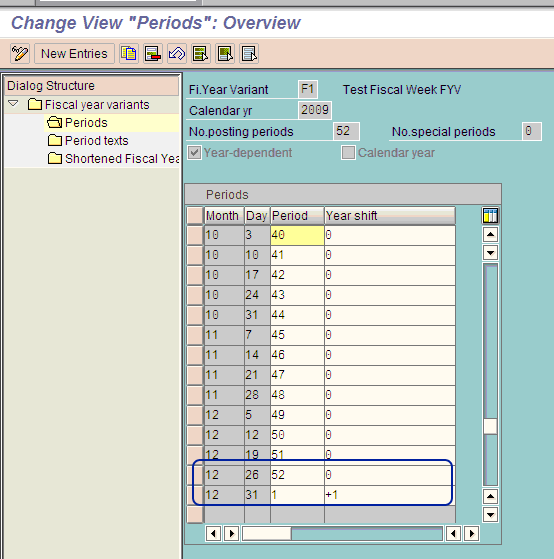
Figure 2
Define fiscal year 2009 and part of period 01/2010
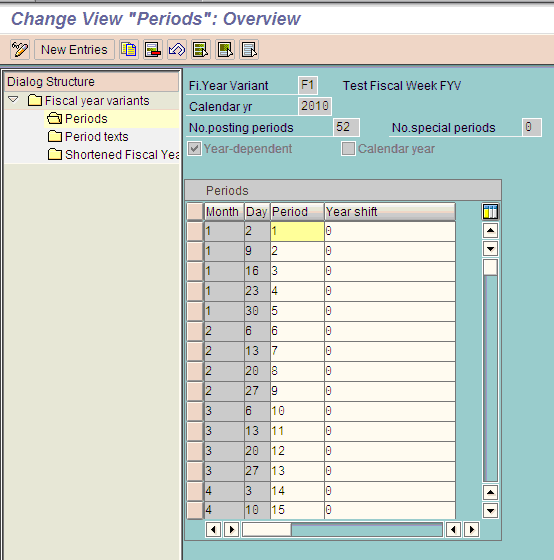
Figure 3
Define fiscal year 2010-2011
A couple of common errors when defining fiscal weeks includes not using the end of the year as 31.12. Always end each year with 31.12 along with the year overlap = +1/-1. Refer to SAP F1 help on how to use the overlap field. Otherwise, SAP ECC creates error message FGV554 (Figure 4). A complete FYV definition contains entries for every day in the calendar year.
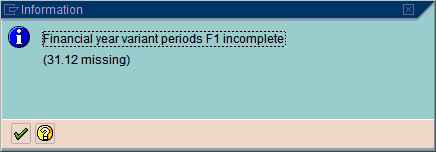
Figure 4
Error message from not using 31.12 to end the fiscal year
Another possible error can occur when you have a different number of fiscal periods in a calendar year (e.g., 52 fiscal weeks in 2010). In exceptional cases such as this, you can use the shortened FYV. In the Dialog Structure shown in Figure 3, click the Shortened Fiscal Year variant folder. Here you can define a global setting of 53 periods for all years, but set 52 periods for 2010. It is important to note that you need to select the Year-dependent check box so that you can have different periods in each fiscal year (Figure 5). This should have been done in step 1 and should now appear checked, and the box should be grayed out.
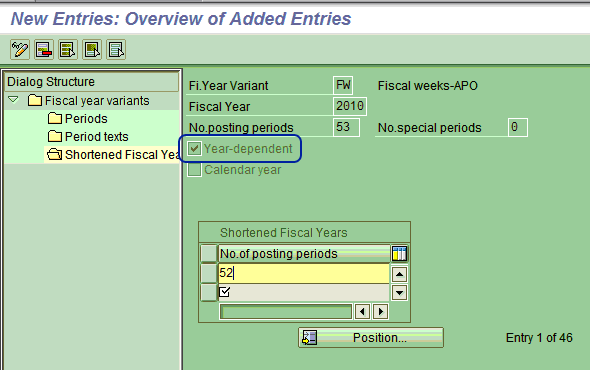
Figure 5
Use the shortened fiscal year variant for years with only 52 weeks
Step 3. Import the FYV from SAP ECC to SAP APO. In SAP APO, go to the Data Warehousing Workbench by following menu path Advanced Planning and Optimization > Demand Planning > Environment > Data Warehousing Workbench or use transaction RSA1.
Select Source Systems from the Modeling pane on the left. Expand the SAP folder and choose the SAP ECC source system. Right-click and select Transfer Global Settings from the context menu (Figure 6).
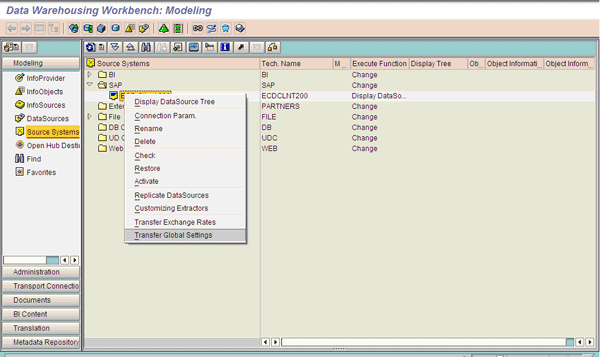
Figure 6
Import the FYV using transactions in the Data Warehousing Workbench
SAP APO can import different global settings such as unit of measure (UoM), FYV, or factory calendar. You can import these settings in either simulation mode or update tables. Initial import of FYV is done using the rebuild tables option. Use the Update tables option after completing initial imports so that the system only updates new data (Figure 7). When you press F8, the system triggers the automatic import of the global settings and extracts fiscal year variant data in tables such as T009, T009B, and T009C (Figure 8).
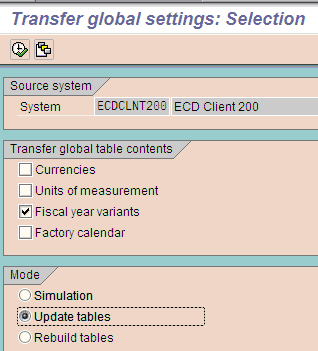
Figure 7
Choose the global settings Fiscal year variants and select Update tables
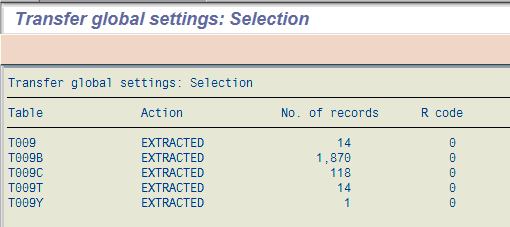
Figure 8
Tables imported into SAP APO for the FYV global settings
Step 4. Create the storage bucket profile and assign it to a planning area. DP will store all the data in the planning area in liveCache time series using the storage bucket profile. I will now use the fiscal variant F1 imported before to create the storage bucket profile. First, go to the storage bucket profile screen in SAP APO by following menu path Advanced Planning and Optimization > Demand Planning > Environment > Current Settings > Periodicities for Planning Area or use transaction SAPAPO/TR32 (Figure 9).
Tip!
The storage bucket profile defines the lowest level at which a planning area can store data. Sometimes there is a business requirement to store data in both fiscal weeks and days. This affects hardware sizing and you need to choose both the PostPeriod and Day check boxes in the profile in Figure 9. When you choose Day to split a fiscal week further, it multiplies your records by seven times.
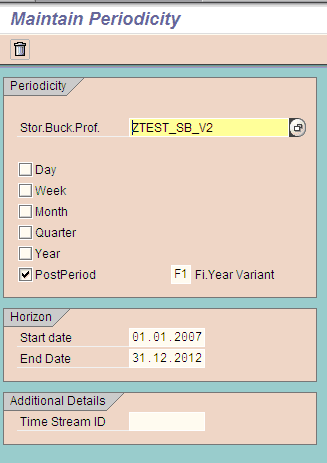
Figure 9
Define the storage bucket profile for fiscal periods
Next, assign the storage bucket profile to the planning area. Go to the planning area screen in SAP APO by following menu path Advanced Planning and Optimization > Demand Planning > Environment > Administration of Demand Planning and Supply Network Planning or use transaction SAPAPO/MSDP_ADMIN. I have assigned the storage bucket profile ZTEST_SB_V2 to the planning area ZTEST_PA_V2 so that the data is stored using the fiscal variant F1 defined before. In addition to the storage bucket profile, you can also assign the UoM and base currency such as USD or CAD for the planning area as the North American business unit. (Figure 10).
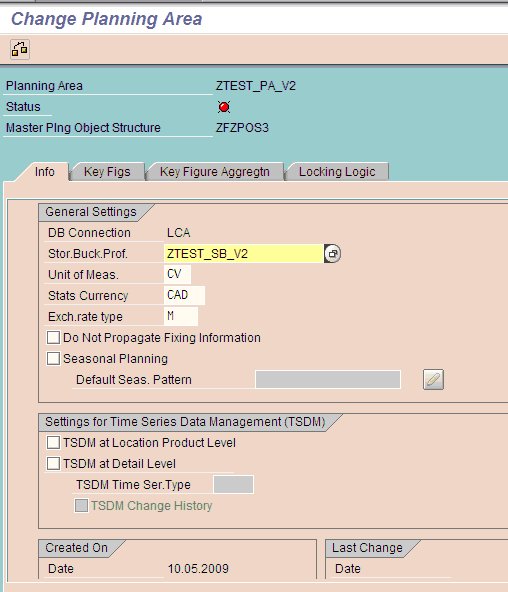
Figure 10
Define the planning area
Step 5. Create the time bucket profiles and assign them to the planning book. Go to the planning bucket profile screen in SAP APO by following menu path Advanced Planning and Optimization > Demand Planning > Environment > Current Settings > Maintain Time Buckets Profile or use transaction SAPAPO/TR30. I plan to use 104 weeks of history, so I need a historical time bucket profile of 104 weeks using FYV F1. I created two time bucket profiles: ZTEST_PB_V2 to store 104 weeks history and ZTEST_PB_V1 to store the 52 weeks of future forecast. I have used a periodicity of posting periods-P using the fiscal variant F1 so that I can display my planning books in fiscal weeks. The number 104 specifies that I will display 104 weeks of history in the planning book (Figure 11).
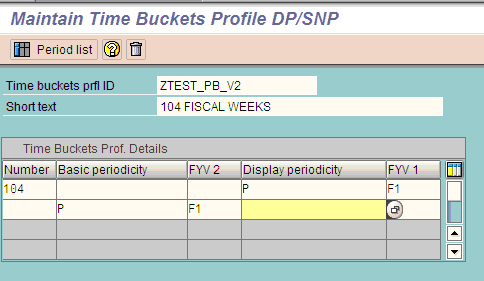
Figure 11
Define the time bucket profile
After you create the time bucket profile, assign it to the planning book. Go to the planning book screen in SAP APO by following menu path Advanced Planning and Optimization > Demand Planning > Environment > Define Planning book from SAP APO or use transaction SAPAPO/ SDP8B. Enter the name of the data view as Z_TEST_V2 and the description as TEST PLANNING DATA VIEW . Then go to the TB Profile ID (Future) and TB Profile ID (Past) fields to enter the two time bucket profiles you created earlier: ZTEST_PB_V2 and ZTEST_PB_V1 (Figure 12).
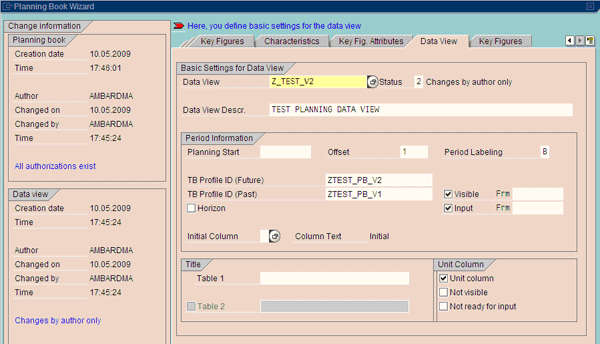
Figure 12
Define the planning book
I would like to have my history visible and changeable from 104 weeks in the past. Thus, if the current month is May 2009, I would like to see history from May 2007. Select the Visible and Input check boxes and press F4 within the Frm field to select the fiscal week. The system displays the available fiscal periods with the start dates of the fiscal weeks (Figure 13).
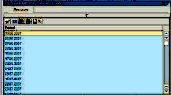
Figure 13
Select the fiscal week for the time bucket profile
Step 6. Check the planning book in DP interactive planning. Follow menu path Advanced Planning and Optimization > Demand Planning > Planning > Interactive Demand Planning or use transaction SAPAPO/ SDP94. Choose the planning book Z_TEST_V2 and review the time buckets used to display the forecast data (Figure 14). In this example, I started with a FYV F1 for 2009 with fiscal weeks starting on Sundays. Thus, interactive planning displays the planning book in fiscal weeks with start dates on Sundays (e.g., 17.05.2009) and projects 52 weeks into the future. The demand planner can enter his forecast in the planning book based on the S&OP process. The finalized forecast is sent to the supply planner who uses the SNP module of SAP APO.
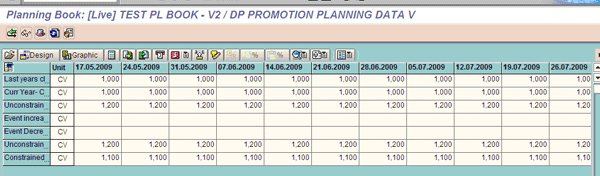
Figure 14
Check interactive planning for fiscal week start dates
Step 7. Release the forecast to the SNP. Follow menu path Advanced Planning and Optimization > Demand Planning > Release > Release Demand Planning to Supply Network Planning or use transaction /SAPAPO/MC90 (Figure 15). Enter the Planning Area and Horizon dates. Then click the execute icon to release the forecast in fiscal weeks to SNP for the 52 weeks of future horizon.
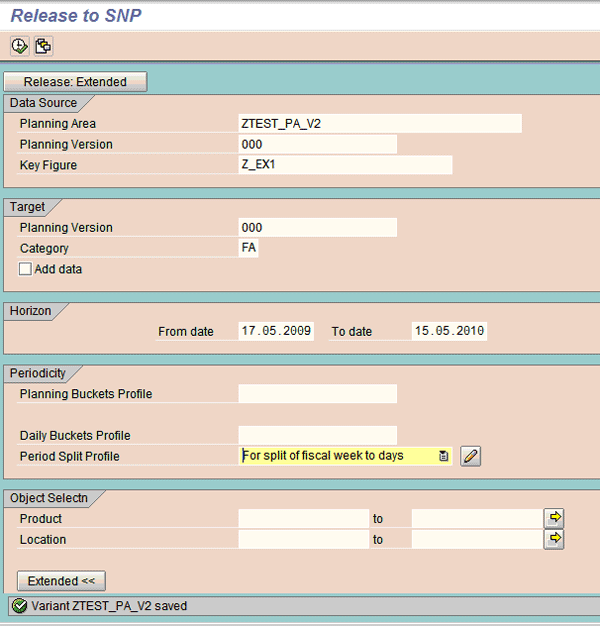
Figure 15
Release forecast to SNP from the DP planning area
You can also split the weekly forecast to calendar days during the release from DP to SNP. I have done this by specifying a period split profile to be used during the release. I have created the period split profile: ZTEST_PS_V2 using transaction /SAPAPO/ SDP_SPLIT (Maintain Period Split Profile). The starting periodicity of Posting Period and Target Periodicity of Day is used to split the forecast (Figure 16). When creating the period split profile: ZTEST_PS_V2, I have specified a distribution function ZDP_DISTFN1 that is used to define the split using percentages. Enter the percentages so that the system splits the fiscal week as 20% on days 1 through 3 and 10% on days 4 through 7 (Figure 17). This enables SNP to split the forecast into daily buckets using the distribution function without DP having to use a time bucket of days.
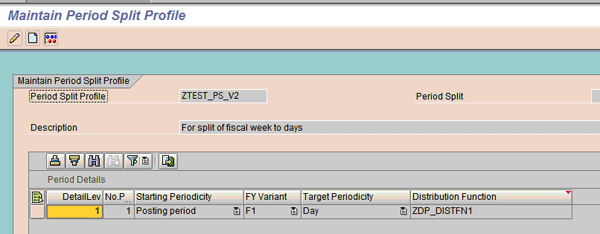
Figure 16
Period Split Profile with starting and target periodicity
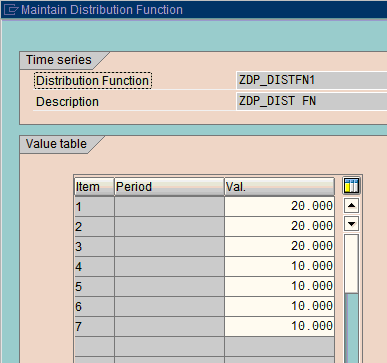
Figure 17
Specify percentages for the distribution function
After the forecast is released, SNP creates stock transfers or planned orders to meet the forecast. This is done using different SNP planning methods such as heuristics or optimizer. The stock transfer requisitions can move inventory from one distribution center to another. If there is a shortfall of inventory, the planned orders recommend producing the product and the production planning cycle takes over.

Manoj Ambardekar
Manoj Ambardekar has more than 20 years of IT and manufacturing experience with firms such as IBM, Infosys, PricewaterhouseCoopers, and Siemens Information in the CPG, brewing, and process industries. He has more than 14 years of experience with SAP APO and SAP ECC with specialization in logistics. He has played multiple roles as functional and technical lead as well as project manager. He has implemented SAP applications at more than 12 large- and medium-sized projects since 1998. Manoj is a chemical engineer certified in production and inventory management (CPIM) from APICS – USA, and holds a master’s of engineering (industrial) degree from B.I.T.S. in Pilani, India. Manoj works on both large and SME clients to implement SAP as both a configuration SME in APO/ECC PP-MM/Solution Manager and project manager/team lead. He specializes in supply chain management solutions using software such as SAP APO, SAP SCM, SAP ECC, SAP Solution Manager, and business intelligence for North American clients.
You may contact the author at manoj_bits@yahoo.com.
If you have comments about this article or publication, or would like to submit an article idea, please contact the editor.