Straight from the field, learn about seven features in SAP BusinessObjects Analysis, edition for OLAP that are prompting companies to transition from ad-hoc analysis in SAP BEx to Analysis.
Key Concept
The BusinessObjects Analysis product line includes Analysis, edition for Microsoft Office and Analysis, edition for OLAP (formerly known as Voyager). They are considered premium alternatives to the SAP BEx Analyzer and BEx Web Analyzer, respectively. Analysis, edition for OLAP retains a lot of the analytical power of BEx and significantly enhances the end-user experience.
I have worked with companies and have spoken with people there who have implemented SAP BusinessObjects 4.0 and now can take advantage of its improved analytic tools. They either have migrated or are in the process of migrating from SAP BEx to BusinessObjects Analysis, edition for OLAP or edition for Microsoft Office. With the increasing adoption of BI 4.0 either in the form of upgrades from previous BusinessObjects versions or fresh installs, users now face an enviable problem: They have a wider selection of reporting and analytical tools from which to choose. In particular, those transitioning from the BEx world to the BusinessObjects world are finding user-friendly tools. Among those tools, SAP BusinessObjects Analysis, edition for OLAP is a popular choice.
I’d like share information directly from the field with you. This includes a summary of input and feedback from companies that have very recently migrated to Analysis about the primary reasons for their migration. Note that this input is based on initial use while companies are just becoming familiar with the functionality. I also give you hands-on examples of how companies are using features that they find helpful.
Why Companies Adopt Analysis, Edition for OLAP
Here are seven primary reasons users opt for Analysis, edition for OLAP:
Reason 1 — It has a zero footprint. You do not need to install anything on your client machine. You don’t need to install an SAP NetWeaver BW graphical user interface or keep your front-end patches updated.
Reason 2 — It can be used off BEx queries. If you use SAP NetWeaver BW in general and BEx in particular, you can use Analysis, edition for OLAP as an analysis tool directly off BEx queries without having to do any redesigning or migration.
Reason 3 — It makes sharing your reports and query results easy. There was an initial concern that workbooks — a widely used and almost indispensable feature in Microsoft Excel and BEx — would vanish with Analysis. They haven’t. By using Analysis views, you can save the results of your analysis.
Reason 4 — Analysis, edition for OLAP makes connecting to other data sources a simple task requiring minimal IT support. This includes the ability to connect to an existing SAP NetWeaver BW query. Let me illustrate how easy it is to connect to a data source, including a specific InfoCube or an existing BEx query.
Let’s say you want to connect to an existing BW query in one of your BW systems. Launch the BusinessObjects BI Launch Pad and run Analysis, edition for OLAP. You now need to identify and access the BW query. To do so, click the connect to a data source icon  (Figure 1).
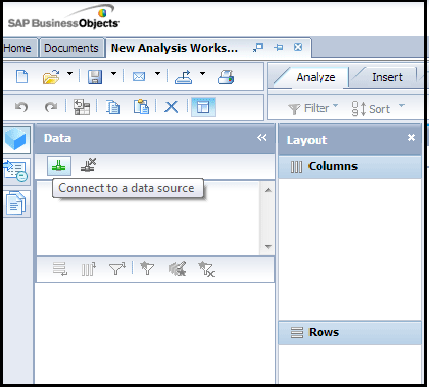
Figure 1
Connect to a data source
This brings up the data source selection panel. Assuming that a connection to your BW system had already been set up by the system’s administrator, you can see all the activated and custom InfoAreas from which you can select an existing query (Figure 2). From a technical standpoint, this connection to a BEx query is through the BI Consumer Services (BICS) connector and is seamless to the end user.
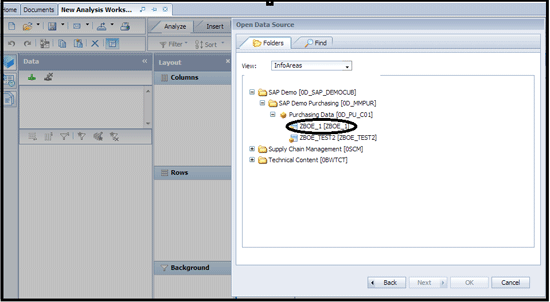
Figure 2
Select a query upon connecting to the SAP NetWeaver BW system
For this example, let’s select query ZBOE_1 in the purchasing (materials management) area. As soon as you do that, Analysis defaults in an aggregated view of the result set as shown in Figure 3.
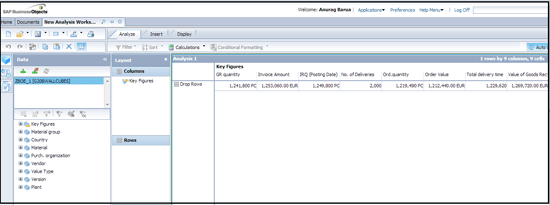
Figure 3
Query results in Analysis
Reason 5 — Exporting the query results to a PDF file for distribution and printing is easy (Figure 4). Analysis provides an intuitive way to push the output to a PDF file. It may sound trivial, but some users have told me that they like the fact that the print to PDF icon  is available on the main menu.

Figure 4
Print and export query results to a PDF document
The print-to-PDF function is not specific to Analysis, edition for OLAP, but instead is a feature of the BI launch pad’s user interface.
Reason 6 — Creating new fields and new formulas is intuitive. The BEx restricted and calculated key figures and formulas are valuable to your query, but, at the same time, they require a good understanding of these components. They entail a learning curve for people who are new to BEx. Users who have recently migrated to Analysis, edition for OLAP have emphasized to me how conveniently they are able to carry out custom calculations.
As an example, consider the following business need: An analyst wants to see the difference between the ordered quantity in a purchase order and the goods receipt quantity. Let’s see how easy it is to do this. Place your cursor on the Total delivery time column and right-click to generate the context menu. Choose Custom calculation and then New (Figure 5). Adding new fields that display the results of custom calculations is the essence of Analysis. It also mitigates the tendency among some analysts to download the results of a BEx query into an Excel spreadsheet and perform calculations there. Presumably, such Excel-based calculations result from the inconvenience of using restricted and calculated key figures in BEx.
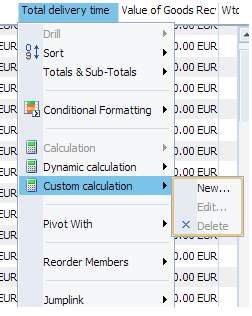
Figure 5
Add a new calculation field
Once you choose to add a new calculation field, a calculation creation screen pops up (Figure 6).
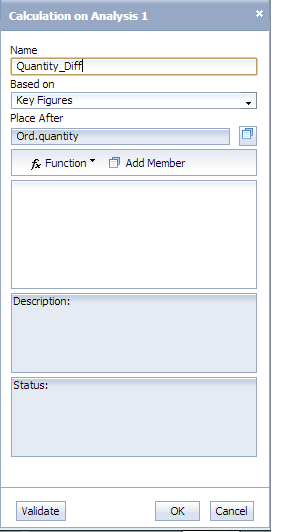
Figure 6
Create a calculation
For this example, name the field Quantity_Diff and accept the default selection for the Place After field. Now let’s add the operators and the operands. To select an operand, click the Add Member button. This generates another pop-up that lets you select members on the right (Figure 7). For this example, select Ord. quantity.
Next, click the Function button. Select the desired operator, enter subtraction, and select GR quantity. This presents you with a function for:
‘Ord.quantity’ – ‘GR quantity’
Click the Validate button to perform a syntax check, which in this example passes (you see the status message “Expression is valid” in the calculation box). Finally, click OK. Because this example is for illustration purposes, I do not include a description, but I encourage you to do this so that other people understand the calculation.
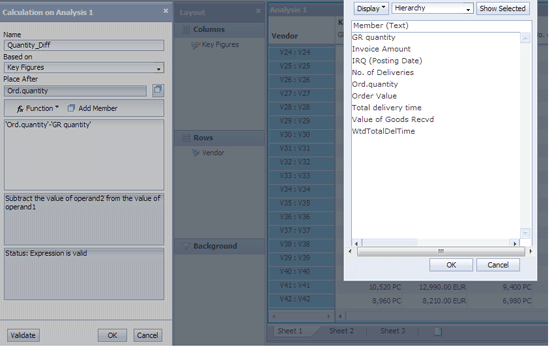
Figure 7
Select fields, operands, and operation
The new Quantity_Diff column is now added to the query results next to the Ord.quantity column (Figure 8).
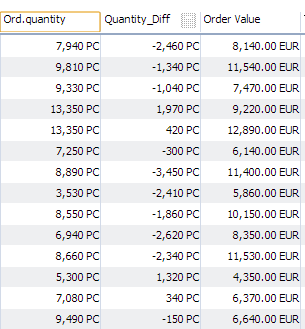
Figure 8
Query results with an additional field
Reason 7 — It is easy to create alerts and exceptions. Generally, BEx users have commented favorably on the ease of creating alerts and exceptions using conditional formatting. One business user at a large SAP customer said she thinks that conditional formatting in Analysis, edition for OLAP is “alert and exception creation at its convenient best.” Let’s review a simple example with a sample report. Suppose you want to highlight those records with invoice amounts greater than 10,000 Euros. First, click the Conditional Formatting button in the top menu. Doing so opens a window on the left, in which you set your exception threshold Figure 9.
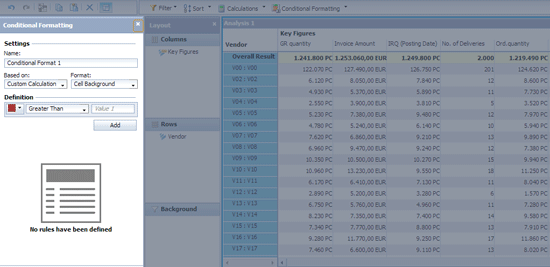
Figure 9
Select Conditional Formatting
Give the condition a descriptive name. Choose the appropriate field on which this condition is based from the Based on drop-down menu. In this case, it is Invoice Amount. You can select from three options in the Format field: Cell Background, Value, and Symbol. You can test the effect of each of these options, but for this example, I prefer the Cell Background. Next, define the condition by choosing the color, the operator (in this case it is Greater Than), and the threshold. Click the Add button when you are done (Figure 10).
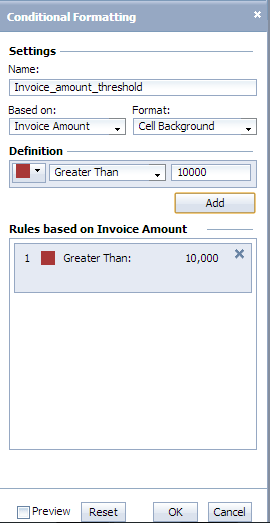
Figure 10
Set an exception threshold
The final step in activating this condition is to click OK. Figure 11 displays a partial screenprint of the query results.
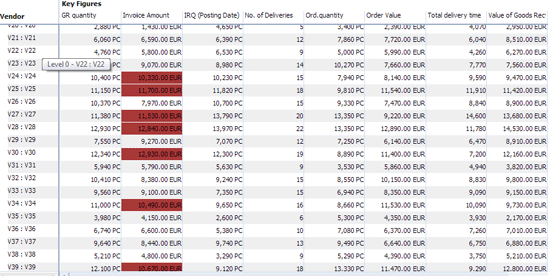
Figure 11
Query results with the exceptions highlighted
BEx users have given me feedback that Analysis for OLAP provides good support for hierarchy reporting and analyses. They also note that it provides the ability to query on a diverse set of data and then save it as Analysis views. Users can then go back to an Analysis view and continue with the analysis from where they left off. It also helps users share their views with other users, thereby preventing unnecessary duplication of effort.
Anurag Barua
Anurag Barua is an independent SAP advisor. He has 23 years of experience in conceiving, designing, managing, and implementing complex software solutions, including more than 17 years of experience with SAP applications. He has been associated with several SAP implementations in various capacities. His core SAP competencies include FI and Controlling FI/CO, logistics, SAP BW, SAP BusinessObjects, Enterprise Performance Management, SAP Solution Manager, Governance, Risk, and Compliance (GRC), and project management. He is a frequent speaker at SAPinsider conferences and contributes to several publications. He holds a BS in computer science and an MBA in finance. He is a PMI-certified PMP, a Certified Scrum Master (CSM), and is ITIL V3F certified.
You may contact the author at Anurag.barua@gmail.com.
If you have comments about this article or publication, or would like to submit an article idea, please contact the editor.





