To develop nimble dashboards that adapt to the requirements of multiple users, you need complex script commands. Find out how you can combine the new standard script commands in Web Application Designer 7.0 to create these adaptable dashboards more easily.
Key Concept
Web Application Designer 7.0 comes with standard script commands that can perform a variety of tasks such as open variable dialogue, clear selection state, and set template properties. The commands are broadly classified into four groups: data provider, planning applications, Web items, and Web templates. These groups help you locate the appropriate commands for your task.
Dashboards are the most popular type of visualization technique that major corporations use to monitor the health of business across business units, segments, and geographies. However, dashboards often pose challenges for companies because of limited flexibility and navigation capabilities. Web Application Designer (Web AD) 3.X had limited script command capabilities, so it was tedious to create interactive dashboards. The script commands were primarily inline scripting and users applied URL appends to achieve the desired functionality.
Web AD 7.0 provides standard script commands to make it easier to create dashboards. In this version, script commands are individually generated scripts from the script wizard that the system sends automatically to the server for execution. You can combine these standard script commands to further enhance your dashboards.
For example, the Wonderful Company has an accounts receivable dashboard with two KPIs: total working capital and daily sales outstanding. The executives prefer that the default view for each KPI always show the overall company level. The executives can then use filters to view specific business units. To achieve this when executives switch between the two KPIs, you need to combine two of the standard script commands. After you select the script commands you want to combine, you can quickly set up the dashboard default view with just five steps.
How the Script Commands Work
To find the standard script commands, follow Web AD menu path Navigation ? Script Item ? Web Item Parameter ? Edit Script ? Create from Wizard ? All Commands. Open Web AD and drag and drop the script item from the Miscellaneous group. Click the Script button to open the Edit Script window. Then click the Create with Wizard button to open the pre-delivered scripts (Figure 1). Click the All Commands tab to view the script command groups, and then expand them to see the related commands for each group (Figure 2).
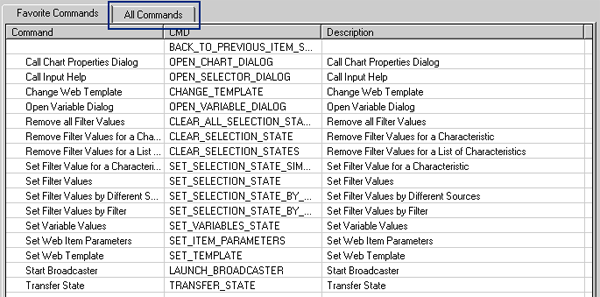
Figure 1
The set of available commands using the wizard
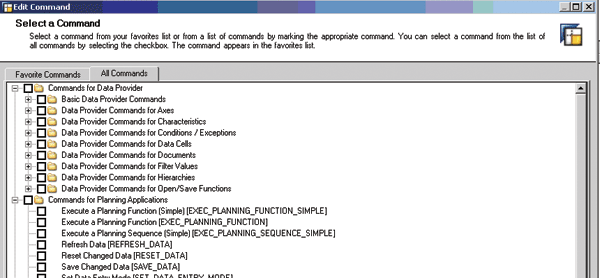
Figure 2
Expanded command groups
The system generates JavaScript code based on these script commands. Figure 3 shows a sample JavaScript code, which has the following key structural elements:
- Declaration
- Parameter setting and command encapsulation
- Sending command to the server for page refresh
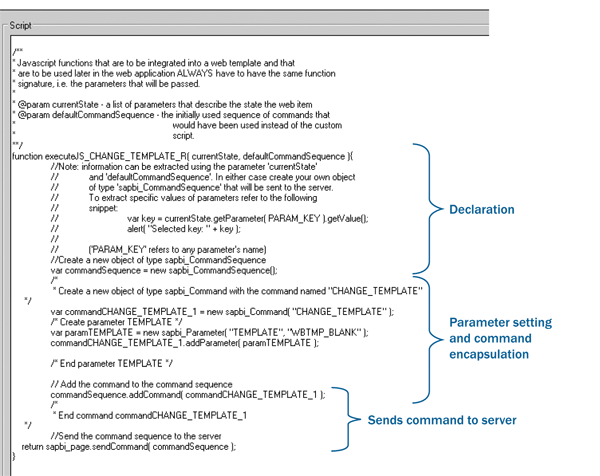
Figure 3
Areas of the JavaScript function
Business Scenario
Figure 4 shows the accounts receivable dashboard for the Wonderful Company. When the user double-clicks Total Working Capital, the dashboard resets the variable selections and loads the rolling 12-month graph for this KPI (Figure 5).
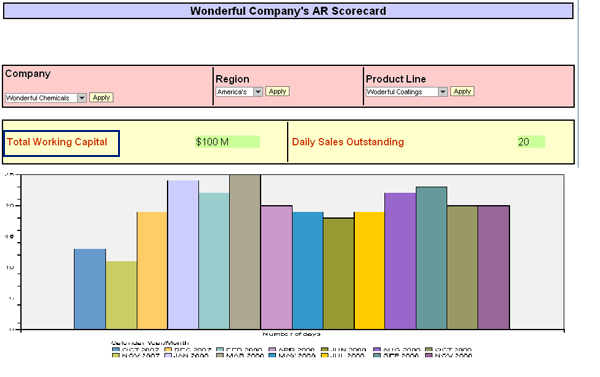
Figure 4
The Wonderful Company's accounts receivable dashboard
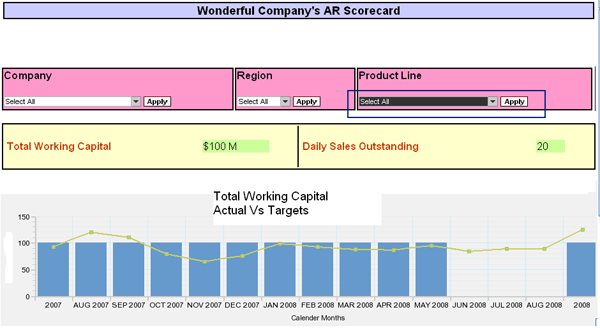
Figure 5
The output graph for Total Working Capital with selections reset to Select All
In our example, we combined two commands to ensure that the full company view is always the default view:
- Set Web Item Parameters [SET_ITEM_PARAMETERS]: This command tells the system how to display the graph for the total working capital
- Remove all Filter Values [CLEAR_ALL_SELECTION_STATES]: This command resets the filter values for company, region, and product line to “select all values”
The Five-Step Process
Step 1. Define the custom script function.
For this example, we want to add an event that occurs when a user double-clicks Total Working Capital. In Web AD, right-click Total Working Capital and follow menu path Table ? Edit ? Edit Cell. The Edit Cell dialog screen appears as shown in Figure 6. In the Attributes tab, define the attribute ondblclick as customEvent(). Then click Apply and OK.
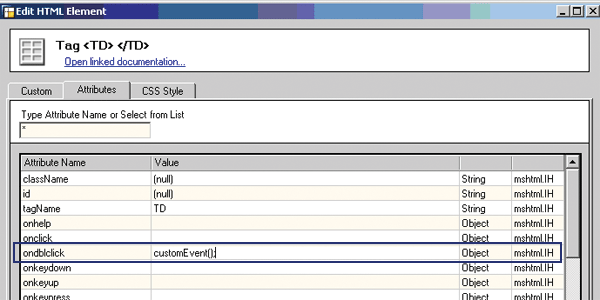
Figure 6
Edit the value for the double-click attribute
Next, drag and drop the script item from the left side of the page into the template on the right side of the page as shown in Figure 7. Click the Default button in the Web Item Parameters tab in the bottom-left corner of the page. This calls the Script Editing dialog window. Define the custom event by entering the code shown in Figure 8.
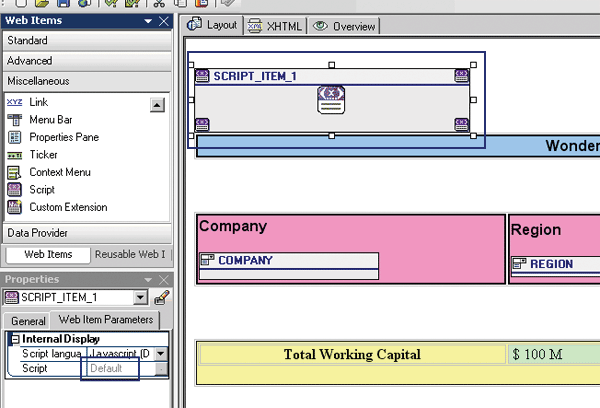
Figure 7
Script item in the template
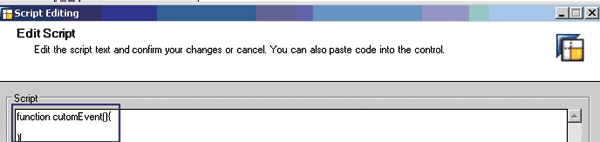
Figure 8
Add the custom event in the script editor
Step 2. Define the command sequence.
The command sequence collects different commands and sends them to the server for execution in the same sequence as they were added. You can define a command sequence with the code shown in Figure 9.

Figure 9
Declare a new command sequence
Step 3. Generate the custom command.
Return to the screen in Figure 1 and select the appropriate commands. For our example, we selected:
- Change Web Template [CHANGE_TEMPLATE]
- Remove all Filter Values [CLEAR_ALL_SELECTION_STATES]
Then enter the required parameters for the selected commands. In our example, the Remove all Filter Values command requires the list of the data providers from which to remove the filter values. For this command, enter the data providers shown in Figure 10. Click OK to view the generated code in the script editor (Figure 11). Figure 12 shows the parameters for the Change Web Template script command and Figure 13 shows the generated code.
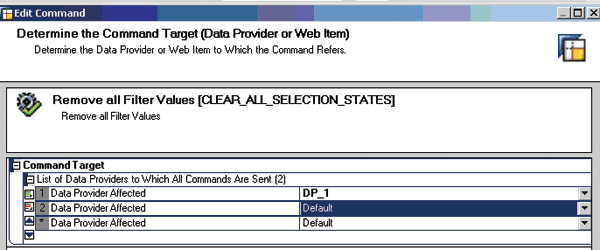
Figure 10
Enter the data providers for the Remove all Filter Values command
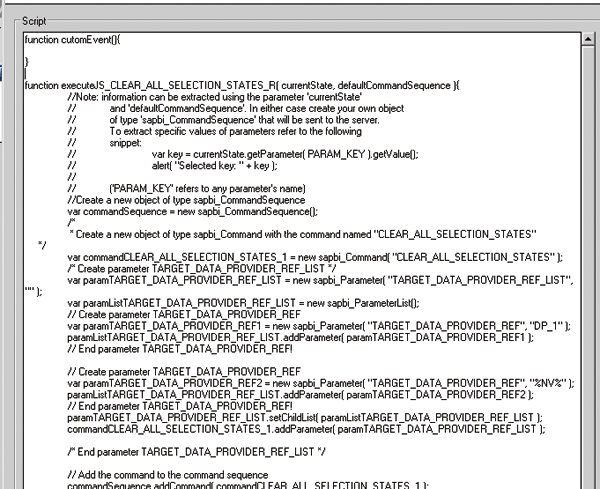
Figure 11
Generated code for the Remove all Filter Values command
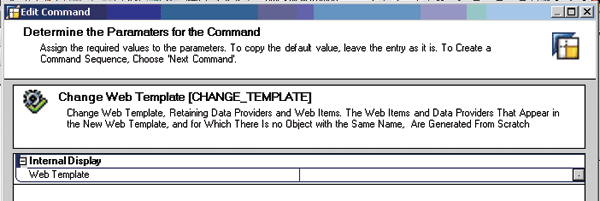
Figure 12
Enter the data providers for the Change Web Template command
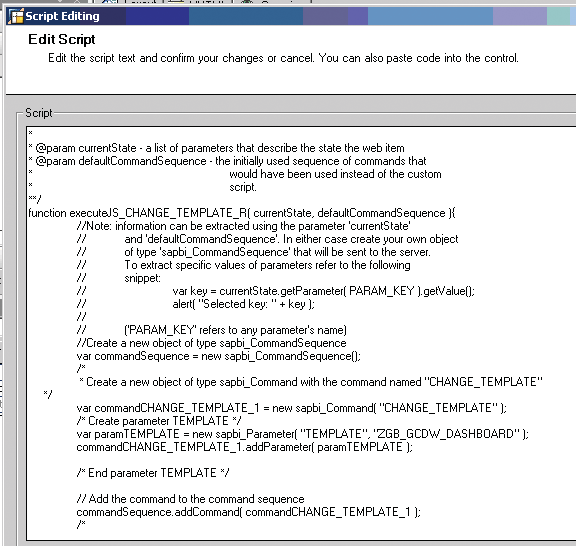
Figure 13
Generated code for the Change Web Template command
Step 4. Modify the standard generated command functions to export the command and suppress page send and server calls.
Comment the sending command (using the // notation) to the server area for the generated command, which is shown at the bottom of Figure 3. Enable the function to return the command by adding a return statement. The function then returns a command that you can add to the customEvent() command sequence (Figure 14).
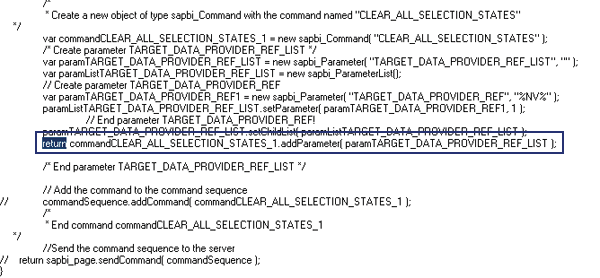
Figure 14
Command added to the customEvent() sequence
Repeat this step for all the generated commands that you want add to the customEvent() script command sequence.
Step 5. Add exported commands to your command sequence and send the command to the server for a page refresh.
Up until this point, we have enabled the generated functions to export the commands that we can use in our customEvent() function. Now we add these exported commands to the customEvent() function so that when the system executes it, both commands execute at once on the server as a single command.
Use the commandSequence.addCommand method to add the exported commands. Then send the cumulated commands to the server by using the return sapbi_page.sendCommand (commandSequence) method. Figure 15 shows what the final code should look like. Now whenever a user double-clicks Total Working Capital in Figure 4, the system executes the custom script commands and shows the company view by default.
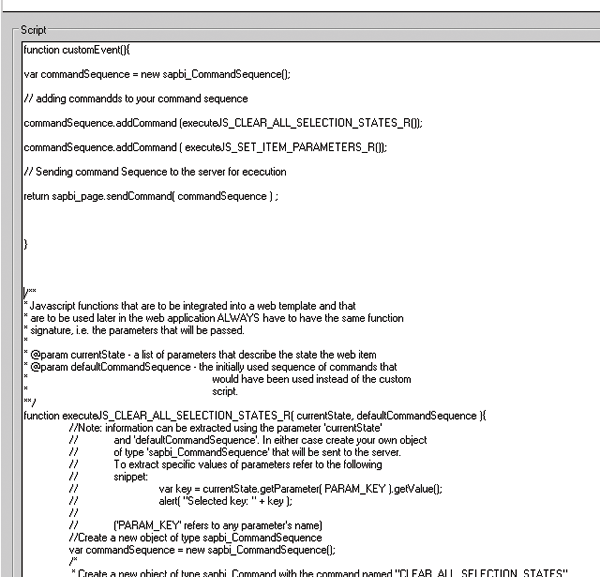
Figure 15
Final code with the custom script commands
Nikhil Sharma
Nikhil Sharma is a manager in the advisory practice at PricewaterhouseCoopers LLP, based out of Mclean, VA. He specializes in SAP NetWeaver BW architecture, design, and visualization. For the past 10 years he has led several implementations, including projects in the retail, automotive, and chemical domains. Prior to consulting, he was involved in sustenance and development of SAP NetWeaver BW at SAP, primarily concentrating on master data services.
You may contact the author at nikhil.sharma@us.pwc.com.
If you have comments about this article or publication, or would like to submit an article idea, please contact the editor.