Find out advanced methods to configure the screen layout and field properties on marketing plans and campaign documents by changing settings in Marketing Planner. In addition to the basic personal settings, you can also use modifiable and influencing fields as well as the CRM_MKTPL Business Add-In.
Key Concept
In the Marketing Planner configuration options, you can set desired screen attributes for most of the fields by making settings for modifiable fields (fields for which you can change screen attributes). You can also set screen options for one field that is dependent on the value entered in another field, which is called an influencing field.
Information required for the various marketing actions in SAP CRM differ significantly depending on company requirements or the kind of campaign. That’s why when you implement the SAP CRM Marketing application you usually have to adjust the Marketing Planner screen layout.
However, configuring the screen layout on marketing documents is quite complex and hardly documented. I’ll present the available configuration options for changing the layout and behavior of user interface (UI) in Marketing Planner. Using standard configuration, you can even control options that depend on user-entered variables, such as campaign type or person responsible. The processes in this article apply to those using the SAPGUI in SAP CRM 2005 and mySAP CRM 4.0.
To configure the screen layout on marketing documents you can use one of the following techniques:
- Personal settings: Provides the user a small set of personalization options
- Field selection configuration: Allows you to change the UI using standard configuration available in transaction SPRO
- Implementing the Business Add-In (BAdI) CRM_MKTPL: Enables you to program your own logic and change the user interface according to its results
What follows are detailed description of how each of these three options work and how you should use them to achieve your goals. To understand how the Marketing Planner UI is set up, refer to the "Marketing Planner UI: sidebar.
Personal Settings
Use transaction CRM_MKTPL to start the Marketing Planner. Open the personal settings in Marketing Planner by clicking the settings icon  on the application toolbar or by pressing Shift-F8 (Figure 1). Here you can set the following display options, which are valid only for your SAP user ID:
- Type of Processing for Marketing Planner: Controls whether you open marketing documents in edit or display mode by default
- One Column Display: Controls whether an additional column with the technical object name (marketing element ID) is visible for you in the locator and the worklist. It can be especially useful if there is business logic implemented in the construction of marketing element ID. Note that the description column is always active.
- Hierarchy levels: Controls how many marketing project levels the locator displays when you open an existing project
- Marketing Projects Last Processed: Controls how many of your recently processed projects are displayed under the proper node in the worklist
- Standard Tab Page: Controls which tab should be active after you open a new marketing project
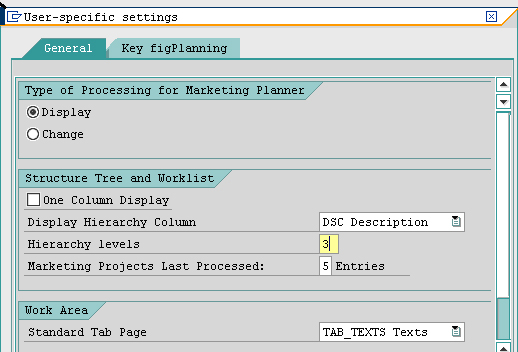
Figure 1
Options available in personal settings
Field Selection Configuration
The most important UI settings are connected to the main Marketing Planning work area. Proper configuration of this part not only makes working with Marketing Planner easier, but it also ensures that the responsible user enters all the data needed for a given project. Interface settings can also ensure that you cannot save marketing documents unless all the required information is provided, similar to the incompleteness log in other SAP applications. SAP delivers configuration transactions that enable you to set which tabs inside the work area are visible and the properties of fields available on these tabs (e.g., required, read only, or hidden) for all major marketing document types.
To access the field selection options, use transaction SPRO and follow menu path Customer Relationship Management > Marketing > Marketing Planning And Campaign Management > User Interface Setting > Define field selection for. Here you find seven similar transactions that allow you to make settings for marketing plans, campaigns, trade promotions, and deals. The options available in each transaction are exactly the same — I will show you how to use these options with campaigns.
The first screen shows you all the Marketing Planner UI elements that you can change using standard configuration. These elements are buttons (which have a technical name starting with BUTTON_), tabs (which have a technical name starting with TAB_), and input fields (Figure 2). For each element you can choose among five display options:
- Input: Makes an element visible and ready for input if you open a campaign in edit mode
- Required (Req.): Makes an element visible and ready for input if you open a campaign in edit mode. In addition, if no value is entered in the element, then the system adds a warning message to the application log.
- Display (Disp.): Makes the element visible, but not ready for input
- Hide: Hides the element. If an element that represents a tab is set to Hide, then all fields on this tab are hidden as well.
- Highlight (Hi…): If this option is set and the element is visible, then it is highlighted on the screen (e.g., a blue field description and red values entered in field)
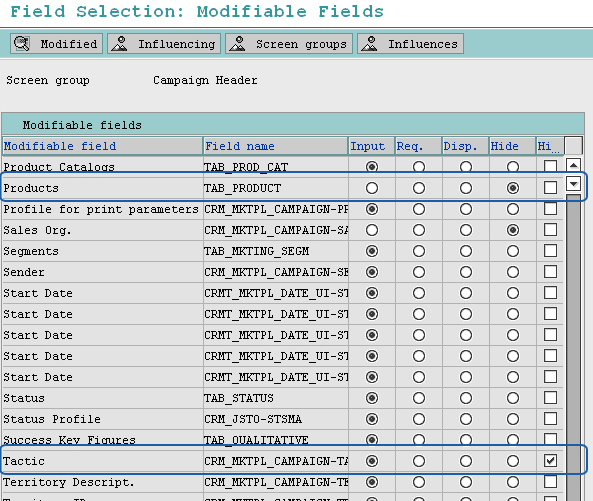
Figure 2
Set the display options for each field
Figure 3 shows what the interface looks like, based on the selections in Figure 2.
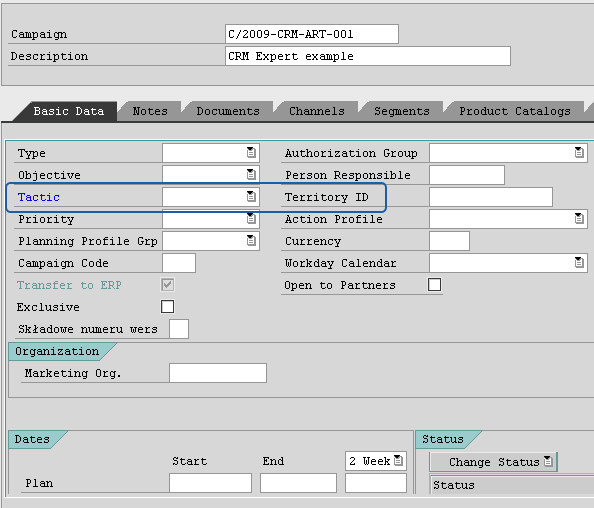
Figure 3
The Products tab is hidden, but the Tactic field is available
However, these basic options have not been sufficient in most of the real projects in which I have participated. Campaigns and trade promotions can differ significantly —even inside one company. UI requirements in such cases are different as well.
One example of this is products in campaigns. If a campaign is closely connected with a specific product that a company sells and the company wants to increase its sales volume, then the Product tab becomes one of the most important tabs on the campaign document. However, if your campaign’s main goal is to improve your company brand, then a Product tab is of no use. Furthermore, adding products can even cause some inconsistencies in SAP NetWeaver Business Warehouse (SAP NetWeaver BW, formerly SAP NetWeaver Business Intelligence [SAP NetWeaver BI]) reporting or cost controlling.
You can easily adjust the Marketing Planner UI to meet such requirements by using influencing fields. To properly configure the functionality of influencing fields, go through the following steps:
Step 1. Start the field selection configuration transaction by using transaction SPRO and following menu path Customer Relationship Management > Marketing > Marketing Planning And Campaign Management > User Interface Setting > Define field selection for (Figure 4).
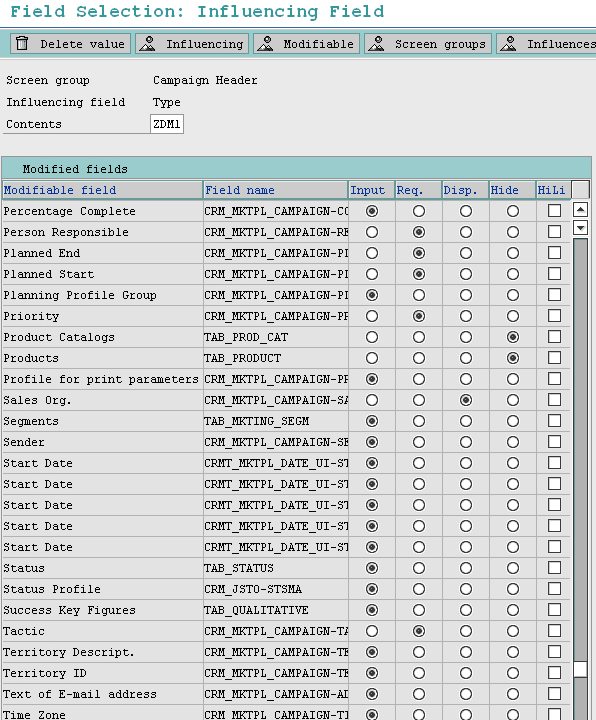
Figure 4
Set up the influencing fields
Step 2. Click the Influencing button on the application toolbar. This shows a list of influencing fields that you can use for the document type that you are processing. For a campaign document you can use four influencing fields: communication medium, person responsible, priority, and type.
Step 3. Double-click your chosen field and enter a value for the Influencing field. As a result, you receive the list of all the fields whose behavior can be influenced by the value entered on the document in the Influencing field. For example, if a user chooses campaign type Brand campaign, then the Products tab should be hidden.
Step 4. Save your entries. You can see an overview of the changes you have made so far to the Marketing Planner UI by clicking the Influences button on the application toolbar. This option is especially helpful when preparing documentation at the end of a project.
The Marketing Planner UI can also depend on hidden configuration or rules. The most important items to note are:
- The Actions tab is visible only after you have entered an action profile on the Basic Data tab
- You can adjust the visibility of the Products, Product Catalogs, and Segments tabs by using transaction SPRO and following menu path Customer Relationship Management > Marketing > Marketing Planning And Campaign Management >Basic Data > Define types/objectives/tactics
Implementing CRM_MKTPL
Sometimes the requirements for controlling the Marketing Planner UI are more complicated and you can’t handle them with standard configuration. In such cases, you can use BAdI CRM_MKTPL. (Note that the implementation of this BAdI affects the attributes, regardless of the UI you use.) This BAdI contains the method MODIFY_FIELD_ATTR, in which you can program the logic to determine whether a given field should be visible and ready for input.
Note
Before you can use CRM_MKTPL in SAP CRM 2005, you need to implement SAP Note 1156691 (“Badi CRM_MKTPL_R3_INT implementation deactivation”).
This option is useful if you want to control a field’s behavior depending on a combination of values entered in several fields or with logic that uses data not available directly in the Marketing Planner (e.g., attributes of the responsible marketing organization).
Table 1 provides the import and export parameters available in the MODIFY_FIELD_ATTR method. Figure 5 shows a sample implementation of method MODIFY_FIELD_ATTR in which I changed the ABAP logic screen options for the Actual Start Date and Actual End Date fields. In this example, the actual date fields are editable only if the Planned Start Date has passed.
| IM_FIELDNAME |
Name of the currently processed field. The method is called one time for each field. By using this parameter, you can restrict your ABAP logic to work only for chosen fields. |
| IM_STRUCTURENAME |
Name of the screen structure to which the field belongs |
| IM_PROJECT |
Reference to class CL_CGPL_PROJECT. With this class, you can get the most important data connected to the currently processed marketing project. |
| IM_TASK |
Reference to class CL_CGPL_TASK. With this class, you can get the most important data connected to the currently processed marketing element. |
| IM_MKTELEMENT |
Structure containing the most important information about the currently processed document (all information from the Basic Data tab, except additional date range fields added with Easy Enhancement Workbench). To read missing data, you can use methods of class CL_CRM_MKTPL_APPL_BASE. |
| CH_C_INPUT |
Flag indicating if the field should be ready for input (1 - yes, 0- no) |
| CH_C_OUTPUT |
Flag indicating if the field should be visible (1 - yes, 0 - no) |
|
| Table 1 |
Parameters available in the MODIFY_FIELD_ATTR method |
DATA :
         lv_planstart    TYPE  sy-datum.

    " read the planned start date
    CONVERT   TIME   STAMP  im_mktelement-planstart  TIME   ZONE  sy-zonlo
      INTO   DATE  lv_planstart.

    " restrict logic only to actual date fields
    IF  im_fieldname =  'ACTUALSTART_IO'    OR
      im_fieldname =  'ACTUALFINISH_IO'   OR
      im_fieldname =  'ACTUAL_DURATION' .
      " check if planned date lies in past
      IF  lv_planstart  IS   INITIAL   OR
        lv_planstart > sy-datum.
        " change screen attributes for actual date fields
       ch_c_input  =  0 . " --> read-only
       ch_c_output =  1 . " --> visible
      ELSE .
        " change screen attributes for actual date fields
       ch_c_input  =  1 . " --> editable
       ch_c_output =  1 . " --> visible
      ENDIF .
    ENDIF .
|
| Figure 5 |
Example of modifying fields using the parameters in Table 1 |
The Marketing Planner UI
As with many other SAP CRM applications, its interface is divided into three main parts:
- Locator: Placed in the upper-left part of screen. The locator helps users to find existing projects and displays their hierarchical structure in a form of tree control.
- Worklist: Placed just under the locator. Its main function is to provide quick and easy access to favorite or last-processed marketing projects.
- Work area. The main part of Marketing Planner, which is on the right side of the screen. The work area consists of a set of tabs that groups logically connected fields together. From the technical point of view, this part is based on the subscreen technique. Figure A shows a short explanation of the most important subscreens. The most important ABAP object used in here is the tab control. You can view the detailed work area construction by using the Screen Analysis option in the new ABAP debugger.

Figure A
Technical construction of the work area in Marketing Planner
Note
To access the new ABAP debugger use transaction SE80 and follow menu path Utilities > Settings. On the ABAP Editor tab, select the new version of ABAP debugger. You can find more information about the new ABAP debugger functionality in
SAP Help.
Marek Andrzejczak
Marek Andrzejczak is a senior SAP consultant specializing in SAP CRM and SAP SD. As a leading consultant he has taken part in several SAP CRM and SAP ERP implementations, including global template solutions. In this role, Marek helps to define and implement SAP CRM/SAP SD strategies for customers from the retail, FMCG, media, construction and food industries. Marek is an SAP-certified consultant in the areas of SAP CRM, SAP SD and ABAP.
You may contact the author at marek@marekandrzejczak.pl.
If you have comments about this article or publication, or would like to submit an article idea, please contact the editor.