Learn three advanced Web Intelligence reporting techniques that you can use to improve the user experience for report consumers. See video demos of the three techniques: modifying calculation contexts, using input controls, and using OpenDocument functionality.
Key Concept
OpenDocument provides the ability to build links between BI reports and dashboards that pass context and filters, which allows navigation to BI content from outside the BI environment. Input controls provide in-report filters to end users, giving them greater control over the data presented in the report. Calculation contexts are the technical control that determines how measures are aggregrated. Modifying these allows greater control over how information is presented in reports.
I'd like to introduce you to some advanced Web Intelligence reporting techniques that I have used in previous reporting projects. These techniques apply to any data source and any business process. I will provide you with the tools to provide a better user experience, meet difficult business requirements, and provide a more seamless experience for your report consumers. It's important that report developers continually look to improve their capability with the products. Web Intelligence in particular is simple for beginners, and yet, it also has features for advanced reporting and analysis.
So how are these techniques useful? For example, by using drilldown capabilities with OpenDocument, you can build summary-detail reports. Users can consume the summary reports by default, and if necessary, can drill to the filtered detail reports. Another example would be using input controls to provide a large set of information for many different users, while giving them the flexibility to filter to a granular set of information relevant to them. The three advanced techniques that I cover in this article are:
- Modifying calculation contexts
- Using input controls
- Using OpenDocument functionality
Modifying Calculation Contexts
The standard Web Intelligence functionality calculates and aggregates measures in the context of any surrounding dimensions. Surrounding dimensions can include dimensions in the same block (table or chart) or dimensions in a section. An example of this default behavior is a measure called sales revenue, which is put into a table with the year dimension. In this case, sales revenue automatically is calculated in the context of the year dimension, and therefore, it is aggregated to the year dimension. This is the default behavior.
You can see in Figure 1 how the Number of Sales measure is aggregated and calculated first at the Year dimension within the vertical table. Because I have a section on state, the Number of Sales for this table is calculated for the state of California and then is broken up by year. The table has a grand total, which is the number of sales for California (and the total of the years). This grand total matches the separate Number of Sales freestanding cell that's been placed next to the California section name, which shows that default contexts work the same whether they are in a table’s grand total or in a free-standing cell.
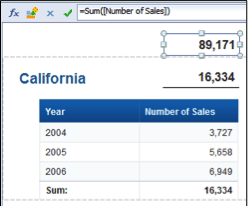
Figure 1
Default calculation contexts
In Figure 1 you can also see the grand total for the report in the top right corner, showing Number of Sales. This is a total of all the Number of Sales with no filtering, as it has been placed in the report header.
An advanced technique called calculation contexts allows you to modify the context in which the measure is aggregated or where the calculation is done. Modifying the calculation context of a measure consists of several components. A calculation context is first of all defined in a formula or variable. Typical examples of calculation contexts are showing a filtered view of a measure within the wider context of a table, using the average of the overall measure to determine percentages, or showing how close the current record is to the overall average. Another example is showing the highest quarterly revenue for the year, alongside the year and sales revenue total.
You can see in Figure 2 that I have added a third column to the table, with a formula (shown in Figure 3) in it that evaluates to 4.18%. The first component, Sum([Number of Sales]), is doing a default context sum, the Number of Sales. This equates to 3,727 as seen in Figure 2. However, if you then divide this number by the second component of the formula - Sum([Number of Sales]) In Report - which is summing the Number of Sales for the whole report, it totals 89,171. This formula allows you to show the percentage for the number of sales for 2004 in California. Try the calculation yourself, 3,727 / 89,171 = 4.18%.
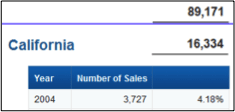
Figure 2
Percentage formula added to the sales revenue table

Figure 3
Percentage formula added to the revenue sales table
The standard components of the calculation context are a measure, aggregation function (this can either be inferred from the measure object or explicitly defined in the formula), and the input and output contexts. The syntax is:
=AggregateFunction([Measure] Input Context) Output Context
An input context can be thought of as I need to take into the calculation one number for every ___? Conversely, an output context can be thought of as I need this formula to put out one number for every ___?
In the video below, I step through two examples of creating calculation contexts. I then list each of the steps for the two methods as a demonstration.
How to Create a Calculation Context
Example 1: Calculate the Average Margin
The requirement in this demonstration is to show which product families have high sales. You determine high sales by whether the margin is greater than the average margin for all product families. The solution is to use calculation contexts to calculate the average margin for all product families.
I first show in the video how you can find the average by adding an average. However, if you try and replicate the formula for the average for each product family, the default context is to average the one product family, not all product families. Therefore, you add an output context to the formula.
=Average([Margin]) In Block
This let’s you use the average margin for all product families in the second formula:
=If [Margin]>[Average Margin] then "High"
This allows you to highlight the high sales product families (Figure 4). This example can also be used for creating dynamic alerts.
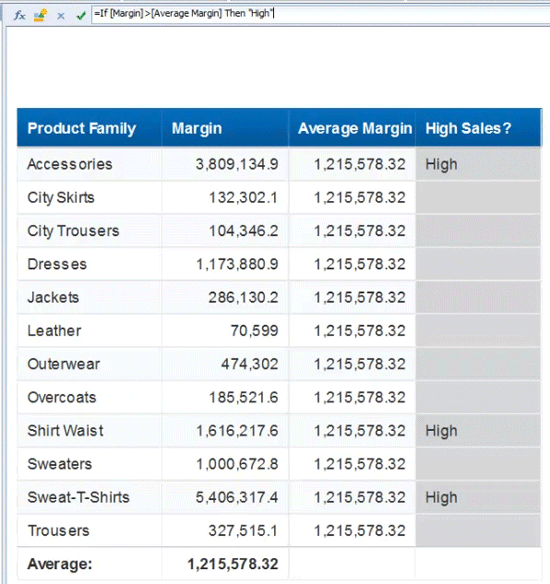
Figure 4
High sales product families
Example 2: Calculate the Highest Yearly Margin
The second requirement is to show a third column that highlights the highest yearly margin in a table of states and total margin. For some states, this may be the year 2004, 2005, or 2006. This requirement can be met by changing the input context of the Max([Margin]) formula to:
=max([Margin] In([State];[Year]))
What this formula does is calculate the maximum margin, but I specified that I want the maximum margin to be calculated by state and year (Figure 5).
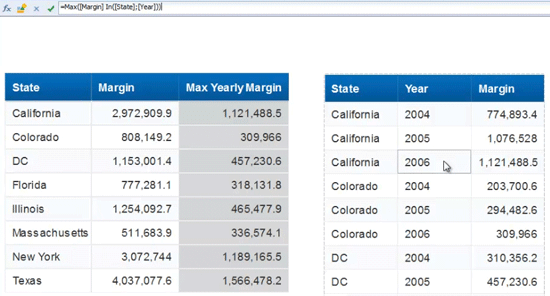
Figure 5
Maximum margin by state and year
From these two examples, you can see that using calculation context allows you to substantially represent your data at different aggregation levels and also provide advanced information. You can find more information on calculation contexts in the Web Intelligence User Guide (https://help.sap.com/bowebi).
The best approach I've found in building calculation contexts is to use the raw data to find the values you want to re-create. You can then use a process to build up the formula until you are able to replicate the value for which you are looking. You can also test the formula in multiple dimension groupings to verify its validity before saving it as a variable for reuse. It is an advanced technique and does take some practice with the formula to understand exactly how to use calculation contexts.
Using Input Controls
Input controls are introduced in Web Intelligence XI 3.1. Input controls allow you to bind drop-down boxes, radio controls, input boxes, and more to dynamic filters. These controls then filter a report tab within Web Intelligence. At a basic level, input controls provide a lot more flexibility for your end users by filtering all or some of the blocks that are present in your report tab.
This process is not without some challenges in ensuring that users understand what filters have been applied, especially if an input control is already filtered before the report is opened. This issue can be resolved by providing header or footer information about the dimensions that have been filtered. This effort is worthwhile because the benefits of using input controls outweigh the challenge of using it.
A traditional static report can easily be made far more dynamic for end users to work with to find and filter on their own specific sets of information. You can use multiple input controls to narrow down a large dataset to a more customized one unique to the user.
Be careful to not include so much information in the queries that the performance of the report being rendered is affected adversely. Input controls can also be used as the basis for more advanced techniques. For example, in the video below, I use an input control to dynamically select a measure that is represented in a variable. This variable can be used in tables and charts. The user is then able to dynamically select the measure presented in a chart. Other examples are using input controls as a search input, to find information in your dimensions, or to dynamically change the x-axis of a chart.
How to Use Input Controls
1. Simple Input Controls
A table and chart are defined on my Web Intelligence report. I add an input control bound to year and provide a check box input control. This is applied to all blocks within the report. Report consumers can tick on or off whichever years they want to be displayed in the report (Figure 6). I then add a second input control that allows the report consumer to filter the chart only for Product Family.
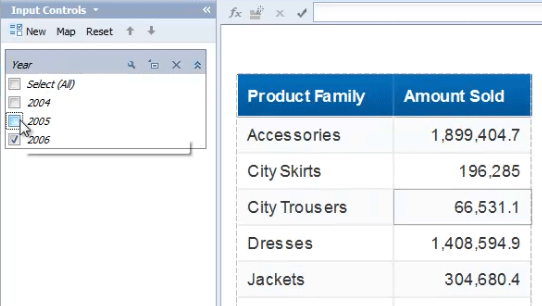
Figure 6
Select the years to display in a report
2. Dynamic Measure Displayed in Chart
In this example, I use an input control with a manually defined list of values to allow the report consumer to choose a measure that is displayed in a table or chart (Figure 7). The video also shows you how to set up the dimension and measure variables that drive the solution, and more information can be found here https://blog.davidg.com.au/2011/09/dynamic-measures-in-webi-on-any-data.html.
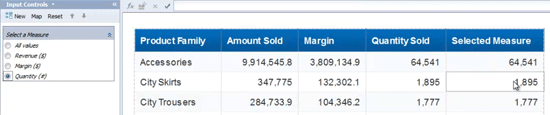
Figure 7
Choose a measure
Input controls are also useful if you are using Web Intelligence for a dashboard-style layout. In summary, input controls allow you to hand over more functionality, filtering capability, and hence flexibility to your report consumers. I recommend that you always consider including input controls in your report designs.
Using OpenDocument Functionality
OpenDocument has been present in the BusinessObjects platform since BusinessObjects XI R2. The OpenDocument functionality supports linking to any BI content present in the BusinessObjects system, not just Web Intelligence. However, Web Intelligence (Web client only) includes a specific wizard to quickly create OpenDocument links to other BI content. An OpenDocument link is a URL that uses your BusinessObjects Web application server to specify the Web application server name, specific ID of BI content (e.g., Web Intelligence, Crystal, Xcelsius), and then any configuration settings. Examples of configuration settings include input prompt values, only show a report part, or use latest instance of a report.
The OpenDocument functionality provides a lot of potential integration functionality, both inside your BI content and in external applications and portals. Some examples of where you can use OpenDocument functionality are:
- Providing report-to-report linking, such as starting from an Xcelsius dashboard (summarized dataset) and then drilling on a specific dimension value that is passed along to a more detailed Web Intelligence report and filtered on with a prompt
- Embedding direct links to BI content from outside the BOBJ system, such as the SharePoint portal
- Integrated report access with the SAP NetWeaver Portal
- Enhancing custom applications with links to BI content, such as a list of customers or a P&L report
The BI Mobile application for iOS supports the OpenDocument functionality, even if the content isn't tagged as mobile. Users can drill to other BI content within the mobile application. The possibilities are endless, and I recommend that you discuss using OpenDocument functionality with your IT team to examine further use of the BI content outside of the BI system.
The Web client of Web Intelligence 4.0 has a wizard that automatically builds the URL for OpenDocument (Figure 8). I show you how to use this wizard in the video below.
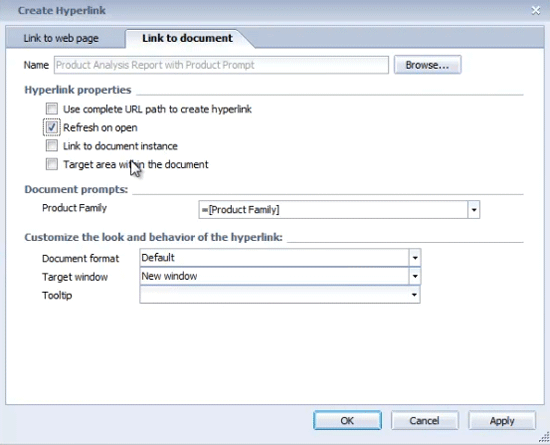
Figure 8
The wizard for building a URL for OpenDocument
Note that the wizard automatically picks up any prompts and does a best guess for which dimension value to pass along from the parent report. You can also use a formula to pass along any input you require. However, you also have the option to manually create the OpenDocument URL. The link to the OpenDocument guide here contains all components necessary to build your URLs in BusinessObjects 4.1 (https://help.sap.com/businessobject/product_guides/sbo41/en/sbo41_opendocument_en.pdf). This non-working sample link is an example of a complete OpenDocument URL: https://server:8080/BOE/OpenDocument/opendoc/openDocument.jsp?sIDType=CUID&iDocID=AW4AVT1AUhVAogA6P7OQv9c.
Next I step through a few examples of using OpenDocument.
1. Inserting a Drilldown Report
I first show a drilldown report that is ready to accept input via a prompt. I then navigate to my master report, where I add the document link. The prompts are automatically linked, but can be manually modified to use formulas.
I then show how you can manually insert an OpenDocument link to a freestanding cell (Figure 9), and finally see the OpenDocument link for any BI content directly within the BI Launchpad.
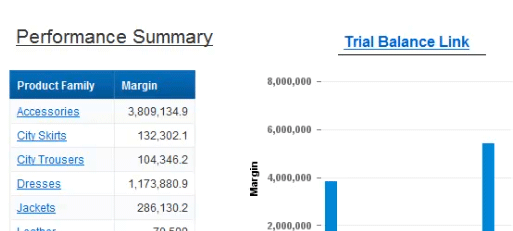
Figure 9
Insert an OpenDocument link to a freestanding cell
Josh Fletcher
Joshua Fletcher is an SAP BusinessObjects professional with more than 12 years of experience using BusinessObjects, Crystal Reports, and Data Services. He is a current SAP Mentor, has worked with both partners and customers of SAP, regularly presents at international conferences and guest lectures in university courses, as well as podcasting with DSLayer.net.
You may contact the author at josh@geek2live.net.
If you have comments about this article or publication, or would like to submit an article idea, please contact the editor.