The SAP NetWeaver Business Client (NWBC), which is based on SAP ABAP Web Dynpro technology, is one of the front-end tools for accessing SAP GRC 10.0. Learn how to control the ability of end users to make changes to the user settings of their Web Dynpro-based application forms.
Key Concept
Personalization involves the process of customizing services (for example, ABAP Web Dynpro applications) to suit users’ preferences. The WDDISABLEUSERPERSONALIZATION ABAP Web Dynpro parameter can be used to control the ability to change personalization settings, especially when the capability is abused by end users.
The capability to maintain user settings should be controlled in a business environment. If appropriate controls are not in place, it is common for users to play around with user settings. This often leads to unnecessary help desk calls as a result of end users tampering with the application forms, such as hiding fields or entering filter values. Changing user settings can lead to an avoidable error message. For example, if you have configured the description field of an access request form to be mandatorily filled before an access request can be submitted and the form is now personalized to hide the description field, then an error is displayed when the field is not completed because it has been unintentionally (or intentionally) hidden.
Personification and Personalization of Web Dynpro Applications
To personalize Web Dynpro applications, access transaction code NWBC. In the screen that appears (Figure 1) click the Access Request link.
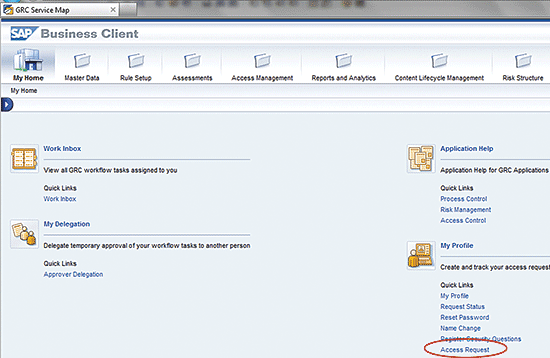
Figure 1
The initial screen of NWBC
In the next screen, right-click the Description field and place the cursor on User Settings (Figure 2).
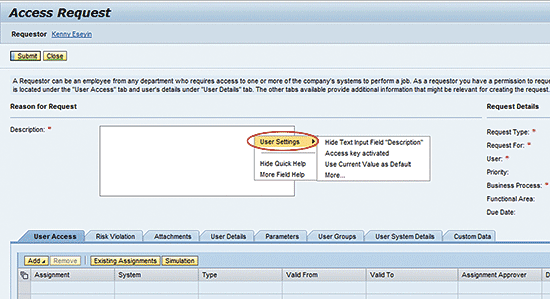
Figure 2
User Settings
Click Hide Text input Field “Description” from the list of options shown in Figure 3. Note that it is possible to choose this option mistakenly.
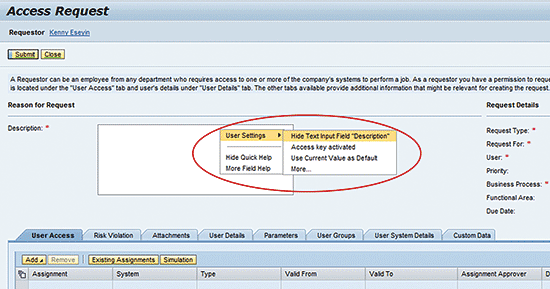
Figure 3
The User Settings option for hiding the input field
The next screen (Figure 4) appears with the Description field hidden. If you don’t maintain control over this setting, you run the risk of having a user inadvertently change it. To enforce control, it is a good practice to restrict users from changing such user settings.
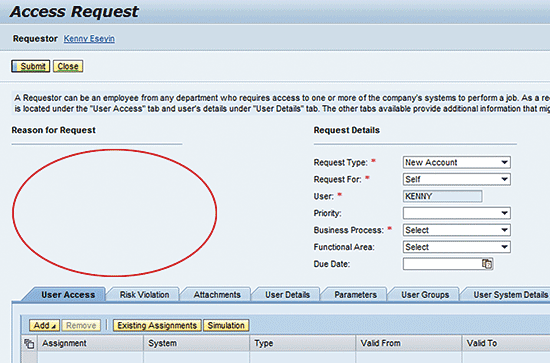
Figure 4
An Access Request form with the mandatory Description field hidden
Consider a scenario in which the user wants to create an access request with the personalized form after mistakenly changing the user settings. After you enter the details on the access request form as shown in Figure 5, click the Submit button.
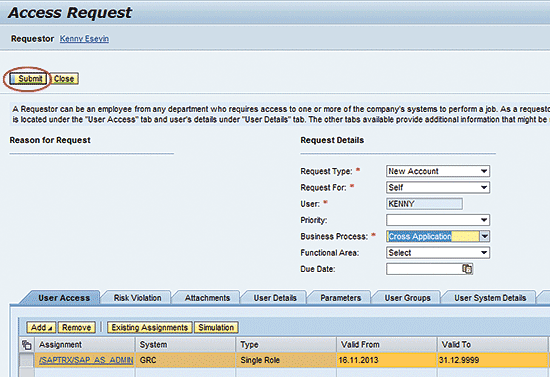
Figure 5
A completed Access Request form without the description field
The next screen (Figure 6) displays the following message: Enter the value for Reason for Request. This error could have been avoided if the appropriate control was in place to guide against user personalization.
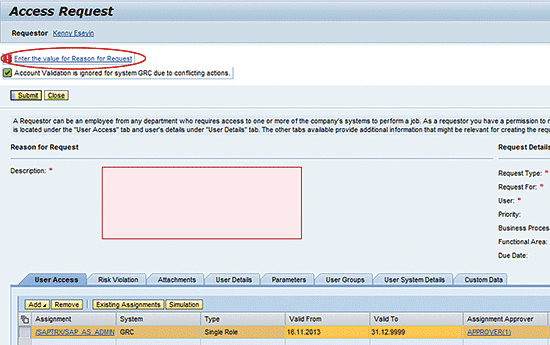
Figure 6
Error message when submitting access request form without a completed Description field
Now, I show you how to block users from making these changes to Web Dynpro ABAP forms.
Steps to Prevent Users from Changing Web Dynpro ABAP Forms
Access the ABAP Workbench via transaction code SE80 (Figure 7).
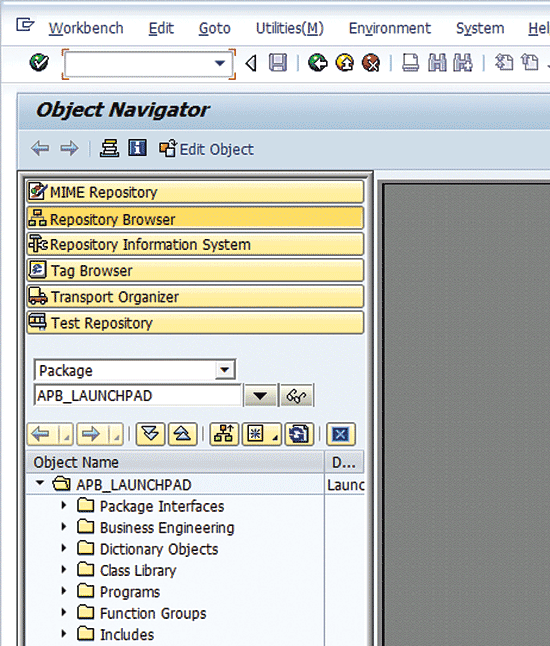
Figure 7
The initial Object Navigator screen
Select Package and GRAC_ACCESS_REQUEST from the options in the pull-down menus as shown in Figure 8.
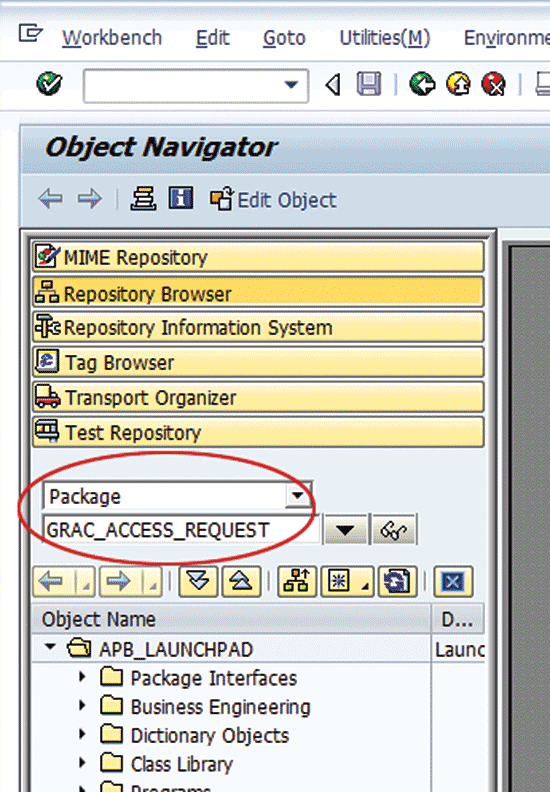
Figure 8
Select the Package option in the Object Navigator
Click the display icon (the glasses). In the next screen, follow menu path Web Dynpro > Web Dynpro Application (Figure 9).
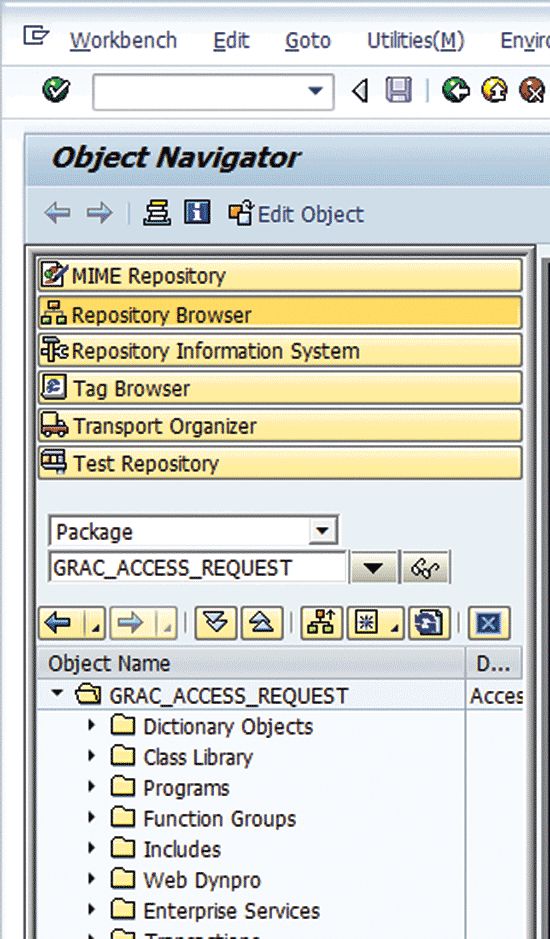
Figure 9
Objects of GRAC_ACCESS_REQUEST package
In my example, I select GRAC_OIF_REQUEST_SUBMISSION from the list of Web Dynpro applications shown in Figure 10. You can choose any application based on your business need.
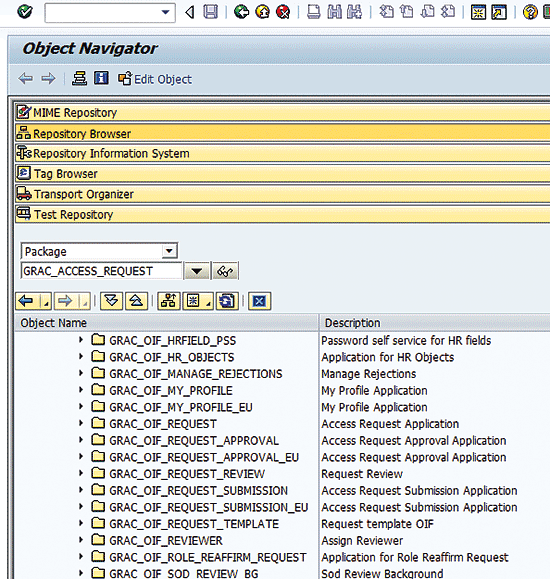
Figure 10
Web Dynpro applications of GRAC_ACCESS_REQUEST package
Double-click the application folder GRAC_OIF_REQUEST_SUBMISSION. In the next screen click the Parameters tab (Figure 11).
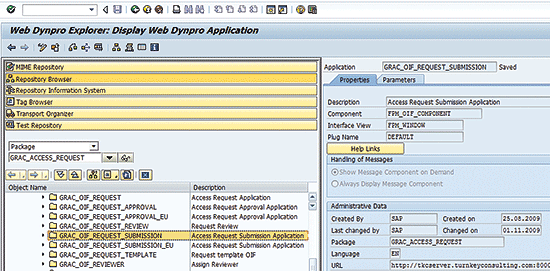
Figure 11
Properties of a Web Dynpro application
Click the change icon to change to edit mode (Figure 12).
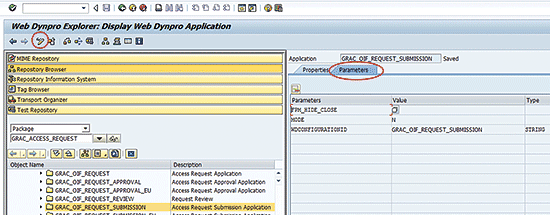
Figure 12
Parameters of a Web Dynpro application
The Register Object dialog box displays the request for an Access Key, as shown in Figure 13.
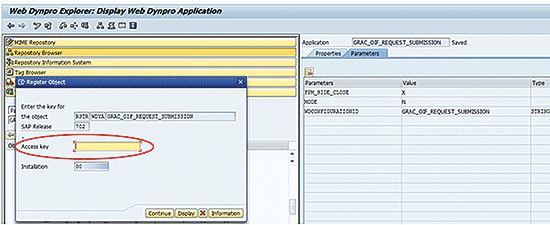
Figure 13
Access key request object registration dialog box
Note
The Access Key is requested on the SAP Service Market Place: SSCR – SAP Software Change Registration.
Once you have requested the access key in the SAP Service Marketplace, enter the access key in the appropriate field as shown in Figure 14. Click the Continue button.
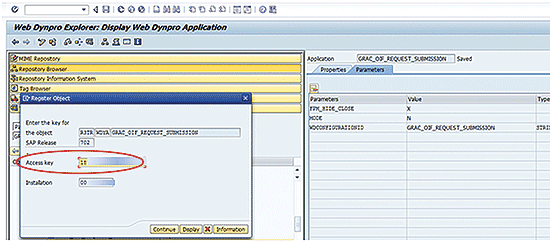
Figure 14
Enter the access key value
The confirmation dialog box appears (Figure 15).
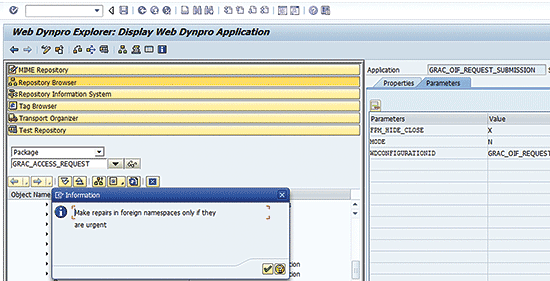
Figure 15
Caution information for making changes to foreign namespaces
Click the green check mark. The screen displays in change mode (Figure 16).
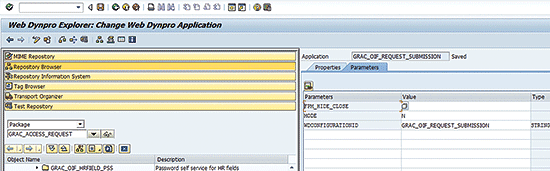
Figure 16
Parameters tab of a Web Dynpro application
Enter the following values in the Parameters and Value columns (Figure 17):
- Parameters: WDDISABLEUSERPERSONALIZATION
- Value: X
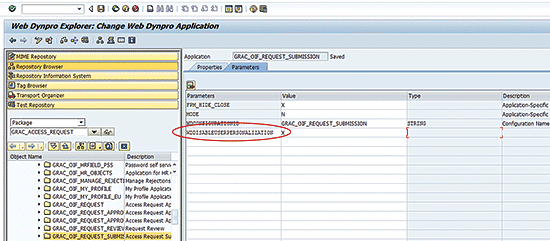
Figure 17
Addition of WDDISABLEUSERPERSONALIZATION parameter and value
Click the save icon. In the next screen, you receive a status message indicating that the submission has been saved (Figure 18).
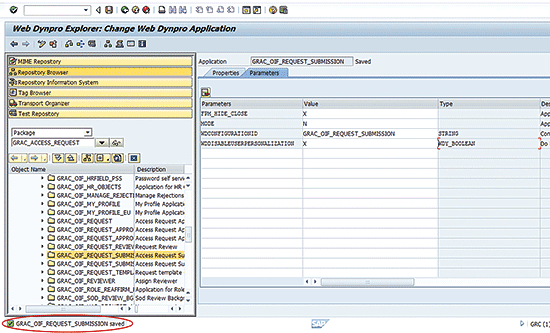
Figure 18
Saved changes to the Web Dynpro application
Figure 19 displays the Description field of the parameter that you just maintained. To view this description, scroll to the right in the screen shown in Figure 18.
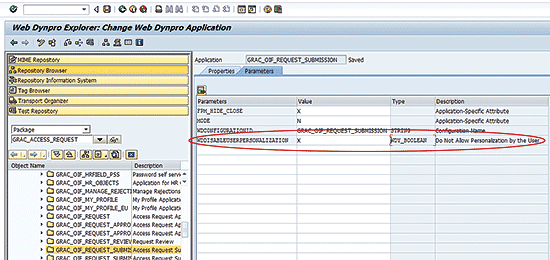
Figure 19
The description field of the changed Web Dynpro application parameter
If you right-click the form again (just as you did in Figure 2), the user settings option is no longer visible, as shown in Figure 20.
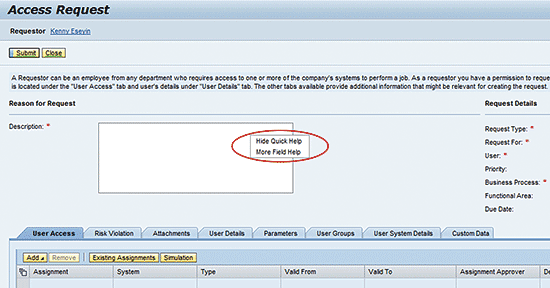
Figure 20
An Access Request form with the capability for changing user settings disabled
ICF Service Maintenance
Another way to achieve this change to user settings is globally for all Web Dynpro applications at once. This is done via the maintenance of the ICF service.
Execute transaction code SICF. In the Service Name field, enter WD_GLOBAL_SETTING. Click the execute icon (Figure 21).
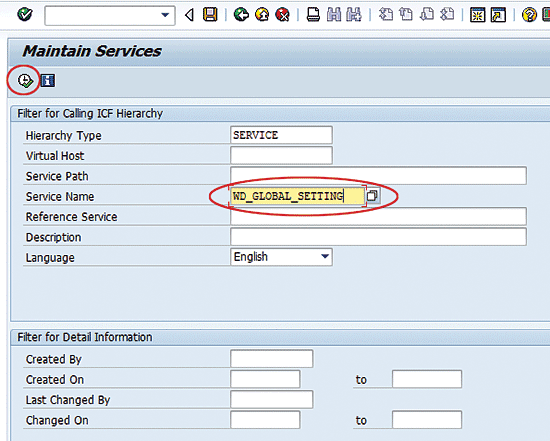
Figure 21
Filter definition for the Service Name field
In the next screen, right-click the service WD_GLOBAL_SETTING (Figure 22).
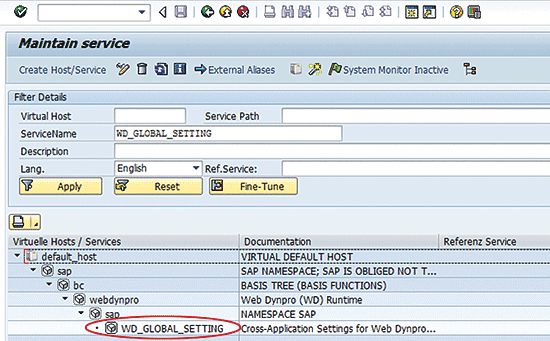
Figure 22
WD_GLOBAL_SETTING service in SICF
Select Test Service from the list of options (Figure 23).
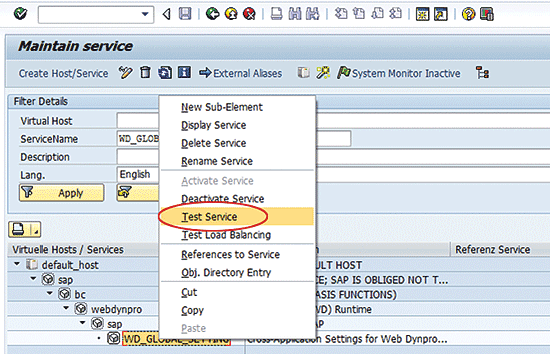
Figure 23
Test WD_GBLOBAL_SETTING SICF service
In the next screen, the Cross-Application Settings for Web Dynpro ABAP window displays with a number of nodes (Figure 24).
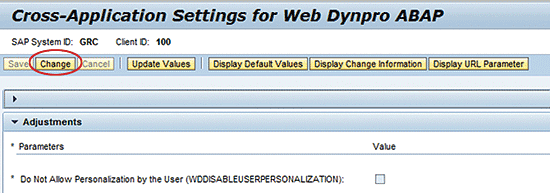
Figure 24
Global application setting for Web Dynpro ABAP
Click the Change button. The next screen appears with the form activated in edit mode (Figure 25).
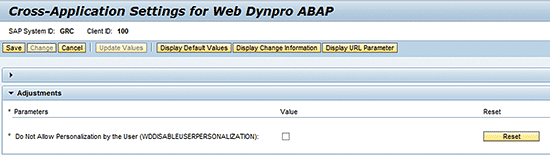
Figure 25
The disable user personalization settings option
Under the Adjustments node, check the box beside Do Not Allow Personalization by the User (WDDISABLEUSERPERSONALIZATION) option, as shown in Figure 26.
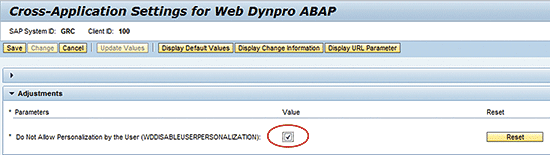
Figure 26
Activate the disable user personalization settings option
Click the save icon. The next screen displays a status message that the data was saved successfully (Figure 27).
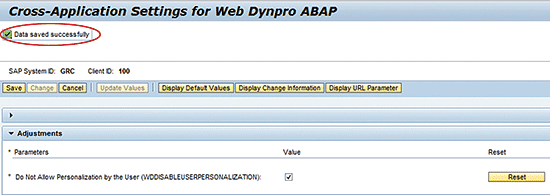
Figure 27
The saved entry for the disable user personalization settings option
Kehinde Eseyin
Kehinde Eseyin is a security architect. He holds a bachelor’s degree in computer science. He has about 12 years of IT security, governance framework, IS risk, and compliance experience gained by working in numerous global organizations. Over the years, he has demonstrated competencies in security design, information assurance, cyber security, data privacy, threat and vulnerability management, penetration testing, business architecture, project management, IT audit, IS controls framework, and identity and access management.
You may contact the author at eseyinok@gmail.com.
If you have comments about this article or publication, or would like to submit an article idea, please contact the editor.






 Premium